2022 Unformat Freeware | Unformat Hard Disks/USB Drives with Ease
Applies to: You can recover and unformat data for free from various storage devices, including hard drives, solid-state drives, external hard drives, USB flash drives, and SD cards.
If you mistakenly formatted a hard drive and lost important data. You can try using data recovery software to scan the drive and recover your files.
To get the best unformat solution, follow the content navigation bar. This will lead you to the most suitable unformat option for your needs.
What Does Unformat Mean
To understand what "unformat" means, it's essential to first grasp the concept of "format".
Format, Formatting a partition, which is often referred to as a high-level format, is a process that prepares the chosen partition on the drive to be used by deleting all the data and setting up a new file system.
Unformat Recovering lost data from a high-level formatted disk involves retrieving data from a disk that has been reformatted, and if possible, converting the file system to its previous state, allowing access to previously inaccessible data.
- Extended Reading: What Is High-Level Format
- Generally, the high-Level format is a process to wipe saved data from a storage device, resetting the file system to its original state, typically for a specific purpose, such as formatting a hard drive. This process is commonly used on Windows and Mac computers, and is often associated with file systems like NTFS and FAT32.
- Ordinary people can directly format their devices using Windows File Explorer, Disk Management, or the CMD format command, without needing to rely on a technician.
If you've accidentally formatted the wrong device, there are ways to recover your files. For Mac users, refer to the guide on Unformat Mac Hard Drive. Windows users can follow these steps to safely unformat their drive and recover their files immediately.
What to Do When You Formatted a Wrong Drive
Here are two things you should do when you committed formatting on a wrong storage device:
- First, stop using your formatted device. Don't use or save new files to your drive.
- Next, turn to reliable format recovery software for help.
If you need free unformat software, Qiling free data recovery software is capable of helping you out.
2022 Best Unformat Freeware Free Download
Deep Data Recovery Free Edition is a free data recovery software that can recover formatted data from various storage devices, making it accessible to users of all levels.
If you've lost something important due to a hard drive formatting, Deep Data Recovery is here to help you get them back.
This unformat freeware is definitely worth trying, offering high performance, stability, and flexibility that makes it a standout in its category.
- The software supports various recovery scenarios, including formatted recovery, deleted file recovery, partition recovery, and OS crash recovery, among others.
- Support all existing file types (photos, videos, audio files, documents, emails...)
How to Recover Formatted Data with Qiling Unformat Freeware
To unformat a storage device, you'll need to follow two processes. First, you'll need to erase all the data on the device, which can be done by using a formatting tool or software.
1. Recover Data from Formatted Hard Drive
Deep Data Recovery allows you to quickly and easily recover lost files from formatted storage devices, such as hard drives, USB flash drives, and memory cards, with a simple and user-friendly process.
Recover Files from Formatted Hard Drive
Note: To maximize the chances of successful data recovery, install Qiling data recovery software on a separate disk, not on the formatted disk itself.
Step 1. Launch Deep Data Recovery. Select file types and click "Format Scan" to begin the recovery process.

Note: You can choose different search modes based on where and why the data was lost.
Step 2. The software will scan the hard drive partition and display all the recoverable files. You can preview and select the files you want to recover.

Step 3. This formatted hard drive recovery software will start scanning for all lost data and files. After scanning, you can filter a specific file type to quickly find the files you need, or search for specific files or folders to select the data you want to recover.

Step 4. To recover deleted files from a USB drive, first preview the scanned files. Then, select the ones you wish to recover and click "Recover". Next, choose a new location to store the files and click "OK".
Note: Don't save the restored files back to your formatted device before making sure it's available for data storage again.
To unformat a hard drive, you can follow the same steps to recover data from other storage devices. The process involves using a data recovery software to scan the drive, recover deleted files, and restore the original file system structure, effectively unformatting the drive. This method can be used to recover data from other storage devices as well, making it a versatile solution for various data recovery needs.
2. Format or Revert The Device to Its Previous File System (Optional)
If you've altered the device file system during formatting and want to restore its original file format, you can try reformatting and resetting the file system on your drive again.
Save the recovered data to another secure location to avoid further data loss.
To revert a device to its previous file system, you can use the command-line interface (CLI) or a tool like Disk Management in Windows. For example, if you previously formatted a USB drive to FAT32, you can use the `format` command in the CLI to revert it to FAT32.
Step 1. To connect your USB device to your PC, simply plug it into a USB port. Then, press the Windows key + E keys on your keyboard to open File Explorer, which will allow you to view and manage the contents of your USB device.
Step 2. Right-click on your USB drive and choose "Format".
Step 3. Set FAT32 as the file system, check "Quick Format" and click "Start".
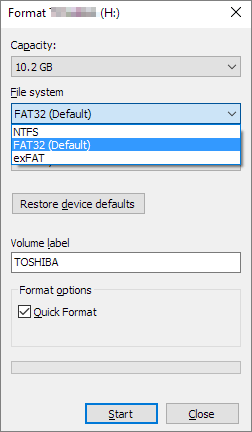
You can use Qiling unformat freeware to recover and save data from a formatted device, and then restore your device to other file systems, as long as the recovered data is safely stored in another location.
Bonus Tip: If you want to change FAT32 to NTFS on your storage devices, you can try formatting, or use the 'Convert FAT32 to NTFS Without Data Loss' method.
Bottom Line
When you mistakenly format a hard drive, stop using it immediately and seek help from a reliable unformat software to recover your data. This process, also known as unformat, is the recovery of data after a format.
Versatile unformat software - Deep Data Recovery offers a hassle-free solution to recover files from formatted disks in just 3 easy steps, making it a reliable choice to fulfill your data recovery needs.
If you want to reset your device's file system to a previous format, you can reformat your drive after saving any recovered data to a secure location.
To protect your valuable files from being formatted, it's a good idea to create an extra backup of your data by either manually copying and pasting files one by one or using reliable file backup software to safely back up all data at once.
Related Articles
- Hard Drive Clicking? See How to Fix Click Hard Drive On Your Own
- Fix Error 0x80070490 in Windows Update, Mail App, and Xbox
- Fix Windows 11/Windows 10 Is Not Shutting Down or Won't Shut Down
- Fixed: Why My PS4 Won't Turn On
- 7 Data Recovery Software Crack with Serial Key and Registration Code
Are you looking for 7-data recovery software 3.6/4.1 crack with serial key, registration code, keygen and license code? Do not do that, here is a safer alternative solution. - 7-Zip Data Error Fix (4 Methods)
If you're experiencing a “data error” when trying to open extracted files with 7-zip, we've got solutions. The issue is likely due to a corrupted archive, but you can recover your data using Qiling data recovery software. Follow the steps provided to fix the error and retrieve your files.
Products
Articles & Tutorials
- Data Recovery
- Data Backup
- File Recovery
- File Backup
- System Backup and Restore
- Disk and Partition Clone
- Technical articles
- Mobile articles
- Disk Master Help
- Windows Data Recovery Tutorials
- Windows Secure Delete Tutorials
- Windows Partition Management Tutorials
- Windows File Backup and Restore Tutorials
- Windows System Backup and Restore Tutorials
- Windows Disk Backup and Restore Tutorials
- Windows Clone Tutorials