Fixed: Why My PS4 Won't Turn On
If your PS4 or PS4 Pro won't turn on, there are several potential causes and solutions to try. Possible causes include a faulty power cord, a dead power supply, or a software glitch. To fix the issue, try checking the power cord and ensuring it's securely plugged in.
| Workable Solutions | Troubleshooting Steps |
|---|---|
| Fix 1. Disconnect Power Cable | Unplug the old power cable from your PS4...Full steps |
| Fix 2. Connect to Wall Outlet | Connect the power cord to the wall outlet...Full steps |
| Fix 3. Clear the Dust | Cleaning the dust inside to solve your problem...Full steps |
| Fix 4. Restart in Safe Mode | Connect your PS4 controller with a USB cable...Full steps |
| More Fixes | Replace the broken components or fix the power button...Full steps |
Help! My PS4 Won't Turn On
You've had your PlayStation 4 since its release, but it suddenly stopped working and won't turn on, even with a controller or disk input, and you're not sure what caused the issue as nothing unusual changed.
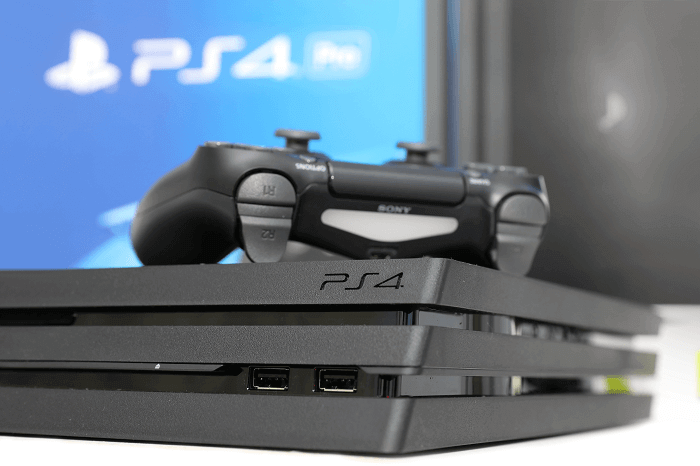
Many PlayStation 4 users have been experiencing issues where their console won't turn on or turns off immediately after hitting the power button, sometimes accompanied by a beep. The problem can be frustrating, leaving users unable to access their games or console.
Possible Causes of PS4 Not Turning On
The PS4 may not turn on due to various reasons, including a faulty power supply, a loose or damaged power cord, a malfunctioning power button, a software issue, or a hardware problem such as a faulty motherboard or GPU. Other potential causes include a blown fuse, a tripped circuit breaker, or a problem with the console's cooling system. In some cases, the PS4 may not turn on at all, while in others, it may turn on for a brief moment before shutting off again.
1. Roaches in the Power Supply
Roaches can easily enter the plastic case of the PS4, potentially damaging the circuitry and tiny cables or components inside by walking around and destroying them.
2. Incorrectly Connected or Broken Power Cord
The PS4 won't turn on due to poor contact between the power cord and the console, or a physically broken power cord.
If the power cord connection to the wall outlet is loose or the outlet itself is faulty, it may prevent the PS4 from turning on. This can be due to a loose connection between the plug and the outlet, or a problem with the outlet itself.
3. Lightning Storms or Power Surges
A lightning storm or power surge can cause damage to the PS4's power supply, power management chip, or other motherboard components, leading to it not turning on.
4. Power Strip
If your PS4 won't turn on, check the power connection, making sure it's properly connected to a power source that can support its power requirements, especially if you're using a power strip, as some may not provide enough power for the PS4, especially the PS4 Pro.
5. Failed Power Button
The PS4's power button becomes less touch-sensitive over time due to prolonged use and may also become misaligned from frequent pressing, making it less responsive when pressed.
The common causes of a PS4 not turning on include a faulty power cord, a blown fuse, a dead hard drive, or a software issue. Bugs can also be a reason, but if that's the case, it's best to seek professional help for manual service. If you're not in that situation, you can try troubleshooting by checking the power cord, replacing the fuse, or resetting the console.
8 Ways to Fix PS4 Won't Turn On Without Losing Data
If your PS4 won't turn on, it's likely due to a hardware issue, unlike software-related errors like corrupted data. To fix the problem, follow the solutions listed, which can help you resolve the issue and get your console up and running again.
Note Fixing your PS4 using the methods below is generally safe and won't cause data loss in most cases. However, if you do experience lost games on your console, you can recover them using reliable data recovery software like Deep Data Recovery.
Solution 1. Disconnect the Power Cable
Make sure the power cable is fully connected and try switching to a new power cable if that's not the issue.
Step 1. Unplug the old power cable from your PS4.
Step 2. Wait for at least 30 seconds.
Step 3. Replug the power cable into your PS4 and restart the console.
Step 4. If the printer isn't turning on or isn't connected to power, try unplugging it, waiting 30 seconds, and then plugging it back in. If that doesn't work, check the power cord and replace it if it's damaged.
Solution 2. Connect the Console to Wall Outlet
If you're using a power strip, try unplugging your power cord and plugging it directly into the wall outlet to see if that resolves the issue. Some power strips may not be able to handle the power requirements of a PS4.
Solution 3. Clear the Dust in Your PS4
Dust can sometimes cause serious issues with your PS4, but cleaning it out can be a simple solution. You can try blowing into the vents or disk drive, or take the top plate off to clean inside. After clearing the dust, turn on your console to see if it resolves the problem.
Solution 4. Restart PS4 in Safe Mode
Step 1. Connect your PS4 controller to the console with a USB cable.
Step 2. To shut down your PS4, press and hold the power button until you hear the second beep, then release the button.
Step 3. To restart your PS4, select the "Restart the PS4" option with your controller. Wait for the process to complete.
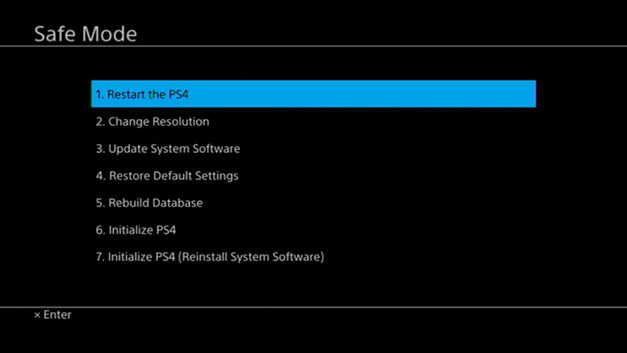
If a restart won't help, you can try to rebuild your PS4 database. To do this, start your PS4 in safe mode and select "Rebuild Database". Please note that this will erase all data on your PS4, so only use this method as a last resort.
If your PS4 won't turn on, try the most common fixes such as checking the power cord, restarting the console, and checking for loose connections. If these methods fail, there are other workable tips available.
Solution 5. Replace the Broken Components
If your PS4 is not turning on due to a roach or burnt power supply, power management chip, or other faulty components, you'll need to have a professional replace the broken parts, or have the entire device repaired.
Solution 6. Fix the Power Button
If you're handy, you can remove the metal cover of the button and inspect the components underneath. If they're out of place or bent, you can try to fix them yourself or seek help from someone with experience.
Solution 7. Insert a disk into your PS4
To turn on your PS4 by inserting a disk, you can simply put a game disc into the console's disc drive. The PS4 will automatically detect the disk and start itself, allowing you to access the game without needing to manually power on the console.
- Plug the power cable into your PS4.
- Insert a disk into the PS4's disk drive, and gently push it in until the console turns on.
- Pull your disk out.
If your PS4 won't turn on, there are several potential reasons. One reason could be that the power cord is not securely connected to the PS4 or the wall outlet. Check the power cord and make sure it's securely plugged in.
Solution 8. Get Specialized Manual Services
If the solutions provided earlier do not resolve the "PS4 won't turn on" issue, it's advisable to seek manual assistance. You can reach out to the support centre and have your device sent in for repairs. This approach addresses potential hardware problems within the PlayStation console itself.
If your PS4 won't turn on, there is a solution - there are eight widely used fixes that can help. If you're not sure what's causing the issue, try applying each possible solution one by one to see if it resolves the problem. Hopefully, one of these fixes will get your PS4 up and running quickly.
The Bottom Line
Lightning storms can cause issues on PS4 beyond not turning on, such as not showing a signal. This is because lightning can damage the HDMI system and burn the chip. To prevent this, consider equipping your device with a surge protector.
One of the solutions above should help you fix "PS4 not turning on" successfully.
Related Articles
- Download Windows 7 Disc Images (ISO Files) [Ultimate and Professional Edition]
- Fixed: Restart to Repair Drive Errors on Windows 10
- What Is Dynamic Disk | Everything About Windows Dynamic Disk
- Data Rescue 6 Review for Windows/Mac [2022 Latest]
- LINE not Receiving/Sending Messages on iPhone/Android
If the LINE app is not sending or receiving messages on your Android or iPhone, try restarting the app, checking your internet connection, and updating the app to the latest version. - iPhone Photos Gray Box | How to Fix Grey Boxes Photos on iPhone/Android
If your pictures are appearing gray on your iPhone or Android, you can figure out why and easily fix the issue. Whether you're seeing a gray box over photos or contacts on both iPhone and Android, you can resolve the problem with a few simple steps.
Products
Articles & Tutorials
- Data Recovery
- Data Backup
- File Recovery
- File Backup
- System Backup and Restore
- Disk and Partition Clone
- Technical articles
- Mobile articles
- Disk Master Help
- Windows Data Recovery Tutorials
- Windows Secure Delete Tutorials
- Windows Partition Management Tutorials
- Windows File Backup and Restore Tutorials
- Windows System Backup and Restore Tutorials
- Windows Disk Backup and Restore Tutorials
- Windows Clone Tutorials