Best Encrypted Virtual Drive Software for Windows: 3 Choices
An encrypted virtual drive lets you work with private files in File Explorer after unlocking them, then hide their contents again when you lock or unmount the drive. The three options below solve related tasks, but their storage formats differ. Choose the format first; do not choose solely from a feature count.
How to compare encrypted drives
Look at the format, not just the drive letter. A single container file is easy to move as one object but can be inconvenient to synchronize after small changes. A vault built from many encrypted files is more natural for cloud synchronization. Also check platform support, license, password recovery options, and how you will back up the encrypted data. This is a use-case comparison, not a security audit of the products.
Three tools worth comparing
| Tool | Storage model | Best fit |
|---|---|---|
| Qiling Safe Disk | An encrypted image file mounted as a Windows drive. | Keeping a group of private files in one Windows container. |
| VeraCrypt | An encrypted file container or an encrypted partition/device. | Users who want open-source software and more volume options. |
| Cryptomator | An encrypted vault of files exposed through a virtual drive when unlocked. | Users who want to synchronize encrypted files through a cloud folder. |
1. Qiling Safe Disk: a Windows image container
Safe Disk creates a new image file and mounts it as a drive after you enter its password. This fits a Windows-only workflow in which you want a distinct private drive for documents. Its trial and license terms should be checked before relying on it long term.
2. VeraCrypt: open-source container and device options
VeraCrypt can create a file-hosted volume and also supports other encryption scenarios. Its container is a single file, so copying or backing up that file is straightforward. The broader set of choices also requires you to verify the target path carefully: creating a new container is not the same task as encrypting a physical drive.
3. Cryptomator: a vault suited to file synchronization
Cryptomator makes an unlocked vault available as a virtual drive in Windows. Unlike a single large container file, the encrypted vault is stored as multiple files. This is useful when your main goal is to keep synchronized cloud files private. It is not a full-system or physical-disk encryption tool.
Create and mount a new Qiling Safe Disk container
Choose a new filename that does not already contain data. Keep the password in a separate, secure location and back up the finished container; losing the password or the only container copy may make the contents unavailable.
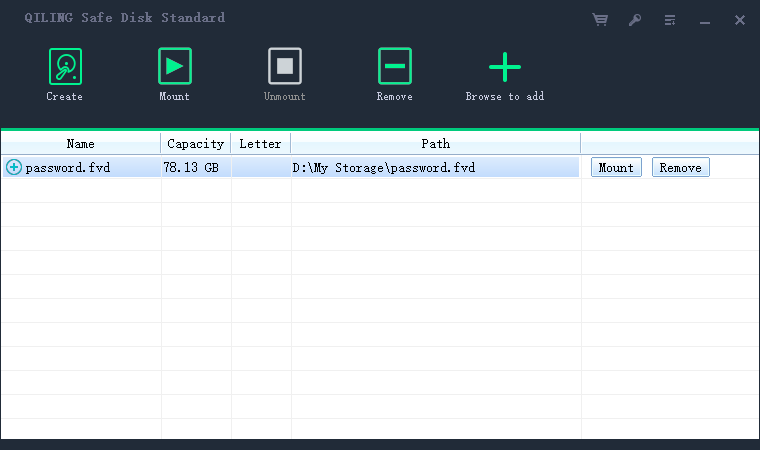
Step 1. Install and open Qiling Safe Disk. Confirm you are in its main image list, then select Create to open the virtual-disk dialog.
Step 2. In Image file, choose a new path and filename. Set the disk size according to the files you will store and the free space available. Keep Format it selected for this new image only; do not point the dialog at an existing container that you need to preserve.

Step 3. Enable Password for image file, enter and confirm a strong unique password, and recheck the path. Click Create and wait until the new image appears in the list.
Step 4. Select the new image and choose Mount. Enter the password and choose an unused drive letter. Confirm that the drive appears in File Explorer before moving private files into it.

Step 5. When finished, close open files and unmount the image in Safe Disk. Confirm the drive letter disappears. Back up the container file separately, and periodically check that the backup copy can be opened with the correct password.
What an encrypted virtual drive does not solve
While a vault is unlocked, software running under your account can usually access its files. Unmounting does not stop malware from deleting or damaging the encrypted container file itself. Encryption also cannot replace a backup or recover a lost password. If you need to protect the Windows system drive, compare full-disk encryption separately. See the Safe Disk virtual-drive guide for more background.
Which one should you choose?
Choose Qiling Safe Disk for a straightforward Windows container workflow, VeraCrypt for open-source container or device encryption, or Cryptomator when cloud-synchronized encrypted files are the main need. Before committing important data, create a small test vault, mount and unmount it, and verify a backup copy.
The Windows encrypted virtual-drive setup guide follows that test from container creation through a backup-copy check.
Related Articles
- Best Free Encryption Software for Windows
Compare free tools before you pick one for your files. - Is Free Encryption Software Safe to Use?
Judge a free tool before you trust it with your files.
Products
Articles & Tutorials
- Data Recovery
- Data Backup
- File Recovery
- File Backup
- System Backup and Restore
- Disk and Partition Clone
- Technical articles
- Mobile articles
- Disk Master Help
- Windows Data Recovery Tutorials
- Windows Secure Delete Tutorials
- Windows Partition Management Tutorials
- Windows File Backup and Restore Tutorials
- Windows System Backup and Restore Tutorials
- Windows Disk Backup and Restore Tutorials
- Windows Clone Tutorials