Encrypted Virtual Drive Software for Windows
An encrypted virtual drive stores files inside a container image that you mount as a drive letter when needed. It can help separate private files from ordinary folders, but it is not a substitute for a backup or for full-disk encryption on a laptop. Compare products by password recovery policy, mounting workflow, supported Windows versions, and the ability to back up the entire container.
Container, folder, or full-disk protection?
Use a container when you want to carry a bounded set of private files together. Use BitLocker or another full-volume solution when the goal is whole-device protection. A container is convenient to copy as one file, but losing that file or forgetting its password may mean losing all its contents. Avoid placing its only copy on an unreliable USB stick.
Create a Qiling Safe Disk encrypted container
Step 1. Open Qiling Safe Disk and select Create from the main image list.
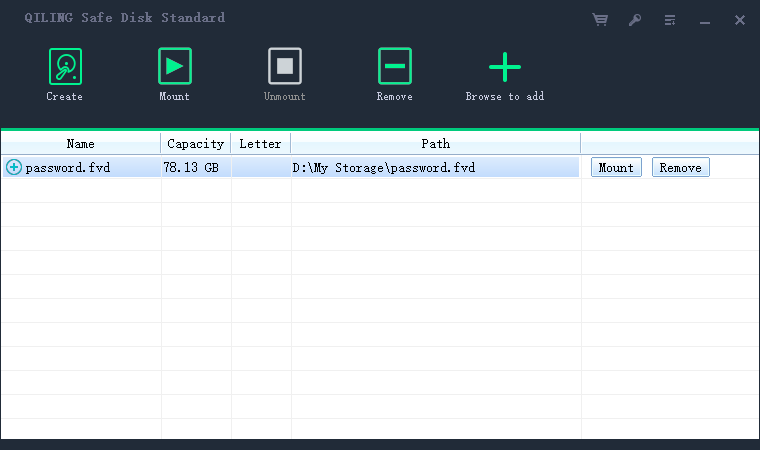
Step 2. Choose a new image-file path, set the container size, and keep Format it selected for this new container only. Do not overwrite an image you already use.

Step 3. Enable Password for image file, enter and confirm a strong unique password, recheck the path, and click Create. Wait until the new image appears in the list.
Mount, test, and back up the image
Step 1. Select the new image, choose Mount, enter the password, and choose an unused drive letter.

Step 2. Open the mounted drive in File Explorer and copy a small test file. Confirm it opens. When finished, close the file and unmount the image; check that the drive letter disappears.
Step 3. Copy the closed container image to another secure location and verify that the backup copy can be mounted with the password. Keep the password or recovery information separate from the container. Malware running while the image is mounted may still access its files.
For other encrypted-drive options, see the Windows encrypted virtual drive comparison.
Related Articles
- Back Up Windows 11 Externally
Keep a separate copy of important data and containers.
Products
Articles & Tutorials
- Data Recovery
- Data Backup
- File Recovery
- File Backup
- System Backup and Restore
- Disk and Partition Clone
- Technical articles
- Mobile articles
- Disk Master Help
- Windows Data Recovery Tutorials
- Windows Secure Delete Tutorials
- Windows Partition Management Tutorials
- Windows File Backup and Restore Tutorials
- Windows System Backup and Restore Tutorials
- Windows Disk Backup and Restore Tutorials
- Windows Clone Tutorials