How to Remove Encryption from a Drive Safely
Encryption protects a drive, but sometimes you need to undo it: you are retiring a disk, handing a PC to a family member, or an old container no longer has a purpose. Done carelessly, removing encryption can leave data exposed or costs you files.
This guide explains how to remove encryption from a drive safely on Windows, how to handle a container, and when to leave encryption in place.
PAGE CONTENT
- When to Remove Encryption
- Understand What Removal Means
- Remove a Container with Safe Disk
- Remove Whole-Disk Encryption
- Risks After Decryption
- FAQs About Removing Encryption
- Back Up Windows Before You Change Settings
When to Remove Encryption
There are legitimate reasons to decrypt a drive, and they all involve a change in who uses it.
- Retiring a PC or drive. The new owner has no key and no software to open it.
- Passing a drive on. A family member needs plain files, not a locked container.
- Recovering from a lockout. A drive you can no longer open must be dealt with carefully.
- Retiring a container. An old container you no longer need can be unpacked and removed.
- Compatibility needs. Some tools cannot read files inside a locked drive.
Notice that every case involves handing the drive or its files to someone else; that is exactly when removing encryption is reasonable.
Understand What Removal Means
- Decryption returns plain files. Once removed, files open with no password.
- It cannot be undone for free. You can encrypt again, but the exposure window is real.
- A container is emptied, not edited. You move files out and then delete the container file.
- Whole-disk removal re-writes data. Turning off full-disk encryption may take time as the tool decrypts in place.
- Backups stay protected. Existing backups keep whatever protection they already had; removing encryption does not change them.
Removal is a one-way step in practice, so plan where the plain files will live before you start.
Remove a Container with Safe Disk
With Qiling Safe Disk, removing a container means moving its files out and deleting the container. Download and install it first.
Step 1. Mount the container and enter the password.

Step 2. Move the files you want to keep out to a safe folder or another drive.
Step 3. Check that the moved files open normally before you delete anything.
Step 4. Unmount the container so its contents are hidden again.
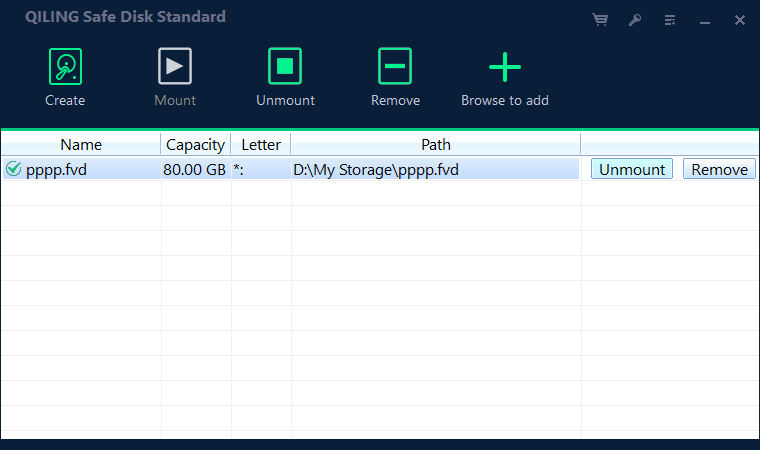
Step 5. Delete the container file, or keep it locked if you may want the protection again.
Remove Whole-Disk Encryption
- Use the same tool that encrypted it. Removal is done from the same software that manages the drive.
- Expect a decryption pass. The tool rewrites the disk, which can take a while on large drives.
- Keep the PC plugged in. An interrupted decryption can leave the drive in a bad state.
- Do not pull the drive mid-process. Let the tool finish before you remove or move the disk.
- Confirm the final status. Check that the drive now reports as unencrypted before you hand it on.
Whole-disk removal is heavier than removing a container, so only do it when the disk truly needs to be plain.
Risks After Decryption
- Anyone can read it. Without encryption, a lost or stolen drive exposes every file.
- Deletion is not erasure. Files you delete after decrypting may still be recoverable; wipe the drive if it is leaving you.
- Copies multiply. A decrypted drive is easy to copy, so track where the plain files go.
- No protection in transit. A drive shipped or carried while unencrypted can be read if it is lost.
- Re-encrypting takes effort. If you change your mind, you must set protection up again from scratch.
If decrypted files are important, plan to wipe the drive before disposal rather than relying on ordinary deletion.
FAQs About Removing Encryption
Can I remove encryption without the password?
No. Strong encryption cannot be bypassed without the key, so a drive you cannot open cannot be decrypted normally.
Does removing encryption delete my files?
Removing a container deletes the container file, so move the files out first. Whole-disk removal keeps the files and drops the protection.
Should I decrypt a drive before selling it?
Usually no. Wipe the drive, or keep it encrypted. A decrypted drive you hand over is the least private option.
Can I re-encrypt later?
Yes. Create a new container or turn whole-disk encryption back on whenever you want protection again.
How long does whole-disk decryption take?
It depends on the drive size and speed, and can run for a while on large disks. Keep the PC powered throughout.
Back Up Windows Before You Change Settings
Before installing security software or changing storage, create a full Windows backup. Qiling Disk Master creates a system image you can restore from.
Step 1. Open Qiling Disk Master and select System Backup to include Windows and the boot partitions.
Step 2. Save the image to a drive other than the Windows disk and start the backup.
Step 3. If a change causes issues, restore from the image to return Windows to its working state.
Conclusion
Removing encryption is a reasonable step when a drive is changing hands, but it should never be rushed. For a container, mount it, move the files you need out, verify they open, then unmount and delete the container file. For whole-disk encryption, use the same tool that protected the disk, keep the PC powered, and let the decryption pass finish before you move the drive. Above all, remember that a decrypted drive is readable by anyone, so back up what matters and wipe the disk before it leaves your possession. If none of those reasons apply, leaving encryption in place is usually the safer choice.
For more on managing encryption, see How to Securely Erase an Encrypted Drive, Encrypted Container vs EFS, How to Resize an Encrypted Container, and How to Mount an Encrypted Drive on Another Computer.
Related Articles
- How to Check If a Drive Is Encrypted
Confirm the status before and after you decrypt. - What to Do If You Lose an Encrypted Drive
Steps to take when a protected drive goes missing. - Is Free Encryption Software Safe?
What to check before you trust a tool with your data. - Best Encryption Algorithm for Files
Compare the standards behind modern file protection. - Encryption vs Password Protection
Understand why a password alone is not encryption.
Products
Articles & Tutorials
- Data Recovery
- Data Backup
- File Recovery
- File Backup
- System Backup and Restore
- Disk and Partition Clone
- Technical articles
- Mobile articles
- Disk Master Help
- Windows Data Recovery Tutorials
- Windows Secure Delete Tutorials
- Windows Partition Management Tutorials
- Windows File Backup and Restore Tutorials
- Windows System Backup and Restore Tutorials
- Windows Disk Backup and Restore Tutorials
- Windows Clone Tutorials