How to Check If a Drive Is Encrypted on Windows
You may assume your files are protected, but a drive is only encrypted if someone actually turned the feature on. System disks often are; the second drive, the USB stick, and the container you made months ago may not be.
This guide shows how to check if a drive is encrypted on Windows, what signs to look for, and what to do when you find a disk that is still unprotected.
PAGE CONTENT
- Why You Should Verify Encryption
- Signs a Drive Is Encrypted
- Check a Drive in Windows
- Check a Container with Safe Disk
- What to Do If a Drive Is Not Encrypted
- FAQs About Checking Drive Encryption
- Back Up Windows Before You Change Settings
Why You Should Verify Encryption
Encryption that you have not confirmed is only an assumption.
- Defaults vary. Some systems ship with the feature off and others turn it on automatically.
- Drives get added later. A new SSD or USB drive arrives unencrypted unless you set it up.
- Tools can be confusing. A drive that runs a "prepare" step is not yet protected.
- Risk is highest when off. A stolen or resold drive with no encryption exposes everything.
- A quick check is cheap. Confirming status takes seconds and avoids a false sense of safety.
Verifying now is far easier than discovering the gap after a drive goes missing.
Signs a Drive Is Encrypted
- A password or PIN is required. A prompt before the drive opens is the clearest sign.
- Lock icons appear. Full-disk tools often show a padlock on the drive in File Explorer.
- The container looks like one file. If the data lives in a single .fvd or similar file, it is encrypted.
- A tool is involved. If you must mount a drive letter before files appear, it is a container.
- Files open freely with no prompt. On the same drive, an unencrypted folder opens with no password at all.
None of these signs prove encryption on their own, so it is worth confirming status in the software itself. For how the two models differ, see Encrypted Drive vs BitLocker.
Check a Drive in Windows
- Look at File Explorer. A padlock next to a drive usually means full-disk encryption is on.
- Open the encryption tool. Windows-based full-disk tools show a status of "on", "off", or "encrypting".
- Search the drive name. Manage the drive and read its protection state directly.
- Beware of "encrypting". A drive mid-process is not fully protected yet.
- Check every volume. A PC may have a protected system disk and an open data disk.
Antivirus tools cannot read inside a locked drive, which is itself an indirect clue; see Can Antivirus Scan an Encrypted Drive? for what that means.
Check a Container with Safe Disk
If you use Qiling Safe Disk, checking a container is straightforward. Download and install it first.
Step 1. Open Qiling Safe Disk and look at the list of containers.
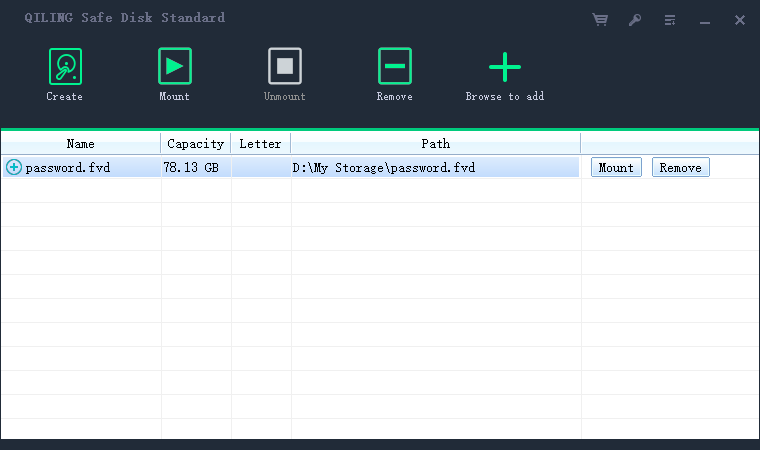
Step 2. A container that is not mounted is locked; that is the protected state.
Step 3. Mount a container only when you need it, and enter the password to confirm it opens.
Step 4. Unmount again so the container returns to its locked state.
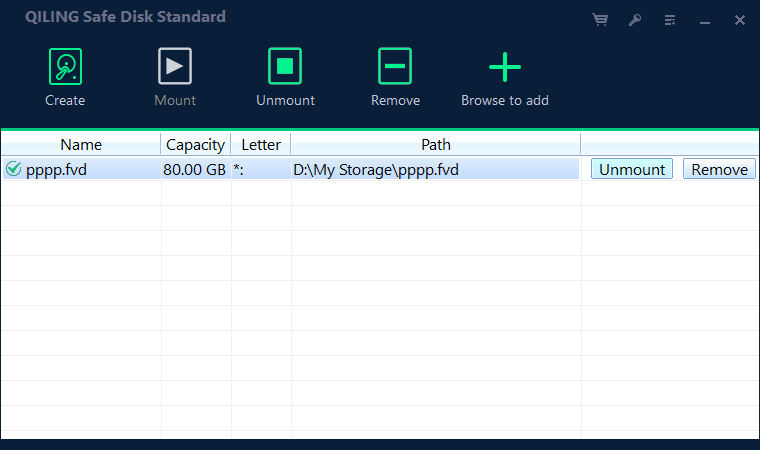
Step 5. If no container exists on a drive you want to protect, create one to close the gap.

What to Do If a Drive Is Not Encrypted
- Protect it now. Create a container and move sensitive files inside it.
- Prefer a container on live drives. It protects selected files without erasing the disk.
- Use whole-disk encryption on new drives. An empty drive is clean to encrypt fully.
- Back up first. Keep a copy of important files before you change how a drive is protected.
- Recheck after changes. Confirm the new state so you know the drive really is protected.
An unencrypted drive is a gap worth closing the moment you find it, not after the next trip or resale.
FAQs About Checking Drive Encryption
Does a padlock always mean my drive is encrypted?
Usually, but not always. Confirm the status inside the encryption tool rather than trusting the icon alone.
Is my system drive encrypted by default?
It depends on the PC and the Windows setup. Never assume it; check the status directly.
How do I tell if only some files are encrypted?
If the protected data sits inside a container file that must be mounted, then only those files are encrypted.
Can I check a USB drive?
Yes. The same steps apply: look for a prompt or padlock, or check whether the data lives in a container.
What if a drive shows "encrypting"?
Wait for the process to finish. A partially encrypted drive is not fully protected.
Back Up Windows Before You Change Settings
Before installing security software or changing storage, create a full Windows backup. Qiling Disk Master creates a system image you can restore from.
Step 1. Open Qiling Disk Master and select System Backup to include Windows and the boot partitions.
Step 2. Save the image to a drive other than the Windows disk and start the backup.
Step 3. If a change causes issues, restore from the image to return Windows to its working state.
Conclusion
Checking whether a drive is encrypted comes down to looking for a real signal rather than assuming. A password prompt, a padlock, or data stored inside a single mountable container file all point to protection, while a drive that opens with no prompt is almost certainly unencrypted. Qiling Safe Disk makes the check easy: an unmounted container is locked, and a mounted one confirms it opens with your password. Inspect every volume, including the system disk, second drives, and USB sticks, and if you find an unprotected drive, close the gap with a container or whole-disk encryption. Always verify the new state afterward so the protection is real.
For more on encryption status and safety, see Does Encryption Slow Down Your Disk?, Is Encryption Enough to Protect Data?, Encryption vs Password Protection, and How to Mount an Encrypted Drive on Another Computer.
Related Articles
- What Is a Virtual Encrypted Drive?
Understand the container that shows as a drive letter. - How to Create an Encrypted Virtual Drive
Set up a container if a drive is not protected. - Can Ransomware Encrypt an Encrypted Drive?
Why malware cannot break good encryption. - Forgot Your Encrypted Drive Password?
What to try before you give up on the files. - How to Securely Erase an Encrypted Drive
Wipe a drive for good when it leaves your hands.
Products
Articles & Tutorials
- Data Recovery
- Data Backup
- File Recovery
- File Backup
- System Backup and Restore
- Disk and Partition Clone
- Technical articles
- Mobile articles
- Disk Master Help
- Windows Data Recovery Tutorials
- Windows Secure Delete Tutorials
- Windows Partition Management Tutorials
- Windows File Backup and Restore Tutorials
- Windows System Backup and Restore Tutorials
- Windows Disk Backup and Restore Tutorials
- Windows Clone Tutorials