Nintendo Switch 2 microSD Express Card Not Recognized
Quick Navigation:
- What the Message Means
- Check the Card and the Slot
- Recover Photos and Videos with Qiling
- Format and Test the Card
- Frequently Asked Questions
Switch 2 reports the card as unsupported, or the card never appears in Data Management. The cause is usually the card type, a dirty slot, or a damaged file system, and the order of the fixes matters: identify the cause, copy the data off the card while you still can, and only then let the console format it.
What the Message Means
Not supported means the card is not microSD Express. The slot accepts the shape, but the console needs the Express interface before it will store games, and no amount of reinserting changes that.
When the card appears with an unknown capacity, or the console asks to format it, the file system is damaged. The card is being detected, but the index that describes the files is broken, and accepting the format erases whatever is still readable.
When the card does not appear at all, the problem is physical: dust in the slot, a bent contact, or a card that has failed. Capacity that seems far too large for the price is the other classic case, a counterfeit card that reports space it does not have.
Check the Card and the Slot
Look at the card itself first. A genuine Express card carries the Express logo and an EX marking, and a card that worked in the original Switch is almost certainly a standard microSD model that Switch 2 will never accept.
Power the console off, remove the card, and inspect the slot with a flashlight. Blow out any dust and use a soft brush if something is lodged inside; never use a metal pin, which bends the contacts. Reinsert the card once, firmly, and check again.
Next, test the card in a PC card reader. If Windows also asks to format it, the file system is damaged. If Windows cannot see the card at all, the card has failed. Do not accept the console's format prompt before you have copied the screenshots and videos you want to keep.
Recover Photos and Videos with Qiling Deep Data Recovery
Qiling Deep Data Recovery reads the card directly and rebuilds the file list from what is still on it, so it can return screenshots and videos even when the console refuses to mount the card. It cannot help with a card that is electrically dead, and recovered files must never be saved back to the same card.
Step 1. Choose the Recovery Mode
Select Fast Scan for a card that still mounts, Recycle Bin Scan if the files were deleted inside the console, Format Scan if the card was formatted, and USB/SD Scan when the reader no longer reports the volume.

Step 2. Select the Card
Pick the card reader from the drive list and confirm its capacity against the label. A card that reports a fraction of its stated size is counterfeit, and only the real area holds data.

Step 3. Review the Results
Filter by type and preview images and videos before you select them. The Album keeps files in dated folders, so the month you took the screenshots is a quick way to find them.

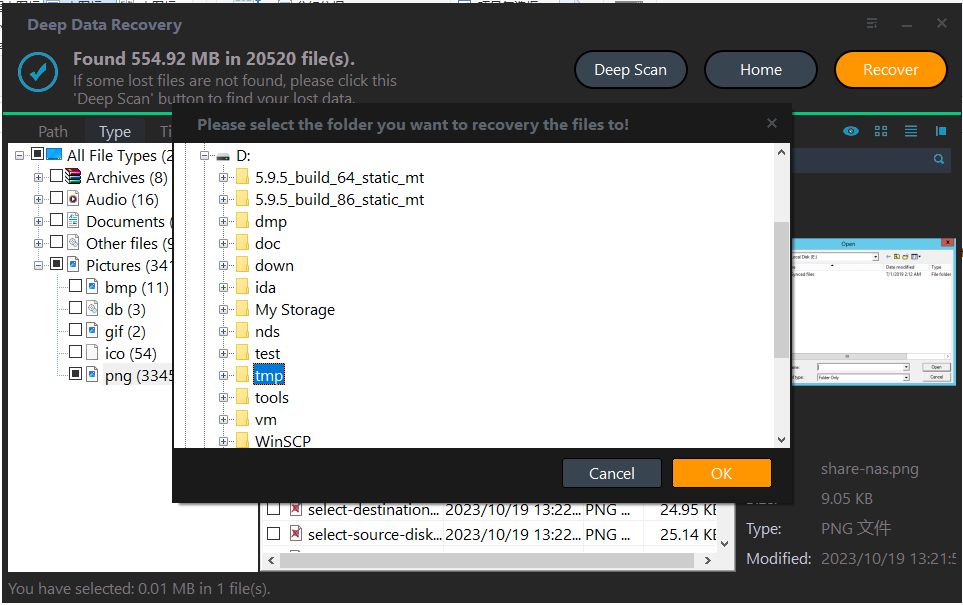
Step 4. Recover to Another Disk
Save the files to the PC or an external drive, never to the card you are scanning. Keep that copy until you have opened a sample of each file and confirmed it is intact.
Format and Test the Card
Once the data is safe, let the console format the card. Switch 2 prepares the layout itself, and a card formatted on a PC often has to be reformatted anyway. After the format, install one small game and take a test screenshot, then reboot and check that both are still there.
If the format fails again, the card is faulty or counterfeit. Return it to the seller rather than trying to force it, because a card that loses writes will also lose the games installed on it.
Frequently Asked Questions
Does Switch 2 accept microSDXC cards?
Only if the card is microSD Express. The capacity label alone does not tell you the interface, so check for the Express logo and the EX marking.
Will the console format delete everything?
Yes. Formatting rebuilds the file system and removes the current file list, so recover the photos and videos first.
Can a fake Express card damage the console?
The console is not damaged, but the card loses data once writes pass its real capacity. Games installed on it may fail to load or disappear.
I formatted before backing up. Can I still recover?
Sometimes, when the format was quick and nothing has been written to the card since. Scan the card and save the results to another disk.
Related Articles
- How to Transfer Data to Nintendo Switch 2 microSD Express
- Recover Data from a SanDisk Extreme Pro Card
- Unlock an SD Card Without the Write Switch
- Recover Data from an SSD Not Detected in BIOS
Products
Articles & Tutorials
- Data Recovery
- Data Backup
- File Recovery
- File Backup
- System Backup and Restore
- Disk and Partition Clone
- Technical articles
- Mobile articles
- Disk Master Help
- Windows Data Recovery Tutorials
- Windows Secure Delete Tutorials
- Windows Partition Management Tutorials
- Windows File Backup and Restore Tutorials
- Windows System Backup and Restore Tutorials
- Windows Disk Backup and Restore Tutorials
- Windows Clone Tutorials