QILING Official Download Guide: Choose the Right Tool
If you searched for QILING official download, you may want a safe installer for data recovery, backup, disk cloning, partition management, RAMDisk, Fast Cache, or secure erase. This guide helps you choose the right QILING tool before downloading.
Use the official download links on this site and avoid cracked installers or unknown mirrors. A safe installer matters most when you are recovering files, changing partitions, or cloning a system disk.
Choose the Right QILING Product
| Need | Recommended Tool | Best For |
|---|---|---|
| Recover deleted or lost files | QILING Data Recovery | Deleted files, formatted drives, RAW partitions, missing photos and documents |
| Back up Windows and files | QILING Backup | System backup, file backup, disk backup, update protection |
| Clone HDD/SSD | QILING Disk Clone | Move Windows to SSD, replace old disks, upgrade storage |
| Manage partitions | QILING Partition Manager | Resize, format, create, delete, and manage disk partitions |
| Improve disk response | QILING Fast Cache | Speed up access to frequently used data on Windows PCs |
| Use memory as a virtual drive | QILING RAMDisk | Create a fast temporary disk for cache or working files |
QILING Data Recovery Official Download
Use QILING Data Recovery when files are deleted, the Recycle Bin is emptied, a drive is formatted, or a storage device becomes RAW. Stop using the affected drive before scanning.
Step 1. Download and install QILING Data Recovery. If you need to recover files from the system drive, install the program on another partition or external drive when possible.

Step 2. Use file filters to narrow the result list after the scan finds recoverable files.
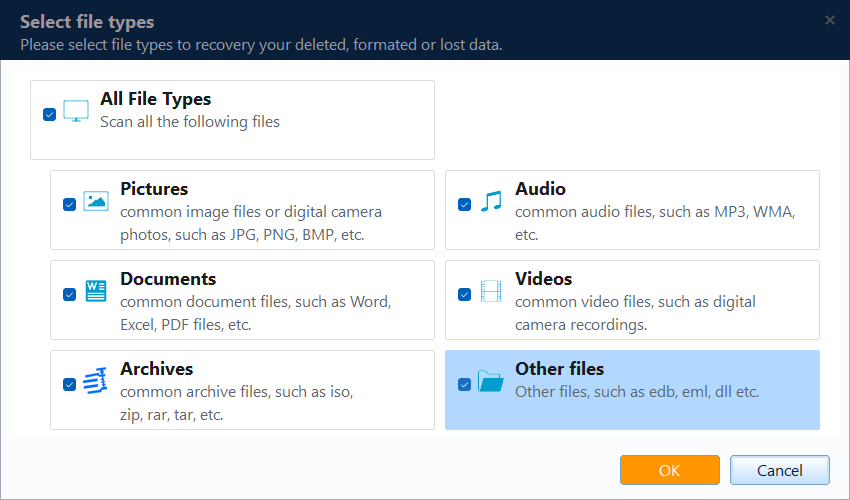
Step 3. Select the original location, such as Desktop, Documents, Recycle Bin, a formatted partition, a USB drive, or an SD card.

Step 4. Start the scan. Preview files when available, select the items you need, and recover them to another disk or external drive.

QILING Backup and Disk Tools
Use QILING Backup before Windows updates, factory reset, disk replacement, or partition changes. A backup gives you a safer restore path if a change fails.
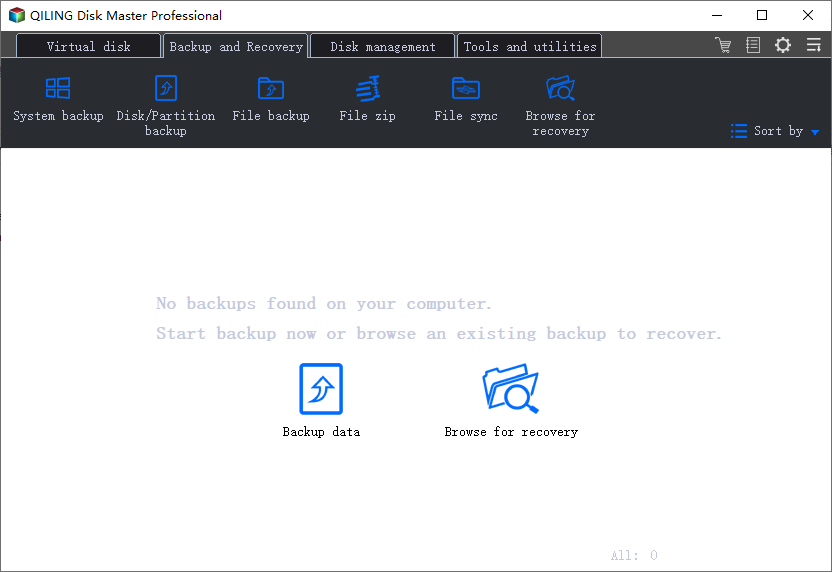
Step 1. Open QILING Backup and choose System Backup, File Backup, Disk Backup, or Partition Backup according to the data you want to protect.
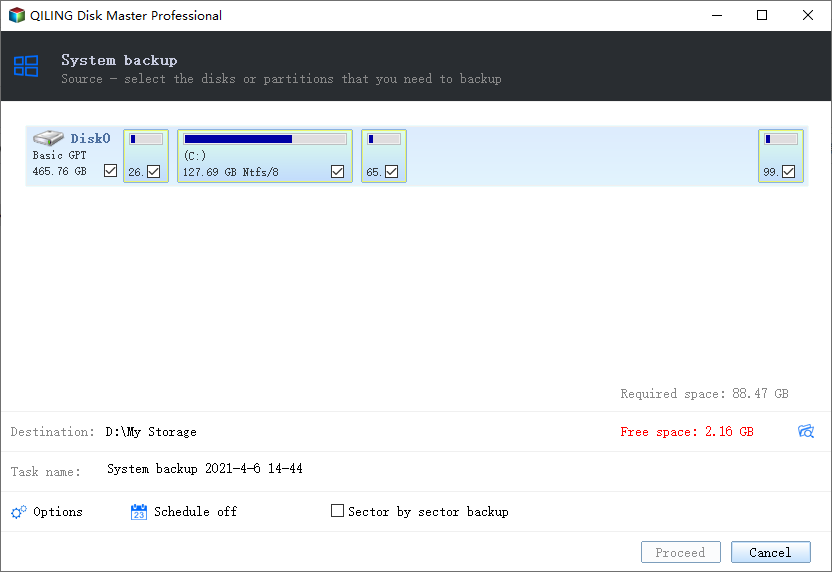
Step 2. Select the source data. For system backup, the required Windows partitions are usually selected automatically. For file backup, tick the folders you need, such as Desktop, Documents, Pictures, Downloads, or work folders.
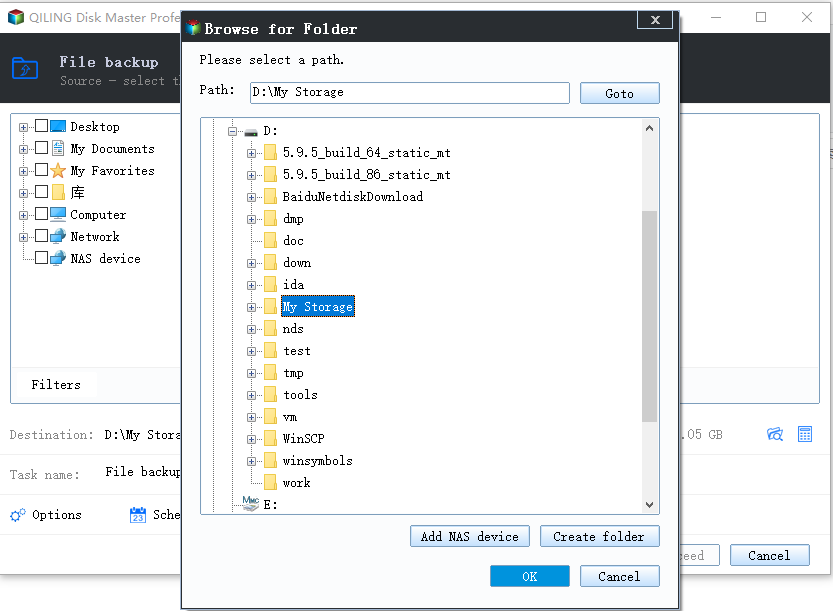
Step 3. Choose a safe destination, such as an external hard drive, SSD, NAS, or another disk that will not be changed during the backup or clone task.
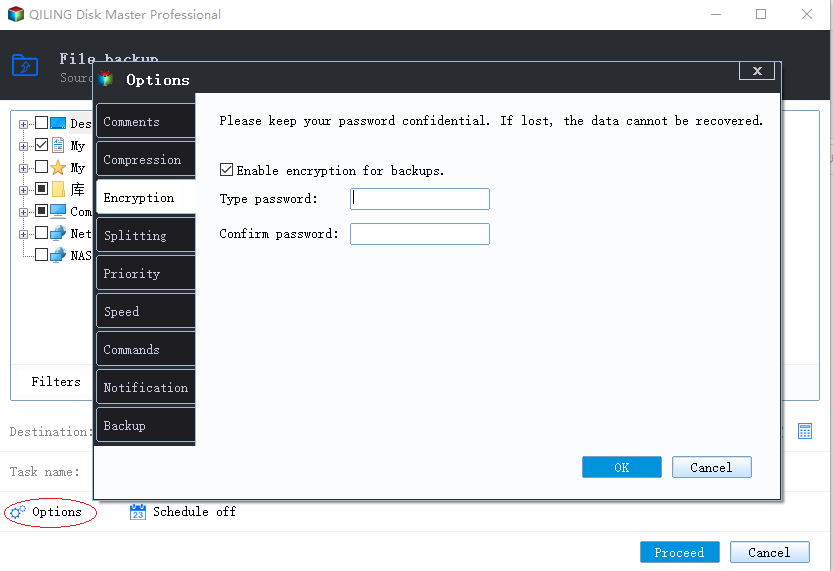
Step 4. Use Options or Schedule if you need compression, password protection, or automatic backup. Then click Proceed and wait for the task to finish.
Step 5. For disk clone or SSD migration, choose the clone function, select the source disk and target SSD, review the target layout, enable SSD optimization if available, and start cloning. After cloning, boot from the new SSD in BIOS/UEFI.

Step 6. For partition management, select the target partition, choose the needed action such as resize, format, create, delete, or convert, preview the pending change, and click Proceed only after confirming the correct disk.

QILING Fast Cache and RAMDisk
Use QILING Fast Cache when you want to improve access to frequently used data, and use QILING RAMDisk when you need a fast temporary drive for cache or working files.
Step 1. Download the product from the official QILING page and install it on the Windows PC.

Step 2. Open the tool, choose the disk or memory-based task shown in the product wizard, and keep the default recommendation if you are not sure which setting to use.

Step 3. Proceed with the setting and restart Windows if the program asks for it. For RAMDisk tasks, save important files outside the RAM disk before shutdown.

QILING Free Software for Windows
If you are not sure which tool to start with, visit the QILING free software page. It introduces backup, recovery, partition management, RAMDisk, and disk clone functions for Windows PCs.
Download Safety Tips
- Download from the official QILING site whenever possible.
- Avoid cracked software and license-code pages from unknown sources.
- For recovery tasks, install software on a different drive if the lost files are on the system disk.
- For partition or clone tasks, back up important files before applying changes.
Conclusion
QILING provides several Windows tools, and the best download depends on your task. Choose Data Recovery for lost files, Backup for system protection, Disk Clone for SSD migration, Partition Manager for disk layout changes, and Fast Cache or RAMDisk for PC performance needs.
Related Articles
Products
Articles & Tutorials
- Data Recovery
- Data Backup
- File Recovery
- File Backup
- System Backup and Restore
- Disk and Partition Clone
- Technical articles
- Mobile articles
- Disk Master Help
- Windows Data Recovery Tutorials
- Windows Secure Delete Tutorials
- Windows Partition Management Tutorials
- Windows File Backup and Restore Tutorials
- Windows System Backup and Restore Tutorials
- Windows Disk Backup and Restore Tutorials
- Windows Clone Tutorials