How to Find Wifi Password on iPhone [Detailed Guide]
| Workable Solutions | Step-by-step Troubleshooting |
|---|---|
| Find WiFi Password through Router Settings | Step 1: Open up your iPhone settings; Step 2: Copy and paste Router's IP address into a web browser...Full steps |
| Find WIFI Password through iCloud Keychain | Step 1: Go to the iPhone settings and turn on the iCloud keychain on your iPhone; Step 2: Turn on...Full steps |
| Share WIFI Passwords between iPhones | Step 1: Hold your phone next to your friend's iPhone. Make sure both the devices are in close...Full steps |
| Extra Tip: Find WIFI Password on Windows | Step 1. Launch Qiling Key Finder on your laptop, and click "WLAN" on the left pane; Step 2. Find your...Full steps |
To find your WiFi password on an iPhone, you can check the router settings, use iCloud Keychain sync with a Mac, or share the password between Apple devices. Note that iOS does not allow you to view saved WiFi passwords directly due to security restrictions.
If you're looking for ways to find WiFi passwords on your iPhone, you can check the WiFi settings, look for the "i" icon next to the network name, and tap it to view the password. Alternatively, you can also use the Settings app and go to Wi-Fi settings, then tap on the "i" icon next to the network name, and select "Forget This Network" to reset the password. However, it's worth noting that you won't be able to see the password itself, but you can use this method to reset it.
This article will explore simple methods to find your WiFi password on your iPhone, while also introducing the Qiling Key Finder, a reliable tool that can help restore important Windows passwords, keys, and product licenses on your computer.
Can I Find WiFi Password on iPhone Directly?
Unfortunately, without jailbreaking your iPhone, you can't directly check your WiFi network settings, including passwords, as Apple's security policies restrict access to saved passwords, even in the Keychain.
Fortunately, there are other ways to search for passwords on your iPhone beyond looking them up. This post will explore how to find a WiFi password on iPhone without looking it up and alternative methods for password discovery.
How to Find WiFi Password through Router Settings
Your iPhone's WiFi password is highly protected, and there's no direct way to retrieve or access it. However, you can try accessing your router's settings, which may allow you to view and manage your WiFi password.
You only need to know your router's IP address to get your current WiFi password.
To find the WiFi password, go to your device's settings, then select "Connections" or "Networks" and choose the WiFi network you are currently connected to. Look for the "Security" or "Password" option and select it.
Here's how to go about it:
Step 1: Open up your iPhone settings.
To find your WiFi router's IP address, tap the "i" icon next to the Router in your settings, copy the number, and paste it into your browser's search bar.
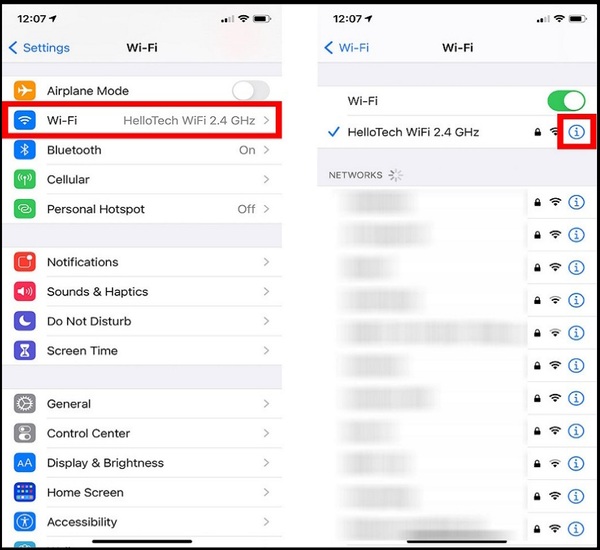
Step 2: Copy and paste Router's IP address into a web browser.
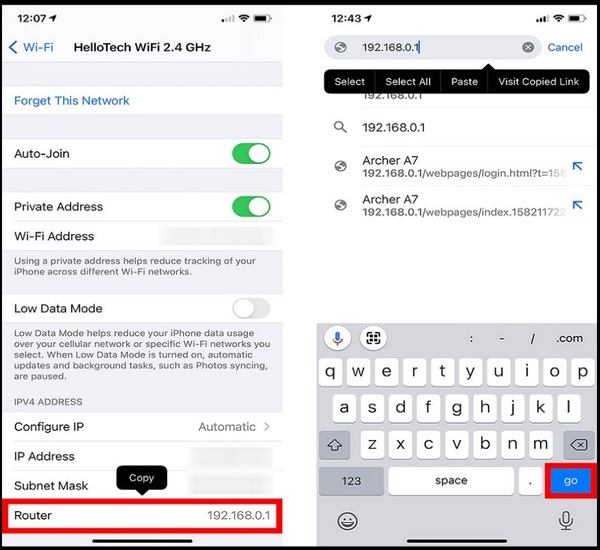
Note: If you encounter a page that displays the message "This Connection Is Not Private", you can resolve the issue by tapping the "Advanced" option and then selecting "Proceed to (IP address) (unsafe)". This action will allow you to access the site despite the security warning.
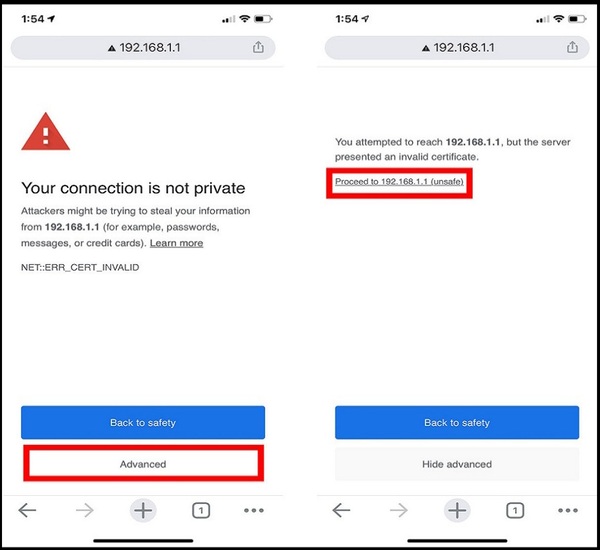
Step 3: Sign in to Spectrum.
To sign in to your router, look for the printed username and password on the router or in the manual, or check the default username and password in a provided list. This is different from your WiFi username and password.
To connect to a WiFi network, select the "WIFI" option from the available choices on the left side of the screen. Note that the name of the button may vary depending on the specific router being used.
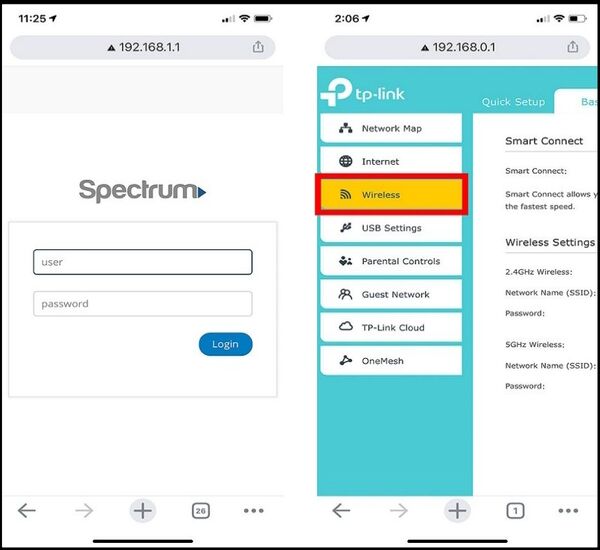
Step 4: Access and change your wifi password.
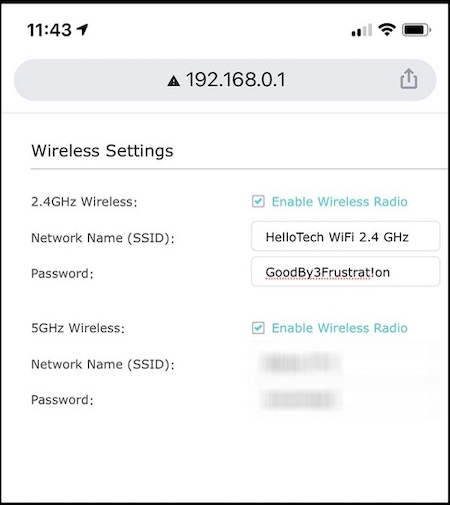
You can find your current WiFi network password by looking under the network name in the WiFi settings. To change it, simply erase the existing password and replace it with a new one. Make sure to save your changes before exiting the settings page.
How to Find a WIFI Password through iCloud Keychain?
To access all of your device's WiFi passwords using iCloud Keychain, you'll need to follow these steps: First, make sure you have an iCloud Keychain account set up on your device. Then, go to the Settings app, tap on "Passwords" and select the option to "Passwords & Accounts". From there, tap on "iCloud Keychain" and then select the option to "Turn On". Once enabled, you'll be able to access all of your saved WiFi passwords.
To find your Wi-Fi password on your iPhone and Mac, you'll need to have both devices connected to the same network. On your iPhone, go to Settings, then tap on Wi-Fi, and select the network you're connected to.
Step 1: To enable iCloud Keychain on your iPhone, go to Settings, then tap on your profile picture or initials at the top. From there, select "iCloud" and toggle the switch next to "Keychain" to the "On" position.
To access iCloud, go to iPhone settings, click on the gear-shaped icon, then click on "Apple ID", and finally tap "iCloud".
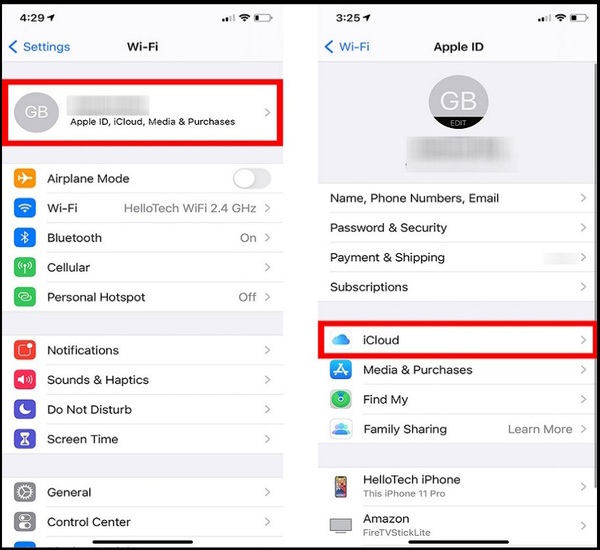
To check if Keychain is turned on, simply tap on it to turn it on if it's currently off.
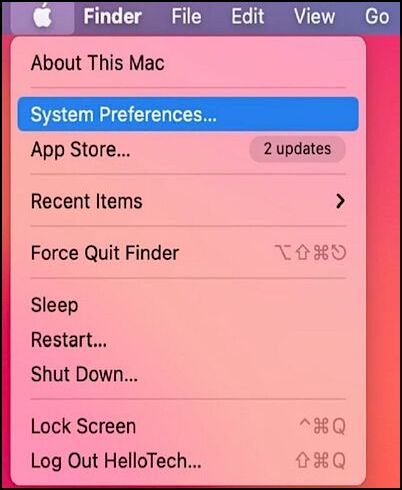
Step 2: Turn on the Keychain option on your Mac.
To find the apple icon, click on the top-left corner of your MAC screen; this will open the "system preferences" menu.
Step 3:Now go to "Apple ID".
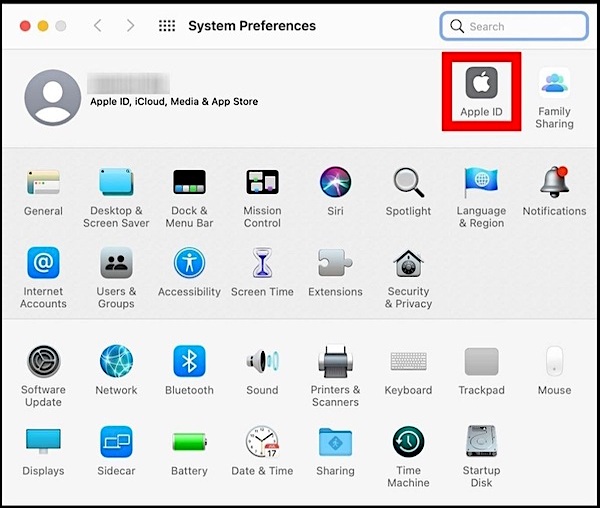
Step 4:To sync your keychain with iCloud, select the "iCloud" option and ensure the keychain box is checked. This will allow your keychain to be synced across all your Apple devices.
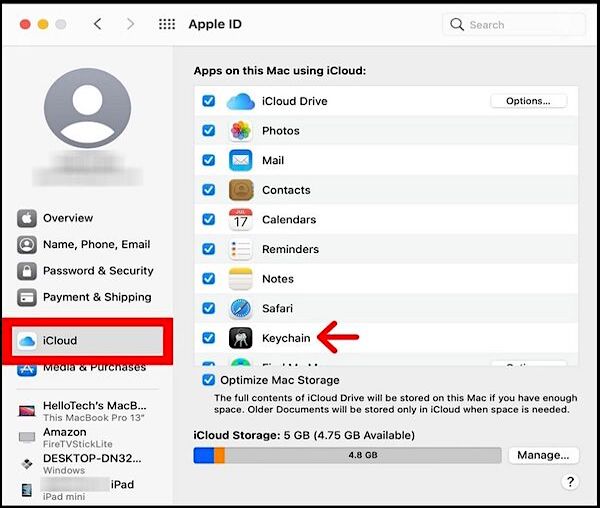
Note: If you've signed in to your Apple ID on your Mac, you can follow these steps. Make sure you've used the same account where your passwords are saved, and then you can proceed.
Step 5:To open the Finder, you can either click on the Finder icon in the Dock, or enter the Command + N keys simultaneously on your keyboard. This will open the Finder window, allowing you to navigate and manage your files and folders.
Step 6:To access the Applications folder, you can click on "Applications" in the left sidebar of the Finder, or right-click the Finder and press Command + Shift + A simultaneously.
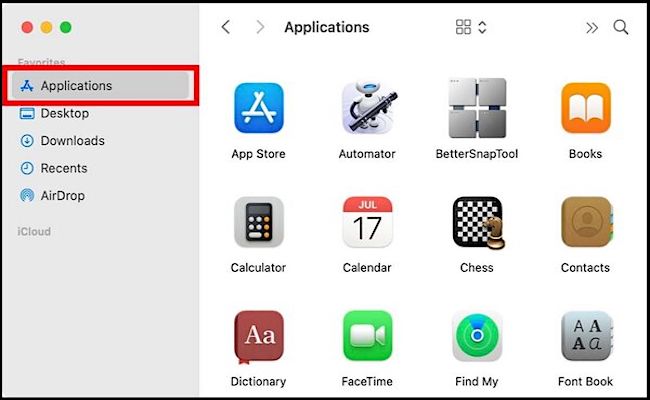
Step 7:Now double-click the "Utilities" folder to open it up.
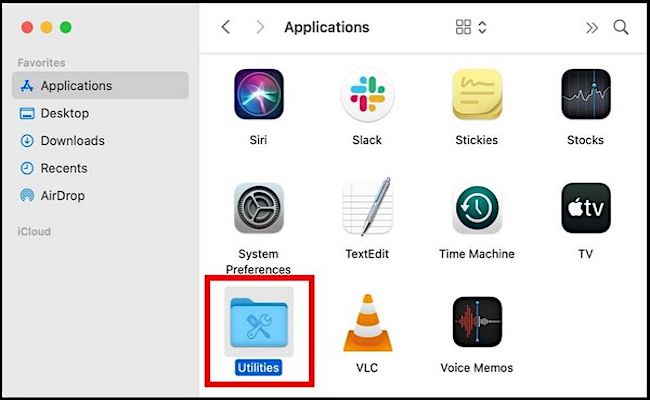
Step 8:After that, Go to the "Keychain Access" app.
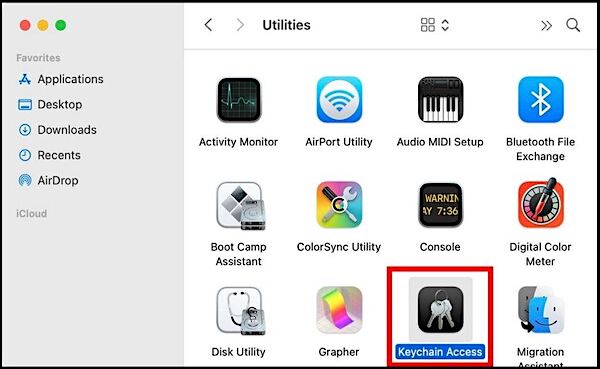
Step 9: Find your Wifi password.
To find your WiFi network, type its name in the search box and press enter. Alternatively, you can double-click your network to open the settings window.
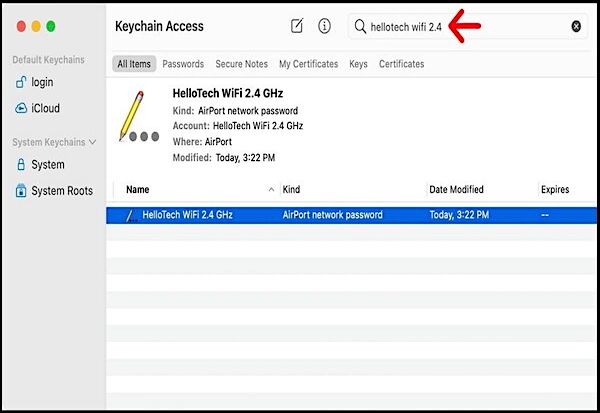
Step 10:Make sure you check the Show password box.
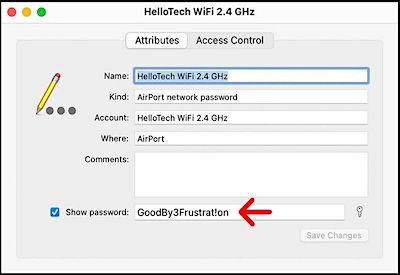
Enter the password for your keychain that you used to log in to your Mac.
Step 11:Next to "Show Password", you'll see the WiFi password you've chosen.
How to Share WIFI Passwords between iPhones?
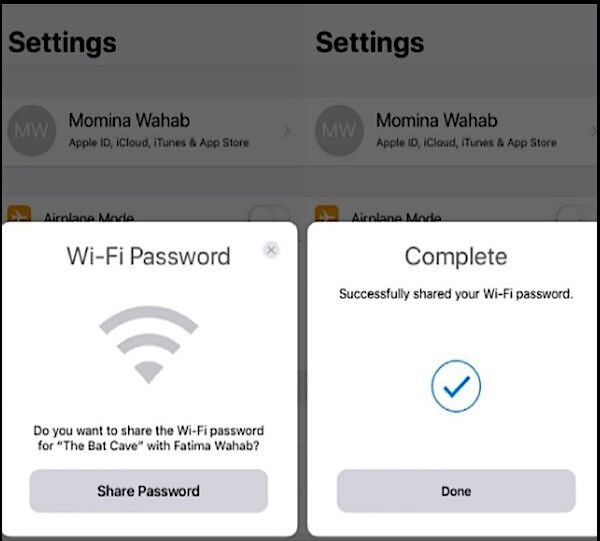
You can easily share your iPhone's WiFi password with a friend using iOS 11 and up. This can be done in just a few minutes.
To share your screen with your friend, make sure your friend has iOS 11 or later and that their Apple ID is in your contacts. Also, ensure Bluetooth is enabled on both your and your friend's device.
Step 1:Hold your phone next to your friend's iPhone, making sure both devices are in close physical proximity.
Step 2: To share a WiFi password with a friend, ask them to connect to the WiFi network you want them to access.
Step 3: To share a password on an iPhone, open a password manager app, tap on the password you want to share, select the friend you want to share it with, and tap on "Share Password." The password will be shared with your friend's iPhone, and you can tap "Done" to complete the process.
Extra Tip: Find WIFI Password on Windows
If you're unable to find your WiFi password, jailbreaking is usually the last resort. However, a more reliable option is using software to recover your password, with programs like Qiling Key Finder being a popular choice. These software tools can help you find lost keys on Windows, making them a more desirable solution than resorting to jailbreaking.
Step 1.Launch Qiling Key Finder on your laptop, click "WLAN" on the left pane.
Step 2.Find your WiFi network in the list, and the password will be displayed next to the network name.
To join a wireless network, you can copy the WiFi password and use it to connect to the network. Simply click on the "Copy" button to copy the password, then go to your device's WiFi settings and select the network you want to join.
You can click "Print" or "Save" to save all your WiFi networks and passwords for backup purposes.
The Qiling Key Finder is the best product key finder that enables users to view their WiFi passwords, Windows keys, product serials, and keys easily and quickly, making it a reliable tool for finding your passwords.
Main features of Qiling Key Finder
- The software is 100% safe and secure.
- It can help you recover all saved passwords from web browsers.
- You can recover forgotten passwords within a few minutes.
- Find the product serials and keys of more than 1000 popular software.
Conclusion
Finding out WiFi passwords can be tricky, but using Qiling Key Finder on Windows computers makes it simpler. This tool allows you to find your passwords with just a few simple steps, eliminating the need to follow any complex rules. Download it now and you'll be able to access your WiFi passwords in no time.
Related Articles
- How to Find/Redeem Game Key on Epic Games (Complete Guide)
- How to Recover Forgotten Gmail Password? [Step-by-Step]
- How to Check and Find Exchange 2016 Product Key/License
- How to Find Adobe Premiere Product Key? 8 Full Solutions
- Any Tools to Check SD/MicroSD Cards Health? Sure!
There are tools to check the health of SD/microSD cards, and this article discusses one such tool that helps check the condition of these cards. - How to Fix "Unable to Connect to Virtual Disk Service" Windows 10/11
Forgot your Gmail password? Learn how to recover it with Qiling Key Finder or reset it via Google's official recovery page. Step-by-step guide to regain access to your Gmail account.
Products
Articles & Tutorials
- Data Recovery
- Data Backup
- File Recovery
- File Backup
- System Backup and Restore
- Disk and Partition Clone
- Technical articles
- Mobile articles
- Disk Master Help
- Windows Data Recovery Tutorials
- Windows Secure Delete Tutorials
- Windows Partition Management Tutorials
- Windows File Backup and Restore Tutorials
- Windows System Backup and Restore Tutorials
- Windows Disk Backup and Restore Tutorials
- Windows Clone Tutorials