How to Recover/Find Edge Account and Password - Qiling
If you've forgotten the details of your Microsoft Edge account or lost your invoice, it's not the end. Unfortunately, Edge doesn't store user data outside the app, so it can't retrieve lost details. However, there's a solution. If you're in this situation, following this guide can help you recover your Edge account and password using various methods, putting an end to the cycle of opening a new account or trying to remember your password.
| Workable Solutions | Step-by-step Troubleshooting |
|---|---|
| Fix 1. Find Edge Username and Password in Edge Settings | Click on the ellipses button (which looks like three dots)...Full steps |
| Fix 2. Recover Edge Account and Password with Qiling Key Finder | Launch and run Qiling Key Finder on the PC, and choose "Product Key"...Full steps |
| Fix 3. Manually Reset Microsoft Edge Password | When you log in to your account, you will be prompted to enter your password...Full steps |
Find and Recover Edge Account and Password for Free - 2 Ways
If you're a Microsoft Edge user, you can recover your account and password using two methods, which will be analyzed in this guide. By following the steps in these methods carefully, you can successfully recover your account and password without needing assistance from anyone.
Find Edge Username and Password in Edge Settings
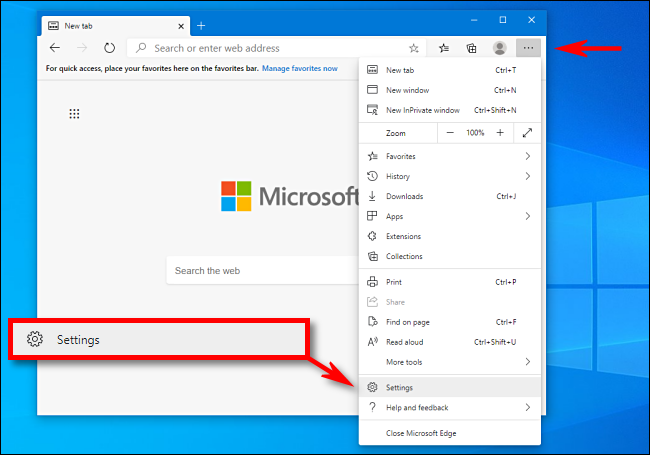
To access Microsoft Edge settings, click on the three dots in the top right corner of the browser window, then select "Settings" from the dropdown menu.
STEP 1:
To access Edge settings, open the browser, click on the three dots in the top right corner, and select "Settings" from the dropdown menu.
STEP 2:
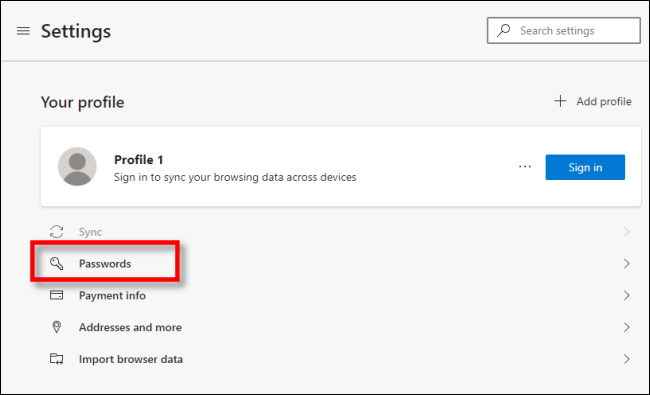
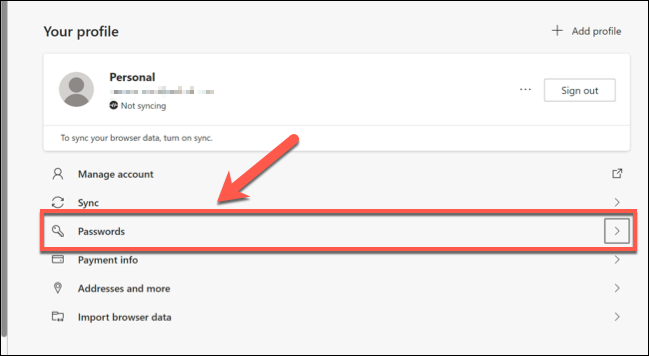
To access the password settings, go to the Settings screen, click on the "Profiles" section, and then click on "Passwords".
STEP 3:
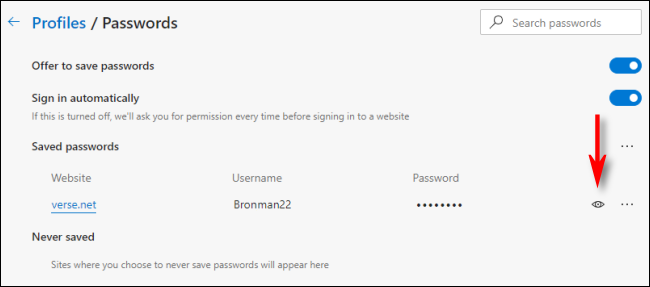
To view saved passwords in Edge, go to the Passwords screen and locate the "Saved Passwords" section. A list of usernames and passwords will be displayed, with passwords masked for security. To view a password, click the eye icon next to it.
STEP 4:
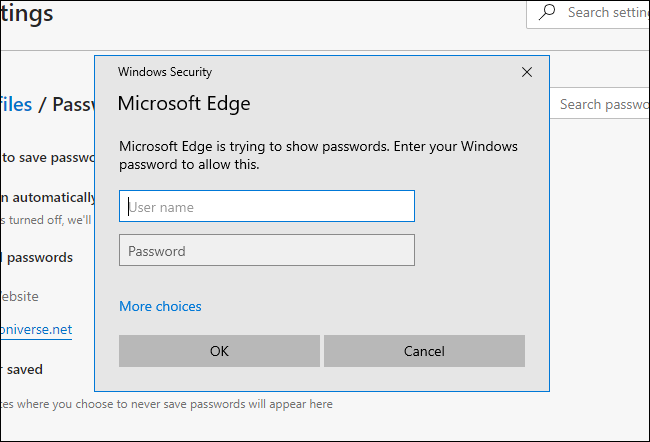
To log into your account, enter your username and password in the box that appears, then click "OK".
STEP 5:
Once the details are verified to be correct, your saved username and password will be displayed as shown below.
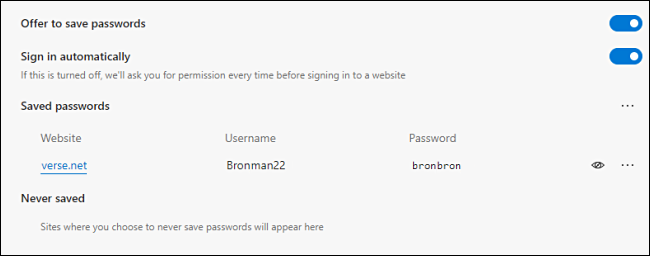
If you're unable to retrieve your Edge details using the previous method, you can try using the "Edge" app on your computer. Open the Edge app, click on the three dots at the top right corner, select "Settings", then click on the "About" tab, and your Edge details, including the version number, will be displayed on this page.
Recover your Edge Account and Password with Qiling Key Finder
If this method doesn't completely resolve your recovery issue, Qiling Key Finder is a great alternative to recover your username and password. Its Product Key function also makes it a useful tool for locating product keys of installed apps on your Windows PC.
Qiling Key Finder was designed to provide solutions for managing backups and recovering product keys from dead PC's OS hard drives, also finding installed software and WiFi code, making it a useful tool for administrators.
To use the Qiling Key Finder, simply follow the steps outlined in the guide. First, ensure you have the correct key and that it is properly inserted into the device.
Step 1. Click "Internet & Network" under Password.
Step 2. To check the browser accounts and passwords of Chrome, Edge, Firefox, and IE, you can follow these steps. For Chrome, go to Settings, then click on "Manage people" and select the account you want to check.
"Copy" - Click it, then directly paste.
"Save" - Save as a PDF file.
"Print" - Connect Printer to print.
Qiling Key Finder can find your Windows product key, Office license, and other installed software serial keys, as well as web browsers' saved accounts and passwords. Wait for the process to complete.
In Summary, you can recover your lost Edge Account and password with only 1 simple click. This demonstrates the efficiency that is provided with Qiling Key Finder.
Manually Reset Microsoft Edge Password
To reset your Microsoft password, start by going to the Microsoft account recovery page and selecting the reason for your password reset. Then, choose the method you want to use to reset your password, such as using a recovery email or phone number. Follow the prompts to enter the required information and complete the password reset process.
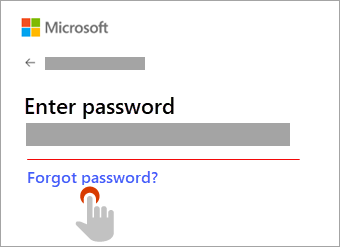
STEP 1: When logging in to your account, click the 'Forgot your password?' link instead of entering your password.
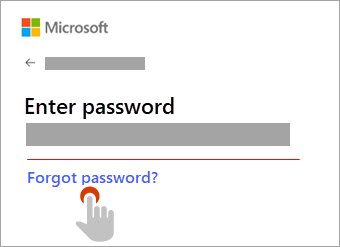
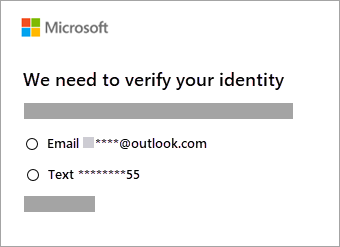
STEP 2: Depending on whether you selected a recovery question when you created your Microsoft account, you'll be presented with several options for recovering your account on the following screen.
If you don't have access to the email address you used to register with Microsoft, you can use your mobile number instead to regain access to your account.
STEP 3: Please retype the section of the email address or the final four digits of the phone number hinted at in the previous window. Depending on which you choose to go with, select "Get Code".
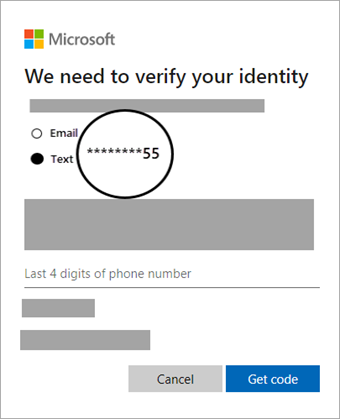
A verification code would be sent to either the email address or phone number you specified.
Navigate to the recovery phone number or email address where you expect to get the code, then copy the sent code.
STEP 4: Enter the code and click "Next".
STEP 5: Type in your new password and select next.
You've successfully reset your Microsoft password. You can now use your account.
Finding Edge Account and Password Is Easy — Go and Get Back Your Passwords Now
Losing your account password can be frustrating, but with the steps outlined in this guide, you can easily regain access. The process is straightforward, and with the help of Qiling Key Finder, it becomes even simpler.
Use stronger and more unique passwords for each site, and consider using a password manager to avoid having to remember multiple complex passwords. This can help prevent phishing attempts and make online transactions more secure.
Because the password manager only auto-fills credentials for sites to which they belong, users are less likely to be scammed.
Microsoft Edge's password manager enhances security by allowing users to store unique, complex passwords for each website, and syncing them across all devices, making it easier to use a different password for each site.
Once you've retrieved your password, store it in a safe location to keep your account secure. Avoid writing it down on a piece of paper, as this can be easily seen and accessed by others, putting your account at risk.
Qiling Key Finder simplifies various tasks, including data rescue, Windows product key retrieval, and software migration, making everything easier with its efficient handling.
Related Articles
- How to Find Windows Server 2012 Product Key [3 Ways]
- Transfer Firefox Passwords to New Computer
- What to Do When You Forgot Thunderbird Password
- How to Find Autodesk Survey (2021-2005) Product Key
- What is Video Ram (VRAM)? How to Check and Increase VRAM in Windows 10
VRAM, or video random access memory, is a type of RAM used for graphics processing in computers, and checking it on Windows 10 involves a straightforward process. - How to Fix Windows 10 Installation Has Failed [SOLVED]
If you're moving to a new PC or browser, or want to transfer your passwords, this post will guide you on how to do it, even without internet access. You can also use a third-party password exporter to easily manage and transfer all your passwords.
Products
Articles & Tutorials
- Data Recovery
- Data Backup
- File Recovery
- File Backup
- System Backup and Restore
- Disk and Partition Clone
- Technical articles
- Mobile articles
- Disk Master Help
- Windows Data Recovery Tutorials
- Windows Secure Delete Tutorials
- Windows Partition Management Tutorials
- Windows File Backup and Restore Tutorials
- Windows System Backup and Restore Tutorials
- Windows Disk Backup and Restore Tutorials
- Windows Clone Tutorials