What Is the CTF Loader and How to Fix CTF Loader Issues on Windows 10
Windows error messages can be frustrating, especially when you don't know the cause. If you're experiencing CTF loader errors on Windows 10, such as "CTF loader has stopped working," it can cause significant issues. Fortunately, there are several solutions to this error, and this post will guide you through the fixes. By following the steps outlined here, you'll be able to resolve the CTF loader issue and get back to using your Windows 10 system without any problems.
CTF, or Collaborative Translation Framework, is a vital process that enables voice recognition, handwriting, and other text entry methods across Microsoft applications, particularly in MS Office. The ctfmon.exe process typically runs in task manager, supporting features like Microsoft's built-in dictation or handwriting capabilities.
The ctfmon.exe process typically doesn't consume many resources, but it can sometimes cause issues, particularly when the CTF loader stops working. While turning off services that use the ctfmon process is often a solution, there are other ways to fix the problem, which we'll explore further.
What Causes CTF Loader Issues
CTF loader issues are often caused by four main reasons. These issues can be frustrating, but understanding the underlying causes can help you resolve them.
- Hidden malware and viruses inside your system
- Errors are found in inputs or language packs
- Windows update files conflict with the CTF loader
- Install Microsoft Office in an improper way
How to Fix CTF Loader Issues on Windows 10
CTF loader issues can be frustrating, but fortunately, there are seven effective ways to resolve this error, which we will explore in this section.
- Check your PC for malware.
- Disable CTF Loader in the Task Scheduler
- Disable touch keyboard and handwriting panel services
- Delete CTFMON.EXE files
- Uninstall Microsoft Office
- Recover your Windows system
- Update Windows to the latest version
Follow the exact steps given below to perform each fix.
1. Check your PC for malware
To ensure CTF Loader is not affected by any virus or malware, scan your PC using Windows Defender's built-in program, which is available for free in Windows.
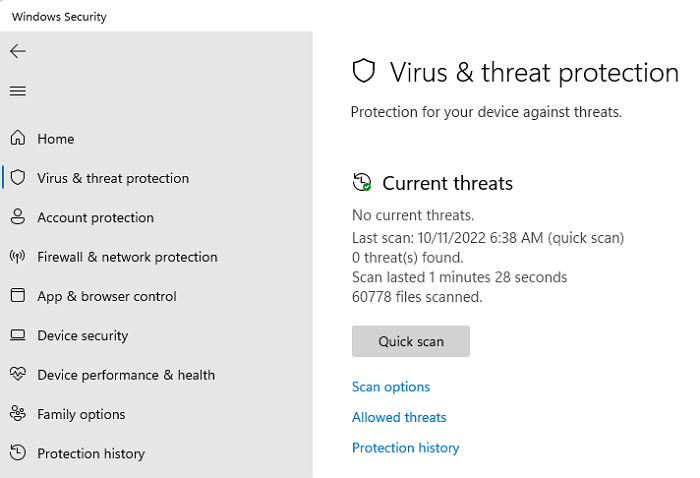
Step 1: Left-click on the Windows main menu button, search for Windows Security and click on it.
Step 2: On the Windows Security page, select Virus & threat protection from the left side panel.
Step 3: Press the Quick scan button to automatically scan for viruses or malware.
Step 4: If you encounter a CTF loader issue, first check your computer for any viruses or malware. If any are found, remove them. Then, restart your PC and see if the problem is resolved.
2. Disable CTF Loader in the Task Scheduler
To resolve CTF Loader issues, disable the CTF loader in the Task Scheduler. This can be done by following a simple guide.
Step 1: To open the Run dialog box, right-click on the Windows menu and select "Run" from the list of options that appears.
Step 2: To open the Task Scheduler, type taskschd.msc in the Run utility and click on the OK button. This will open the Task Scheduler window.
Step 3: To access the Task Scheduler Library, navigate to the Microsoft folder within the Windows folder in the left side panel. The path is: Library > Microsoft > Windows > TextServicesFramework.
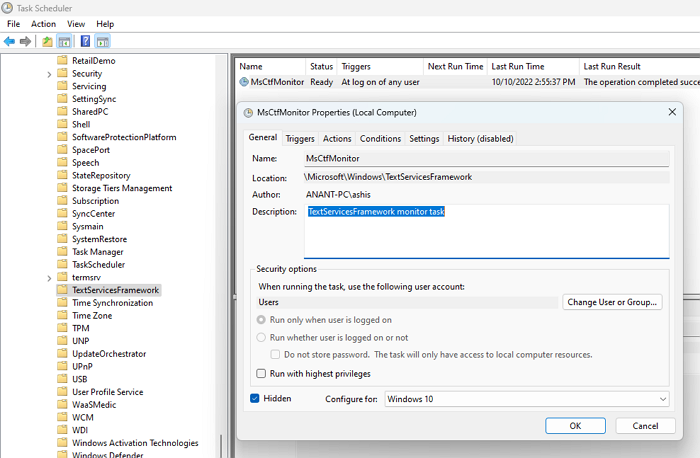
Step 4: To troubleshoot an issue, disable the MsCtfMonitor service by right-clicking on it in the middle panel, selecting Disable from the context menu, and then check if the problem is resolved.
3. Disable touch keyboard and handwriting panel services
Disabling the touch keyboard and handwriting panel service can fix the CTF loader issue on your PC. To do so, follow the below steps carefully.
Step 1: To access the Run dialog box, right-click on the Windows menu and select "Run" from the list.
Step 2: In the Run utility, type services.msc and click on the OK button.
Step 3: To access the Touch Keyboard and Handwriting Panel Service settings, you can open the service list by following these steps: scroll down until you find the Touch Keyboard and Handwriting Panel Service, right-click on it, and then select Properties from the context menu.
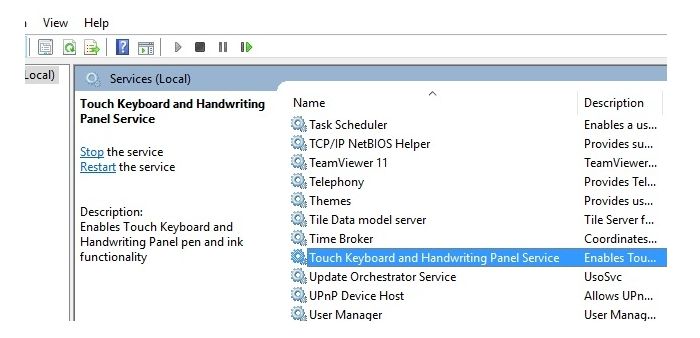
Step 4: To disable the Startup type, open the Services window, find the service you want to disable in the list, right-click on it, and select Properties. In the new window, ensure the Startup type is set to Disabled by opening the dropdown menu and selecting it if it's not already.
Step 5: If the issue persists, click on the OK button again and check if the problem is resolved. If it still doesn't work, you can try restarting your computer or reinstalling the software.
4. Delete CTFMON.EXE files
Deletion of CTFMON.EXE files can also resolve your CTF Loader issue. Follow the below process to perform it properly.
Step 1: Open Task Manager using Ctrl + Shift + Esc
Step 2: Sort running processes by name.
Step 3: To find the CTF Loader program, locate it in the list, right-click on it, and select "Open File Location".
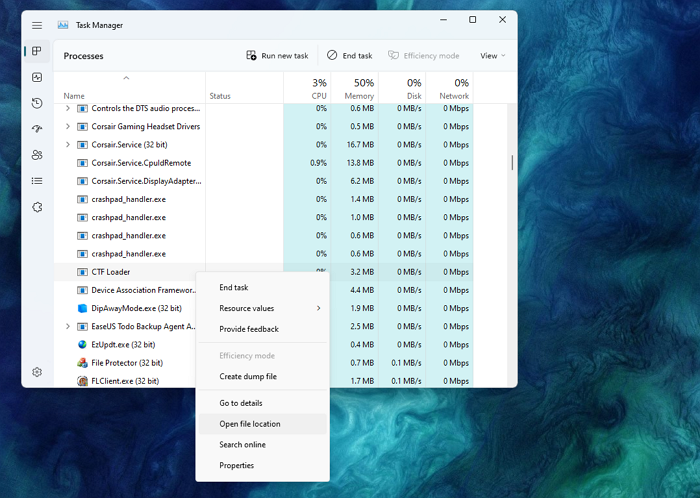
Step 4: Switch back to Task manager, and kill the program.
Step 5: Delete the file from File Explorer.
5. Uninstall Microsoft Office
The CTF Loader errors come from Microsoft Office. So, the most straightforward fix is to uninstall Microsoft Office and reinstall it. Follow the steps below to uninstall Microsoft Office.
Step 1: To access the Windows Settings, click on the main menu button and type "Settings" in the search bar that appears.
Step 2: To access the Apps window, click the Apps option from the left side panel of the Settings window. This will open the Apps window.
Step 3: To access the Apps & feature section, click on the Apps & feature section from the right-side panel of the Apps window.
Step 4: The software will display all the installed application lists on your computer.
Step 5: To uninstall the Office app, navigate to the App list, type "Office" in the search bar, select the Office app, click on the three dots, and then choose "Uninstall".
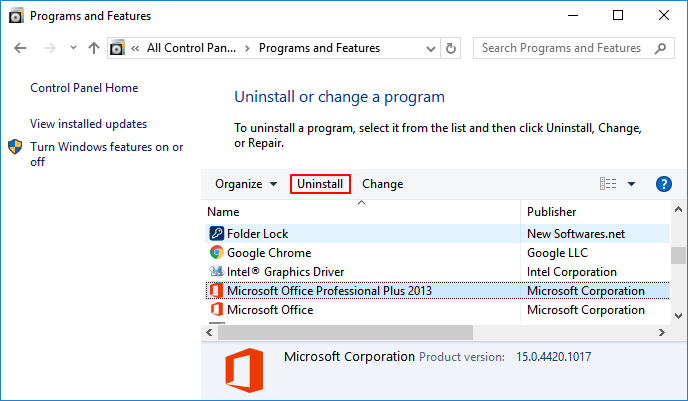
Step 6: To resolve the issue of the CTF Loader error after uninstalling Office, try reinstalling Office and see if the error is resolved.
6. Recover your Windows system
To resolve the CTF loading issue, you can recover your Windows system. To do this, follow the guide properly, which involves a series of steps to restore your system to a working state.
Step 1: To access the Control Panel in Windows, click on the main menu and type "Control Panel" in the search bar. This will bring up the Control Panel application, which can be opened by clicking on it.
Step 2: In the Control panel, type Recovery in the search box and click on the Recovery option.
Step 3: To access System Restore, open the Advanced recovery tools window, select Open System Restore, and click Next in the Restore system files and settings dialog box.
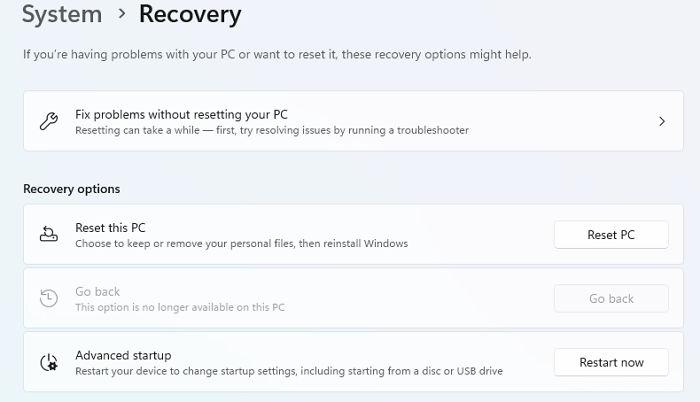
Step 4: To select a restore point, click on the one that is recommended by Windows, or click on the "Choose a different restore point" checkbox to access additional restore points.
Step 5: To resolve the CTF Loader issue, click Scan for affected programs, select Close, then Next, and finally click Finish after the process is completed. Restart your PC and verify if the issue is resolved.
7. Update Windows to the latest version
Updating your operating system may resolve the CTF Loader errors, so we recommend downloading the latest version of Windows to see if the issue is resolved. To do this, follow these steps:
Step 1: Click on the Windows main menu button and search for Settings in the search bar.
Step 2: Click on the Windows Update from the left side panel of the Settings page.
Step 3: Click on the right-side panel and select Check for updates, then wait for Windows to find any available updates.
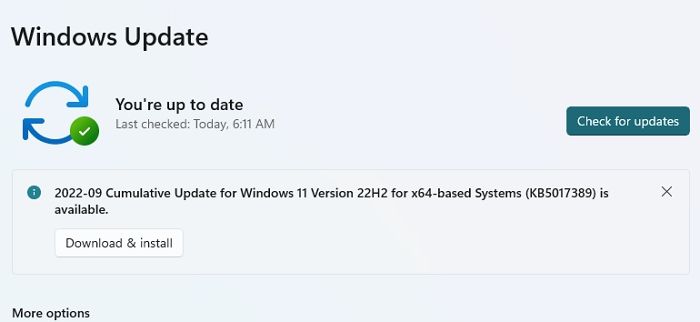
Step 4: If any update is available, it will show you the option for Download & installation.
Step 5: To install the latest version of Windows on your PC, click on the "Download & install" option.
Conclusion
If you're still following the post, you now have a better understanding of resolving the CTF Loader issue on Windows. We've provided seven fixes to resolve this issue, which can occur even though the Collaborative Translation Framework is a crucial program and service for Windows. In rare cases, the program can create problems that require a fix.
Related Articles
- Backup vs. Replication: Which One to Choose
- Hard Drive Data Recovery Glossary
- We Couldn't Install Windows 11 - Error Code 0x800f0830
- Full Guide on Windows 11 Requirements [Everything You Should Know]
- How to Fix Atomic Heart Not Saving Issue on PC, PS4/5, Xbox [7 Tested Methods]
If you're frustrated with Atomic Heart not saving, there are fixes to try. Clearing Steam caches, disabling antivirus software, and running Atomic Heart as an administrator are just a few solutions to get you started. - What Are the Benefits of Dynamic Disk [Detailed Elaboration]
The benefits of dynamic disks are numerous, but should you convert your basic disk to dynamic.
Products
Articles & Tutorials
- Data Recovery
- Data Backup
- File Recovery
- File Backup
- System Backup and Restore
- Disk and Partition Clone
- Technical articles
- Mobile articles
- Disk Master Help
- Windows Data Recovery Tutorials
- Windows Secure Delete Tutorials
- Windows Partition Management Tutorials
- Windows File Backup and Restore Tutorials
- Windows System Backup and Restore Tutorials
- Windows Disk Backup and Restore Tutorials
- Windows Clone Tutorials