Memory vs. Storage on Mac: What Are The Differences? [Updated 2023]
Computers, whether Windows or Mac, have two built-in parts: Memory and Storage. Users often get confused about the differences between these two, so this article aims to clarify the distinction between Memory and Storage on a Mac and explore the key differences between these two essential components.
What Is Memory on Mac?
On a Mac, Memory (RAM) is a type of computer memory that requires power to save information and is unstable, losing data when power is off. It's used for storing and reading data, but does not store data long-term, unlike Storage, which retains data even after use.
What Is Storage on Mac?
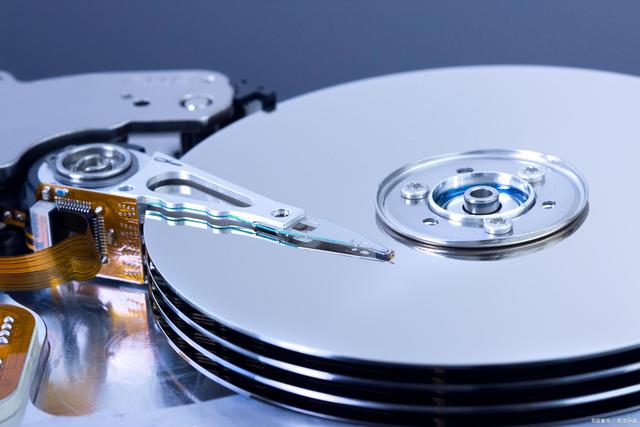
Storage on a Mac is similar to a Hard Disk Drive (HDD) or Solid State Drive (SSD), storing and erasing data like a cache. It's a crucial memory component where most software required by the computer is stored, with its capacity determining how much data can be stored. The Storage capacity is larger than the Memory and CD-ROM, and it consists of various components, including a writer and reader module.
Memory vs. Storage on Mac: the Differences
After learning the definitions of Memory and Storage on Mac, you're probably eager to know the key differences between them. Memory, also known as RAM, is a temporary workspace that allows your Mac to perform tasks quickly, while Storage, such as your hard drive or SSD, holds all your files, programs, and operating system. Think of Memory as a desk where you work on tasks, and Storage as a file cabinet where you keep all your files and documents.
In the IT industry, RAM (random access memory) and Storage refer to the internal and external storage spaces of a computer, respectively. RAM is a temporary storage space for data when a system runs an application program, whereas Storage is a more flexible option that can store data for a longer time or temporarily for a short time.
A comparison table may help you understand well:
| Differences | Memory | Storage |
|---|---|---|
| Space capacity | Up to 64GB | Up to 2TB |
| Function | Provide running space for the system and software | Provide storage space for the system and software |
| Price | More Expensive | cheaper |
| Speed | Fast | Slower than the previous one |
| Examples | RAM | SSDs or HDDs |
| Savings files | NO | YES |
| Type | Volatile | Non-volatile |
Memory vs. Storage on Mac: How much Do You Need?
On a Mac, Memory and Storage are two crucial software components that can significantly impact your experience. While they can be expanded or upgraded, it's a process that can be complex, and Apple doesn't support automatic upgrades. Therefore, choosing the right capacity for your needs is essential to ensure you have enough space for future work.
Upgrading your computer with a Solid-State Drive (SSD) can be a great choice, as it can significantly improve your computer's performance and speed. By replacing your traditional hard drive with an SSD, you can enjoy faster loading times, quicker application launches, and improved overall system responsiveness.

How to Install an SSD without Reinstalling Windows?
Installing an SSD on your laptop or PC without reinstalling Windows is a straightforward process.

1. How much memory do you need based on Mac?
Choose the size of the memory according to your needs, with 4G memory being sufficient for household use.
8G is a good option if you're a gamer. It provides a lot of storage for your games, and you can store a lot of other files as well.
Third, select the more advanced memory with 16G or larger.
2. How much storage do you need based on Mac?
A larger storage capacity is chosen to ensure a comfortable and uninterrupted experience. While the largest capacity is often preferred, a 16 GB storage capacity is a suitable choice for most users, considering practical conditions and demands.
Final words
Understanding the difference between Memory and Storage on a Mac is crucial. While Memory (RAM) determines how many tasks your Mac can handle simultaneously, Storage (hard drive or SSD) holds all your files, apps, and data. When deciding which capacity is best for you, consider your needs carefully, as this will help you make an informed decision that meets your demands.
Memory vs. Storage on Mac FAQs
1. How can I increase the storage space of my computer?
If you run out of memory space, Apple won't automatically allow you to add external RAM. Instead, you can connect external hard drives to increase storage space, or even replace the internal hard drive with a larger one. This way, you can expand your storage capacity without losing any files.
2. Memory or Storage, which is more important for Mac?
Memory and storage are two essential parts of a Mac, and the computer cannot run without either one.
Related Articles
- Restore Point in Windows [What Is and How to Use]
- What Is Safe Mode On Windows And How To Enable It? [Full Guide]
- What Is an Open System? Everything You Need to Know about It
- Ethernet Switch VS Hub: What Are the Main Differences
- (Answered!) How to Reinstall Windows 10 from BIOS🔥
You are facing software issues or want to upgrade your PC for better performance. A Windows 10 reinstallation does the job for you. In this post, we will see two methods for how to reinstall Windows 10 from BIOS. - How to Reset BIOS to Default Settings in 3 Different Ways
You can easily reset your BIOS to its default settings using the methods outlined in this article, which explains what BIOS is, why you might need to reset it, and how to do so.
Products
Articles & Tutorials
- Data Recovery
- Data Backup
- File Recovery
- File Backup
- System Backup and Restore
- Disk and Partition Clone
- Technical articles
- Mobile articles
- Disk Master Help
- Windows Data Recovery Tutorials
- Windows Secure Delete Tutorials
- Windows Partition Management Tutorials
- Windows File Backup and Restore Tutorials
- Windows System Backup and Restore Tutorials
- Windows Disk Backup and Restore Tutorials
- Windows Clone Tutorials