Restore Point in Windows [What Is and How to Use]
If you are a Windows user, understanding System Restore points is essential for protecting your data and system configuration.
Microsoft's System Restore feature in Windows allows users to easily revert to a previous stable state of their operating system, protecting against data loss by taking snapshots of the PC's software, registry, and driver configuration at specific points.
In Windows, a System Restore Point is a snapshot of your computer's system files and settings at a specific point in time. It allows you to revert your system to a previous state in case something goes wrong with a software installation, update, or other system changes.
What Is Restore Point in Windows
A System Restore point in Windows is a snapshot of the PC's configuration and settings that allows it to restore the system to an earlier date when it was working perfectly. It serves as a milestone from which the operating system's settings can be reverted.
Windows OS creates a restore point automatically when it installs updates or makes significant changes to the system, while users can also manually create a restore point at any time.
Windows automatically creates a restore point whenever there is a significant event, such as a Windows Update, a program installation, or changes to the system's settings.
To manually create a System Restore point, go to System Protection> System Properties in Windows, where you can select the drive you want to protect and choose the disk space you want to use for System Restore points. From there, you can click the "Create" button to create a new restore point.
The System Restore point creates a backup of critical Windows files and settings, allowing the system to be restored to an earlier point. This process affects OS and app files, but not user data, unless files are in critical locations, which Windows may also include in the restore point.
How Does Restore Point in Windows Work
A restore point is a snapshot of the Windows PC's state, capturing everything on the System drive, including configuration, settings, and registry. Users often create one before installing a driver, updating Windows, or making any critical changes to the OS, to ensure they can revert to a previous, stable state if needed.
The system restore feature helps keep PCs safe during bad Windows updates or system corruption issues by restoring points and saving existing applications and their data.
System Restore primarily affects system files, registry settings, and installed programs. It does not typically affect personal files such as documents, photos, or emails. However, if a file was added or modified after the restore point was created, it may be removed or reverted during the restore process.
The system restoring feature should be able to rejoin the computer to the corporate domain immediately after the computer loses its association with the domain.
The system restores points without affecting user data or files, ensuring safe access anytime, but may fail to restore accidentally deleted files.
You may be interested in How to Create System Restore Point Windows 10/11.
How to Recover with a Restore Point in Windows
To recover with a restore point in Windows, go to the Start menu and select "Control Panel". From there, click on "System and Security" and then "System Protection". Click on "System Restore" and choose a restore point from the list.
If your PC is accessible:
Step 1. Open Windows Start Menu. Then type Recovery and click on the "Recovery" option that appears under "Settings."
Step 2. Click on the "Open System Restore" link, and the restore window will open.
Step 3. To restore your PC, select either the most recent Restore point or choose one from the list, then follow the wizard to complete the process.
If your PC doesn't boot:
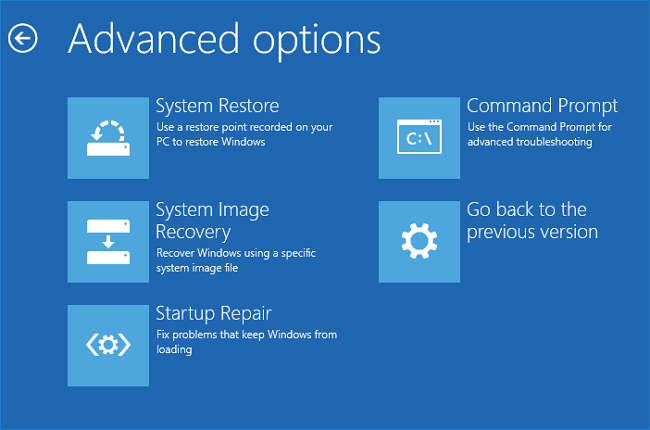
If your PC is not booting, you'll need to enter Advanced Recovery using a bootable USB drive.
Step 1. Go to "Troubleshooting" > "Advanced Options" > "System Restore."
Step 2. Click on "System Restore" and it will open the Restore wizard, which will ask you to select a date.
Step 3. Select the date you think the PC was in a good state, and follow the wizard to restore the PC.
Conclusion
You likely already know what a restore point in Windows is and how to use it, but if you have any pending questions, feel free to ask them in the comment section below.
FAQs about Restore Point
Here are some of the most asked FAQs to help you resolve your pending queries efficiently.
1. Does restore point delete files?
The restore point doesn't delete associated files, it instead backs up all files on the system drive, including user files.
2. How do I use a Microsoft Restore Point?
To access System Restore, go to the Control Panel, type "Recovery" and select it, then open "System Restore". From there, select "Next", then "Restore Point", and finally select "Scan".
3. Does the System Restore Remove Viruses?
System restores don't remove any viruses from the files, but restoring the PC to a previous date can indirectly remove the virus by replacing the infected files with clean ones.
Related Articles
- All Information About System Restore Explorer [Updated 2022]
- What Is the Windows Task Manager? [Everything You Should Know]
- Fix: System Restore Failed To Extract the File
- What Is the Mac Terminal? Introduction to the Command Line Interface on macOS
- What Are the Best External Hard Drive for PS5 [Pros & Cons]
Discover the best external hard drives for your PS5, upgrading your gaming storage space and enhancing your gaming experience. We'll explore the pros and cons of each option, helping you find the perfect solution for your needs. So, read on and upgrade your gaming setup! - Check Out the Best Portable SSD | 2024 List🔥
Are you looking for the best portable SSD in 2024? You can read this guide, and it will show you 5 best portable SSD in terms of their different specifications.
Products
Articles & Tutorials
- Data Recovery
- Data Backup
- File Recovery
- File Backup
- System Backup and Restore
- Disk and Partition Clone
- Technical articles
- Mobile articles
- Disk Master Help
- Windows Data Recovery Tutorials
- Windows Secure Delete Tutorials
- Windows Partition Management Tutorials
- Windows File Backup and Restore Tutorials
- Windows System Backup and Restore Tutorials
- Windows Disk Backup and Restore Tutorials
- Windows Clone Tutorials