What Is Netstat Command and How to Use It
Netstat is a command-line tool that displays active network connections, routing tables, and other network interface information, making it a useful tool for troubleshooting problems on your computer or server, or identifying security threats. To run the netstat command, you can simply type it in your command prompt or terminal, and it will display the requested information. The results of the netstat command can be used to understand what network connections are active, what routing tables are in place, and other key network interface information.
What is netstat command used for?
Netstat, short for "network statistics", is a command that can help troubleshoot internet connectivity issues. It displays all active network connections and their status, allowing you to identify where the problem lies if you're having trouble accessing the internet. By running netstat, you can often gain more insight into why a connection is not working.
Netstat can be used to monitor a computer for security threats by displaying listening ports, which can be done using the -l option. If unusual or unfamiliar listening ports are discovered, it may indicate unauthorized access to the system.
How do I run netstat command?
To use netstat, open a command prompt or terminal window and type "netstat" followed by the options you want to use, such as "-a" for a detailed display of all active connections, or "-n" for a numeric display of addresses and ports. For example, you can type "netstat -a" to see a detailed display of all active connections.
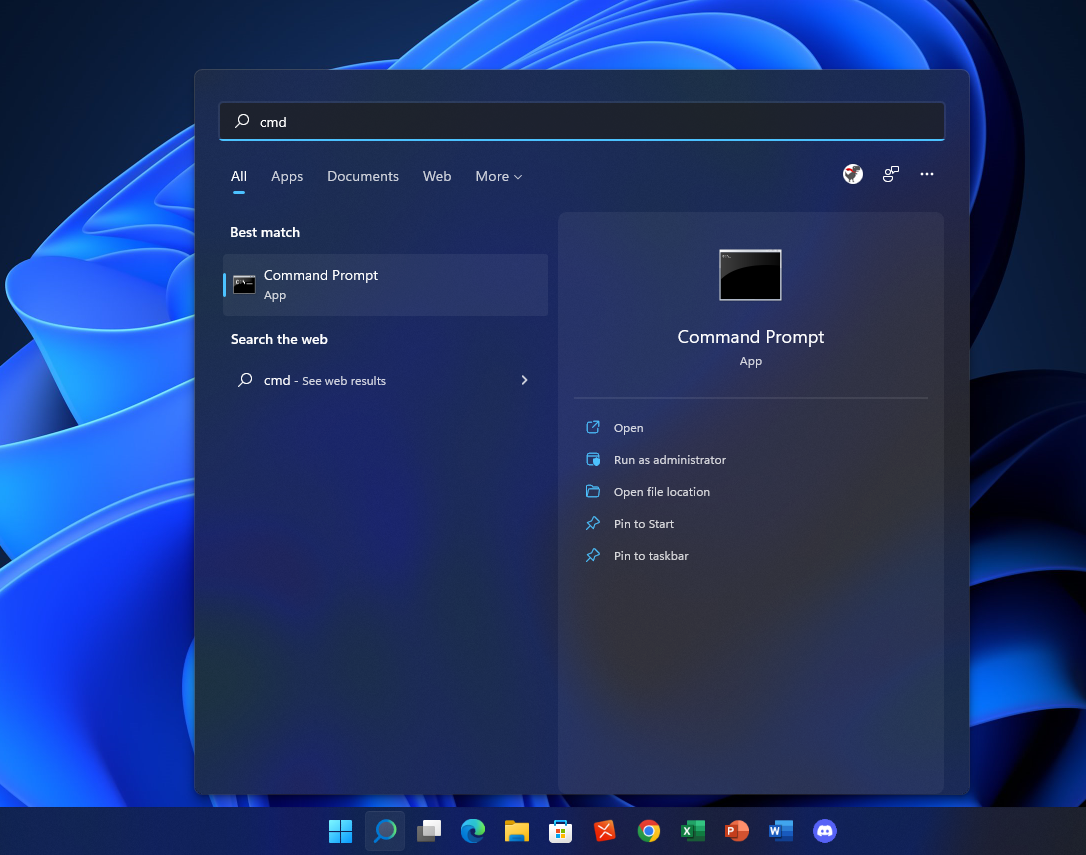
Step 1: To open the command prompt, click on the Start menu, type "cmd" into the search box, and press Enter.
Step 2: To view a list of all active network connections, type `netstat` at the command prompt and press Enter. This will display a list of all active network connections.
To view all active network connections, simply type "netstat -a" at the command prompt. This will display a list of all active network connections. You can also customize the output by using other netstat options, such as typing "netstat /?" for a full list of available options.
To stop the netstat output, simply press the Control + C keys to exit.
What do netstat results mean?
The netstat command displays active network connections, showing the connection status, protocol, local and remote IP addresses, and other details.
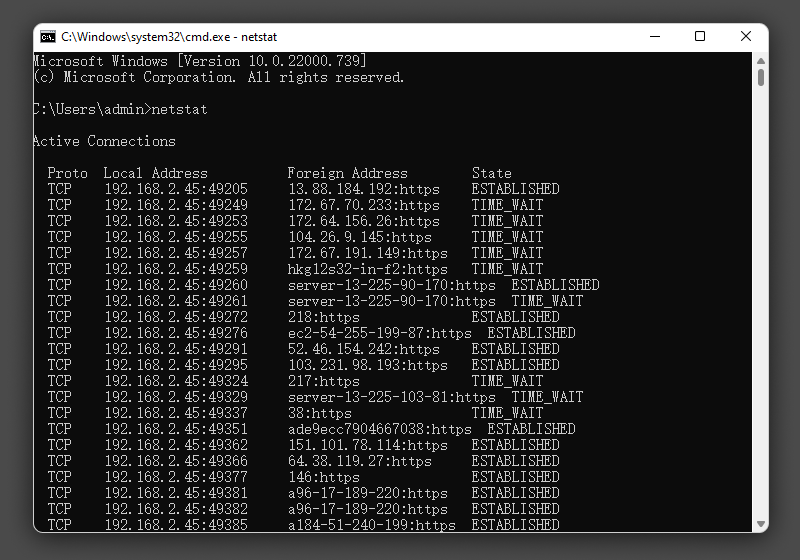
- Proto The networking protocol and it could be protocols like TCP, UDP, etc.
- Local Address The command displays the local computer's IP address and the port number being used, unless the -n switch is used, in which case the hostname and port corresponding to the IP address will be displayed, with an asterisk (*) indicating an unassigned port.
- Foreign Address The remote computer's IP address and port number are displayed, unless the -n switch is used, with an asterisk (*) appearing for unassigned ports.
- State - Indicates an active TCP connection's status, including:
- CLOSE_WAIT
- CLOSED
- ESTABLISHED
- FIN_WAIT_1
- FIN_WAIT_2
- LAST_ACK
- LISTEN
- SYN_RECEIVED
- SYN_SEND
- TIMED_WAIT
What is netstat command syntax?
NETSTAT [-a] [-b] [-e] [-f] [-n] [-o] [-p protocol] [-r] [-s] [-t] [-x] [-y] [interval]
The netstat command syntax varies depending on the options and arguments used, with a detailed explanation of each option available in a table.
| Parameter | Description |
|---|---|
| -a | `netstat` command is used to show all current active TCP connections and the ports on which the computer is listening. It displays the protocol, local and foreign addresses, and the state of each connection. |
| -b | The program that created each connection or listening port can be displayed, showing the order of elements involved in establishing a connection or listening port, especially in cases where well-known executables contain multiple distinct components. |
| -e | Displays Ethernet statistics, such as the number of bytes and packets sent and received. This can be combined with -s to show protocol-specific statistics. |
| -n | Display active network connections and their status without resolving hostnames or port names. |
| -o | Displays active network connections and includes the process ID (PID) for each connection. This parameter can be used with -a, -n, and -p to show the PID alongside connection details. |
| -p Protocol | The command displays all active connections for the specified protocol, which can be TC (TCP), UDP, ICMP, or IP. This allows for detailed monitoring and tracking of network activity for each protocol. |
| -s | Displays statistics for all the protocols that are currently being used. |
| -r | The route print command displays the routing table for your computer, which is a list of all the routes that your computer knows about to reach other networks and hosts. This command is used to view the current routing table, which can be useful for troubleshooting network connectivity issues or understanding how your computer is routing traffic. |
| Interval | To display active network connections and their status at the specified interval, you can use the command `netstat -tlnp` with the `-t` option to show only TCP connections, `-l` to show listening connections, `-n` to suppress DNS lookups, and `-p` to show the PID and name of the program using the socket. The interval can be specified using the `-i` option followed by the desired interval in seconds. For example, `netstat -tlnp -i 5` will display active network connections every 5 seconds.CTRL+C to stop it. |
| /? | Displays help at the command prompt. |
In closing
The netstat command is a powerful networking tool that can provide a wealth of information about your computer's network connections. By understanding the different options and switches available with netstat, as well as what the results mean, you can use this command to troubleshoot network issues and more. Experimenting with netstat is a great way to learn about your computer's network communications, making it a fun and educational tool to explore.
Related Articles
- What Is Differential Backup? Definition and Comparison
- Raid Array Data Recovery Glossary
- A Mini USB - Things You Need to Know
- What Is MRT Process Mac: High CPU Usage [Updated 2022]
- How to Open Files With No Extension in Windows 10/11? [Updated 2023]
There are some files that come with no extension. Qiling shows you a guide to identify their types and open it easily. - How to Fix Overwatch Voice Chat Not Working on Windows 11/10
Are you facing the Overwatch voice chat issue? Now you can fix Overwatch voice chat not working by using the practical solutions we suggested.
Products
Articles & Tutorials
- Data Recovery
- Data Backup
- File Recovery
- File Backup
- System Backup and Restore
- Disk and Partition Clone
- Technical articles
- Mobile articles
- Disk Master Help
- Windows Data Recovery Tutorials
- Windows Secure Delete Tutorials
- Windows Partition Management Tutorials
- Windows File Backup and Restore Tutorials
- Windows System Backup and Restore Tutorials
- Windows Disk Backup and Restore Tutorials
- Windows Clone Tutorials