[Fixed] USB Flash Drive Not Showing/Detected in My Computer in Windows
"When I tried to insert My friend's USB flash drive into my Windows 10 desktop, it was detected but did not show up on my computer. Are there any fixes? It is a Cruzer micro SanDisk USB flash drive."
Quick Navigation: Fixes for USB Flash Drive Not Showing or Detected in Computer
| Workable Solutions | Step-by-step Troubleshooting |
|---|---|
| 1. USB Flash Drive Not Showing in File Explorer | Method 1. Update USB USB flash drive driver...Full steps Method 2. Recover data and create new volume...Full steps Method 3. Change drive letter of USB flash drive...Full steps |
| 2. USB Flash Drive Not Showing in File Explorer & Disk Management | Method 1. Check USB connection...Full steps Method 2. Update USB USB flash drive driver...Full steps Method 3. Send USB flash drive for manual repair...Full steps |
Overview of USB flash drive or USB flash drive not showing in computer
USB USB flash drives, SD cards, or external hard drives can be both a blessing and a curse, offering easy data backup and transfer, but also causing issues like USB flash drives not showing files, not opening in the computer, or not being recognized. To help you find a missing USB flash drive in Windows 10/8/7, this tutorial will guide you on how to fix the "USB not showing up" issue, which also applies to external hard drives or other external USB devices.
When your USB flash drive doesn't show up in Windows File Explorer, you need to identify the specific situation first, as different situations imply different causes. To do this, go to "This PC" > "Manage" > "Disk Management" and see if your USB flash drive is visible. Depending on what you see, choose the correct fixes to apply.
How to fix USB USB flash drive/flash drive not showing in my computer
If your USB flash drive is not showing up on your computer, you'll need to troubleshoot the issue based on your specific situation. If the drive is not detected at all, try using a different USB port, checking for loose connections, and ensuring the drive is properly formatted.
Situation 1. USB Flash Drive not showing in File Explorer but in Disk Management
If the USB drive is still detectable by the computer but not showing up under File Explorer, it's likely due to a file system issue or a driver problem. In this case, the USB drive can be seen in Disk Management but not in File Explorer. This is a less serious problem, and the USB drive can still be accessed and used.
- Be marked as unallocated space
- Or be shown as a volume without a drive letter
The phenomenon is likely caused by either USB driver issues or drive letter conflicts.
If your USB flash drive shows up as unallocated space, try the first two methods. If it appears without a drive letter, try method 3 instead.
Method 1. Update the USB USB flash drive or flash drive drivers
The "USB flash drive detected but not showing in my computer" error is often caused by a faulty USB driver, which is a common issue with USB flash drive devices. To troubleshoot this, try updating your USB drivers, which may resolve the issue and make your missing USB flash drive visible. This solution applies to Windows 10 and other operating systems.
Step 1. Connect your USB flash drive to the PC, right-click on "This PC" (in Windows 10) and choose "Properties".
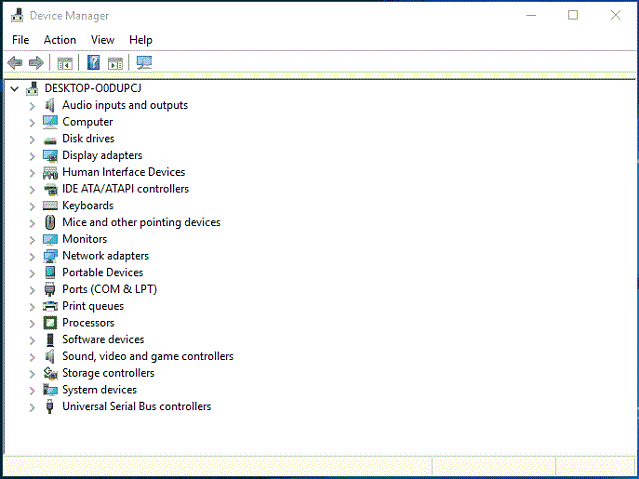
Step 2. Click "Device Manager" then expand "Disk drives". Find and right-click the problematic USB drive and select "Update driver"
Step 3. Click "automatically search for driver software online".
Step 4. Wait for the driver to be updated, then reboot your computer, and try reconnecting your USB drive to PC to see if it shows up.
Method 2. Recover data and create a new volume on the USB flash drive
If the USB flash drive is still not showing in your computer after trying all the above steps, you may need to recover your data and create a new volume to make your device usable again. You can use a reliable hard drive recovery software, such as Deep Data Recovery, to retrieve data from an inaccessible device.
Deep Data Recovery can easily retrieve important data from a USB flash drive or other external USB device, even if it's inaccessible, since it can still be detected by Windows. It can also perform deleted file recovery, formatted data recovery, RAW drive recovery, and more, making it a versatile tool for recovering data from various situations.
Deep Data Recovery
- Recover lost or deleted files, documents, photos, audio, music, and emails with ease using specialized software. These tools can help you retrieve accidentally deleted files, restore corrupted data, and even recover files from formatted or damaged storage devices.
- Recover files from various storage devices, including the Recycle Bin, SD cards, memory cards, USB flash drives, digital cameras, and camcorders, which have been emptied or lost their contents.
- Data recovery support is available for various situations, including sudden deletion, formatting, hard drive corruption, virus attacks, and system crashes. This assistance helps recover lost data under different circumstances, ensuring that important files and information are not permanently lost.
In Deep Data Recovery, the unallocated space will typically appear as a lost partition. To recover data from this space, select the correct partition and initiate the scanning process.
Step 1. Select file types and click "USB/SD Scan" to start
Launch Deep Data Recovery. Select file types and click "USB/SD Scan" to start.

Note: You can choose different search modes based on where and why the data was lost.
Step 2. Choose the USB drive to scan
Connect your USB drive to your computer and open the software. Choose the drive where you lost your files. Click "Scan" to begin the recovery process.

Step 3. Check and preview USB drive data
When the scanning process is complete, you can quickly find a specific type of file using the Filter feature and the Search option, making it easier to locate what you need.

Step 4. Restore flash drive data
After finding the lost files on the USB drive, click "Recover" to restore them. Save the recovered files to a safe location on your PC, not back to the USB drive.
Once you've restored all your files, you can create a new volume on your USB flash drive to prepare it for storing data.
Step 1. Go to "This PC" > "Manage" > "Disk Management".
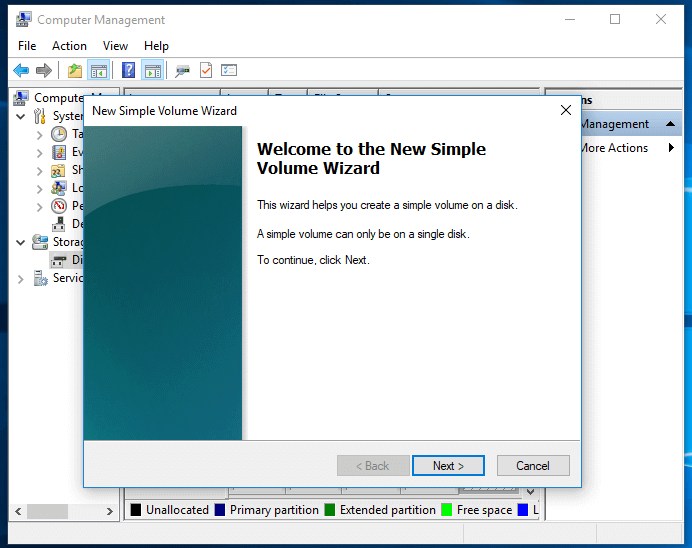
Step 2. Right-click on the unallocated space and choose "New simple volume...".
Step 3. Follow the wizard to finish the remaining process.
Method 3. Change the drive letter of your USB flash drive
If your USB flash drive's drive letter matches one of your computer's existing partitions, it won't appear in Windows and will show up with no drive letter in Disk Management. To fix this, simply change the drive letter of your device.
Step 1. Go to "This PC", right-click it and choose "Manage" > "Disk Management".
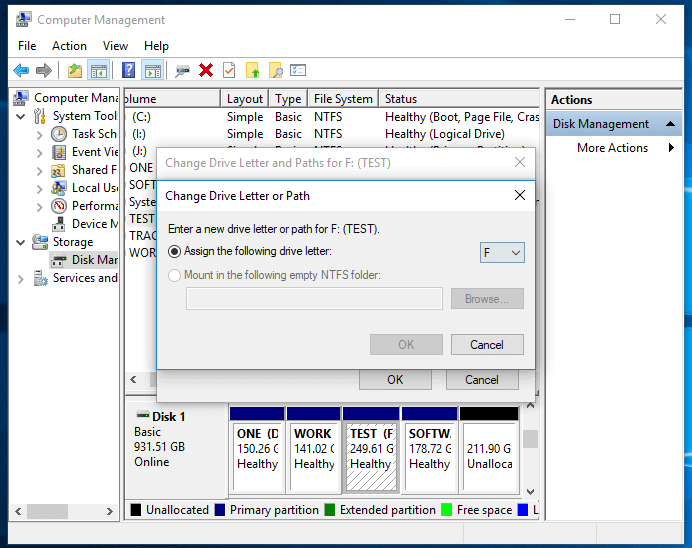
Step 2. Right-click the volume on your USB device and select "Change Drive Letter and Paths".
Step 3. In the new window, click "Change".
Step 4. Assign a new drive letter to your USB flash drive and click "OK".
If you've experienced data loss on your USB flash drive after changing the drive letter, don't hesitate to perform a USB data recovery using Deep Data Recovery.
Situation 2. USB Flash Drive is not showing in File Explorer and Disk Management
If your USB flash drive is not detected by your computer, you can try to fix the issue by checking the connection, updating USB drivers, and checking for physical damage to the drive. If the problem persists, you may need to run a system file checker, reset USB ports, or use a different USB port to troubleshoot the issue. If none of these steps resolve the problem, it may be necessary to reinstall the USB driver or replace the USB flash drive if it is damaged.
Method 1. Check USB connection
If your USB flash drive is not being detected, try switching the USB port or computer to see if the issue persists. This simple troubleshooting step may resolve the problem.
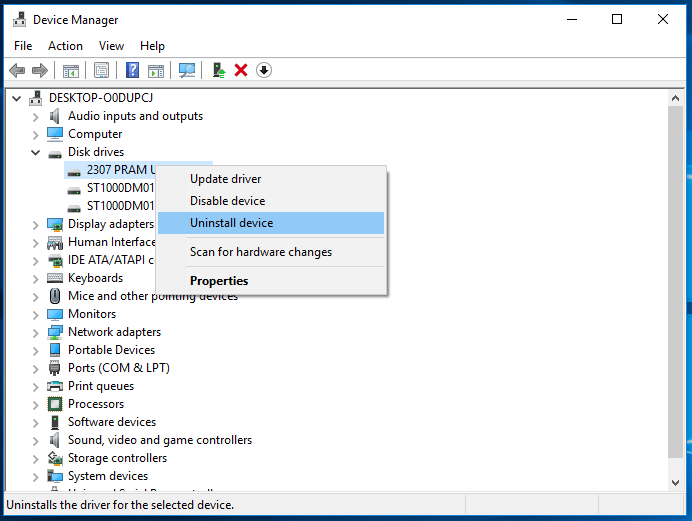
Method 2. Update/reinstall driver
To troubleshoot the issue of a USB flash drive not showing up in Windows File Explorer or Disk Management, you can try updating or reinstalling the device driver, which can be done by following the steps outlined in method 1 of situation 1. This can help resolve the problem and ensure the USB flash drive is visible in the operating system.
Step 1. Connect your USB flash drive to your computer, right-click "This PC", and choose "Properties" > "Devices Manager".
Step 2. Click on "Disk drives", right-click on your USB drive that is not showing and choose "Uninstall device".
Step 3. In the prompt asking you to confirm the removal, click "OK".
Step 4. After uninstalling, restart your computer, then reconnect the USB flash drive or external hard drive. The driver will be automatically reinstalled once the computer restarts.
Method 3. Send for manual repair
If your device is damaged or dead, it won't show up on your computer, and you won't be able to recover data using software. In this case, you'll need manual data recovery services to rescue your data.
The bottom line
If your USB flash drive is not showing or detected by your computer, there are several workable solutions to try. If you're not sure what's causing the issue, you can try each of these fixes one by one. Hopefully, one of them will solve the problem for you. Alternatively, you can also check out a video that demonstrates four ways to fix a drive not recognized or detected issue, which may provide additional help.
Related Articles
- Restore Deleted/Lost ASUS Data with ASUS Data Recovery Software
- Zoom Meeting Disappeared for No Reason? Fix It and Recover Zoom Meetings Now
- [Solved] USB USB Flash Drive Not Showing Data, Files, and Folders
- Windows 10 Won't Update with/Without Sending Errors - (20+) Tips
- Repairing Disk Errors This Might Take an Hour - How to Fix?
If you're experiencing the 'repairing disk errors this might take an hour' error, this article has got you covered. To fix this issue, simply follow the steps outlined here to resolve the problem and get your computer up and running smoothly again. - How to Reset PS5 Without Losing Data [2 Tested Methods]
Reset PS5 without losing data by choosing the right reset option, backing up game saves, and protecting PlayStation 5 data.
Products
Articles & Tutorials
- Data Recovery
- Data Backup
- File Recovery
- File Backup
- System Backup and Restore
- Disk and Partition Clone
- Technical articles
- Mobile articles
- Disk Master Help
- Windows Data Recovery Tutorials
- Windows Secure Delete Tutorials
- Windows Partition Management Tutorials
- Windows File Backup and Restore Tutorials
- Windows System Backup and Restore Tutorials
- Windows Disk Backup and Restore Tutorials
- Windows Clone Tutorials