Plist File on Windows: What Is It and How to Open It?
This article is about PLIST files and how to open them. PLIST files are used for storing application preferences and settings. They can be opened with various applications, such as TextEdit, Property List Editor, and others.

What Is Plist File?
On macOS, apps use Properties List (PLIST) files to store and organize settings and configuration information, providing settings and attributes for various applications and their configurations, with a format based on XML and Apple's Core Foundation Document Type Definition.
The older PLIST files are written in ASCII format and are only compatible with earlier Mac operating systems. However, the PLIST files used in MacOS Tiger are in binary format. To convert between binary and XML formats, the plutil command line utility can be used, which is included with recent versions of macOS.
How to Open Plist File on Windows/Mac?
Step 1: Use another application.
To open a PLIST file, click on it to open it in an associated software, or download a Property List XML File viewer to open it. Without accompanying software, PLIST files won't open.
Step 2: Check the file type.
Plist files are settings files that store data in a specific format. If an app doesn't open a particular file, it may be because the file is not a Plist file. To determine the file type, you can check the file extension, which is usually .plist.
- File right-click.
- "Properties" (Windows) or "More Info" (Mac).
- "Type of File" (Windows) or "Kind" (Mac).
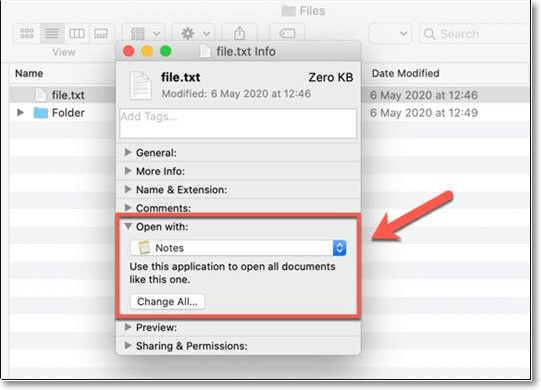
Step 3: Use a third-party software
If your PLIST file still won't open after trying different software and confirming the file type, a software developer may be able to assist.
How to Create and Edit a Plist File on Windows/Mac?
To create or edit a PLIST file on Windows/Mac, you can use a text editor like Notepad++ or TextEdit. Open the text editor and create a new file. Then, add the necessary XML tags and attributes to the file, following the format specified in the PLIST file format.
Step 1: To make changes to the Info tab, control-click (or right-click) on it.
Step 2: Click plist, then click Edit Manually in the sidebar.
Step 3: Add or change data in raw XML.
Recommended: Plist File Viewer
A PLIST file, also known as a Property List file, is an Apple settings file used by iOS and macOS apps. macOS supports reading PLIST files through Xcode and the Property List Editor, but no Windows software can examine them. To view PLIST files on Windows, you can use free software that can read both binary and XML PLIST files, as well as a basic HEX viewer to view binary data values.
1. iBackup Viewer (APP)
Step 1: Get iBackup Viewer from the official website, install it, and run it.
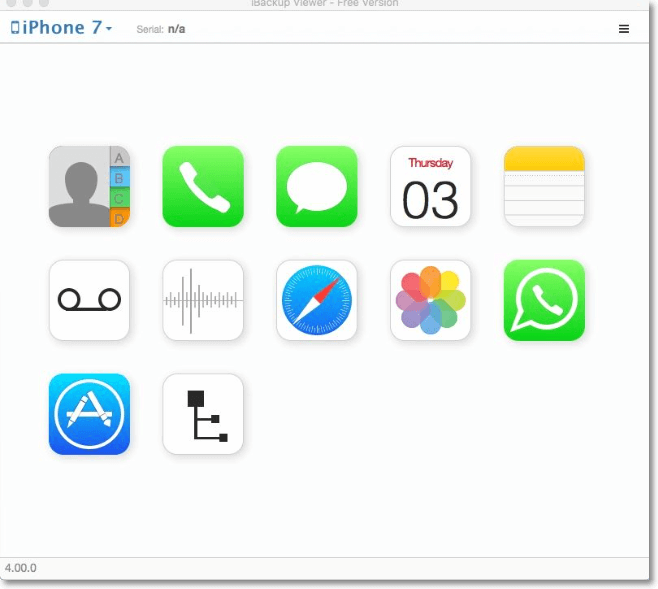
Step 2: To view a property list, select "Property List Viewer" from the main menu of iBackup Viewer.
Step 3: To read a PLIST file, select it and click "Open".
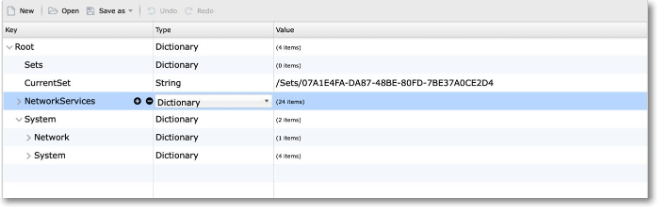
Step 4: As of iBackup Viewer 4.18.2, property list files can be edited, a feature previously available only in version 4.18.20 for Mac.
Step 5: When editing the "Data" item's value in iBackup Viewer, you can use the shortcuts Control+V or Command+V to paste a base 64 text into the edit field.
Step 6: Save the changes.
2. FileProInfo(Online)
To access a PLIST file online through FileProInfo, follow these steps:
Step 1: To access the free reader for XLSX files, visit the website on your web browser.
Step 2: To open a PLIST file, which is likely an XML file containing preferences or settings for an application, click the "Choose Files..." button to select the desired file. This file is probably associated with a specific application or tool, and opening it might require using that application or a dedicated tool for parsing and viewing PLIST files.
Step 3: After clicking "Open with," choose "Google Docs" from the list of available programs.
Step 4: Click the "Convert Now" button to initiate the converting process.
Step 5: Once the file has been successfully converted, the "Download Now" option will become available, allowing users to access the newly converted file.
Step 6: To begin, open Google Docs in your browser and sign in with your Google account credentials.
Final Verdict
If you've come across a file with the .plist extension, don't be alarmed - it's likely a file you've seen before, but just didn't know what to do with. This page is here to help you understand what a .plist file is, how to read and work with it, and provide guidance on how to access and manage it on various operating systems.
Related Articles
- What Is Spindump Mac and How to Utilize It? [Complete Guide]
- [Beginner Guide] What Is VMware? What Is It Used for?
- How to Boot from USB on Different OSs [Step-by-Step Guide]
- Motherboard: An Indispensable Part of Your PC
- How to Fix Samsung SSD Clone Failed [2023 Full Guide]
Do you know why Samsung SSD Clone Failed? This guide will help you figure out the reasons and give you full guide to fix this error. - All About Samsung SSD Reset Tool | Full Guide
Learn what Samsung SSD reset tools do, when to reset an SSD, and how to prepare data before restoring drive settings.
Products
Articles & Tutorials
- Data Recovery
- Data Backup
- File Recovery
- File Backup
- System Backup and Restore
- Disk and Partition Clone
- Technical articles
- Mobile articles
- Disk Master Help
- Windows Data Recovery Tutorials
- Windows Secure Delete Tutorials
- Windows Partition Management Tutorials
- Windows File Backup and Restore Tutorials
- Windows System Backup and Restore Tutorials
- Windows Disk Backup and Restore Tutorials
- Windows Clone Tutorials