Can I Recover Lost Product Key on Windows 11/10/8/7? 5 Methods Here to Help
If you've lost the product key for your Windows operating system, don't worry, as there are 5 methods and detailed steps to help you recover it on your own. On this page, we'll guide you through the process of successfully recovering the lost product key on Windows 11/10/8/7.
How to Recover Lost Product Key on Windows? 5 Methods Are Here to Help
If you've lost or failed to save your Windows product key, you can try to find it on your computer by checking the original packaging, a sticker on the laptop or desktop, or the confirmation email sent by Microsoft. You can also look for it in the Windows Settings app under "Activation" or "Update & Security" on Windows 10. Additionally, you can try running the command "slmgr /dli" in the Command Prompt as an administrator to display the product key.
Don't worry. Here, we'll list 5 reliable methods that you can follow anyone with the respective guide steps to recover lost product key on Windows 11/10/8/7 successfully. Let' see.
5 Methods to Recover Lost Product Key on Windows:
- #1. Check the COA Sticker
- #2. 1-Click Windows Product Key Finder
- #3. Powershell Command
- #4. CMD Command
- #5. Notepad
The easiest methods, Method 1 and Method 2, are recommended for the simplest solutions, while the more complex Windows built-in methods, Method 3, Method 4, and Method 5, can be tried for more intricate solutions.
To find your missing or lost Windows product key, we'll use the latest Windows 11 as an example. By following these methods below, you'll be able to find your Windows product key in no time.
Method 1. Find Product Key of Windows 11/10/8/7 from COA Sticker
The COA sticker, or Certificate of Authenticity Sticker, is a sticker that verifies a computer is shipped with an authentic copy of Windows, and also includes the product key for the current operating system.
If your computer has the original Windows installation, you can check the Windows COA sticker and find the missing product key.
Step 1.Check the back case or the keyboard area of your computer.
Currently, most COA stickers are pasted at the back of the computer.
Step 2.Find the lost product key of your Windows computer.
Usually, it's a serial of numbers printed under the Product Key area on the COA sticker.
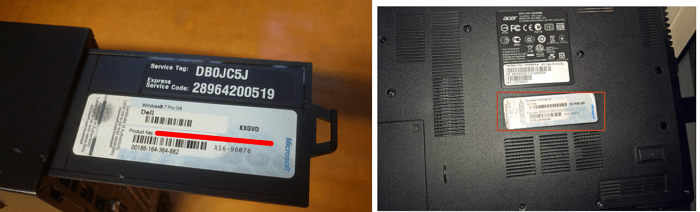
If you upgrade your Windows OS, the original product key printed on the COA sticker may not work. You can try alternative methods to find the current key on your computer.
Method 2. Recover Lost Product Key on Windows 11/10/8/7 with Product Key Finder
If you've lost your Windows product key, you can try using a reliable product key finder software like Qiling Key Finder to recover it. This method is easy and can work on Windows 11/10/8/7, as well as older versions.
With this software, you can easily recover the lost product key on a Windows computer by simply clicking on it, allowing you to regain access to your Windows operating system.
Step 1. Click "Windows" tab under the Registry Key.
Step 2. To check the Windows product key on your computer, navigate to the right side of the screen and click on the "Copy" option to paste the product key. Alternatively, you can select other two options which are not mentioned in the provided text.
"Save" - Save to local as a PDF file.
"Print" - Click to print key file.
Method 3. Find Lost Product Key on Windows 11/10/8.1 via Powershell Command
On some newer Windows computers, the product key is not printed on the COA (Certificate of Authenticity) sticker. Instead, the product key is embedded in the PC's hardware, such as the UEFI firmware or BIOS, by the manufacturer.
To find the Windows product key using PowerShell, follow these steps:
Step 1.To access Windows PowerShell, right-click the Windows icon at the start menu and select "Windows PowerShell".
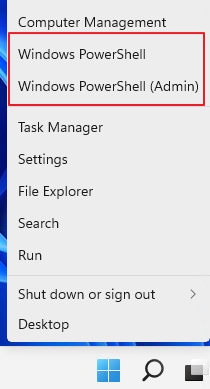
Step 2.Type the command line into Windows PowerShell:
(Get-WmiObject -query 'select * from SoftwareLicensingService').OA3xOriginalProductKey
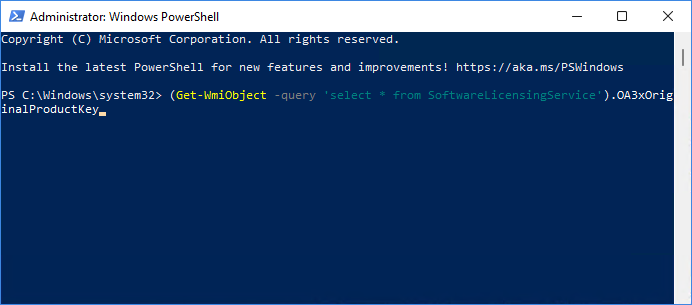
Step 3.You can do this by typing `Get-PnpDevice -Class System -Status IsPresent` in the PowerShell console. This will display the license key embedded in the Windows OS.
Method 4. Run CMD Command to Find Lost Product Key On Windows
Running a CMD command on a Windows computer is another way to recover a lost product key, particularly useful for finding keys on old Windows 7 computers. This method also works on Windows 11/10/8 computers.
Step 1.To open Command Prompt with administrator privileges, type "cmd" in the search box, right-click on "Command Prompt" and select "Run as Administrator".
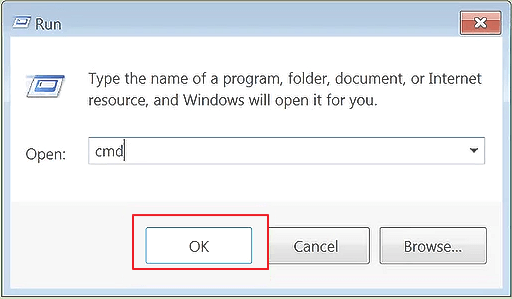
Step 2.Type the command line in the CMD window and hit Enter:
wmic path softwarelicensingservice get OA3xOriginalProductKey
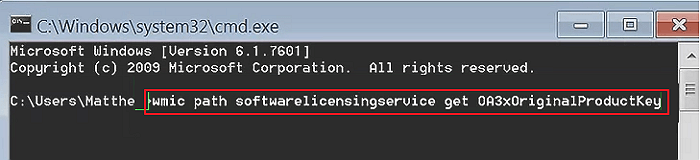
Step 3.Wait for the prompt to find your product key on a computer.
Method 5. Find Lost Product Key on Windows via Notepad
If you're unable to find your Windows product key, you can try running Notepad with certain commands and saving the file as a product key finder. This might be the last effective way to retrieve your product key.
Here are the steps to find the product key of your current OS:
Step 1. Open Notepad and copy the following script into it:
Set WshShell = CreateObject("WScript.Shell")
MsgBox ConvertToKey(WshShell.RegRead("HKLM\SOFTWARE\Microsoft\Windows NT\CurrentVersion\DigitalProductId"))
Function ConvertToKey(Key)
Const KeyOffset = 52
i = 28
Chars = "BCDFGHJKMPQRTVWXY2346789"
Do
Cur = 0
x = 14
Do
Cur = Cur * 256
Cur = Key(x + KeyOffset) + Cur
Key(x + KeyOffset) = (Cur \ 24) And 255
Cur = Cur Mod 24
x = x -1
Loop While x >= 0
i = i -1
KeyOutput = Mid(Chars, Cur + 1, 1) & KeyOutput
If (((29 - i) Mod 6) = 0) And (i <> -1) Then
i = i -1
KeyOutput = "-" & KeyOutput
End If
Loop While i >= 0
ConvertToKey = KeyOutput
End Function
Step 2.To save a file with a specific extension, go to File > Save As and change the "Save as type" to "All Files" from the dropdown menu. This will allow you to select the desired file type from the file name itself.
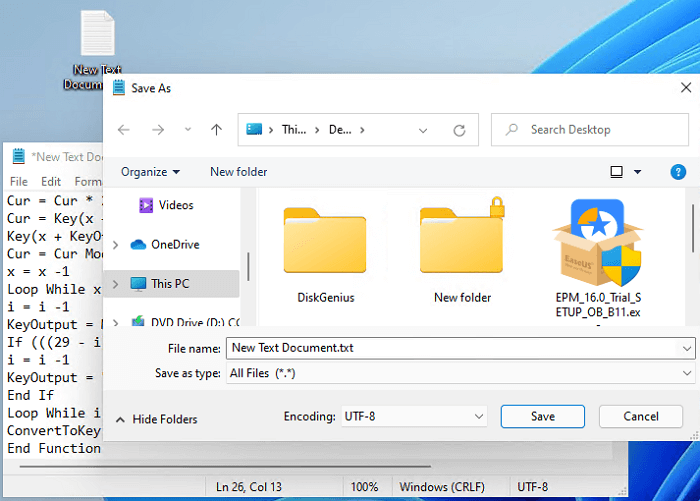
Step 3.Name the notepad asproductkey.vbs.
Step 4.Save the file to your desktop.
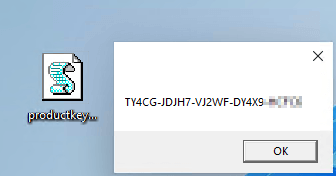
Step 5.To activate your current operating system, double-click the product key file. This will display your current product key.
Recovering Lost Product Key on Windows Is Easy, Go and Find It Now
If you've lost your product key, there are 5 methods that can help you recover it on Windows 11, 10, 8, 7, and even older versions of Windows.
Among the 5 methods, COA sticker and Qiling Key Finder are the two easiest ways to recover a lost Windows serial key.
If you're unable to find the Windows product key, don't worry! There are alternative methods to retrieve it. While they may be a bit more complex, they are still reliable and can be followed carefully to find the missing key.
Related Articles
- How to Recover Forgotten Gmail Password? [Step-by-Step]
- Windows 10 Password Recovery Tool [Free & Paid]
- [Easy to Follow] How to Find CorelDRAW Serial Number?
- Adobe Serial Number Checker Free Download | Find Adobe Software Serial Key in Windows
- Windows Mail Backup and Restore [Everything You Need Know]
Learn how to back up and restore Windows Mail data, including where mail files are stored and how to protect emails before system changes. - Fix Windows Taskbar Not Working | For Windows 11/10
If your Windows Taskbar is not working, you can refer to this article to identify the potential causes and solutions in Windows 10/11. However, be aware that resolving the issue might result in data loss, so consider installing Deep Data Recovery to prevent such losses.
Products
Articles & Tutorials
- Data Recovery
- Data Backup
- File Recovery
- File Backup
- System Backup and Restore
- Disk and Partition Clone
- Technical articles
- Mobile articles
- Disk Master Help
- Windows Data Recovery Tutorials
- Windows Secure Delete Tutorials
- Windows Partition Management Tutorials
- Windows File Backup and Restore Tutorials
- Windows System Backup and Restore Tutorials
- Windows Disk Backup and Restore Tutorials
- Windows Clone Tutorials