What Is Winver and How to Run Winver to Check Your Windows Version?
What Is Winver?
Microsoft Windows is one of the most popular operating systems, and users can find their Windows version using the Winver command, which provides information on the operating system's version and other details.
The Winver command provides information related to the operating system version, along with other details about the device and system installed on it. Introduced in Windows 3.0, this utility has undergone changes across various Windows versions, including Windows 11, to display more comprehensive results.
You can access and run the Winver command on your computer to check the Windows version. This command can be accessed by pressing the Windows key + R, typing "winver" in the Run dialog box, and pressing Enter. This will open the About Windows window, which displays the Windows version, edition, and build number.
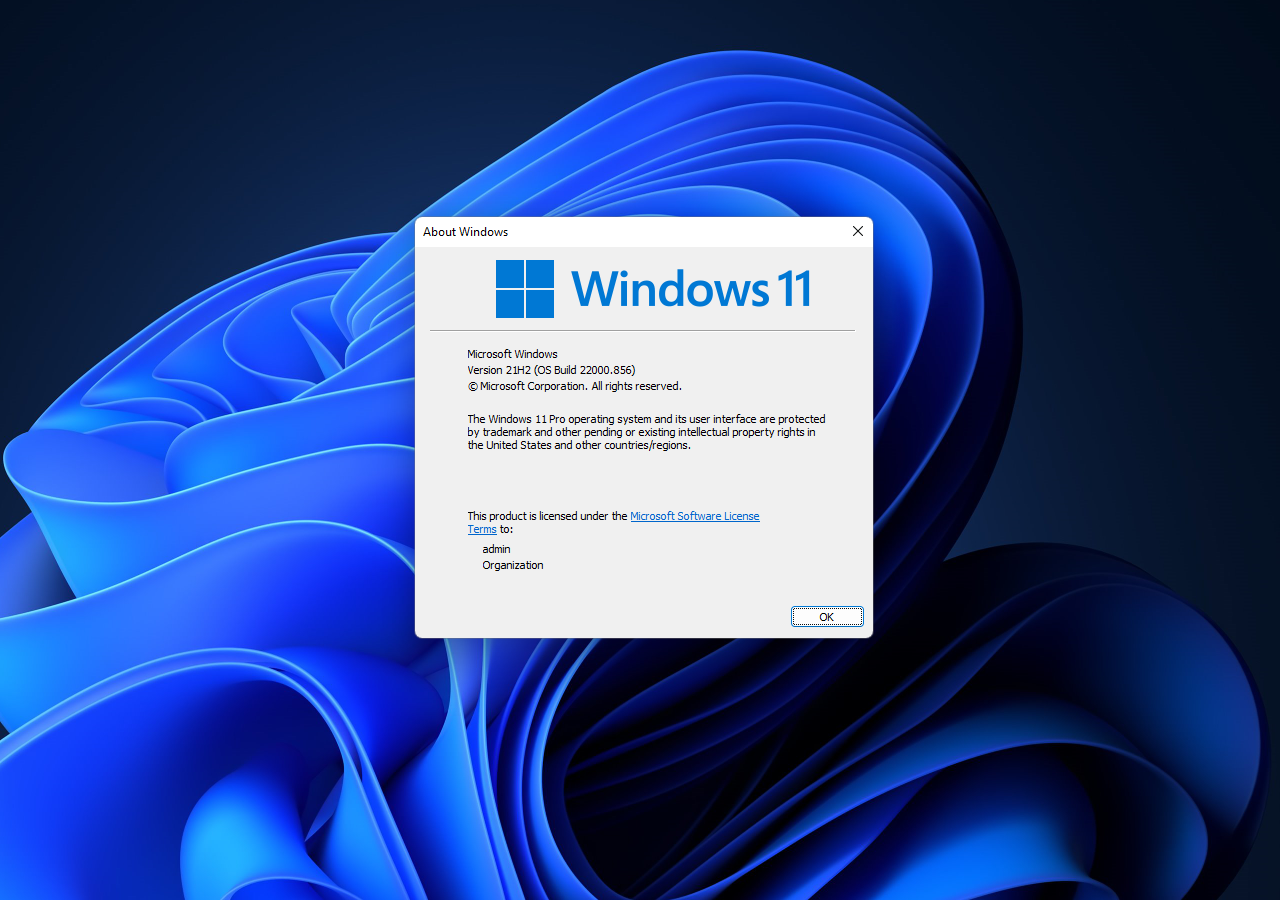
How to Run Winver on Windows?
There are several methods believed to provide accessibility to system information through the Winver command. These include using the Winver command in the Command Prompt, running the Winver command from the Run dialog, using the Winver command in the Task Manager, and enabling the "Show system information" option in the Settings app. Each of these methods can be used to access system information and provide a different way to do so.
Way 1: Windows Start Menu Search to Run Winver
To run the Winver command, access the "Search" icon on the taskbar, type "winver" and hit "Enter" to display the output.
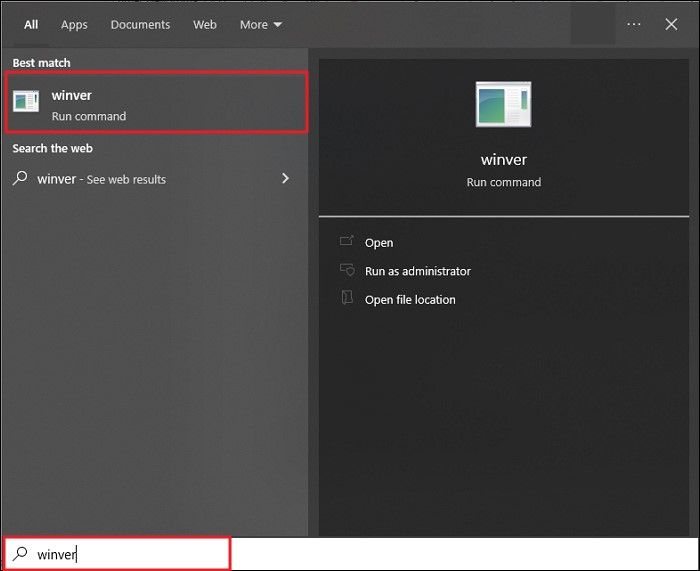
Way 2: PowerShell Winver
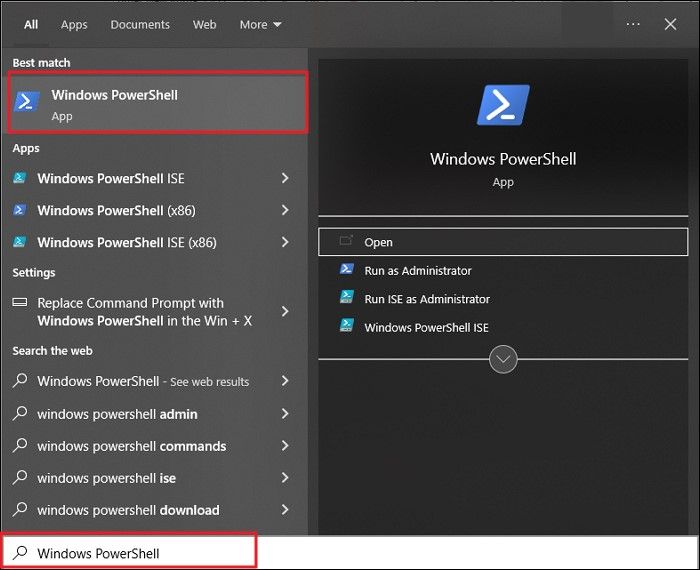
To access system information using the Winver command, you can also leverage the Windows PowerShell platform. This involves using the PowerShell to run the Winver command and retrieve the desired system information. By following the simple steps involved, you can effectively utilize PowerShell to access system details.
Step 1: To open Windows PowerShell, press the "Windows" key and the "S" key simultaneously, then type "Windows PowerShell" in the search bar and press the "Enter" button.
Step 2: To check your Windows version, open the Command Prompt, type the "winver" command, and press Enter. This will display your device's basic operating system information, including the version of Windows you are running.
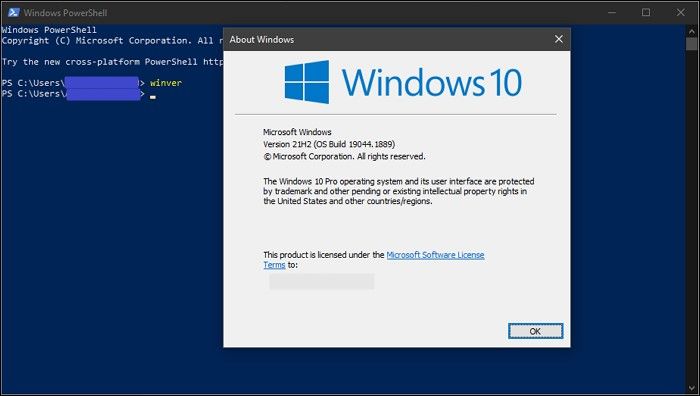
Way 3: CMD Winver
To check your Windows version, you can use the Winver command in the Command Prompt. To do this, press the Windows key + R to open the Run dialog box, type "cmd" in the text field, and press Enter. This will open the Command Prompt.
Step 1: To open the Command Prompt, tap on the 'Search' icon on the taskbar and type "Command Prompt" to launch it.
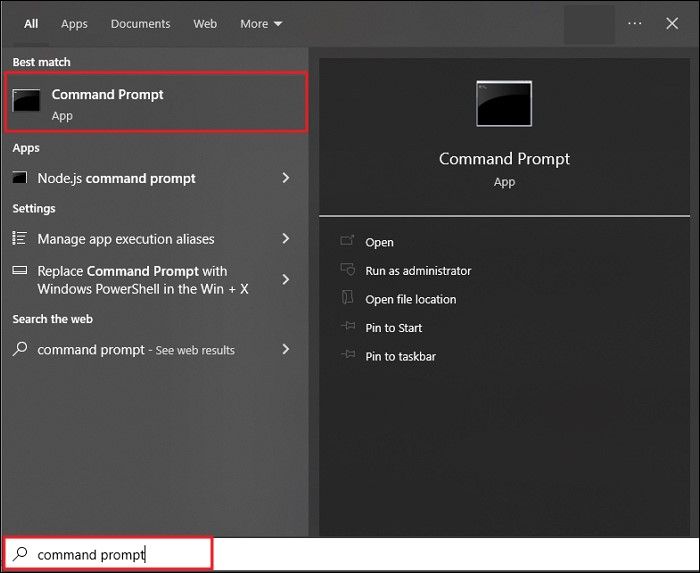
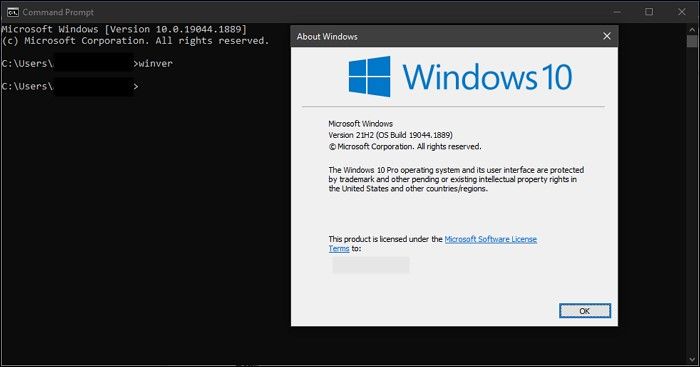
Step 2: To find your Windows version, open the Command Prompt and type the command "winver" followed by pressing Enter. A dialog box will appear displaying the Windows version, which you can close by clicking the "OK" button.
Way 4: File Explorer Winver
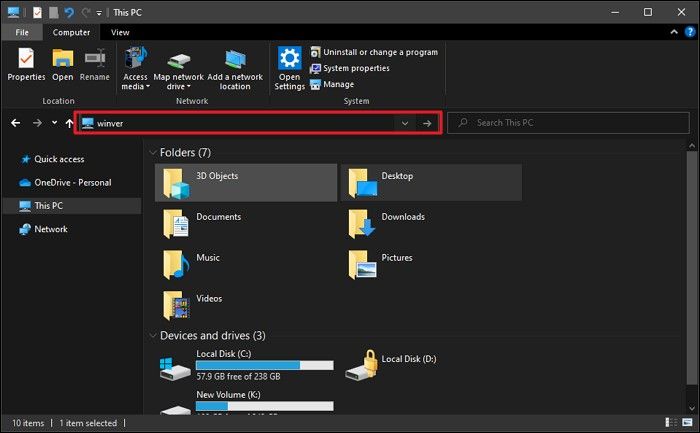
To access the "winver" command line and associated information, click the "File Explorer" icon on the taskbar to open a window. Then, click on the section displaying the file navigation path and type "winver." Press "Enter" and see the results.
Way 5: Windows Run Winver
To access system information using the Windows Run feature, follow these steps: Press the Windows key + R on your keyboard to open the Run dialog box. Type "msinfo32" in the Run box and press Enter. This will open the System Information window, where you can view detailed information about your computer's hardware, software, and system settings.
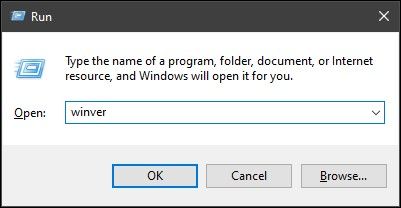
Step: Press the Windows key + R to open the Run dialogue, type "winver" and press Enter to see the Windows version details.
Alternative Methods to Check Your Windows Version
Apart from the Winver command, there are other techniques to check your system version, such as using the System Information tool, the About Windows dialog box, or the Settings app, which can provide detailed information about your system, including its version and architecture.
Method 1: Windows System Settings
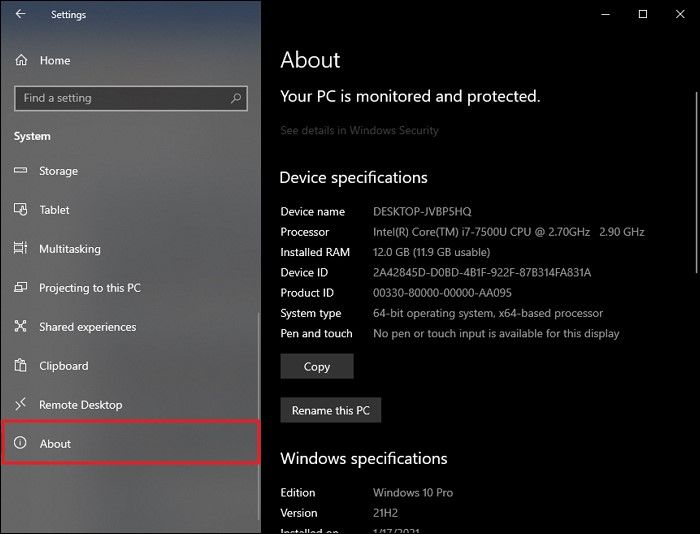
To access your Windows System settings, press the shortcut key "Windows + I" to open the Settings. From there, select "System" and scroll down to find "About" in the list. This will take you to a new window where you can find the Windows version in the details provided.
Method 2: Accessing Properties
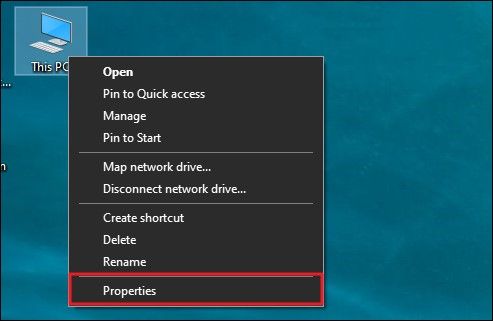
To access your system settings and Windows version, you can also right-click on the main "This PC" or "My Computer" folder in the File Explorer and select "Properties" from the drop-down menu, which will open the system settings in a new window.
Method 3: Accessing System Information
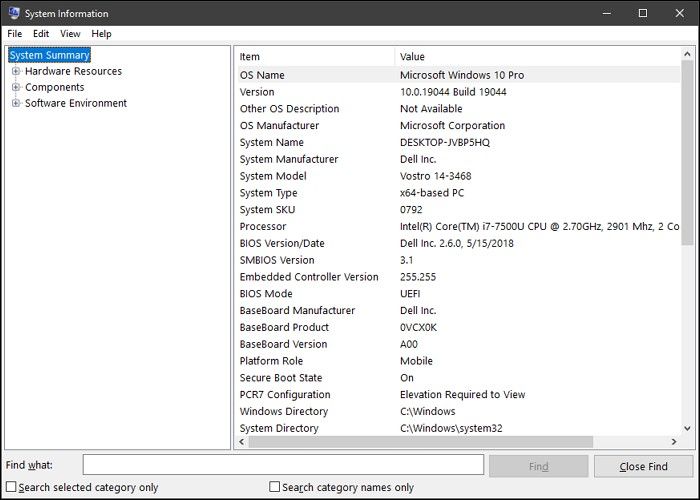
To check the Windows version, open the "Search" window on the taskbar, type "System Information" and hit "Enter" to open the window. The Windows version and build number can be found in the details provided across the window.
Final Words
The article provides a detailed guide on how to access the Winver command line to find the Windows version, offering multiple methods and alternatives to achieve this. This information is intended to help users gain knowledge about the command and access the Windows version.
Related Articles
- Windows 11 Taking Forever to Install? Get Complete Guide to Fix Windows 11 Slow to Install Issue
- What Is Tracert/Traceroute Command? How to Run It on Windows, Mac, and Linux?
- Windows 11 Games Crash or Freeze? Don't Miss Quick Fixes Here!
- [How to Fix] Hogwarts Legacy Save File Gone
Fix missing Hogwarts Legacy save files and learn how to locate, restore, and back up game saves to avoid future progress loss. - Hogwarts Legacy Save File Location & Config File Location
Finding 'Save File' may not be simple for some games. Sometimes you can find it in the 'AppData' file; other times, you have to use 'Regedit' to locate it. Hogwarts Legacy is a highly anticipated open-world game. This guide will describe where to find Hogwarts Legacy save file location.
Products
Articles & Tutorials
- Data Recovery
- Data Backup
- File Recovery
- File Backup
- System Backup and Restore
- Disk and Partition Clone
- Technical articles
- Mobile articles
- Disk Master Help
- Windows Data Recovery Tutorials
- Windows Secure Delete Tutorials
- Windows Partition Management Tutorials
- Windows File Backup and Restore Tutorials
- Windows System Backup and Restore Tutorials
- Windows Disk Backup and Restore Tutorials
- Windows Clone Tutorials