Sync Files Between Desktop and Laptop | Easy!
Syncing files means keeping selected files or folders updated between two devices. If you want the same documents available on both a desktop and laptop, file sync can help.
With the right sync method, you can access current files on both devices and reduce the risk of working on outdated copies.
Do I Need to Link the Computer and Laptop While Syncing
You do not always need a physical cable between the desktop and laptop. Sync can work through a local network, NAS, cloud storage, or sync software.
To sync files successfully, choose a shared location or sync tool that both computers can access. After setup, changes made on one device can be reflected on the other according to the sync rules.
📖You may be interested: Sync Files Between Computer and USB Flash Drive
Best Free Tool to Sync Files Between PC & Laptop
Syncing files between desktop and laptop can be easily done using third-party software. A reliable tool for this purpose is Qiling Disk Master Free, which enables you to sync files across different computers without physically connecting them.
To initiate the sync process, you'll need to install the software on both the source and destination computers. This file sync software allows you to sync both small and large files without any restrictions, and also functions as a backup and restore tool.
The main features of Qiling Disk Master include:
- Sync files between desktop and laptop.
- Sync files to an external hard drive easily.
- Backup and restore files to different locations.
- Free storage space of up to 250GB free cloud storage.
- Multi-path storage backup feature.
- Disk and partition clone.
Download Qiling Disk Master today to sync files between your desktop and laptop efficiently. The steps for using this tool are quite straightforward to follow.
🔖Kind Tip
Step-by-Step to Sync File Between Desktop & Laptop:
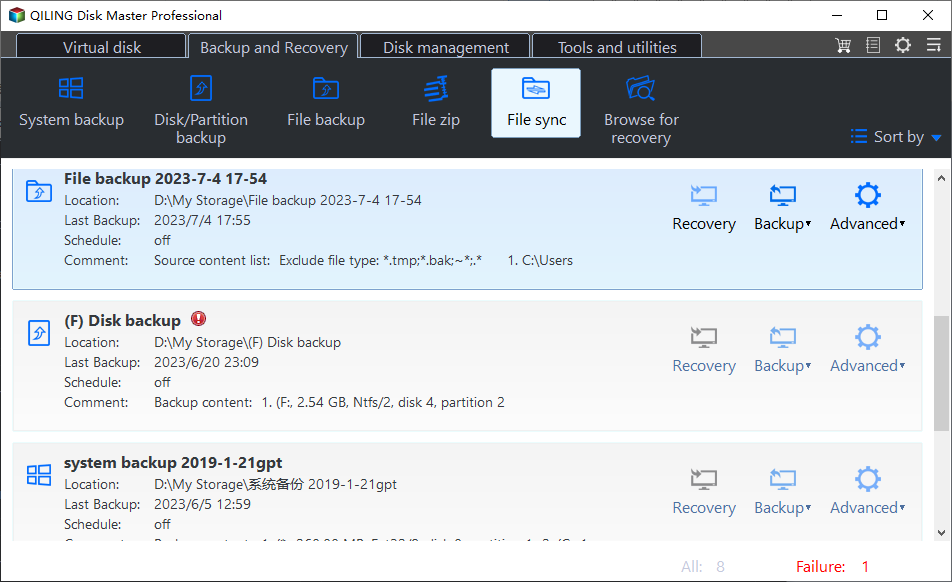
step 1. Launch Qiling Disk Master and click File Sync button in the top bar.
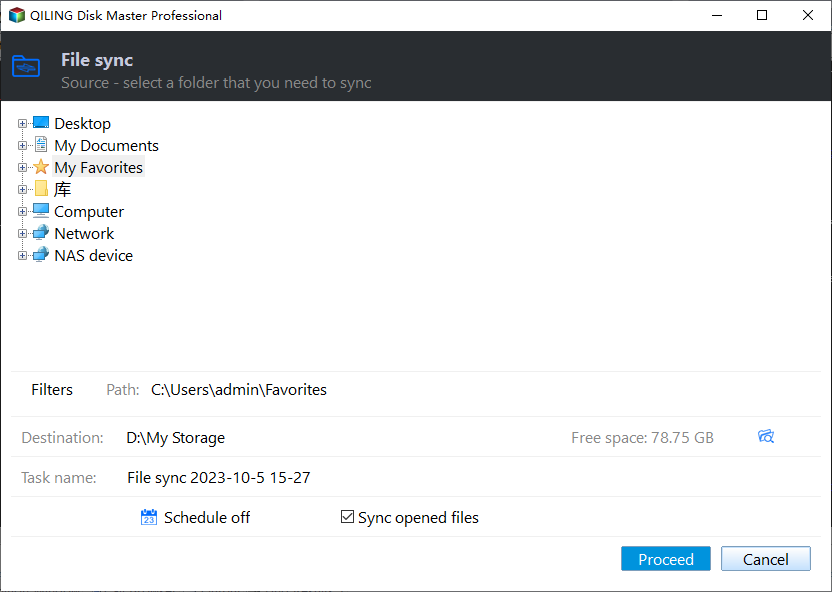
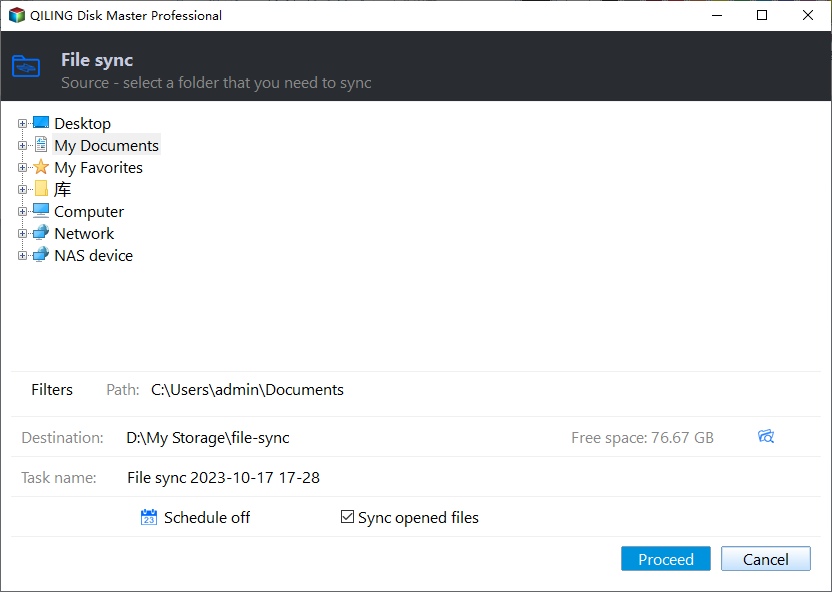
Step 2. Choose a folder from your computer, such as Desktop, My Documents, Favorites, Computer, Network, or NAS, that you want to sync.
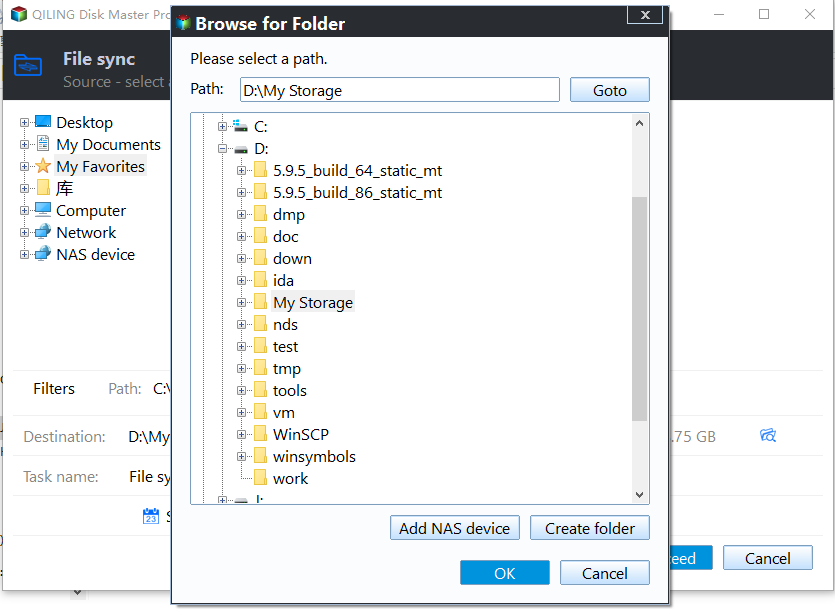
Step 3. Select a target location where you want to sync files to.
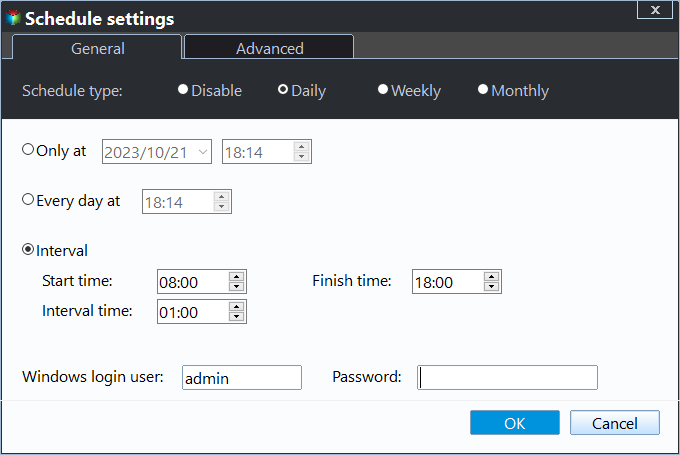
Bonus: To select a sync scheme, simply tap the Options button. This will allow you to choose from various sync options, including daily, weekly, event-based, or real-time syncing.
Step 4. Click Proceed to start a sync task right now.
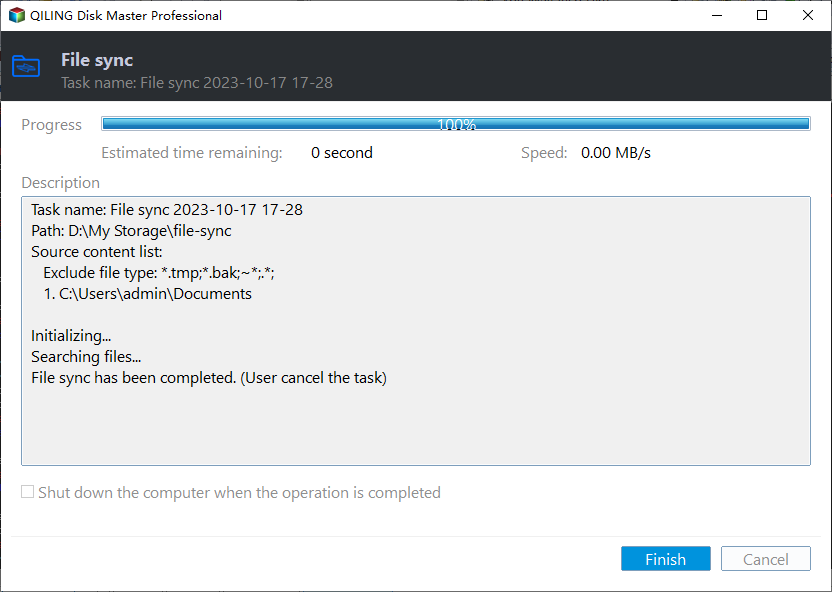
Step 5. Wait for the sync process to finish, you can see a File Sync column in the top-left corner, indicating the sync status.
The post is helpful and shares a simple method to sync files between a laptop and computer, making it easy for users to access their files across devices. Share it with your followers to help them achieve seamless file synchronization!
Sync File Between Desktop & Laptop Through Network
Apart from using a third-party tool to sync files between two computers, you can connect them to the same network and configure settings on the first computer to make a network-shared file accessible on the second computer. This process involves two phases: setting up the network connection and configuring the file sharing settings on the first computer.
Phase 1. Initiate Syncing on First Computer (Desktop)
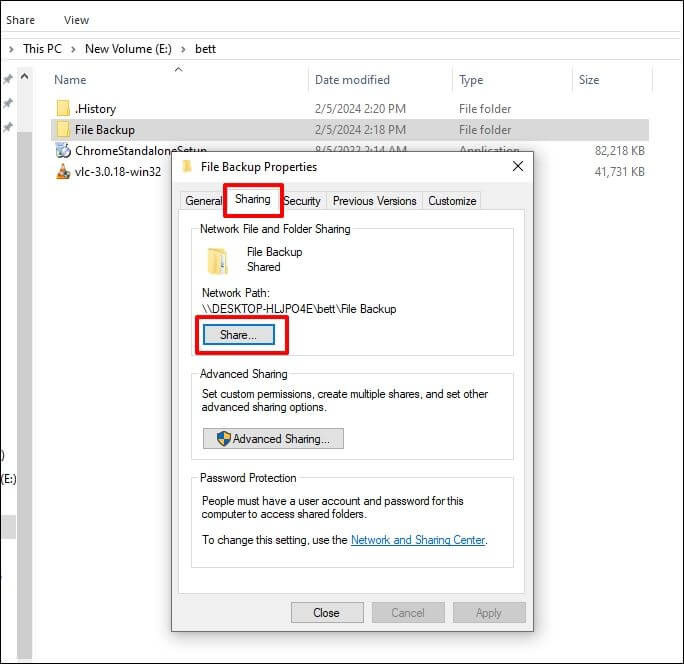
Step 1. Right-click on the folders you want to sync, then select "Properties" and navigate to the "Sharing" tab to select "Share".
Step 2. To share a file with everyone, select "Everyone" from the dropdown when asked to "Choose people to share with." Then, click "Add" and assign the desired permission level to those who will access the file.
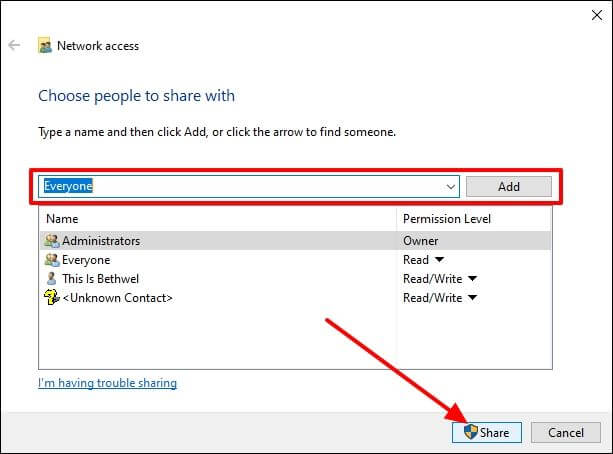
Step 3. After clicking the "Share" button, follow the on-screen instructions to complete the sharing process, and then you can close the window.
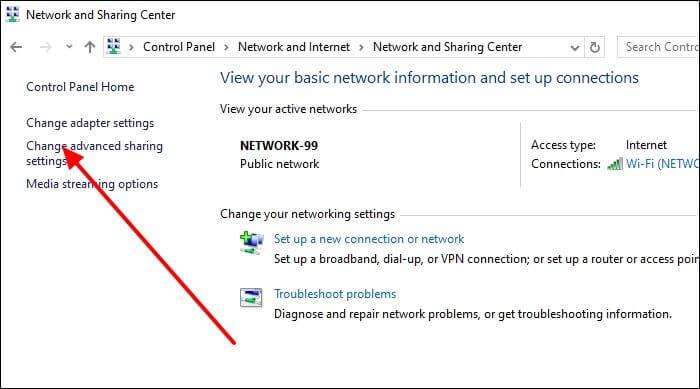
Step 4. To configure advanced sharing settings, launch the Control Panel, click on "Network and Internet," then select "Network and Sharing Center" from the menu. Finally, click on "Change advanced sharing settings."
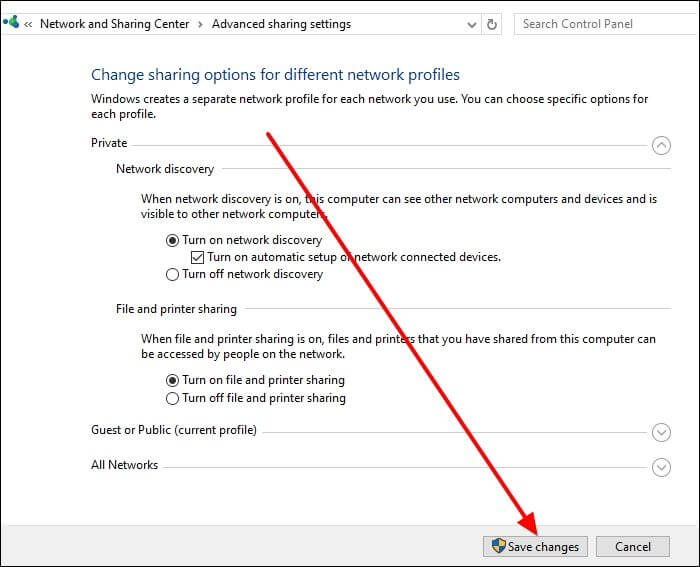
Step 5. To enable network discovery and file sharing, click on the dropdown icon next to "Private" and select "Turn on network discovery" and also check the option for "Turn on file and printer sharing" in the "File and printer sharing" section.
Step 6. To secure your file, enable password-protected sharing by navigating to the "Password protected sharing" section, selecting "Turn on password protected sharing," and then clicking "Save changes" to save the changes and exit.
Phase 2. Access Sync Files on Second Computer (Laptop)
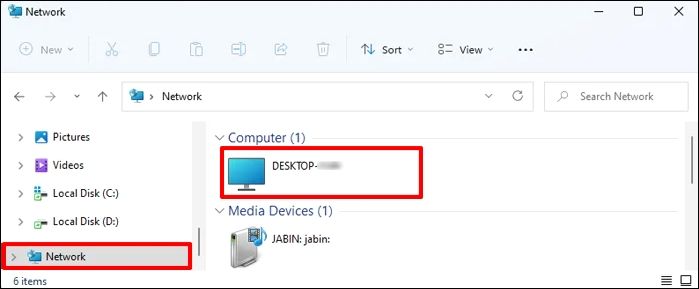
Step 1. To access a shared file on a desktop computer from your laptop, open File Explorer on your laptop, click on the "Network" section in the left panel, and select the desktop computer sharing the file.
Step 2. To sync files between two computers using a network, launch the Run dialog box by pressing Win + R. Then, type "\\" and enter the network path of the shared folders from your desktop computer. Finally, click OK to access the file on your laptop. This will allow you to access and sync files between the two devices.
Sync Files Between Two Computers with Cloud
You can sync files between your desktop and laptop by accessing the same cloud storage service account on both devices. Services like Dropbox, Google Drive, and OneDrive allow you to store and access files from anywhere.
To access files on a second computer, you'll first need to upload the files using the first computer. For example, you can use OneDrive to sign in with a Microsoft account and sync files between the two computers.
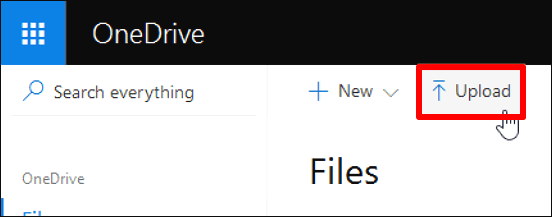
Step 1. To sync files from your desktop computer to OneDrive, log in to your OneDrive account on the desktop computer using a web browser, then click "Upload" and select the files you wish to sync.
Step 2. Once you've selected the files from your local storage, click the "Open" button to transfer them to OneDrive. The system will then upload all the selected files, so please stay patient until the process is complete.
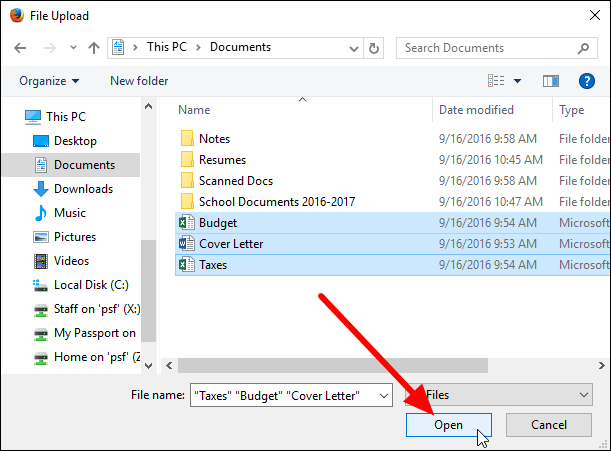
Step 3. Once the process finishes, you can log in to the same OneDrive account via a browser on your laptop, access all the synced files, and choose to view or download them to your laptop.
The automatic sync method has a limitation, as it only allows syncing of files and folders, and not Windows settings accounts and programs.
📖Further reading: OneDrive Not Syncing on Windows PC
The post is helpful and provides a simple way to sync files between a laptop and computer, making it easy for users to access and share files across devices. It can be shared with followers to help them achieve this convenience.
Final Words
Syncing files between your desktop and laptop can be achieved through various methods. You can use a third-party tool, connect them directly over a network, or utilize a cloud service. However, keep in mind that network syncing may be slower for large files, and cloud services have limitations, such as the inability to sync settings and programs.
To avoid the limitations of syncing files and data between computers, we recommend using Qiling Disk Master, a third-party tool that can sync various data types such as files, programs, and settings. By downloading Qiling Disk Master today, you can enjoy its free file sync features.
FAQs on How to Sync Files Between Computer and Laptop
Syncing files between laptops and desktops is a common task that can be accomplished through various methods. Users often ask about the process of syncing files, and here are some frequently asked questions and answers to address these concerns.
1. How Do I Mirror Two Computers to Be Exactly the Same?
To mirror two computers so that they display the same content on their screens, you can follow these steps. First, ensure that both computers are connected to the same network or have a direct connection between them.
Step 1. To enable screen mirroring on your first computer, go to Settings, then click on System, and select Projecting to this PC.
Step 2. Click on "Optional features", then select "Add a feature". Type "wireless display" in the search bar.
Step 3. To install the Wireless Display app, first, open the Start menu and type "Wireless Display" in the search bar. Next, select "Wireless Display" in the search results and click "Install."
Step 4. Once the above installation completes, launch the Connect App on your second computer.
Step 5. To set up screen mirroring, open the screen mirroring settings on your first computer, select the second device, and your second computer will display the same content as your first one.
2. What Is the Fastest Way to Share Files Between Two Nearby Computers?
On Windows 10, the fastest way to share files between two nearby computers is via the "Nearby sharing" feature. This feature allows you to quickly share files between computers that are close to each other, using either Bluetooth or Wi-Fi, once enabled on both devices.
3. How Do I Connect My Laptop to My Desktop Computer Wirelessly?
To connect your laptop to your desktop wirelessly, enable Bluetooth on both devices, pair them, and create a personal area network (PAN) to share files and data between the two.
If you prefer an external drive as the sync destination, follow Sync Files to an External Hard Drive in Windows - Qiling and keep the drive connected while the task runs.
Related Articles
- How to Perform Windows 11 Incremental Backup [2 Ways]
- How to Install an SSD without Reinstalling Windows
- Copy or Back Up Program Files(x86) to External Hard Drive in Windows 10/8/7
- Hard Disk Backup in Windows 10/8/7 [Beginners' Guide]
- How to Install Software on Multiple Computers at the Same Time
- How to Install/Run Applications from an External Hard Drive (New)
To install and run applications from an external hard drive, download and install Qiling Disk Master on your PC or laptop, which allows you to transfer Windows programs to an external hard drive, and simultaneously load and run applications from the external drive.
Products
Articles & Tutorials
- Data Recovery
- Data Backup
- File Recovery
- File Backup
- System Backup and Restore
- Disk and Partition Clone
- Technical articles
- Mobile articles
- Disk Master Help
- Windows Data Recovery Tutorials
- Windows Secure Delete Tutorials
- Windows Partition Management Tutorials
- Windows File Backup and Restore Tutorials
- Windows System Backup and Restore Tutorials
- Windows Disk Backup and Restore Tutorials
- Windows Clone Tutorials