Outlook Backup and Restore in 2 Ways [with Video]
Why Need to Backup Outlook Emails
Microsoft Outlook is a free email service and part of the Microsoft Office suite, offering powerful features and reliable support, making it a favorite among users. It allows for sending and receiving emails, as well as managing calendars, diaries, and meeting schedules.
Users are looking for ways to back up Outlook due to its importance in their daily work and personal lives, as it contains crucial email, calendar, and contact information. This is especially true for professionals who rely heavily on Outlook for communication and organization.
- As a result, there's been a growing interest in email data security, with users becoming more vigilant about protecting their email communications.
- Most emails are stored on unprotected computers that are easily attacked by viruses.
- For enterprise users, confidential information and documents are often stored in Outlook emails, requiring a secure and organized method to manage and protect these sensitive materials.
- Computers' upgrades may cause data loss.
We offer two solutions to back up and restore Outlook emails, providing a convenient way to safeguard your important email communications.
Outlook Backup and Restore with Email Backup Software
To back up emails quickly and safely, Qiling Backup Home is a professional email backup software that can efficiently back up and restore emails.
What can Qiling Backup do for you?
- File backup refers to the process of saving copies of digital files, such as photos, videos, documents, emails, and archives, in various formats to prevent loss or corruption in case the original files are deleted, damaged, or become inaccessible due to hardware or software failures. This includes saving files in formats like PDF, JPEG, MP3, and MP4, among others, to ensure their integrity and usability even if the original files are no longer available.
- There are various types of backups, including full backup, differential backup, and incremental backup, each serving a different purpose in securing and restoring data.
- To ensure your files are safe, consider backing them up to multiple locations, such as an external hard drive, your local PC, cloud storage, a network-attached storage (NAS) device, or other secure locations.
- Encrypted backup. Access important information with a password.
HowtobackupOutlookemailsstepbystep
How can I assist you with backing up Outlook emails using Qiling Backup?
Step 1. Launch Qiling Backup on your computer, and click File Backup on the home screen.

Step 2. The Microsoft Outlook database folder will appear, allowing you to select the mailbox addresses you want to back up for emails, contacts, or calendars.

Step 3. To save the Outlook backup, click on the illustrated area to choose a location.

Step 4. The backup location can be another local drive on your computer, an external hard drive, network, cloud, or NAS. We recommend using an external physical drive or cloud to preserve the backup files.

Step 5. Customization settings such as setting an automatic backup schedule in daily, weekly, or monthly intervals, and making differential and incremental backups are available in the Options button. Clicking Proceed initiates the Outlook backup process, which can be tracked by a card-style display on the left side.

5 Best Outlook Backup Software for Windows
If you're looking for Outlook backup software, you're in luck - there are many free options available. In this post, we'll highlight the top 5 best Outlook backup software that you can download for free.
Howto restore Outlookemailsstepbystep
"My system crashed, and my emails are all gone!"
Restoring Outlook emails with Qiling Backup is simple. Simply follow the steps, and you'll be able to get all your emails back in no time. Take it easy and let Qiling Backup do the work for you.
Step 1. Launch Qiling Backup, click "Browse for Recovery".

Step 2. To recover your data, navigate to the backup destination you specified during the backup process, locate the fvd file created by Qiling Backup, and select it to initiate the recovery process.
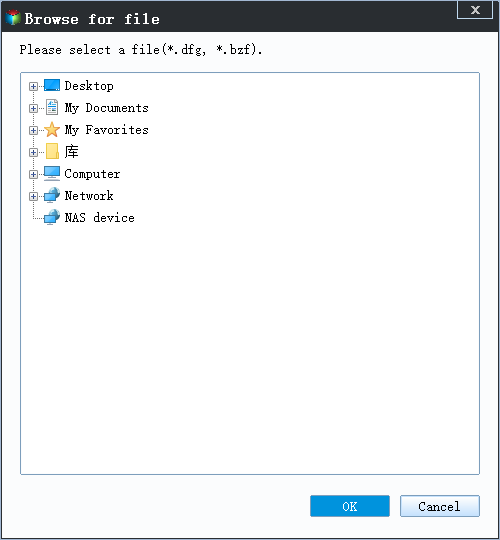
Step 3. You can choose to recover data to a specific location or back to its original location.
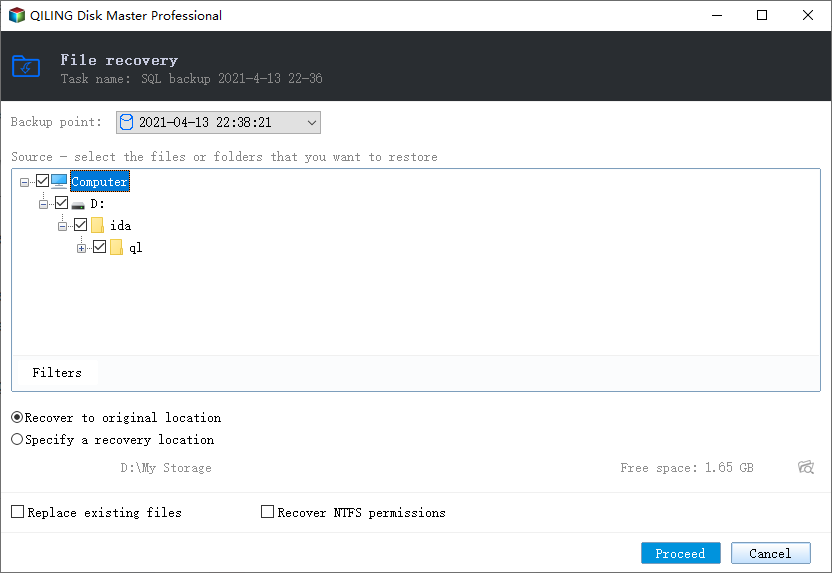
Step 4. Click "Proceed" and the recovery would start.
Backup and Restore Emails Within Microsoft Outlook
You don't want to download a third-party email backup software in addition?
Before deleting outdated emails, back up them to a PC or external hard drive using Microsoft Outlook's built-in backup utility.
StepsforMicrosoftOutlookbackup
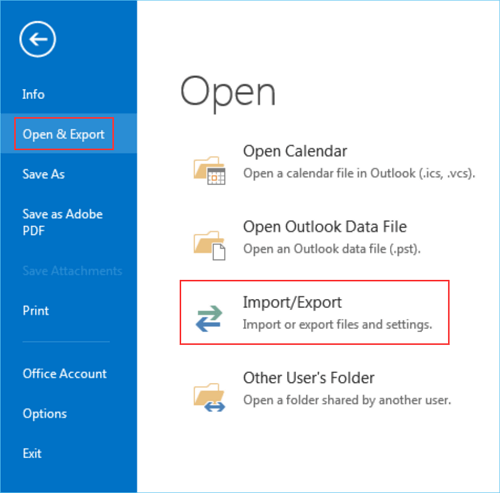
Step 1. To import emails into Microsoft Outlook, start the application, click the "File" tab, select "Open & Export" from the drop-down menu, and choose the "Import/Export" option.
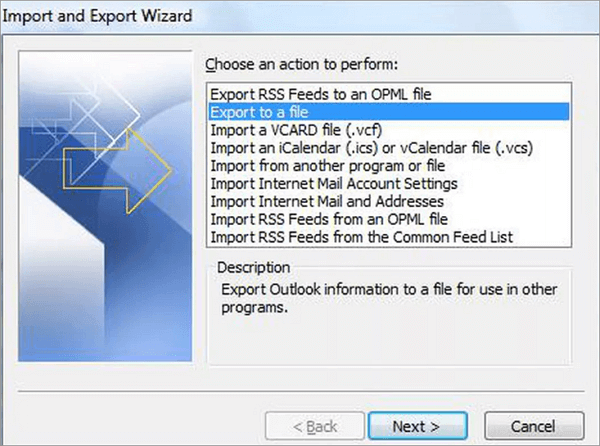
Step 2. Select "Export to a file" and choose "Next" to continue.
Step 3. Now click "Outlook Data File" and select "Next".
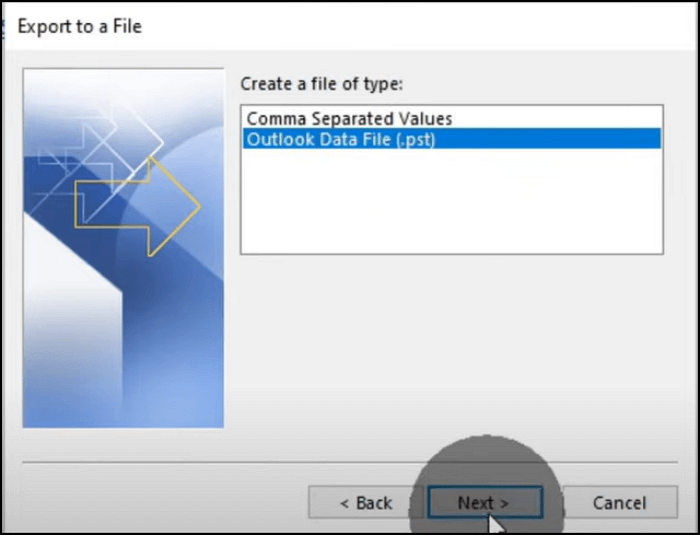
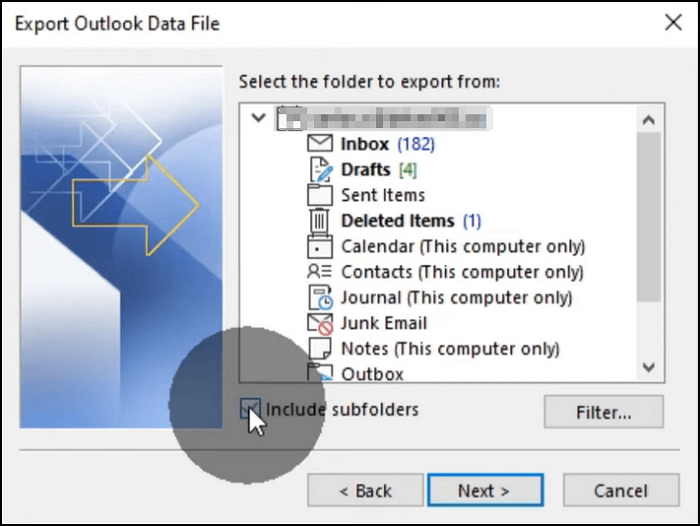
Step 4. You can select the emails you want to back up, making sure to include subfolders, and then click "Next".
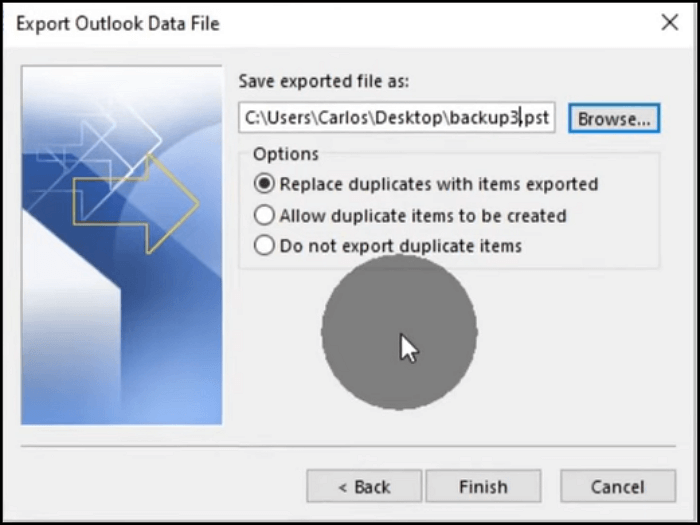
Step 5. You can set up your email backup to store the files in a default location, but you can also change the destination. Additionally, you'll have the option to decide how to handle repeat emails. Once you've completed the settings, click "Finish" to begin the backup process for your Outlook emails.
StepsforMicrosoftOutlookrestore
Step 1. To import email data into Microsoft Outlook, start the application, navigate to the "File" tab, select "Open & Export", and choose the "Import/Export" option from the dropdown menu.
Step 2. Select "Import from another program or file" and choose "Next".
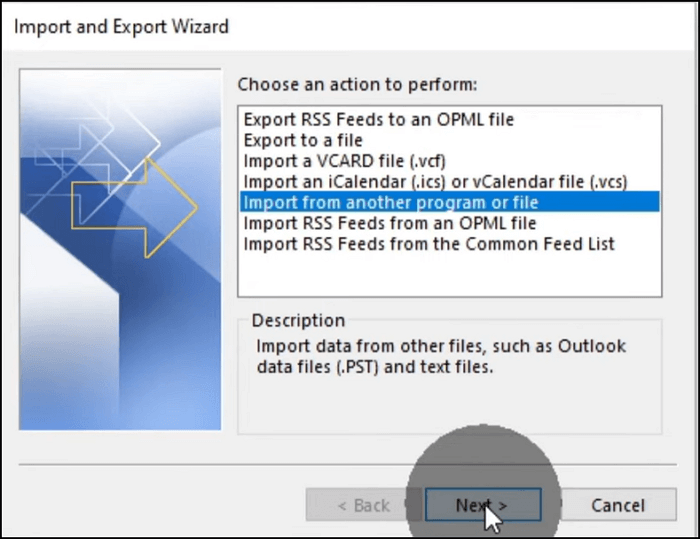
Step 3. Choose the "Outlook Data File" option and click "Next".
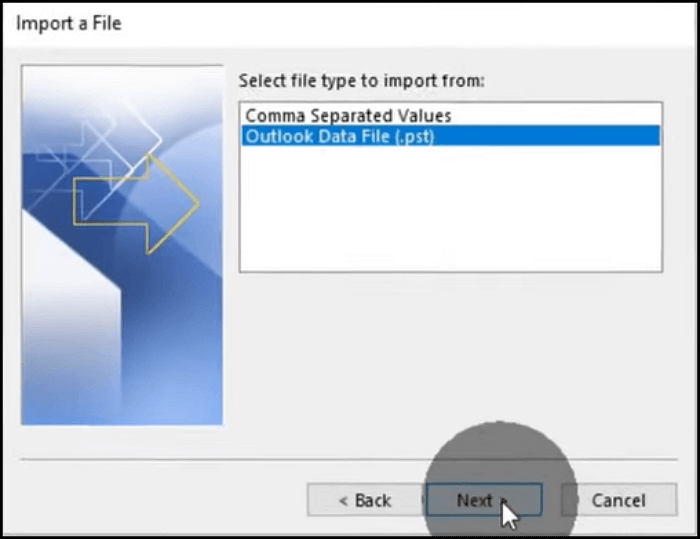
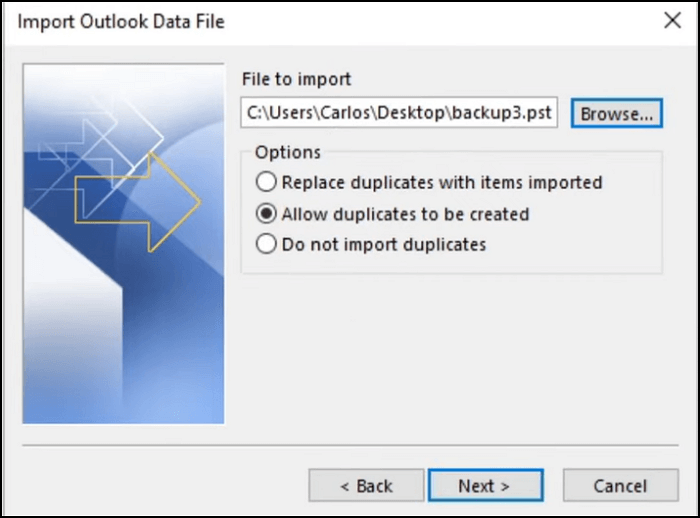
Step 4. Find the PST email backup file you want to import and set the options, then click "Next".
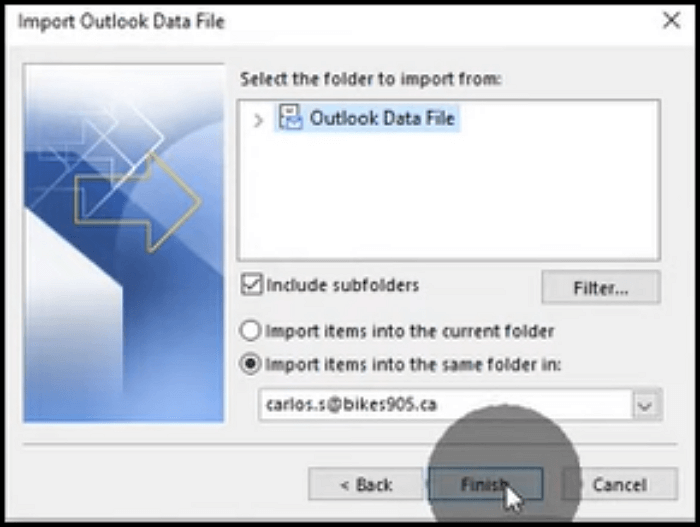
Step 5. Select the folder to import from manually, and choose the destination to restore to, then click "Finish" to start the restoration process.
Summary
You now know how to back up and restore Outlook. This process is simplified with professional email backup software like Qiling Backup, which makes it easier to back up your emails.
This tool allows for effortless email backup from Outlook, requiring just a single click to initiate the process. It also provides the option to schedule regular backups, especially useful for heavy users who need to ensure their emails are securely stored.
Outlook Backup and Restore FAQs
Do you have more questions about Outlook backup and restore? Learn more here:
Can you backup Outlook emails?
You can back up your Outlook emails locally using the built-in feature, which allows you to export your emails to a PST file. This file can be saved on your local computer, allowing you to access your emails offline.
- 1. To import data into Microsoft Outlook, start the application, click on the "File" tab, select "Open & Export" from the drop-down menu, and then choose the "Import/Export" option.
- 2. Click "Export to a file" and then choose "Next" to continue.
- 3. Click "Outlook Data File" and select "Next".
- 4. Select the emails you want to back up and click "Next" to proceed with the backup process.
- 5. Select the destination where you want to save the Outlook emails and click "Finish" to initiate the backup process.
How do I backup and restore Outlook emails?
Using professional backup software like Qiling Backup makes it easier to back up and restore Outlook emails, streamlining the process.
How to back up Outlook emails?
- 1. Click "Select backup contents" to create a backup.
- 2. Choose "Mail".
- 3. Choose emails you want to back up and click "OK".
- 4. Select the backing-up destination you want.
- 5. Click "Proceed" to begin.
How to restore Outlook emails?
- 1. Click "Browse to Recover".
- 2. Choose the email backup file you need.
- 3. Choose the restore location.
- 4. Then click "Proceed" to start Outlook backup restore.
Where are my outlook backups?
If you back up your Outlook using the built-in feature, your backup file will be called "backup.pst" and will be stored in the Microsoft Outlook folders on your disk.
What is the best way to save emails?
To save your emails, consider using email backup software like Qiling Backup. This tool allows you to securely store your emails and ensure they are not lost in case of technical issues or other disruptions.
- 1. Click "Select backup contents" to create a backup.
- 2. Choose "Mail".
- 3. Choose emails you want to back up and click "OK".
- 4. Select "Cloud" to back up emails.
- 5. Click "Proceed" to begin.
Can you save Outlook emails to a flash drive?
Here are the steps to transfer files from your old PC to your new one using a flash drive:
- 1. To import data into Microsoft Outlook, start the program, click on the "File" tab, select "Open & Export", and then choose the "Import/Export" option.
- 2. Click "Export to a file" and choose "Next" to continue.
- 3. Click "Outlook Data File" and select "Next".
- 4. Select the emails you want to back up and click "Next".
- 5. Insert the chosen flash drive and click "Finish" to start backing up Outlook emails.
Related Articles
- 3 Working Ways to Backup Contacts from Outlook | 2022 New
- How to Backup Dell Laptops in Windows 10 [Ultimate Guide]
- How to Clone HDD to Solid-State Disk Without Reinstalling Windows 11 or Windows 10
- How to Clone Encrypted Hard Drive to SSD/HDD
- How to Create Recovery Partition in Windows 10 | 2 Ways
You will learn how to create a recovery partition in Windows 10 easily and quickly using a built-in tool or a third-party tool. The procedure of using the recovery partition is also included. - How to Restore Lenovo G50 to Factory Settings?
Restore Lenovo g50 to factory settings with recovery partition under the help of Lenovo OneKey Recovery or Qiling Disk Master.
Products
Articles & Tutorials
- Data Recovery
- Data Backup
- File Recovery
- File Backup
- System Backup and Restore
- Disk and Partition Clone
- Technical articles
- Mobile articles
- Disk Master Help
- Windows Data Recovery Tutorials
- Windows Secure Delete Tutorials
- Windows Partition Management Tutorials
- Windows File Backup and Restore Tutorials
- Windows System Backup and Restore Tutorials
- Windows Disk Backup and Restore Tutorials
- Windows Clone Tutorials