Should I Backup Before Windows 10 Upgrade/Reinstallation? 2022 New!
Quick Look
👁️🗨️Recommend read time: 3 Mins
🗓️What Files Should I Backup?
1. Documents, photos, music, and any other files.
2. Custom settings or configurations.
3. Installed programs.
💵Maximum cost: Free
✔️Available: Individual and experienced users
Page Content:
Need to Upgrade or Reinstall Windows 10?
Do I Need to Backup Before Windows 10?
Preparation for Windows 10
How to Backup to Computer Before Upgrading to Windows 10
Need to Upgrade or Reinstall Windows 10?
For users who are still using older Windows systems, such as Windows 7, which Microsoft stopped updating in January 2020, and Windows 8, which stopped receiving updates in January 2023, the option to upgrade to Windows 10 is no longer available. However, for those currently using Windows 10 who are experiencing drawbacks with the operating system, a clean install of Windows 10 remains a viable option.
Possible Causes of Upgrading Windows 10:
Upgrading to Windows 10 will allow you to utilize the most recent technological advancements.
- Windows 10 is a faster and more efficient operating system compared to its predecessors, featuring various performance enhancements that can boost your computer's speed.
- Windows 10 is more secure than older versions of Windows, featuring various security tools to protect against viruses and malware, making it a safer operating system.
- Windows 10 is more compatible with newer hardware and software than older versions of Windows.
Possible Reasons for Reinstalling Windows 10:
You may need to reinstall Windows 10 due to various reasons, such as a corrupted system, outdated software, or a virus that has compromised your operating system. Additionally, if you're experiencing frequent crashes, freezing, or slow performance, a fresh install might be necessary to restore your computer to its original state.
- Reinstalling Windows 10 can resolve technical difficulties that cause a computer to run slowly.
- Planning to sell your computer or give it to someone else will help remove all of your personal files and data from the device. This will help protect your privacy and prevent any unauthorized access to your information.
- Reinstalling Windows 10 can help improve a computer's performance by removing cluttered junk files, giving the user a clean slate to work with.
Before upgrading to Windows 10, it's recommended to back up your data, update your drivers, and check for any compatibility issues with your existing software and hardware. You should also uninstall any unnecessary programs and clean up your registry to ensure a smooth transition. Additionally, consider creating a system image or using a cloud backup service to protect your files and settings.
Do I Need to Backup Before Windows 10?
If you have the same question mentioned above, the answer is YES.
If you're upgrading from Windows 7/8/8.1 to Windows 10 or reinstalling your OS, it's a good idea to back up all your important files and data to prevent potential loss. This will ensure that your personal files, documents, photos, and other data are safe and can be easily restored if needed. You can back up your data to an external hard drive, cloud storage, or a USB drive, depending on your preferences.
Things to backup before reinstalling or upgrading to Windows
Before upgrading to Windows 10, it's essential to backup your important files and data to an external hard drive, cloud storage, or a USB drive. This includes documents, photos, videos, music, and any other files you don't want to lose in case something goes wrong during the upgrade process. Additionally, make sure to backup your system files, registry, and settings to ensure a smooth transition to the new operating system. It's also a good idea to create a system image of your current Windows installation to be able to restore it in case you need to go back.
What files should I backup before reinstalling Windows? - Quora.com
Before upgrading to Windows 10, users should backup their files, documents, photos, music, and other important data, as well as custom settings and configurations made to the operating system, and installed programs, to ensure a smooth transition.
After you've backed up your files, what else is there?
Preparation for Windows 10
To prepare for a Windows 10 upgrade, start by backing up all important files and data to an external hard drive or cloud storage. This will prevent any loss of information during the upgrade process. Next, ensure that your computer meets the minimum system requirements for Windows 10, which includes a 64-bit processor, at least 4GB of RAM, and a 64GB hard drive.
- Before upgrading to a new operating system, it's crucial to ensure that all hardware meets the minimum requirements for the new OS.
- It is recommended to create a backup of all critical files and data by copying them to an external hard drive or using cloud storage services.
- It's recommended to run a virus scan to remove any potential threats from the computer before upgrading.
To ensure a smooth upgrade to Windows 10, it's recommended to backup your files, disconnect any unnecessary external devices, and ensure your computer has enough free space to complete the installation. Additionally, it's a good idea to have a valid Windows 10 product key and to be aware of any potential compatibility issues with your current software and hardware.
How to Backup to Computer Before Upgrading to Windows 10
Qiling Backup is a reliable and user-friendly backup software that offers a wide range of features, allowing users to backup files, system, disk, and mail with ease. Its intuitive interface makes it an ideal choice for users of all experience levels.
Qiling Backup ensures your data is safe and secure, even in the event of a system crash or hard drive failure, with the added benefit of supporting a wide range of media types, guaranteeing compatibility with your devices and operating systems.
Best Free Backup Software for Windows 11
With the rise of technology, backing up your data has become simple. Fortunately, there are now 5 reliable solutions available to you, making it easy to retrieve your data using the best free Windows 11 backup software. Keep reading to learn more about the top backup software options.
So, to summarize, Qiling Backup is a tool that helps protect your data by backing it up, and you should start using it before updating your Windows system.
Step 1. To initiate a backup, click the File backup button.

Step 2. On the left, local and network files are displayed. The directory can be expanded to select backup files.

Step 3. Follow the on-screen instructions to select a location to store the backup.

Step 4. To encrypt the backup with a password, click on the "Options" button in the "Backup Options" section.

To specify the backup schedule and start the backup at a certain event, click on "Backup Scheme" and select the desired options to tailor the backup process to your needs.

Step 5. The backup may be stored on a local disk, Qiling's online service, or a network-attached storage (NAS) device.

Step 6. Qiling Backup allows customers to back up their data to both a third-party cloud drive and Qiling's own cloud drive.
To back up data to a cloud drive provided by a third party, select Local Drive, scroll down to add Cloud Device, and add and log in to your account.
Step 7. To start the backup process, click "Proceed". Once finished, the backup job will be displayed as a card on the left side of the panel, allowing further handling.

Windows Built-in Tool - Backup and Restore(Windows 7)
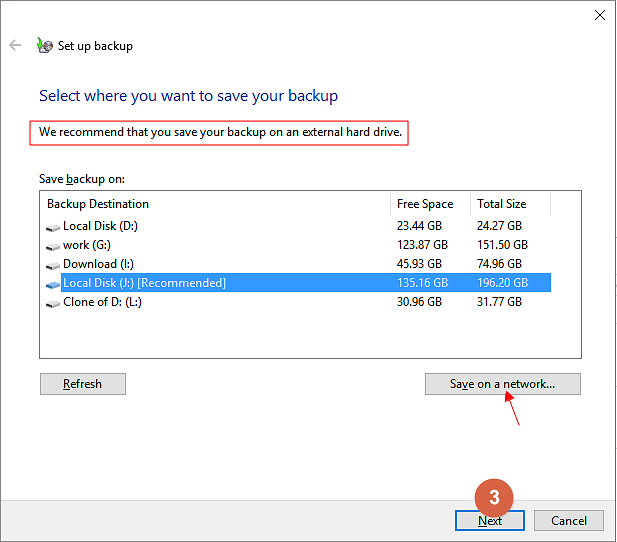
Prepare a blank USB drive.
Step 1. Open Control Panel and click Backup and Restore (Windows 7).
Step 2. Click Create a system image.
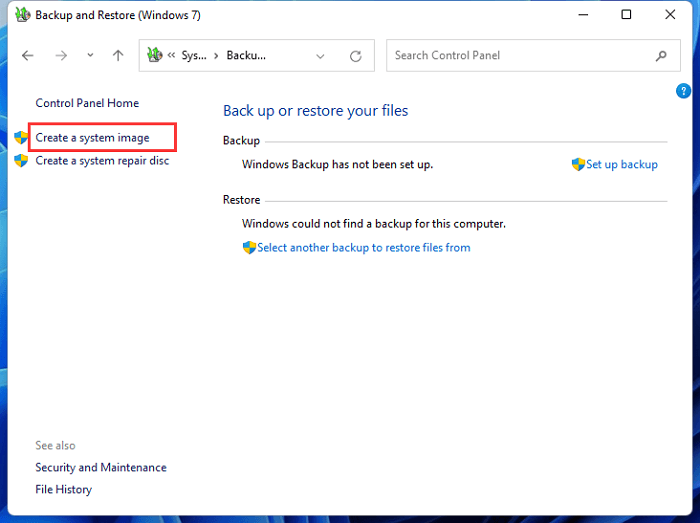
Step 3. Follow the "Create a system image" wizard and click "Start backup" to create a system image.
Backup Full Guide: How to Backup Windows 10 (System&Files)
This guide covers more than just Windows Backup and Restore, providing a comprehensive overview of how to backup Windows 10, including both built-in and third-party methods.
Now you can safely upgrade to Windows 10.
Post Windows 10 Upgrade Issue:
Final Verdict
Before installing a new operating system like Windows 10, it's a good idea to create a backup of your important files and settings. One way to do this is by using free third-party software. This way, you can restore your files if something goes wrong during the upgrade process, ensuring that your valuable data and settings are safe.
Windows Backup Before Backup FAQs
1. Should you backup before upgrading your OS?
Backing up your data before upgrading can be a lifesaver if something goes wrong, but it can also take a significant amount of time and may have its own risks, such as errors with the backup software.
2. What should I do before installing Windows 10?
To prepare for installing Windows 10, back up your files to an external hard drive or use a cloud backup service like Google Drive or Dropbox. Once your files are safely backed up, you can proceed with the installation process, which is straightforward and can be guided by numerous online resources.
3. Is it necessary to backup before updating to Windows 11?
It's a good idea to backup your data before updating to a new Windows version, as there's a small risk of something going wrong, and backing up ensures you won't lose any important files.
Related Articles
- [Full Guide] How to Restore Windows 7 from System Image Backup
- Create Windows 7 Recovery Disk from Another Computer In-Depth Guide 2022
- How to Migrate or Clone Windows 10/11 from HDD to SSD
- How to Stop OneDrive from Syncing in Windows 11/10 [ You Must know]
- [Solved] Windows Server Backup 2012 (R2) Not Showing
If you are experiencing the Windows Server Backup 2012 not showing error, please continue to read this article and learn how to fix them easily and quickly. - Best Windows Server Backup Alternative - Qiling Disk Master
This article will introduce you to Windows Server Backup and the best Windows Server Backup alternative - Qiling Disk Master Server as well as steps to backup Windows Server 2019 or 2022 in simple steps.
Products
Articles & Tutorials
- Data Recovery
- Data Backup
- File Recovery
- File Backup
- System Backup and Restore
- Disk and Partition Clone
- Technical articles
- Mobile articles
- Disk Master Help
- Windows Data Recovery Tutorials
- Windows Secure Delete Tutorials
- Windows Partition Management Tutorials
- Windows File Backup and Restore Tutorials
- Windows System Backup and Restore Tutorials
- Windows Disk Backup and Restore Tutorials
- Windows Clone Tutorials