Windows Backup Failed While Trying To Read From the Shadow Copy [New Fixes in 2022]
However, the Windows Backup service failed to start, resulting in an error message that reads "Windows Backup failed while trying to read from the shadow copy." This can be caused by a number of factors, including corrupted system files, issues with the Windows Backup service, or problems with the shadow copy. To resolve this issue, you can try running the System File Checker (SFC) to scan and replace any corrupted system files. Additionally, you can try restarting the Windows Backup service and checking for any issues with the shadow copy. If the problem persists, you may need to seek further assistance from a system administrator or a professional.
The problem you're experiencing is likely due to an issue with the shadow copy, specifically with a certain volume. This is preventing the backup from reading the data, resulting in an error message about a failure. Don't worry, the solution is straightforward. You can try a few things to resolve this issue. First, check if the volume is being used by another process or if there are any issues with the disk itself.
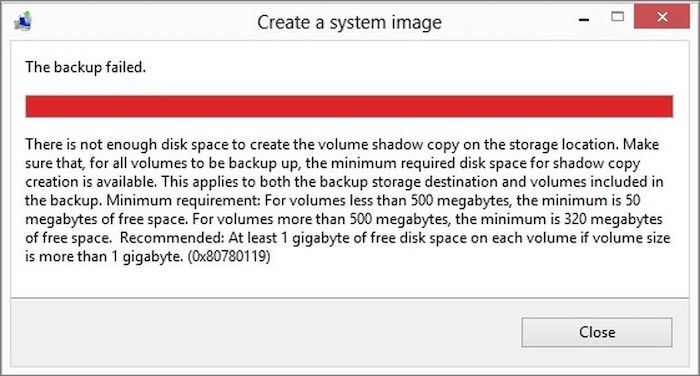
What Is a Shadow Copy in Windows Backup?
A shadow copy is a snapshot of a volume that captures all data at a specific point in time, identified by a unique GUID, and can be saved to a local drive, external drive, or network device.
Shadow Copies can only be made and stored using the NTFS file system, limiting Windows Backup and Restore's Shadow Copy technology to safeguarding NTFS disks. File History and System Restore work similarly, creating legitimate shadow copies each time a system restore point is made, allowing for system rollbacks when issues arise.
Fix "Windows Backup Failed While Trying to Read from the Shadow Copy"
The Windows Backup Failed While Trying to Read from the Shadow Copy Error occurs when Windows is unable to read duplicate backup copies of data, known as Shadow Copies. This error can be overcome through various fixes, which will be explored below.
Fix 1. Use Qiling Backup Free
Qiling's free backup program is a reliable option for safeguarding your data and future. With a user-friendly interface, it offers comprehensive capabilities, including backing up the entire disk, partition, operating system, and files, and saving backups to local disks, NAS, network, and cloud storage.
Free backup software may not guarantee all vital functionalities, but it often provides advanced options such as incremental and differential backup, scheduled backup, encrypted backup, and more.
1) Go to the website of the app you're interested in. 2) Click on the 'Sign up' or 'Create account' button.
Step 1. Launch Qiling Backup on your computer, and click the System Backup button on the home screen.

Step 2. Your Windows OS information and all system-related files and partitions will be automatically selected, so no manual selection is needed at this step. Next, you'll choose a location to save the system image backup by clicking the illustrated area.

Step 3. The recommended backup location is an external physical drive or cloud, where system backup files can be preserved.

Step 4. The Windows system backup process allows for customization settings such as enabling an automatic backup schedule in daily, weekly, monthly, or upon an event, and making a differential and incremental backup, which can be accessed through the Options button. After selecting the desired settings, clicking Proceed initiates the backup process, and the completed task is displayed in a card style on the left side.

Qiling Backup Free is a convenient and user-friendly software, making it worth downloading.
Fix 2. Run Troubleshoot
In the event of a Volume Shadow Copy problem, there is no need to begin calling for help immediately. To keep your business running well, follow these troubleshooting steps for Volume shadow Copy.
Step 1: To improve server performance, I recommend removing all backup programs except for one, which can be used to create a comprehensive backup of the server. This will help prevent resource conflicts and ensure that backups are created efficiently.
Step 2: Restart the Volume Shadow Copy service using the Services console.
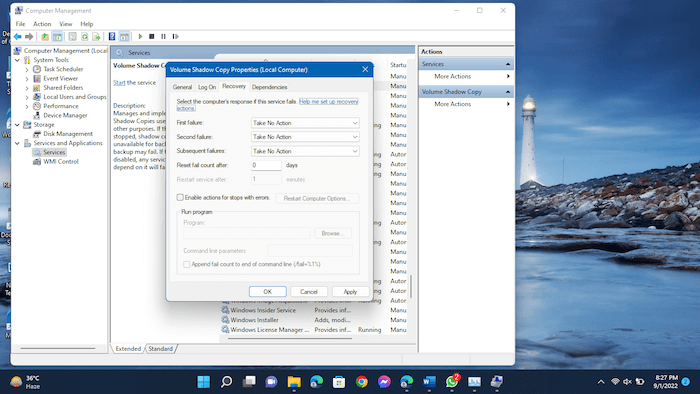
Step 3: Reboot the server as needed.
Step 4: To turn off and then turn back on Volume Shadow Copy, go to the Start menu and click on "Control Panel," then click on "System and Security" and "Backup and Restore (Windows Backup)." Click on "Turn off Volume Shadow Copy Service" and wait for it to stop, then click on "Turn on Volume Shadow Copy Service" and wait for it to start. If the service doesn't start, restart your computer and try again.
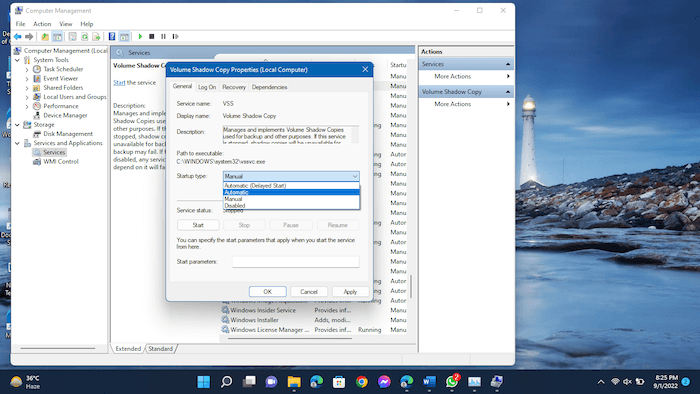
Note: To check for any VSS updates, visit the Microsoft Support website and ensure the available updates are compatible with the current Windows version on the server.
Fix 3. Re-run Windows Backup
If your Desktop is experiencing Java Malware, it may cause the error to appear, even if you've tried the previous solutions. In this case, you can try this fix to resolve the issue.
Step 1: Open Explorer (Win-E keyboard shortcut)
Step 2: To view hidden files, folders, and drives, go to the View tab in the Folder and Search Options menu, which can be accessed from the Organize menu. Make sure the box next to "Show hidden files, folders, and drives" is checked, then click OK.
For Windows 11, Navigate to the View tab>Show>Hidden Items.
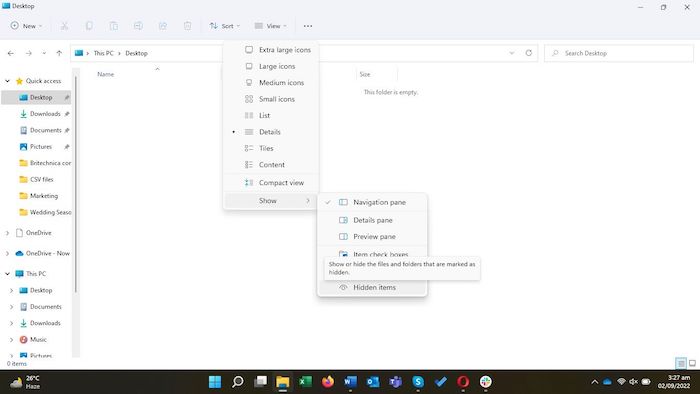
Step 3: To access the cache, go to the location: C:\Users\YOUR ACCOUNT NAME\AppData\LocalLow\Sun\Java\Deployment\cache\6.0.
Step 4: Delete every numbered folder in the above directory.
Step 5: Start the Backup Windows process again.
If you want to learn more about backup, this article below may be right for you.
To back up your PC automatically in Windows 11, you can use the built-in Backup and Restore feature, which allows you to schedule backups to an external hard drive, network location, or OneDrive. Alternatively, you can use the File History feature to automatically back up your files to an external drive or network location.
Learn how to back up your PC automatically in Windows 11 with our easy-to-follow guide. Say goodbye to tedious steps and hello to a hassle-free experience, all in just a few minutes.

Conclusion
The "Windows backup failed to read from the Shadow Copy" error can be resolved by either resolving the issue to allow the Windows backup utility to work again, such as running troubleshooting or restarting backup, or by finding an alternative reliable backup solution. This aims to permanently fix the backup problem.
We recommend using Qiling Backup Free Software to not only protect your data but also create a bootable backup that can be used in case of system failure, BSOD, or hardware corruption that prevents your computer from booting.
FAQ - The Error Is Windows Backup Failed While Trying to Read from The Shadow Copy
1. How do I remove the Windows backup shadow copy?
Step 1: To disable Volume Shadow Copies on a specific volume, open File Explorer, right-click on the volume you want to disable it for, and select the option to disable Volume Shadow Copies.
Step 2: Make sure that Configure Shadow Copies are selected.
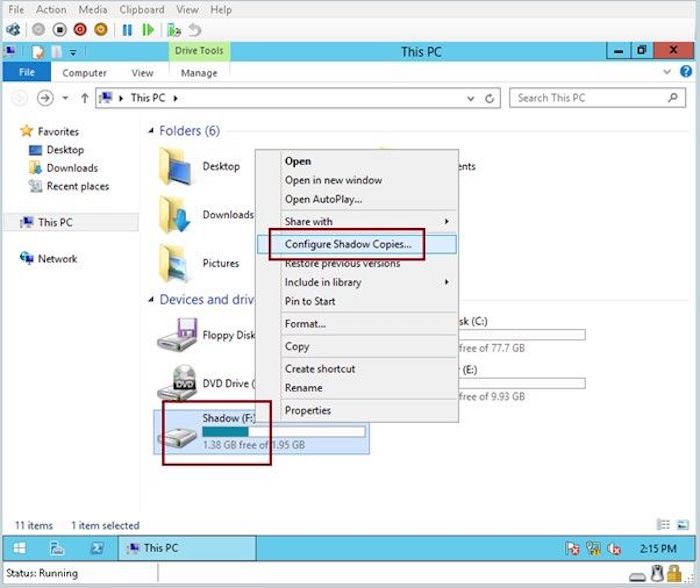
Step 3: To disable and delete the volume, select it, click the Disable button, and then click the Delete Now button.
2. What is the difference between shadow copy and backups?
Shadow copy is a backup technique in Windows that automatically saves files and folders to a reserved spot on the same storage drive based on the administrator's preferences, with a default storage capacity of 64 copies. This feature requires the shadow copy service to be started before backup can be initiated, and it was first introduced in the Windows 2003 Server operating system.
With a shadow copy backup, even files in use are preserved by saving a copy of the current file system. This is done in addition to scheduled backups, which are performed outside of normal business hours and saved on various media, including SAN, NAS, tape drives, and physical hard drives.
3. How do I access shadow copy files?
You can access the "Shadow Copies" feature by right-clicking on the file, folder, or drive, selecting "Properties," and then "Previous Versions."
Related Articles
- How to Copy/Clone Bootable USB Drive in Windows 10/8/7 (2022 Tips)
- [Fixed] Windows 7 Build 7601 This Copy of Windows Is Not Genuine
- [100% Efficient] Create Windows 10 Image Backup with 2 Ways
- 15 Best Backup Software Examples in 2022 Backup Tools List
- Wipe Hard Drive in Windows 10 to Protect Privacy
What's the best way to wipe a hard drive and clear all the data away and make sure they are unrecoverable by no means. please read this article. - [2024 Selected!] 200GB Free Cloud Storage Software
If the local storage on your device is running out, you can upload your data to cloud storage. In this article, we will list some cloud storage programs that can offer 200GB of free cloud storage to you.
Products
Articles & Tutorials
- Data Recovery
- Data Backup
- File Recovery
- File Backup
- System Backup and Restore
- Disk and Partition Clone
- Technical articles
- Mobile articles
- Disk Master Help
- Windows Data Recovery Tutorials
- Windows Secure Delete Tutorials
- Windows Partition Management Tutorials
- Windows File Backup and Restore Tutorials
- Windows System Backup and Restore Tutorials
- Windows Disk Backup and Restore Tutorials
- Windows Clone Tutorials