How to Create a Schedule Backup with Qiling Backup Personal Edition
This article applies to:
Qiling Backup Free & Home Editions
Description
A scheduled backup can be set to run automatically at regular intervals or at a specific time, freeing users from manual reminders and allowing them to focus on more important tasks.
Creating a schedule for your backup job involves setting up a plan to ensure efficient completion. Start by identifying your backup needs, including frequency and data volume.
Before setting the frequency, you can review what a schedule backup is and when to use it.
How to create a schedule
A schedule backup can either be newly created or modified from an existing non-schedule backup task.
Creating a New Schedule
To create a schedule, click the Turn on button to open the schedule configuration page. Here, you'll find a calendar view where you can select the days and times you want to schedule the backup.

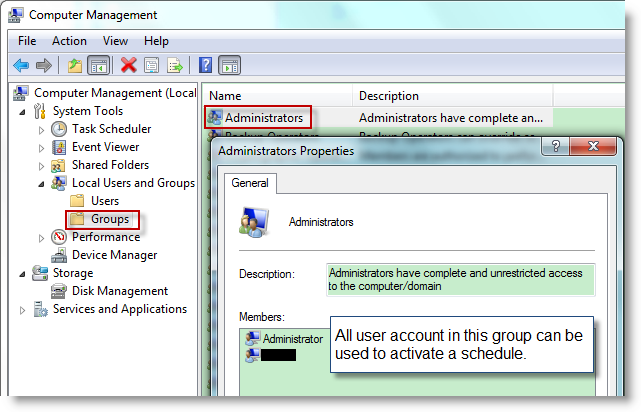
1. Schedule Type Area: To set up a schedule, you can choose from various options, such as running it daily, weekly, monthly, or based on specific system events. The schedule type you choose determines the settings area, where you can specify the frequency and timing of the backup. You can also select the type of backup you want to use, such as full, incremental, or differential, and choose to create a full image file at the beginning of every schedule cycle. Additionally, you can decide whether to run missed backups once the computer resumes, and ensure that the product has full administrator permission to run the schedule in the background. If the admin account or password is incorrect, you may receive an error code. You can check if the account has sufficient permissions by right-clicking "Computer" and choosing "Manage".
Change a Normal Backup Task to a Schedule
All created schedules and backups are listed in the Management page. To create or modify a schedule, users can click the Schedule button, which opens a schedule configuration window.

A created schedule can also be turned off in the Management page. Below are some suggestions for better backup management.
1. To better protect your system and important data, consider scheduling backups at night or when the office is closed, allowing the backup to run with minimal resource usage. You can also switch to sleep mode when leaving the machine, as the backup schedule can wake the computer up to perform the backup.
2. Create separate schedules for system backups and data backups to better organize your backup strategy.
3. Regularly clean up unwanted schedules from the management page to maintain a clear and organized schedule list.
4. A schedule can be made more flexible by adding features such as image retention, which allows you to save and review past backup images, and email notification, which sends reminders and updates about backup events. This is particularly useful for users who need to keep track of multiple backup tasks.
5. To avoid data loss, it is recommended to save the backup image to a different partition, such as an external hard drive or a separate internal drive. This ensures that if the original partition fails, the backup image will still be intact and can be used to restore the data.
Related Articles
- Top 3 Ways for Server Backup to Cloud: Effective, Secure, Simple
Are you looking for the proper ways to finish server backup to cloud? Refer to this article to catch the solutions that suits you most. - Top 3 Best Free Synology Backup Software: Which is Better?
In this post, you can master the top 3 Synology backup software to backup your computer to a Synology NAS. Read on carefully to gain more details by yourself. - Safely Copy Windows 11/10/7 Image to Another Computer
This tutorial analyzes the problems you may meet when transferring OS to another computer and presents how to copy Windows 11/10/7 image to another computer with secure boot. - Solutions for Windows Boot Manager Windows Failed to Start
Are you struggling with the error: windows boot manager windows failed to start? You can read this article to learn the solutions. - Can Windows Backup Do Incremental Backups? [Full Guide]
This guide addresses whether Windows Backup can perform incremental backups and provides recommendations for the best incremental backup software for Windows. Additionally, it will outline the steps involved in incremental backup, providing clarity on this process. - How to Create a Backup Disk for Windows 10 [Two Best Solutions 2022]
This article will introduce two ways to create a backup disk for Windows 10. You can use the Windows built-in tool or choose a more straightforward way using reliable third-party software.
Products
Articles & Tutorials
- Data Recovery
- Data Backup
- File Recovery
- File Backup
- System Backup and Restore
- Disk and Partition Clone
- Technical articles
- Mobile articles
- Disk Master Help
- Windows Data Recovery Tutorials
- Windows Secure Delete Tutorials
- Windows Partition Management Tutorials
- Windows File Backup and Restore Tutorials
- Windows System Backup and Restore Tutorials
- Windows Disk Backup and Restore Tutorials
- Windows Clone Tutorials