Can Windows Backup Do Incremental Backups? [Full Guide]
Windows Backup can perform incremental backups, which save only the changes made since the last backup rather than the entire dataset. This approach saves both time and storage space compared to traditional full backups. To enable incremental backups in Windows, you can use the built-in File History feature, which automatically backs up changed files at scheduled intervals.
Can Windows Backup Do Incremental Backups?
Windows Backup can perform incremental backups, which can be a convenient option for users. There are two primary backup utilities available in Windows. However, the functionality of these utilities may vary depending on the specific version of Windows being used.
Only File History is available for incremental backup. It will back up the files and folder, including the changed files, allowing you to create an incremental backup in the advanced settings.
Backup and Restore can create a system image or system repair disc, but it's not suitable for incremental backups.
Everything You Need to Know About Windows Incremental Backup
Knowing that Windows Backup can perform incremental backups may raise questions about whether you truly need this feature. Incremental backups involve backing up only the changes made since the last full or incremental backup, offering a more efficient storage solution. However, they also have some drawbacks, such as requiring more complex recovery procedures and potentially leaving you vulnerable to data loss if a backup fails. Understanding the definition and pros and cons of incremental backups can help you determine if this feature aligns with your specific needs.
What is Incremental Backup of PC?
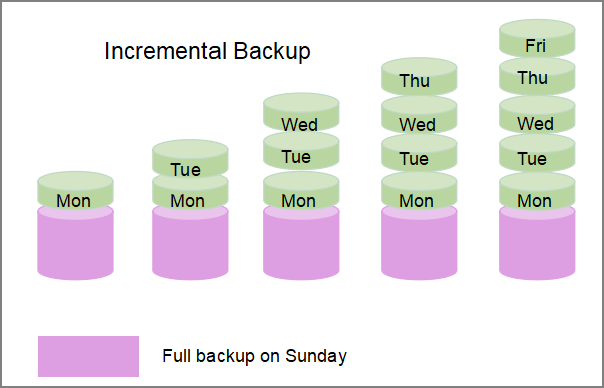
An incremental backup is a type of backup that protects files and folders by backing up the latest data, including changes and additions since the last backup, after a full backup has been made. This approach saves time compared to differential backups.
Incremental and differential backups are both useful, but they differ in their approach. Incremental backups store only the changes made since the last full backup, while differential backups store all changes made since the last full backup, but not the full backup itself. If you want to know more about their differences, you can click the button to learn more.
Do I Really Need Incremental Backups?
Here are the pros and cons of incremental backups in one paragraph:
Pros
1. Incremental backups only save the changed data, reducing storage space usage.
2. Since the changed data is small, incremental backups are faster, saving you time.
3. Incremental backups allow you to keep multiple versions of files, so you can restore to a previous state if needed.
Cons
1. It usually takes a longer time to perform the recovery.
2. If one copy of a data fails, the full recovery of the data will be incomplete.
Although it has some disadvantages, it is still worth making an incremental backup to improve efficiency and save time. Next, I will introduce two solutions to do an incremental backup.
How to Do Incremental Backup with Windows Backup
We have already discussed that Windows backup can also do incremental backups. But using File History for backups has a lot of limitations, as it can only perform file backups. So here I will also recommend one of the best incremental backup software and give detailed steps. Then you can choose according to your preferences.
Method 1: Windows Backup Alternative-Backup with Incremental Backup Software
Qiling Backup Home is a professional backup software that can meet more comprehensive backup needs, especially when used for incremental backups.
- You can make backups of files, systems, disk, and partition.
- You can back up to local, external, cloud, or NAS destinations.
- The files will be encrypted and a password can be set for added safety.
- Automatic backup is available to backup your data daily or weekly.
This software is a comprehensive tool that is easy to use and can meet all your backup needs, making it a convenient solution for you.
Qiling Backup supports various backup functions, including incremental backups, full backups, differential backups, and backing up to cloud drives and external drives, among others.
- Offsite copy
- One-click recovery
- System image recovery
- System clone or disk clone.
- 250GB of free cloud storage
Method 2: Windows Backup-Do Incremental Backup with File History
File History is a suitable option for backing up files and folders, allowing you to save all types of files, including pictures, documents, music, and videos. You can create a custom backup and store the files locally or on a network location. However, to use File History for incremental backups, you'll need to start with a full backup first.
Step 1: Open "Update & Security" and find "Backup."
Step 2: To make a full backup, turn on the "Automatically backup my files" button.
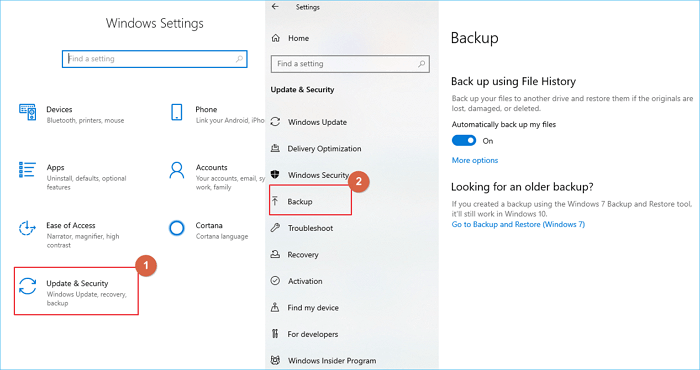
Step 3: Find "File History" in the Control Panel.
Step 4: Click "Advanced settings" on the left side.
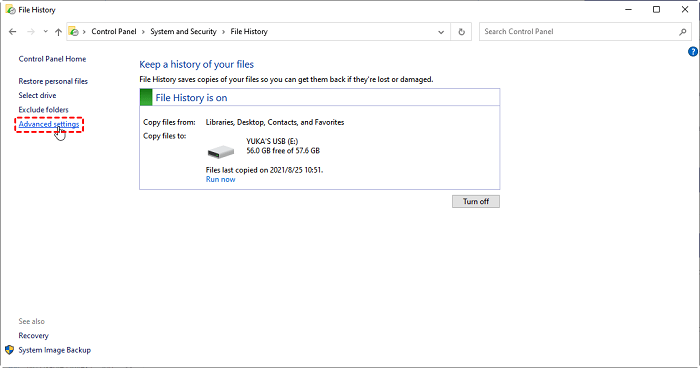
Step 5: Set the frequency and time of File History.
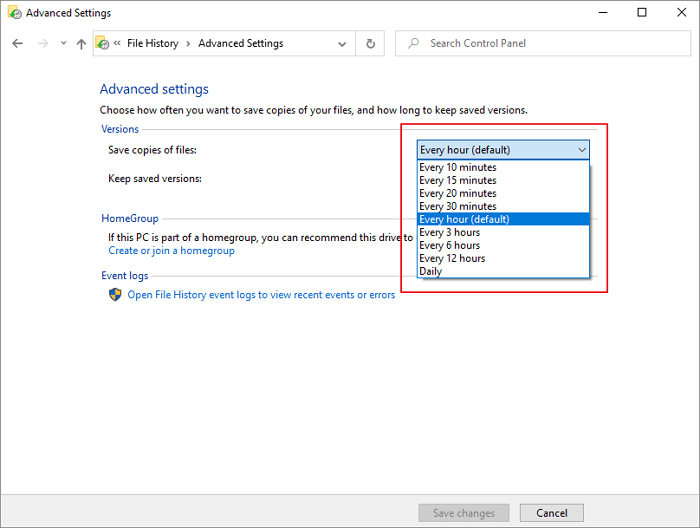
Step 6: Click "Save settings" to make an incremental backup.
Conclusion
This article addresses the question of whether Windows 10 supports incremental backups and provides two methods to achieve them. Additionally, it recommends Qiling Backup, a professional backup tool, for better data protection and recovery. For more information, you can download it.
FAQs About Can Windows Backup Do Incremental Backups
This guide provides the two best methods for making an incremental backup, as well as answers some frequently asked questions about doing incremental backups in Windows.
1. Can Windows Server backup do incremental backups?
Windows Server allows for incremental backups, enabling a full backup to be made alongside a scheduled incremental backup plan.
2. Does file history do incremental backup?
File History can perform incremental backups, backing up files and folders that have changed since the last backup, but a full backup must be made first.
Related Articles
- How to Install Windows 10/8/7 on Multiple Computers at The Same Time | System Deployment Solution
- Why Is Windows 11 Backup Not Working on Your PC? Check the Causes and Fixes Here Instantly
- How to Create a Backup Windows 10 with the Least Effort
- 7 Best Free Imaging Software for Windows 11/10/8/7
- How to Change Webex Meeting Location
To change your Webex meeting location, start by logging in to your Webex account and navigating to the meeting you want to modify. Click on the “Edit” button next to the meeting title, then select the “Location” tab and enter the new meeting location. - [Step-by-step Guide] How to Clean Install Windows 11 Safely
To clean install Windows 11, follow these steps: first, make sure to back up your important files and data, and then create a bootable USB drive with the Windows 11 installation media.
Products
Articles & Tutorials
- Data Recovery
- Data Backup
- File Recovery
- File Backup
- System Backup and Restore
- Disk and Partition Clone
- Technical articles
- Mobile articles
- Disk Master Help
- Windows Data Recovery Tutorials
- Windows Secure Delete Tutorials
- Windows Partition Management Tutorials
- Windows File Backup and Restore Tutorials
- Windows System Backup and Restore Tutorials
- Windows Disk Backup and Restore Tutorials
- Windows Clone Tutorials