How to Create a Backup Disk for Windows 10 [Two Best Solutions]
How Do I Make a Windows Backup disk?
A backup disk is a copy of essential data, programs, and files stored on a system. It can be created by backing up a disk partition or generating a disk image, which can then be restored whenever needed.
Making a Windows backup disk is a straightforward process that can be completed using Windows' built-in tool or third-party software. If you're unsure how to proceed, this guide will walk you through the steps to create a backup disk.
Create a Backup Disk for Windows 10: Everything You Should Know
Now that you understand what disk backup is, it's important to recognize why creating a backup disk is essential. There are several factors you should consider before creating a backup disk, which I will introduce next.
The Necessity of Creating Backup Disk for Windows 10
When creating a backup disk, you can select any disk on your computer, including files, folders, and programs, to safeguard against unexpected data loss due to deletion, hardware failure, or other unforeseen events. This ensures that your critical data remains accessible and recoverable in case of an emergency.
- Disk failure
- Computer viruses
- System crashes
- Blue screen error
- Malicious attacks
- Accidental deletion
To ensure work continuity and avoid data loss, creating a backup disk is the best way to protect your valuable data and recover it quickly if a system crash occurs.
Factors to Consider When Creating a Backup Disk
We already know why a backup disk is necessary, but before creating one, you should consider the following three factors. By addressing these, you can fully prepare for creating a backup disk.
1. Backup destination
You can either back up your data to a local disk on your computer or use an external hard drive for storage.
2. Backup data
To ensure the data you want to include is clearly defined, you should specify what kind of data you want to save. Additionally, regular backups should be performed, either daily or weekly, using software that can automatically back up data to an external hard drive.
3. Backup capacity
To create a backup disk, you'll need to ensure there's sufficient storage space to save all your data and programs.
Does Windows 10 Have a Backup Program to Create a Backup Disk?
Yes, Windows 10 includes a built-in backup program called Backup and Restore (Windows 7), which allows users to create a system image and file backups to an external drive or network location. You can access this program by searching for "Backup" in the Start menu or by going to Settings > Update & Security > Backup. Additionally, Windows 10 includes a feature called File History, which automatically backs up files to an external drive or network location. For more advanced backup needs, users can also use third-party backup software such as Qiling Disk Master to create a backup disk.
There are two built-in backup tools for Windows 10.
This is only used for files and folders, including files that have been modified.
2. Backup and Restore (Windows 7)
This tool is based on Windows 7 design but is fully compatible with Windows 10. It allows users to back up files, folders, disks, or create a system image.
Although there are two built-in Windows utilities, only Backup and Restore is suitable for disk backup.
If the system restore is not working, there are alternative ways to create a backup disk. A simple and comprehensive method for disk backup will be introduced in the next section.
Solutions to Create a Backup Disk for Windows 10
You can create a backup disk for Windows 10 using either a built-in tool or third-party software.
1. Windows Backup Software: Qiling Backup Home
This software enables rapid backup and recovery, supports automatic disk backup, and ensures comprehensive data security.
2. Backup and Restore Windows 10
This Windows software enables manual selection of non-system partitions on the disk.
While both methods are sufficient for creating a backup disk, they have some differences. A direct copy creates an exact replica of the original disk, whereas a clone copies only the used space, reducing the backup size.
| Comparison | Qiling Backup | Backup and Restore |
|---|---|---|
| Backup Time | Short time | Long time |
| Backup Difficulty | Easy, automatically | Complex, manually |
| Backup Content | Files, folders, disk, system, cloud, and partition backup | Files, folders, disk, system |
| Backup Storage | 30 days of 250GB of free storage | Occupy more storage and no free space |
Qiling Backup is an excellent option for creating a backup disk, offering a streamlined process that saves time and improves efficiency. To use it, you can follow the step-by-step guide, and it can meet your different needs, providing free backup storage and better protection for your backup disk.
Method 1: Create a Backup Disk for Windows 10 With Qiling Backup
Qiling Backup is a reliable backup disk software that allows users to create a backup disk containing files, folders, and programs, providing a convenient and efficient way to safeguard important data.
- It allows you to save your work on a disk, external hard drive, or cloud storage.
- It allows you to back up the disk automatically.
- It allows incremental or differential backup of a disk.
It is also easy to operate. Here are the steps
Step 1. Start with selecting the Disk backup button.

Step 2. You can use Qiling Disk Master to back up a whole disk or a specific partition, giving you flexibility in choosing what to back up.

Step 3. Select the destination where you want to save the backup.

Step 4. For disk/partition backup, users can select to save the backup to a local drive or to a Network-Attached Storage (NAS) device.

Step 5. After the backup process is completed, your task will be displayed at the left. You can then click on any task to further manage your backup, such as recovering it, creating an incremental backup, and more.

Qiling Backup not only creates a backup disk but also serves as a reliable disk cloning software, offering the benefits of cloning, including fast migration, data redundancy, and the ability to restore your system to a new computer.
- It supports disk clone Windows 10.
- It will encrypt the clone drives.
- It supports clone USB drive.
- It can restore the system to a new computer.
So, Qiling Backup is the must-have backup software for data protection.
Method 2: Create a Backup Disk for Windows 10 With Backup and Restore
Backup and Restore on Windows 10 allows you to back up the whole system. For disk backup specifically, you need to create a custom backup. Here are the steps.
Step 1: Open Control Panel and Select "Backup and Restore (Windows 7)."
Step 2: Click "Set up backup" on the right side.
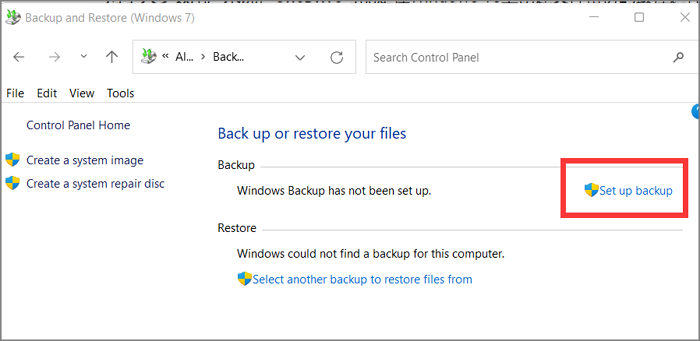
Step 3: To save the backup disk, select a hard disk or a network location on your computer or network that has sufficient storage space to hold the backup file. This location should be easily accessible and preferably not on the same physical device as the original data to ensure data safety in case of a hardware failure.
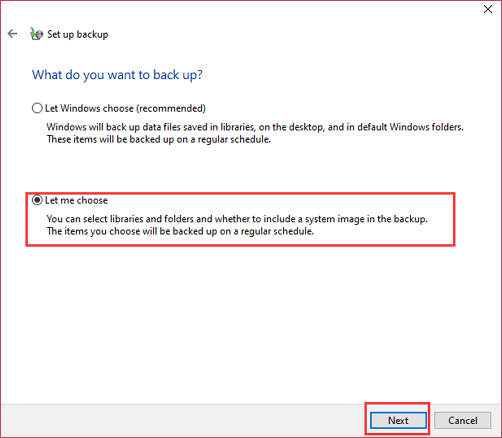
Step 4: Pick "Let me choose" and click "Next."
Step 5: Choose a disk and click "Next."
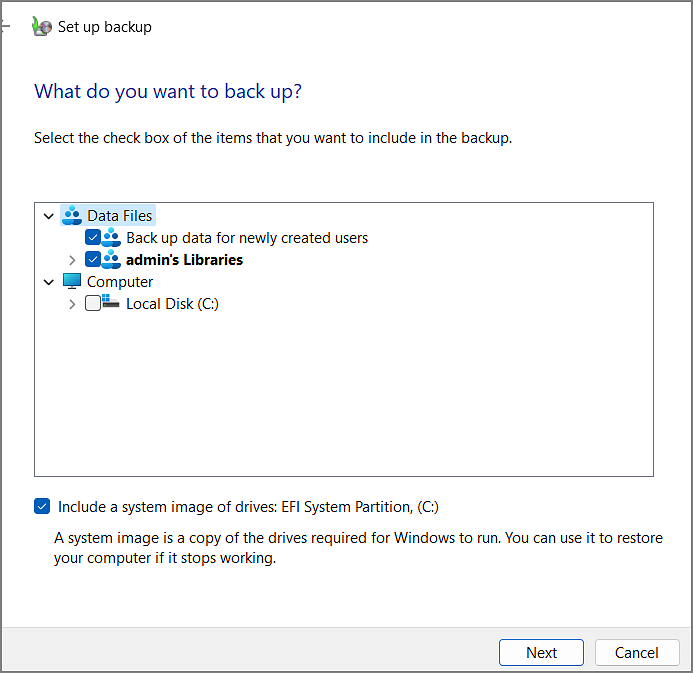
Step 6: Review the backup settings and run the backup.
Conclusion
This article provides two methods for creating a backup disk, and you can choose according to your preferences. Qiling Backup is the most comprehensive backup method, allowing you to efficiently perform backups and securely protect your data, making it a worthwhile choice.
FAQs about How to Create a Backup Disk for Windows 10
This guide introduces two ways to create a backup disk, and here are some other frequently asked questions.
1. Does Windows 10 have a backup system?
Yes, Windows 10 has two built-in backup tools. You can use File History to back up files, or Backup and Restore to create a system backup, providing you with reliable tools for data protection.
2. How to back up Windows 11 to an external drive?
Connect the external hard drive to your computer, ensure it works normally, and then follow the steps.
Step 1: Select "Backup and Restore" on the computer.
Step 2: Click "Create a system image" on the left side.
Step 3: Choose the destination and click "Start backup" to start the backup process.
3. How to restore backup files from an external hard drive in Windows 10?
To restore backup files from an external hard drive, connect the hard drive to your computer, then use the Backup and Restore utility in Windows 10, following the on-screen instructions to select the backup files you want to restore.
Step 1: Open "Backup and Restore" in Control Panel.
Step 2: Click the "Restore my files" button.
Step 3: Click "Browse for files" to recover the specified files.
Related Articles
- [99%'s Choice] How to Backup Entire Hard Drive Windows 10
- [Easy and Quick] How to Clone MBR to GPT SSD with Success
- NAS Backup to Cloud: the Most Efficient Solution
- Top 10 Best OS Imaging Software for Windows 10/11 [Free Trials]
- Copying Files from One Server to Another Server in Windows Robocopy
To quickly copy large amounts of files over the network between two PCs, use the Robocopy command tool with the correct options. Simply execute the Robocopy command correctly. - Do I Need Microsoft OneDrive? Your Answer Is Here
If you use a Windows 10 computer, you may have noticed the system repeatedly reminding you to set up Microsoft OneDrive, leaving you wondering if you actually need to do it.
Products
Articles & Tutorials
- Data Recovery
- Data Backup
- File Recovery
- File Backup
- System Backup and Restore
- Disk and Partition Clone
- Technical articles
- Mobile articles
- Disk Master Help
- Windows Data Recovery Tutorials
- Windows Secure Delete Tutorials
- Windows Partition Management Tutorials
- Windows File Backup and Restore Tutorials
- Windows System Backup and Restore Tutorials
- Windows Disk Backup and Restore Tutorials
- Windows Clone Tutorials