How to Merge Images to Release Disk Space on Qiling Backup Personal Edition
This article applies to:
Qiling Backup Personal Edition
Introduction
You can imagine that for a long-running schedule, no matter how large the target storage is, the continuously increasing image files will eventually fill up all the available space. So it is always necessary to remove or merge part of the old image files to ensure there is enough space for upcoming image files.
Qiling Backup images can be merged by Image Manager manually. You can also use the Image-reserve strategy option in Qiling Backup to merge old image files under specified rules automatically. This article will offer all the essential tips you should know about how to merge images properly.
Merge images with Image Manager manually
In order to ensure the merged image file can be used normally and doesn't affect other backup images, this feature can only merge adjacent images, and the Merge function will be grayed out if you did not select the correct images. Here are the exact steps for merging images manually:
1. Select the backup task/plan then click Advanced->Image Manager.
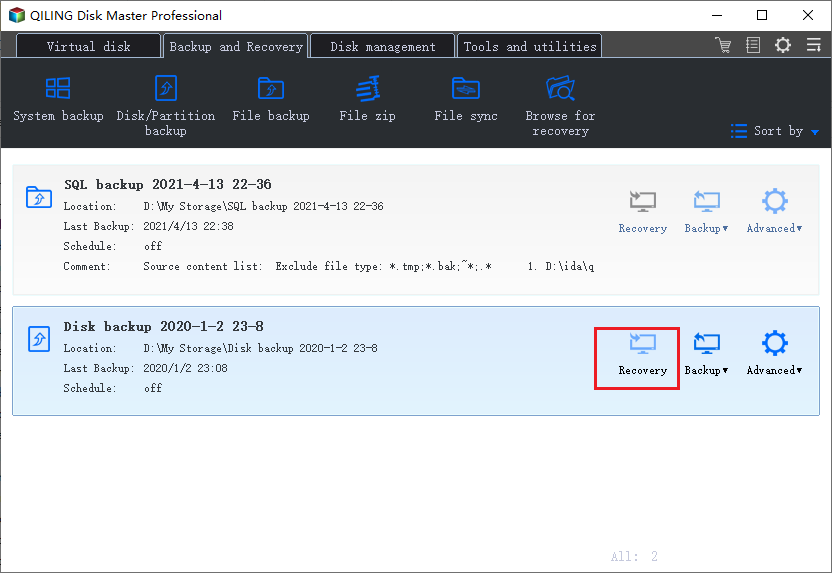
2. Tick images then click the Merge function to merge.
3. The incremental backup image has been merged to the full backup image.
Merge images with Image-reserve strategy automatically
Image-reserve strategy function can be found when creating a new backup or editing an existing backup task/plan, and you can see it under this interface:
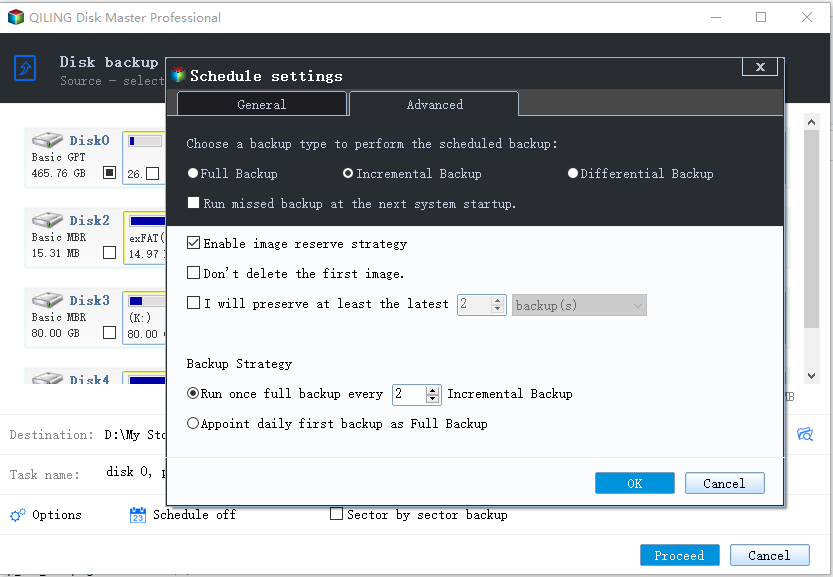
And each part of this page is explained below:
1. Turn on/off the image retention rule for the current backup.
2. Delete/Merge old images based on time or number of files. Days, weeks, months, and years are all available in the time option.
3. By ticking this option, the first full image will neither be counted into the preserved number you have specified nor deleted by the image-reserve rule.
4. Tick this option, and the image-reserve rule will merge images instead of deleting old images.
Note:
1. The "Reserve image via image merging method" option can only be checked after enabling "Enable image reserve strategy".
2. If the "Reserve image via image merging method" option is not checked, Qiling Backup will use the delete image rule.
How the rule works
An example of keeping image files for 3 days in a daily incremental/differential schedule: the available image files on each day should look like this:
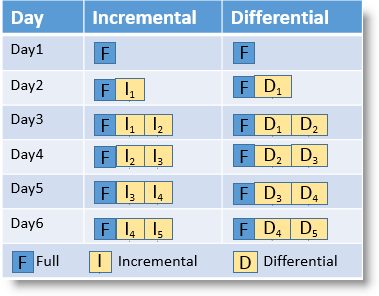
Explanation:
1. There is no difference in merging images between Incremental and Differential backup.
2. On day 4, it will create a new incremental/differential backup (I3
or D3
) and then merge the first incremental/differential backup (I1
or D1
) into the full backup image (F). The same rule applies to merge images after day 4. The number of backup images will be no more than 3.
Note:
If you have deleted a file before the first incremental/differential backup, and then the first incremental/differential backup image has been merged into the full backup image, the deleted file will not be restored.
Related Articles
- How to Backup Steam Games to External Hard Disk?
How to backup Steam games to external hard disk? What is the easiest way? You can read this short post to find the tips and meet the best backup software for game players here. - How to Recover Deleted or Lost Partition in Windows 10
You can run lost partition recovery within 4 steps with Qiling. Partition Recovery Wizard in Qiling Partition Master can recover deleted or lost partition in Windows XP/Vista/7/8/8.1/10 and Windows Server 2003/2008/2012. - What Is the Recovery Key for Lenovo Laptop?
What Is the Recovery Key for Lenovo Laptop? What can it do for a Lenovo laptop? Can it solve the system problem easily? This short post is going to tell you all these answers. - [Backup Guide] To Solve Windows 10 Backup Starts then Stops
When you periodically back up selected folders onto an external hard drive using File History on Windows 10, you will click - Backup SQL Server Database in 3 Ways [Quickstart]
You can create a backup database in SQL by using either Qiling SQL backup software or a command prompt, which allows you to easily back and restore SQL databases. - How to Backup Zoom Recordings? A Detailed Guide with Steps
Learn how to backup Zoom recordings easily. This guide covers where to find your Zoom recordings, how to download them from the Cloud to your local drive, and how to back them up securely using cloud storage for added protection.
Products
Articles & Tutorials
- Data Recovery
- Data Backup
- File Recovery
- File Backup
- System Backup and Restore
- Disk and Partition Clone
- Technical articles
- Mobile articles
- Disk Master Help
- Windows Data Recovery Tutorials
- Windows Secure Delete Tutorials
- Windows Partition Management Tutorials
- Windows File Backup and Restore Tutorials
- Windows System Backup and Restore Tutorials
- Windows Disk Backup and Restore Tutorials
- Windows Clone Tutorials