Create a Backup Schedule in SQL Server
SQL Server 2008 is a database server that helps enterprises manage and maintain databases, providing advanced analytics and reporting support. To ensure data security and prevent loss due to human or system errors, it's essential to perform automatic backups of the server.
Do you know how to create a backup schedule in SQL Server 2008? You may think it is difficult, but don't worry. This guide provides three solutions with detailed steps to create a backup schedule. The methods in this article are designed to help you protect your SQL Server data efficiently.
How Do You Create A Backup Schedule in SQL Server 2008?
Automating SQL Server database backups can save time and effort, as it eliminates the need for manual backup operations. In SQL Server 2008, you can create a backup schedule using various methods, including multiple backup solutions.
1. Qiling Backup Enterprise: This is a powerful and efficient backup solution for enterprises and servers, supporting the backup of critical servers running applications.
2. SQL Server Management Studio (Maintenance Plan Wizard): The built-in utility of Windows server 2008 for configuring scheduled backup tasks to run backups automatically on SQL Server is called SQL Server Backup Utility. It allows administrators to schedule backups to run at specific times or intervals, ensuring that critical data is protected and recoverable in case of a disaster or system failure.
3. SQL Server Agent Jobs: To execute scheduled management jobs, you need to create a backup schedule task using a command or script.
| Comparison | |||
|---|---|---|---|
| Process | Simple | Complex | Complex |
| Time | Quick, short time | Slow, long time | Slow |
| Skill Requirements | No skill requirement | Require some technical skills | Require skills to input the command |
The SQL Server Management Studio and SQL Server Agent Jobs are more complex and require professional skills, whereas Qiling Backup Enterprise is easy to operate and saves time, making it a suitable option even for those new to computers. All three solutions can automatically back up SQL Server databases, but they differ in terms of complexity and ease of use, as shown in the table, allowing users to choose the simplest one.
To solve the problem, this guide starts with the simplest methods and provides detailed steps for each solution. You are free to choose the option you like.
Method 1: Using Qiling Backup to Create Backup Schedule in SQL Server 2008
Qiling Backup Enterprise provides automatic backup for Microsoft Exchange email and SQL databases, protecting business-critical data. It specializes in SQL servers, offering advantages such as.
- Support creating backup policies across enterprise database environments.
- Support Microsoft SQL Server 2019/2017/2016/2014/2012/2008 R2/2008/2005.
- The system supports backing up multiple SQL databases in a single process, allowing for efficient and streamlined backup operations.
It is also an easy-to-use software.
Next, you can see the detailed guide.
Step 1. Open Qiling Backup Enterprise, click "Backup and recovery", and set a new backup.

Step 2. To back up specific files, choose "File backup" as the target, and then select the files you want to back up.

Step 3. To backup your data, click on "Backup" and then select the destination where you want to store the backup by clicking on "Browser".

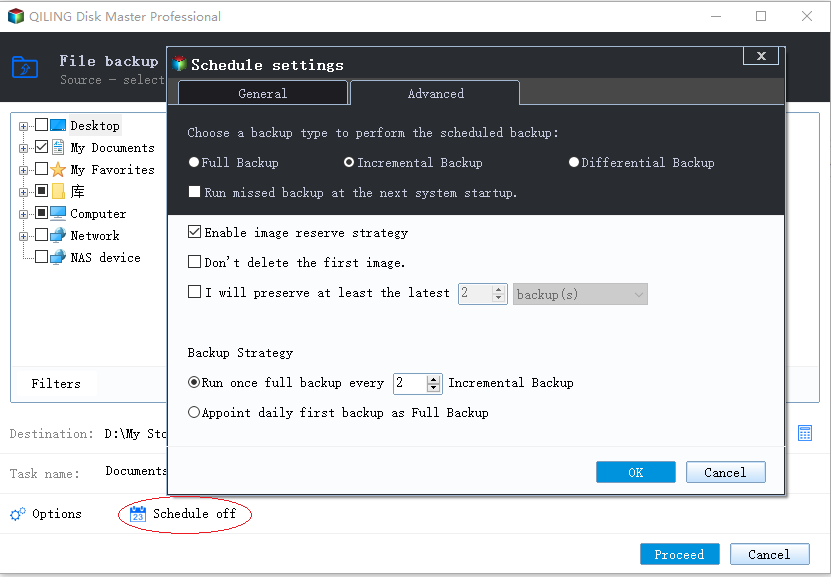
Step 4. To customize your backup scheme, click "Schedule: Off" and select "New" under the "Schedule" catalog. This allows you to set up a new backup schedule, as well as configure backup cleanup and advanced settings.

Then set the backup frequency based on your needs.
Step 5. Click "Backup options" on the bottom-left corner of the interface.

Configure settings such as performance, encryption, and email notifications as desired, then click "OK" to return to the main interface.
Step 6. When you've completed all settings, click "Proceed" to initiate the backup process.
Qiling Backup offers a range of features beyond SQL Server and Exchange backup and recovery, including additional capabilities.
- Disk cloning, and clone HDD to SSD
-
Backup to the cloud (Google Drive or Vault)
-
System image and system image recovery
-
Disk, email, partition backup, and recovery
-
Backup files, folders, or backup OneDrive to external hard drive
-
Centralized management by Qiling Backup Center
Method 2: Using Maintenance Plan Wizard to Create Backup Schedule in SQL Server 2008
The Maintenance Plan Wizard in SQL Server 2008 allows you to create automatic backups with limited options. To set up a backup schedule using this wizard, follow these steps.
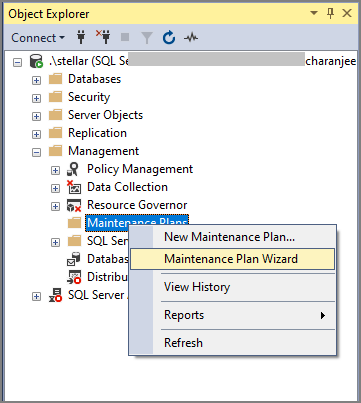
Step 1: To create a maintenance plan, open SQL Server Management Studio (SSMS) and connect to the server instance. From there, click on "Maintenance Plan" and select "New Maintenance Plan Wizard" to begin the process.
Step 2: Click "Next" after the SQL Server Maintenance Plan Wizard opens.
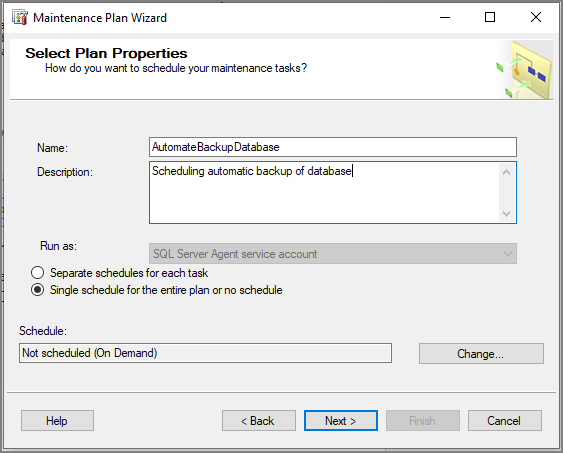
Step 3: In the Select Plan Properties window, input a name for the plan, then click "Change" to schedule the job.
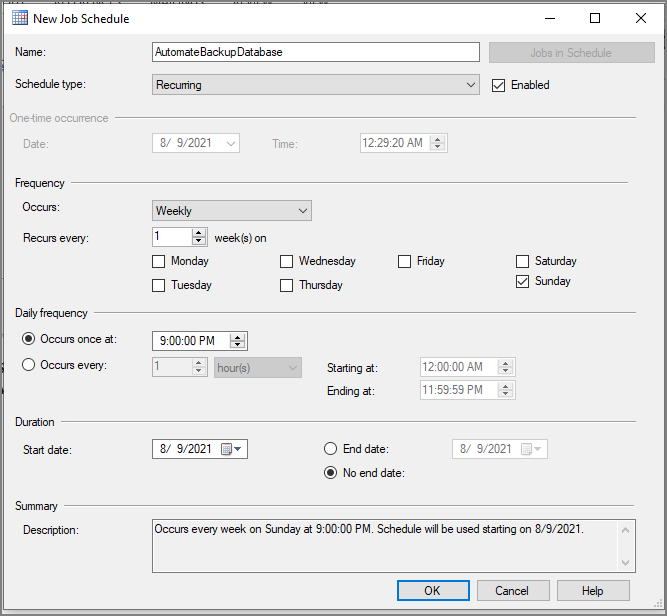
Step 4: Set the frequency and the time you want the backup process to run, and click "OK."
Step 5: Select the backup database option in the "Select Maintenance Tasks" window, then click "Next."
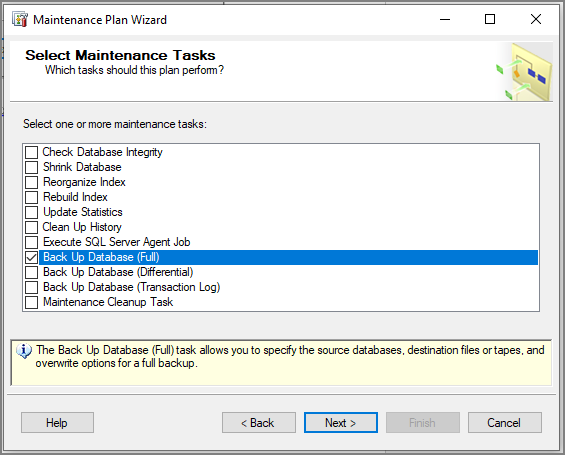
Step 6: Please check the "Verify backup integrity" option in the "Define Backup Database Task" window.
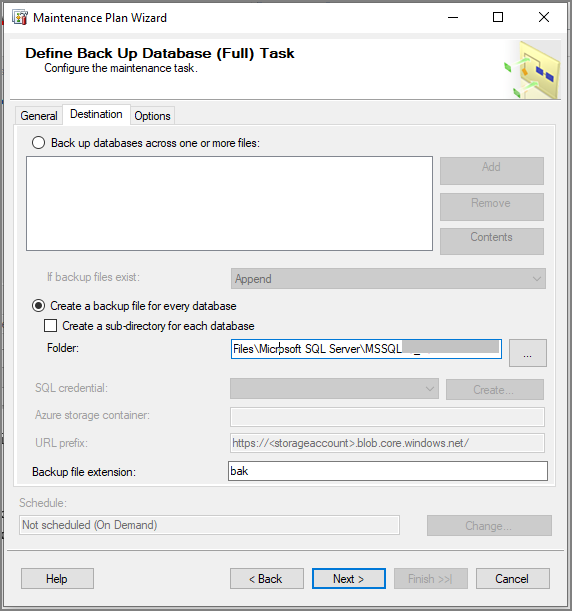
Step 7: Select a backup location and click "Next."
Step 8: If you are satisfied with the backup plan, click "Finish."
Step 9: Click "Close" after you set the backup schedule.
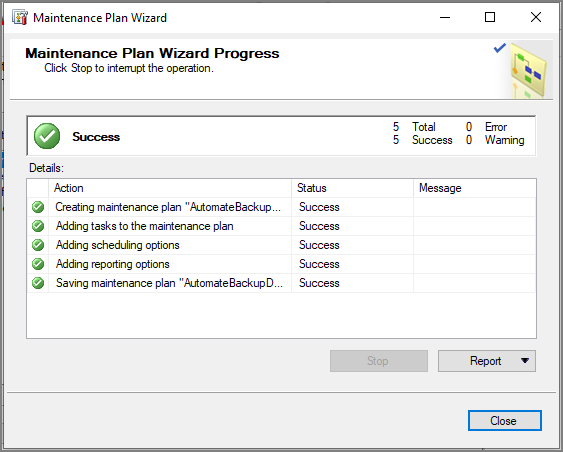
Step 10: The SQL Server Agent job was automatically created for the backup maintenance plan in the Object Explorer by right-clicking on "SQL Server Agent".
Method 3: Using SQL Server Agent Jobs to Create Backup Schedule in SQL Server 2008
To create a backup schedule in SQL Server 2008 using the SQL Server Agent job, you can utilize the agent's ability to execute scheduled backups. Each job, which contains one or more job steps and its own task, such as database backup, can be created to automate the backup process. This allows you to schedule regular backups and ensure that your database is protected.
Step 1: To create a new job in SQL Server Management Studio (SSMS), navigate to the Object Explorer pane, expand the SQL Server Agent, right-click on "Jobs," and select "New Job." This will open the New Job dialog box where you can configure the job's properties and specify the tasks to be executed.
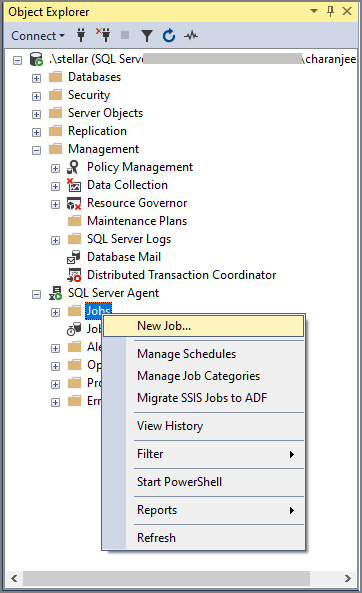
Step 2: Set the name of the backup plan.
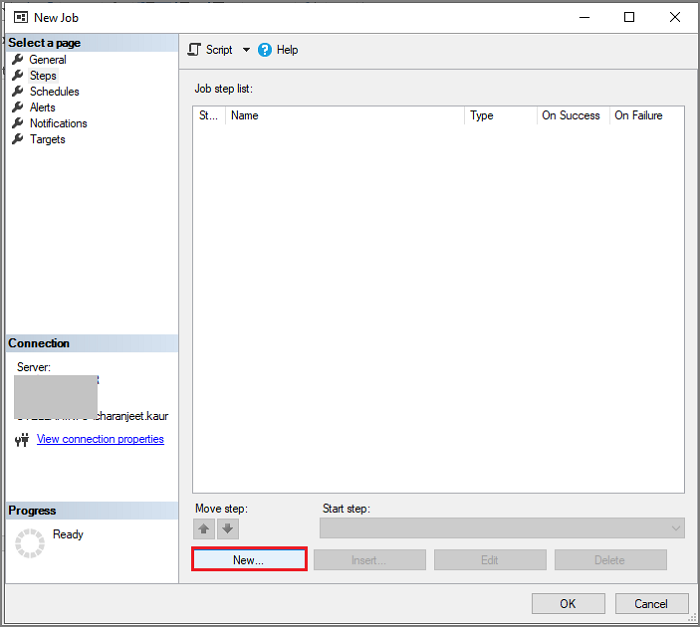
Step 3: To create a new backup step, click the "New" button and add a SQL statement to create a backup of your database.
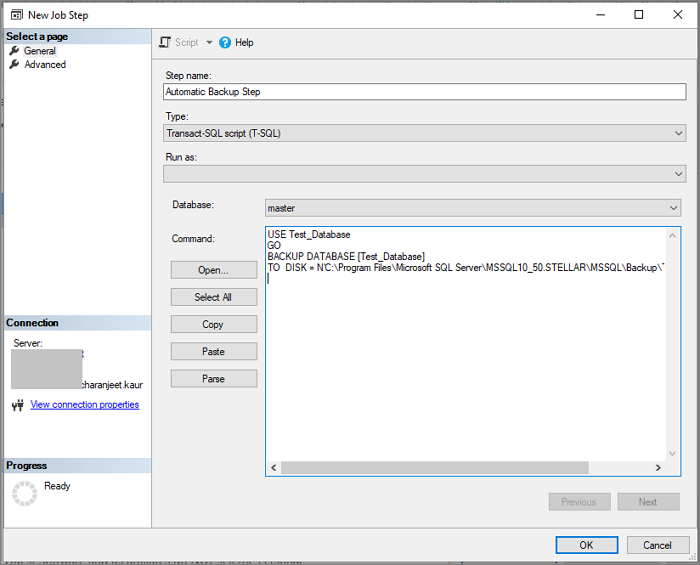
Step 4: Add the following SQL backup command to back up your database.
USE CurrencyExchange
GO
BACKUP DATABASE [CurrencyExchange]
TO DISK = N'G:\DatabaseBackups\CE.bak'
WITH CHECKSUM;
- Tip
- You can create differential and transaction log backups by adding SQL code, replacing "DATABASE" with "LOG" to back up the transaction log.
Step 5: In the Job Schedule window, select the frequency and start date, then click "OK".
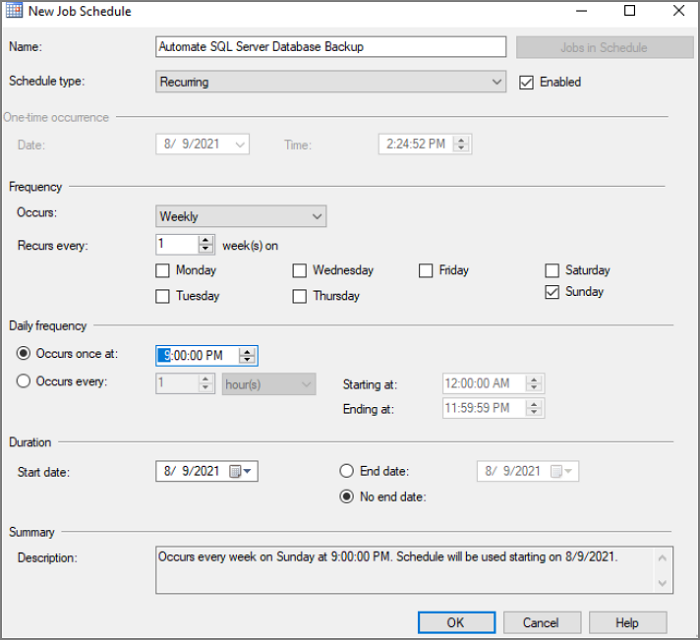
Step 6: Click "OK" to execute the job immediately, or continue to configure alerts and notifications. You can right-click on the created job to check if it was successful.
Conclusion
To create a backup schedule in SQL Server 2008 for recovery needs, consider using a third-party tool like Qiling Backup, which provides a simpler approach. Alternatively, you can use the built-in backup tools, but they may be more cumbersome for non-professionals or require more technical expertise.
FAQs About How to Create Backup Schedule in SQL Server 2008
This article provides three methods to create a backup schedule in SQL Server 2008, along with answers to some frequently asked questions.
1. How do I schedule a SQL Server backup log?
You can use the SQL Server Management Studio to schedule a backup log.
Step 1: Click " Maintenance Plans" and create a new plan.
Step 2: Select Back Up Database Task.
Step 3: Click on the newly added plan and configure the backup settings.
2. How do I disable automated SQL Server backups?
Step 1: Go to the Backup Center and click "Backup Instances" in the menu.
Step 2: Select the data source type.
Step 3: Select the database you want to stop protecting and click "Stop Backup."
3. What are maintenance plans in SQL Server?
The server Maintenance plan is a built-in feature in SQL Server Management Studio that allows users to create a workflow of various database administration tasks, which can be run automatically according to a predefined schedule or triggered manually by the user.
Related Articles
- Open Source Backup Software for Windows Server 2003(2022 New List)
- Windows Server 2012 Backup to NAS: A Simple and Efficient Way
- Convert Disk Image to Virtual Disk File (.vmdk or .vhd)
- Top 10 Best Exchange Backup Software for Exchange Server 2003 - 2019
- Does Upgrading to Windows 10 Delete Programs | Prevent Data Loss Now
Windows Upgrade is a crucial process, but it doesn't mean it will delete your files. - Is It Possible to Easy Transfer Windows 10 to Windows 11? Yes!
You're wondering if it's possible to transfer Windows 10 to Windows 11 easily? The good news is that there is a Windows Easy Transfer alternative that makes the process a breeze, and you can find out more by clicking on it.
Products
Articles & Tutorials
- Data Recovery
- Data Backup
- File Recovery
- File Backup
- System Backup and Restore
- Disk and Partition Clone
- Technical articles
- Mobile articles
- Disk Master Help
- Windows Data Recovery Tutorials
- Windows Secure Delete Tutorials
- Windows Partition Management Tutorials
- Windows File Backup and Restore Tutorials
- Windows System Backup and Restore Tutorials
- Windows Disk Backup and Restore Tutorials
- Windows Clone Tutorials