Windows 10/11 System Restore Is Taking a Long Time? Causes and Fixes Are Here
Many users have reported that Windows 10/11 System Restore is taking a long time to complete, leaving them frustrated and unable to resolve the issue.
Don't worry, as this post will guide you through the process to resolve the Windows 10/11 system restore taking a long time error, providing you with working solutions that won't consume too much time.
However, before we start, you should know this.
System Restore typically completes within an hour, but it's recommended to let the process run undisturbed for at least an hour after restoring the system.
If Windows System Restore is stuck, the system files, restore point, or background applications incompatible with System Restore are the most likely causes.
Why Does Windows 10/11 System Restore Take a Long Time
The time taken for a System Restore can vary greatly and depends on the amount of data and PC configuration. It can take up to two hours, but stopping the process once started can put your system at risk of damage. The number of files stored on the hard drive also impacts the duration, with more files requiring more time to restore.
System restore gets interrupted
The System Restore or Windows 10/11 Reset process can become stuck, causing the system to freeze, and forcing the user to shut down the system, potentially leading to a boot failure. Both processes have internal procedures that must be completed, and failing to do so can render Windows unusable.
Hard drive is full
System Restore saves copies of system files and settings, which are stored in a designated location on the hard drive. When this space is full, the oldest restore points are deleted to make way for new ones, which can happen every time a restore is created or when storage space is running low.
If your primary storage is running low on space, System Restore may not have enough temporary space to manage everything, leading to issues such as a slow computer, freezing, and crashing.
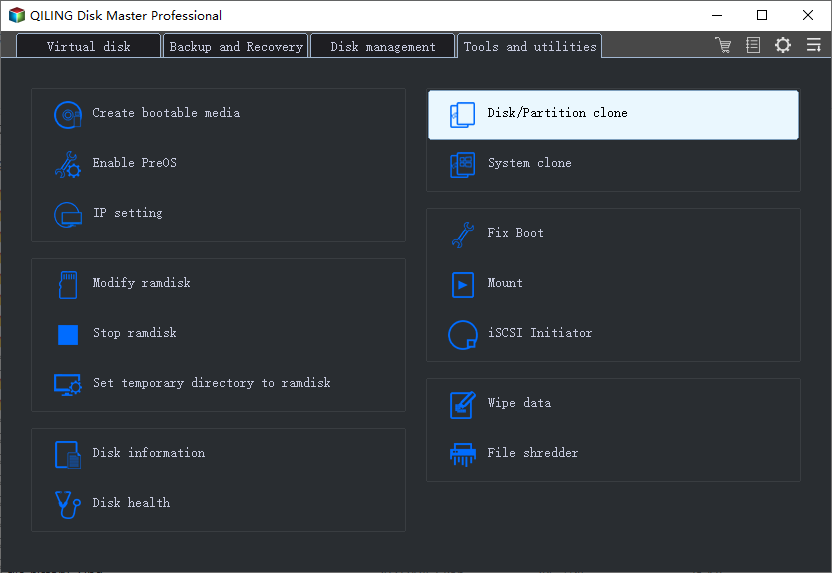
Hard drive cloning is the process of duplicating an existing hard drive's content onto a new drive, creating an exact copy of the original. This can be done for various reasons, such as upgrading to a larger or faster drive, or creating a backup of important data.

To clone a hard drive in Windows 11, start by downloading and installing a cloning software such as Macrium Reflect or Qiling Backup. Next, connect the target hard drive to your computer and ensure it has sufficient space to hold the data from the source drive.
Cloning a hard drive in Windows 11 can be done effortlessly with this instruction book. For a step-by-step guide on how to clone a hard drive in Windows 11, click now and follow the easy-to-understand process.
Old backup is too big
System Restore, a feature in Windows 10/11, consumes a significant amount of storage space on your hard drive. To free up space, consider deleting old backed-up data and reducing the amount of data created during the restoration process when your device's storage is low. It's also a good idea to create a System Restore Point before making significant changes to your Windows system.
System crash
Restoring system files or registry backups may not be fully completed if the system crashes during the process, potentially causing Windows to take longer to complete System Restore.
How Do I Know If System Restore Is Stuck or Not
Sometimes you may encounter issues with System Restore not working, or the process gets stuck due to attempting to interrupt it while it's doing its job. It's essential to let the process complete without interruption, allowing System Restore to function correctly.
The restoration process typically takes 30 to 45 minutes to complete, but if it takes longer, refer to the provided solutions to potentially speed up the System Restore process.
- Method 1: Implement System Restore in Safe Mode
- Method 2: Implement Startup Repair
- Method 3: Run SFC
Method 1: Implement System Restore in Safe Mode
If your system is stuck on the starting screen or file recovery, try waiting, especially if the restore point holds a lot of data. If it hangs for longer than an hour, try forcing a shutdown, then restart and boot in Safe mode to perform a restore.
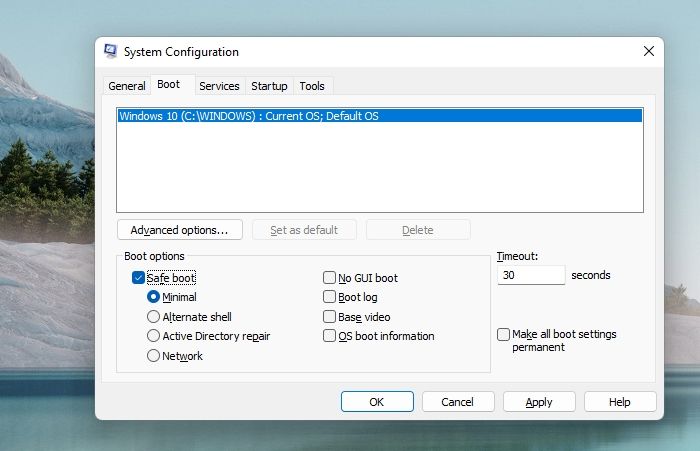
- Press the Windows logo key + R.
- Type msconfig in the Open box and then select OK.
- Select the Boot tab.
- Under Boot options, check the Safe boot checkbox.
- Apply and Restart.
Method 2: Implement Startup Repair
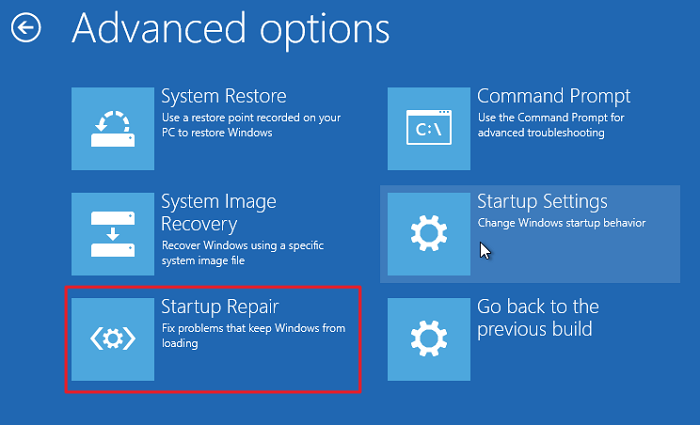
The boot manager's malfunction is one of the potential causes. You can easily fix it in this situation using Startup Repair, which can be accessed by going to Advanced Recovery, selecting Startup Repair under Choose an option, and then Troubleshoot and Advanced Options. If that doesn't work, there may be other solutions to try.
Method 3: Run SFC
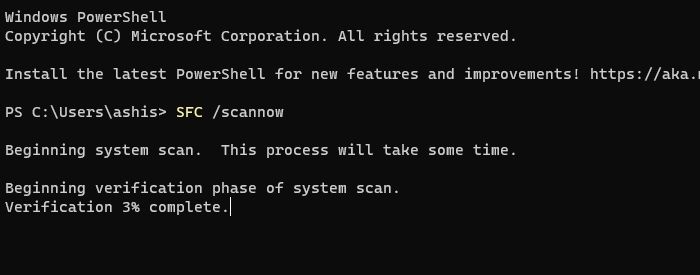
Windows System File Check (SFC.exe) scans for corrupted system files, attempts to restore them, and may take longer if System Restore is damaged.
Fix Windows 10/11 System Restore Taking a Long Time Issue
To resolve Windows 10/11 System Restore taking a long time, start by running any antivirus software to eliminate active viruses and malware. If that doesn't help, try one of the four solutions mentioned, as one of them is likely to resolve the issue immediately.
- 1. Use Windows Backup and Restore Software
- 2. Perform System Restore in Safe Mode
- 3. Run Startup Repair
- 4. Run SFC Scan and Try Another Restore Point
1. Use Windows Backup and Restore Software
You can download Qiling Backup Home for free for 30 days to back up and restore software on your Windows computer, including Windows 11 and Windows 10, using a dependable Windows backup and system restore software.
Qiling Backup creates a secure and encrypted partition called the Security Zone, protecting backed-up files from malware and viruses, allowing users to still access and restore data even if their system is compromised.
Qiling Backup allows users to create backups of specific files or their entire computer through a user-friendly interface. The application takes care of the backup process once the desired backup type is selected.
Since System Restores can fail, it's best to take a backup using Qiling Backup first and then attempt System Restore.
The following steps help you use it well:
Step 1. Launch Qiling Backup on your computer, and click System Backup on the home screen.

Step 2. On Windows, you won't need to manually select system information and related files and partitions as they will be automatically chosen. You'll then need to choose a location to save the system image backup by clicking on the designated area.

Step 3. The backup location can be another local drive on your computer, an external hard drive, network, cloud, or NAS. We recommend using an external physical drive or cloud to preserve system backup files.

Step 4. Customization settings such as enabling an automatic backup schedule in daily, weekly, monthly, or upon an event, and making a differential and incremental backup are available in the options button. Clicking "Proceed" initiates the Windows system backup process, which displays the completed task on the left side in a card style.

2. Perform System Restore in Safe Mode
Windows' System Restore feature allows you to make a backup of your computer's System Files, Registry Files, and System Settings, creating a "System Restore Point". This saved point can be applied to reverse any recent modifications that might have caused issues with your system, effectively taking your computer back to a previous, stable state.
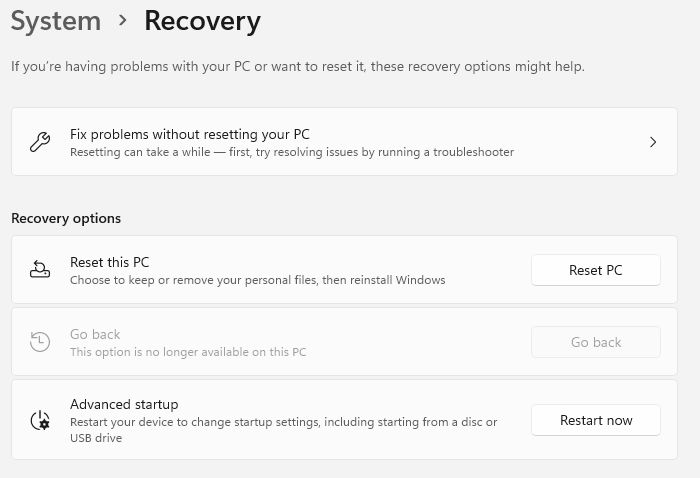
Step 1: To restart your Windows 10 device in advanced startup mode, navigate to Settings (Win + I), then select Update & Security or Windows Update. Click on Recovery, and next to the Advanced Startup button, click on Restart Now. This will initiate the restart process.
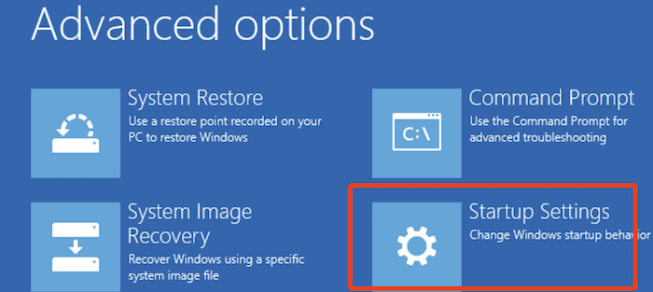
Step 2: After the computer restarts, go to Troubleshoot > Advanced options > Startup Settings, click on the Restart button, and press the F4 key during the restart to take the PC into Safe Mode.
Step 3: To access System Protection in Safe Mode, start the computer in Safe Mode by going to Settings > System, then pick the About tab on the left pane. Scroll down to Related Settings in the right-pane and click the System Protection option.
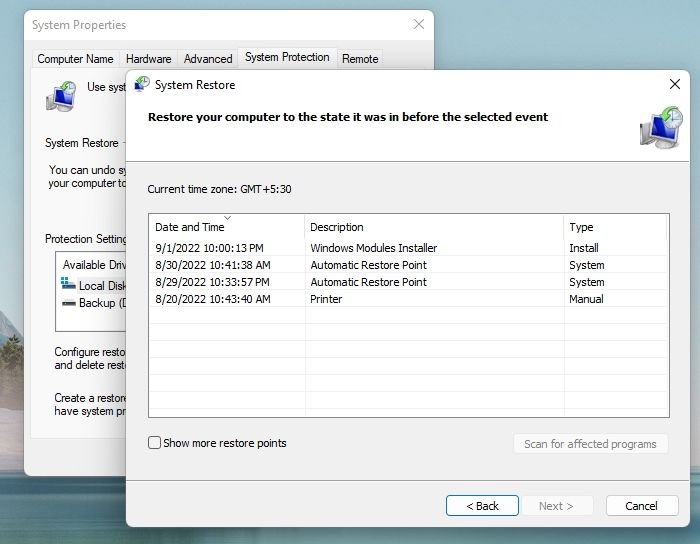
Step 4: Select the restore point you want to use and click Next. Then click Next.
Wait for the System Restore Process to finish, which will undo recent changes that caused issues on your computer, returning it to its previous state, and a pop-up notification will let you know when the restoration is complete.
3. Run Startup Repair
The Startup Repair tool in Windows 10/11 can correct issues with files that are required to boot the operating system on a functional desktop, allowing you to still use it to repair a defective Windows 10/11 installation.
Step 1: Press Win+I on the keyboard to open the Settings app.
Step 2: Find Update & Security and choose the Recovery tab.
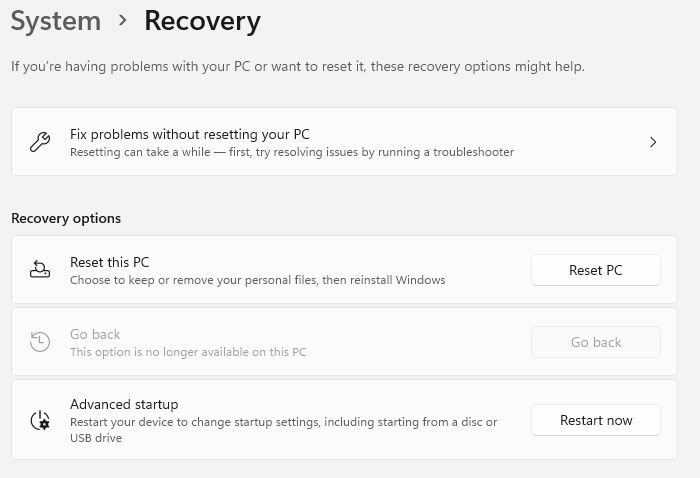
Step 3: Click Restart Now under Advanced Startup.
Step 4: Go to Troubleshoot>Advanced Options>Startup Repair.
4. Run SFC Scan and Try Another Restore Point
The System File Checker (SFC) is a useful tool that scans and fixes protected system files, helping to identify and resolve installation and update issues, and potentially find replacements for lost or damaged files. It can be run on Windows 7, 8, 10, or 11, and is a quick and simple method for evaluating a computer's stability. Running SFC may solve the problem, especially when the system is kept up to date.
Step 1: Boot into Advanced Recovery using a bootable system only when the PC is not bootable anymore.
Step 2: To access the Command Prompt in Windows, go to the Start menu and click on "Choose an option." From the menu that appears, select "Troubleshoot," then click on "Advanced Options," and finally click on "Command Prompt.
Step 3: Select an account, then type the password.
Step 4: Type the command "sfc /scannow" in the pop-out box to scan for missing or damaged system files on Windows 10/11.
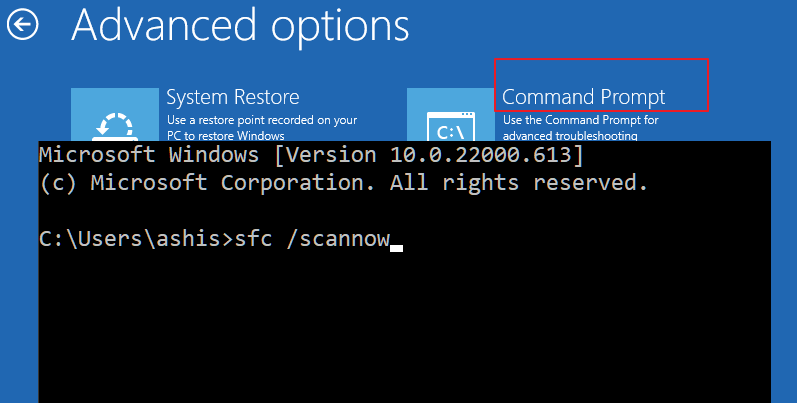
Step 5: Go back to Advanced Options, and run System Restore when the verification is complete to see if any delay is still there in restoring files.
Conclusion
Before attempting system restore, back up all data using the Qiling Backup tool to prevent data loss in case of system errors. If the process fails, try the next solution in the article, which may help make the system restoration smoother and quicker.
FAQs About Windows System Restore Taking a Long Time Issue
What is System Restore and how does it work?
System Restore is a feature in Windows that allows you to revert your system to a previous state, undoing any changes made since then. It works by creating snapshots of your system at regular intervals, which can be used to restore your system to a previous state if something goes wrong.
1. What Happens If I Interrupt System Restore in Windows 10?
If you interrupt the system files or registry backup recovery process, it won't complete and may cause issues like data corruption, boot record corruption, and others.
2. What Do I Do If System Restore Fails in Windows 10?
- To verify the functionality of Volume Shadow Copy and Virtual Disk on the desktop, you can follow these steps. First, create a new volume shadow copy using the built-in tool or a third-party software.
- Check for any corruptions and run an uncheck disk on the hard drive to ensure it's in good working condition.
- To troubleshoot the issue, a System File Checker (SFC) scan is performed to determine if any corrupted system files are the root cause of the problem.
3. How to Stop System Restore Windows 10?
Hold the Power Button down for 5 to 10 seconds to perform a hard shutdown, which may result in data or application loss if interrupted.
If you want to reset Windows 10, you can choose to keep your files and Windows programs, but it will remove any third-party apps you have installed.
4. What to Do If Windows 10 System Restore Stuck on Restarting?
To troubleshoot, select Troubleshoot on the Choose an option screen, then restart in Safe Mode with Networking, and finally attempt a System Restore.
For a slow Windows 10 restore-point creation, read Why Does a Windows 10 Restore Point Take So Long?
Related Articles
- How to Backup Files to Cloud (Google/Dropbox Are Included)
- How to Create WinPE Emergency Bootable Disk in Windows 10/8/7 [2022 New]
- Windows To Go Creator for Windows 10/8/7
- Windows 10 Backup Not Working? Top Solutions to Make Windows Backup Work
- How to Move Fortnite to Another Drive/PC (Simple Clicks)
Move Fortnite to another drive and verify its files in Epic Games Launcher to avoid an unnecessary full download. - How to Move Foxit PhantomPDF to New Computer
This article explains how to move Foxit PhatomPDF to new computer and present you with tools suitable for moving files from Pc to PC with no data loss.
Products
Articles & Tutorials
- Data Recovery
- Data Backup
- File Recovery
- File Backup
- System Backup and Restore
- Disk and Partition Clone
- Technical articles
- Mobile articles
- Disk Master Help
- Windows Data Recovery Tutorials
- Windows Secure Delete Tutorials
- Windows Partition Management Tutorials
- Windows File Backup and Restore Tutorials
- Windows System Backup and Restore Tutorials
- Windows Disk Backup and Restore Tutorials
- Windows Clone Tutorials