How to Clone SSD to New SSD Without Losing (OS Included)
Highlights:
- Replacing an SSD with a new one is an excellent way to upgrade computer performance and expand storage capacity.
- Cloning an SSD to a new one involves connecting the new SSD, downloading cloning software, and then cloning the existing SSD to the new one.
- Choosing a reliable SSD cloning software is crucial for a smooth and successful SSD to new SSD migration, ensuring that all data is transferred without loss.
Solid-state drives (SSDs) are becoming the go-to storage medium and system drive for many computer and laptop users. However, over time, SSDs can fill up and slow down, putting a strain on computer performance and risking data loss when they reach capacity. Upgrading to a new SSD is often the most effective solution.
To upgrade your SSD while keeping all your data and installed programs, you can simply clone the old SSD to a new one, which will create a copy of everything on the old SSD, including the operating system, settings, and installed applications, and transfer them to the new SSD without any data loss, eliminating the need to reinstall Windows OS.
This post from Qiling provides an ultimate guide on cloning an SSD to a new SSD or cloning an HDD to an M.2 SSD, with step-by-step instructions to help you through the process.
📖Related Reading: Clone M.2 SSD with Only One Slot | Clone Hard Drive to SSD in Windows
Get Ready Before Cloning SSD to New SSD
Before cloning your SSD to a new one, it's essential to prepare properly to ensure a smooth process. First, back up any important data on the old SSD to prevent loss in case something goes wrong during the cloning process.
1️⃣Create a backup of your old SSD.
To prevent data loss, it's a good idea to back up all important data to a safe location, such as an external drive or another hard drive. You can use Windows' built-in Backup and Restore feature or third-party backup software like Qiling Disk Master Free to create a system image.
2️⃣Get a new SSD with enough storage capacity.
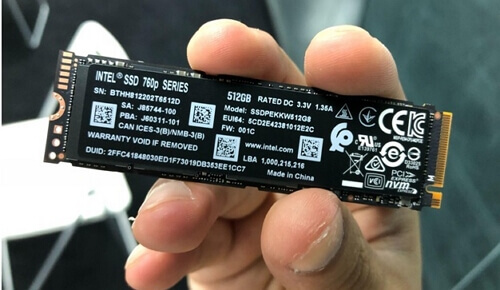
To replace an old SSD, you'll need to choose a new one that matches your computer's specifications. There are different types of SSDs, including SATA, NVMe SSD, and M.2 SSD, each with unique characteristics. Be sure to select a compatible one, and also ensure it has enough storage capacity to hold all the data from your old SSD.
If you like this post, you can share it on your social platforms to help more people discover it. This way, you can contribute to its reach and impact, and help others find valuable information and insights.
3️⃣Connect or install the new SSD to your computer or laptop correctly.
When choosing a new SSD, you can either connect it to your computer or install it inside the computer.
If you have a desktop with two SSD slots, you can install a new SSD by opening the case and inserting it into the motherboard with a screwdriver.
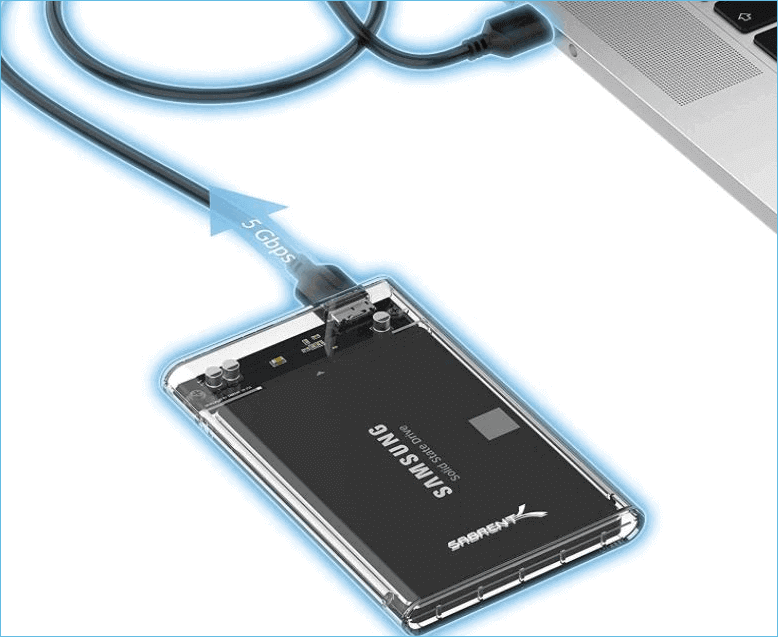
You can connect the new SSD to a laptop with a USB cable or adapter if you have a laptop. Make sure it is properly recognized.
4️⃣Decide on an SSD cloning software.
Selecting a trustworthy SSD cloning tool is essential for a successful cloning process, with Clonezilla being a popular, free, and open-source option that many recommend, although it does require professional knowledge and a significant amount of time to set up.
Another well-known SSD cloning program, Qiling Disk Copy, offers simple operations that save time and improve efficiency, making it a popular choice for those seeking to streamline their workflow.
🚩You may be interested: Best SSD to SSD Cloning Software
Clone SSD to New SSD with Bootable Sectors
Qiling Disk Copy is an excellent hard drive cloning software that offers several advantages. With its professional HDD/SSD cloning capabilities, you can enjoy a seamless and efficient process of copying data from one drive to another, making it an ideal solution for upgrading or replacing old storage devices.
- To clone a smaller SSD to a larger one, you'll need to use a cloning software such as Qiling Disk Copy. These programs will create an exact copy of the smaller SSD's contents onto the larger one, preserving all data, settings, and applications.
- Perform an SSD cloning with four clicks.
- Clone only Windows OS from one SSD to another.
- The software is compatible with various brands and types of SSDs, allowing for flexible cloning between SSDs.
- Supports sector-by-sector cloning to migrate only used space.
- To avoid the step of formatting the new SSD, you can resize the partitions on the old drive while cloning to the new one. This process involves using a cloning software that allows you to resize partitions during the cloning process.
- The smart monitor disk size feature checks both the source SSD and target SSD sizes to ensure a smooth and efficient data transfer process. This feature is designed to prevent any potential issues that may arise from mismatched disk sizes during the transfer process.
- To transfer all data to the new SSD without reinstalling the OS, you can use a cloning software such as Qiling Backup. These tools allow you to create an exact duplicate of your current drive, including the operating system, applications, and data, onto the new SSD.
- Real-time detecting SSD cloning task through the process bar.
- To create a bootable clone of your Windows disk, you can use a tool like Qiling Backup. These programs will create a bit-for-bit copy of your entire hard drive, including the operating system, programs, and data.
What are you waiting for? Download this powerful tool and dive into the specific steps now!
Prior Notice:
- The "Sector by sector copy" feature requires the destination disk to be at least as large as the source disk, so it can be unchecked when cloning a larger hard disk to a smaller one.
- All data on the destination disk will be completely erased, so take care.
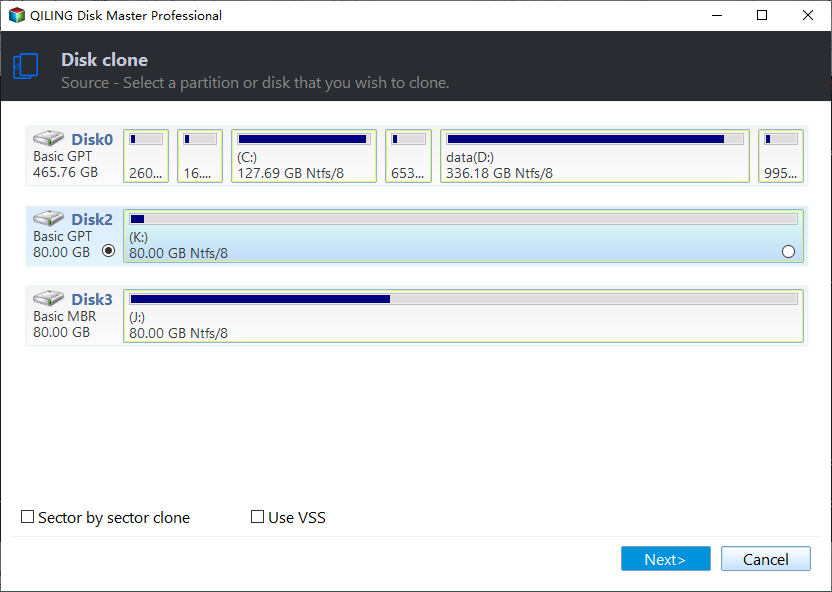
Step 1. To start copying/cloning an entire disk to another, select the source disk under "Disk Mode" and click "Next".
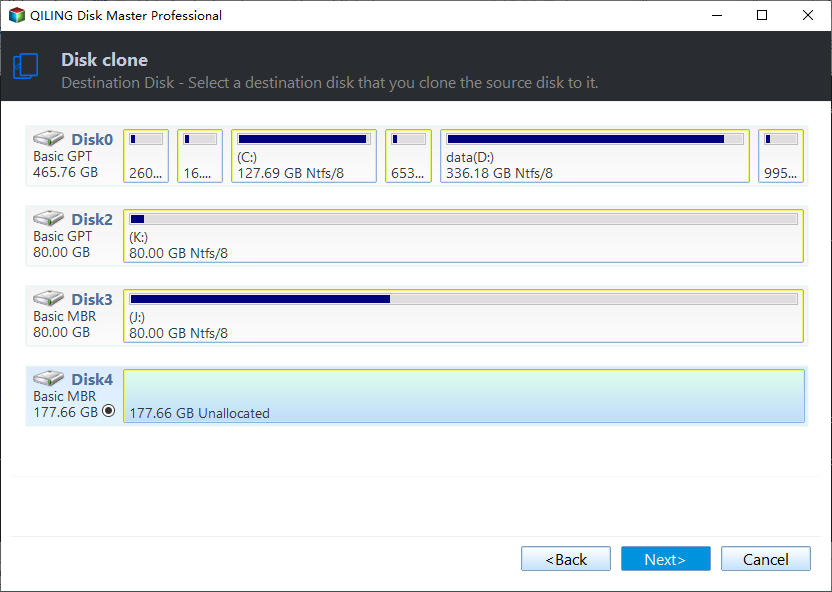
Step 2. Choose the other disk as the destination disk.
Step 3. The disk layout of the two disks can be checked, and the layout of the destination disk can be managed by selecting one of three options: "Autofit the disk", "Copy as the source", or "Edit disk layout".
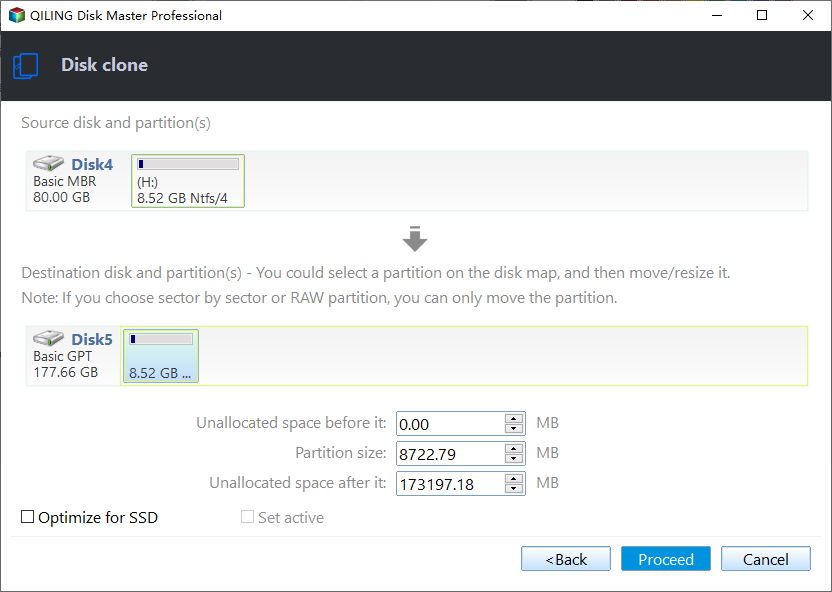
- "Autofit the disk" makes some changes by default on the destination disk layout to optimize its performance.
- Copying a disk as the source does not modify the destination disk and maintains the same layout as the source disk.
- The "Edit disk layout" feature enables users to manually adjust and customize the partition layout on a specific destination disk, allowing them to resize or move partitions as needed.
Enabling the "Check the option if the target is SSD" option can help optimize your SSD's performance.
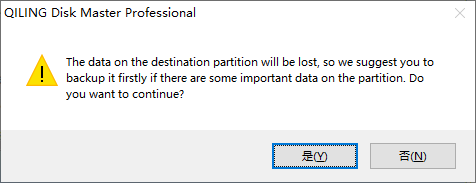
A message now appears, warning you that data will be lost. Please confirm this message by clicking "OK" and then click "Next".
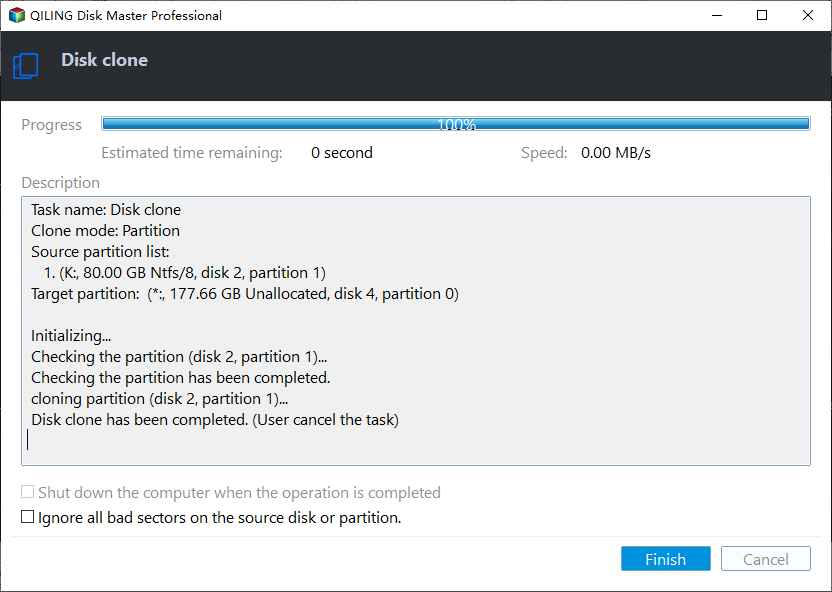
Step 4. Click "Proceed" to officially execute the task.
Pro-Tip: What to Do After SSD Cloning
After cloning your SSD to a new one, there are additional steps to complete the process. You should take the following measures to ensure a successful transfer.
- ✅Check the integrity of the cloned SSD.
- ✅The original SSD can be used as a storage drive, but it's recommended to format it first. This will erase all data on the drive and prepare it for new data.
- ✅To change the boot order in BIOS and make your device boot from the cloned SSD, follow these steps:
- ✅Clean up disk partitions and create any other partitions when necessary. This involves identifying and removing any unnecessary or duplicate partitions, and then creating new partitions as required to optimize disk space usage.
- ✅Check if all installed programs are working normally.
If you enjoyed reading this post, consider sharing it with your friends and followers on social media to help spread the knowledge and insights shared here. This way, more people can benefit from the information and ideas presented, and you can be part of making a positive impact.
The Final Words
Cloning an SSD to a new SSD is a process that can be daunting if you're not familiar with it, but this article aims to guide you through every step to make it a smooth and hassle-free experience.
Cloning a SSD to a new SSD is a straightforward task when using the right tool, such as Qiling Disk Copy, which allows you to execute the task with simple clicks. This robust tool can help you clone any of your disks, making it an essential download for anyone looking to upgrade their storage.
Clone SSD to New SSD FAQs
1. How do I clone my M.2 SSD to a new M2 SSD?
Cloning an M.2 SSD to a new M.2 SSD is a process similar to cloning an SSD to a new SSD. It involves using software or a tool to create a bit-for-bit copy of the original drive's contents, including the operating system, programs, and data, onto the new drive. This process allows the new drive to be identical to the original, with the same files, settings, and configuration.
- Connect the new M.2 SSD to the PC.
- Download disk cloning software, like Qiling Disk Copy.
- Use disk cloning software to clone all data from the M.2 SSD to the new one, including the operating system, settings, installed programs, and other data. This will ensure that everything is transferred exactly as it is on the original drive.
If you plan to replace the old SSD with the new one, you can boot your computer or laptop from the cloned M.2 SSD and run your operating system from the new M.2 SSD.
2. Can I swap M 2 SSD without reinstalling Windows?
To swap an M.2 SSD without reinstalling Windows, you can clone the old drive to the new one, update the UEFI settings to point to the new drive, and then physically swap the drives. This process can be done in a few steps, but it's recommended to take necessary precautions to avoid any data loss or system instability.
- Make sure the new M.2 SSD is compatible with the current OS.
- To prevent data loss during the process of reinstalling Windows, create a backup of your files, settings, and applications in advance. This will ensure that your important data is safe and can be easily restored once the installation is complete.
- Update BIOS settings to recognize the new M.2 SSD successfully.
Was this page helpful? Your support is truly important to us!
Qiling Disk Copy
Qiling Disk Copy is a user-friendly tool that allows for easy HDD/SSD cloning and migration, ideal for quickly moving an existing system disk to a new disk or SSD with minimal configuration required.
Related Articles
- Cloned Hard Drive Won't Boot? Make Cloned Drive Bootable in 3 Fixes
- How to Clone Windows OS & Disk to Dissimilar Hardware
- Intel Data Migration Software Not Working - How to Fix?🔥
- Download Clonezilla Alternative for Windows 11/10/8/7 for Easy Clone
- How to Copy Hard Drive to New Computer
- How to Clone Windows OS from HDD/SSD to M.2 SSD
- How to Replace HDD with SSD on Desktop (Without Reinstalling OS)🔥
Replacing a desktop hard drive with an SSD can be done with the help of cloning software, such as Qiling Disk Copy, making the process straightforward and efficient.
Products
Articles & Tutorials
- Data Recovery
- Data Backup
- File Recovery
- File Backup
- System Backup and Restore
- Disk and Partition Clone
- Technical articles
- Mobile articles
- Disk Master Help
- Windows Data Recovery Tutorials
- Windows Secure Delete Tutorials
- Windows Partition Management Tutorials
- Windows File Backup and Restore Tutorials
- Windows System Backup and Restore Tutorials
- Windows Disk Backup and Restore Tutorials
- Windows Clone Tutorials