Create Image from USB Drive with Best USB Cloning Software
Creating an image of your USB flash drive can help copy the image of your USB drive to another USB or even the same one, which is handy for copying a USB drive or backing up its contents before overwriting it. To do this, it's not as simple as just copying the files, but rather requires following a specific process, which we'll walk you through in this article from Qiling.
Key Takeaways
To create a bootable USB drive, you may also need the USB drive's master boot record and partition tables in addition to the USB image.
Cloning is a way to back up your USB drive by copying everything, including boot files, to create an exact image of the original drive, including all visible and hidden files and unused space.
Even though the source USB flash drive isn't bootable, a clone is still needed if it contains more than one partition, as this ensures all data is preserved.
4️⃣Windows has no built-To clone a computer's hard drive, you can use professional USB cloning software such as Qiling Disk Copy. This software allows you to create an exact copy of your hard drive, including all files, settings, and applications, onto a USB drive or another hard drive. This can be useful for creating a backup of your system or for transferring your operating system and data to a new computer.
What You Need to Make an Image of a USB Drive
Cloning may be the quickest and best solution to make an image of a USB drive if you need to copy files from a bootable USB drive to multiple units with an identical capacity, as it can transfer everything from one drive to another without boot issues. To start the cloning process, you'll need to prepare a few things beforehand.
- A USB drive. To duplicate every byte of your old USB, the destination USB drive should be at least as large as the source drive.
- Back up data on the USB drive. The cloning process will erase data on the target drive, so you'd better back up the USB drive if there is important data.
- USB adapter. You'll need a USB adapter to connect 2 USB drives to your computer in order to clone everything from one drive to another.
How to Create Image from USB Flash Drive🔥
Cloning a USB drive using professional software is the best method to create an image, and there are many user-friendly options available, with Qiling Disk Copy being a notable choice due to its practicality and ease of use.
Qiling Disk Copy is a reliable and practical cloning utility for Windows computers. It allows users to clone systems, disks, partitions, and more with just 3 clicks, and can even clone hard drives with different sizes. Additionally, it facilitates OS migrations from HDD to HDD, HDD to SSD, and SSD to SSD, and enables users to replace a hard drive without losing data.
No matter what disks you want to clone, be it HDD, SSD, SD card, or USB drive, Qiling cloning software can satisfy your needs. You can use it to clone your USB drive for backup and recovery. Just feel safe and free to download and use it on your computer. Here is how to use Qiling Disk Copy.
Prior Notice:
- The "Sector by sector copy" feature requires the destination disk to be at least as large as the source disk, but can be left unchecked if cloning a larger disk to a smaller one.
- The data on the destination disk will be completely erased, so take care.
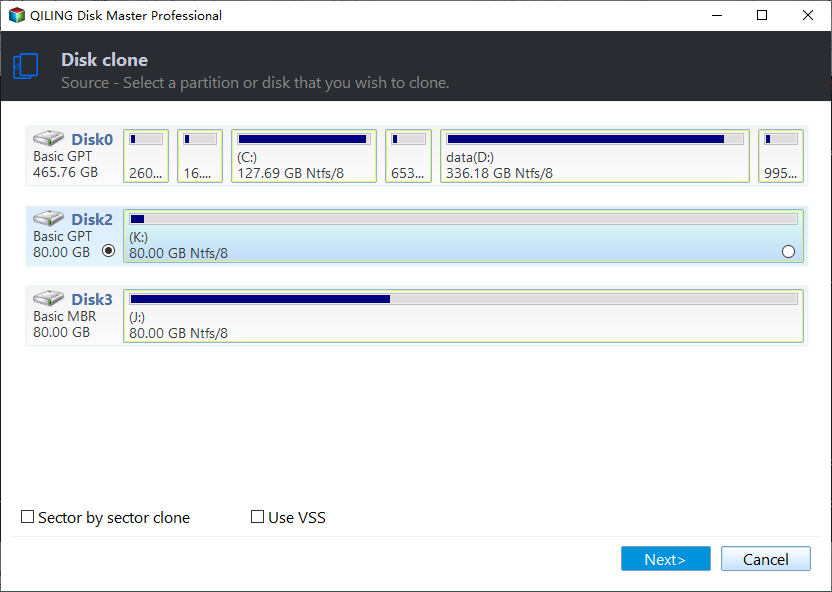
Step 1. To start copying/cloning an entire disk to another, choose the disk you want to copy as the source disk under "Disk Mode" and click "Next".
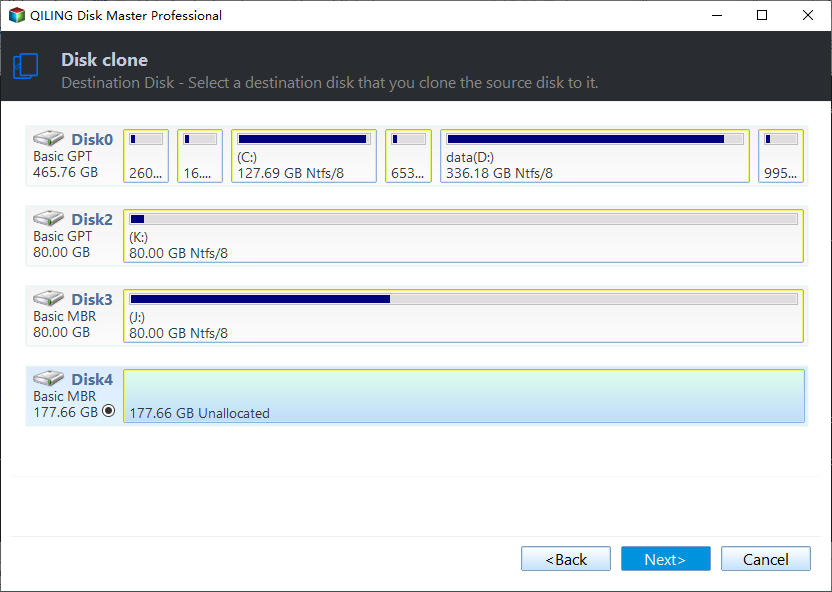
Step 2. Choose the other disk as the destination disk.
Step 3. Check the disk layout of the two disks by dragging the disk, editing the position or size of the disk to manage the disk layout of the destination disk.
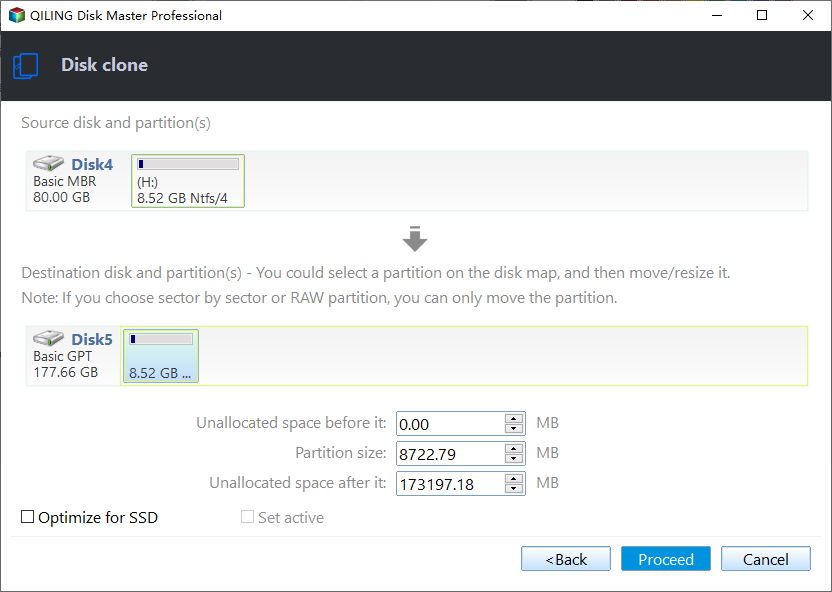
To optimize your SSD's performance, select the "Check the option if the target is SSD" option. This will allow your SSD to run at its best.
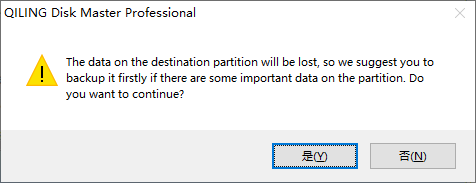
Step 4. Click "Proceed" to officially execute the task.
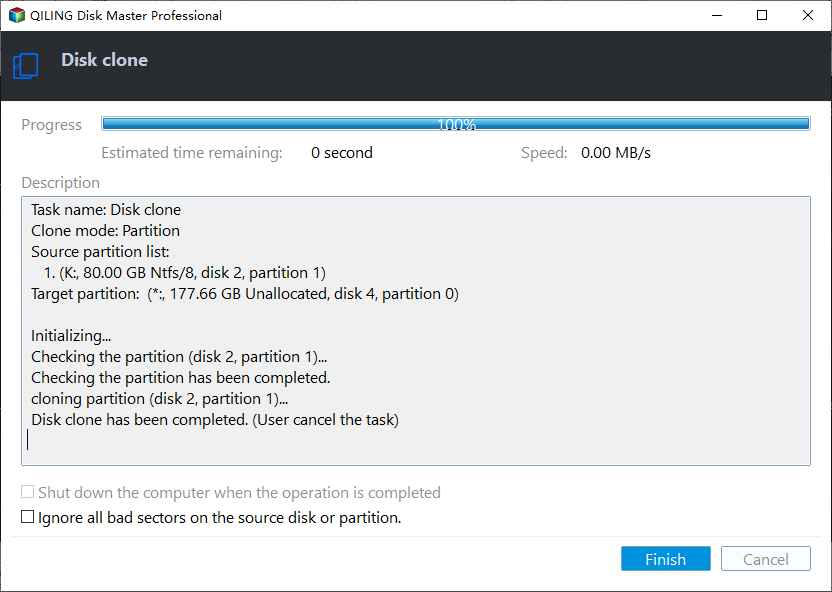
A message now appears, warning you that data will be lost. Please confirm this message by clicking "OK".
Share this article on your social media to help others make image of USB drive easily and quickly!
Why You Can't Just Copy the Files on USB Drive
A USB drive is a portable storage device that allows users to store and transfer files, and copying its contents to a computer is a simple way to duplicate data.
If your USB drive is bootable and has multiple partitions, simply copying the files is not enough. In this case, the best approach is to create an image of your entire bootable USB drive, which will ensure that all partitions and data are preserved.
Creating a USB image allows you to make precise copies of USB drives, even if they have multiple partitions and a master boot record (MBR). This enables you to easily duplicate a drive or create a replica of a bootable drive for later use, simply by copying the created image to another USB flash drive, making it possible to use the new drive with the copied data without needing to restore it.
To Wrap Things Up
To create an image of a bootable USB drive, the quickest way is to clone the drive, as copying or backing up a bootable USB drive can be unreliable and may not preserve its bootable functionality. Cloning ensures that the image accurately reflects the original drive's contents, including its bootable state. This method is particularly useful for preserving the bootable state of a USB drive, such as a Linux or Windows installation drive.
With the help of Qiling Disk Copy, a great USB image tool, creating an image of a USB drive or bootable USB drive is a simple case. It allows you to clone different types of drives and also helps you to fix the cloned hard drive showing the wrong size error. More valuable features are waiting for you to explore. Download and try it!
FAQs on How to Create Image from USB Drive
1. Is cloning a drive the same as copying?
Cloning a hard drive is a more comprehensive process than copying or cloning, creating a sector-by-sector duplicate of the original disk, including boot files, making it the preferred choice for maintaining an exact replica of the original.
2. What is the best software to clone a USB drive?
Qiling Disk Copy is a reliable software that allows you to clone a hard drive to a USB flash drive or create an image of a USB flash device, compatible with Windows 11, 10, 8, and 7. It enables you to clone a USB drive to another USB or another destination, such as a computer.
3. What is USB drive image file?
A USB image is a bootable image of an operating system or software stored on a USB device, rather than a traditional CD or DVD.
This page was helpful. I am very grateful for your support. It means a lot to me.
Qiling Disk Copy
Qiling Disk Copy is a user-friendly tool that allows for easy cloning and migration of HDD/SSD disks, ideal for quickly transferring an existing system to a new disk or SSD with minimal configuration required.
Related Articles
- Seagate DiscWizard Clone Stuck [Why & How to Fix]✅
- How to Replace M.2 SSD in PC [Works on Windows 11/10/8/7]
- WD Disk Cloning Software Free Download for WD SSD Clone
- How to Clone a Drive (HDD/SSD) with Bad Sectors
- How to Clone SSD to HDD in Windows 10,8,7 with Secure Boot?
Are you looking for a way to clone SSD to HDD in Windows 11/10/8/7? You will find a powerful and free disk cloning software in this article. - How to Clone Windows System to SSD in Windows 10/8/7 without Boot Issue?
Cloning Windows system to SSD drive can help speed up Windows computer. This post will show you how to clone Windows system partition or disk to SSD in Windows 11/10/8/7 and how to boot from the destination disk.
Products
Articles & Tutorials
- Data Recovery
- Data Backup
- File Recovery
- File Backup
- System Backup and Restore
- Disk and Partition Clone
- Technical articles
- Mobile articles
- Disk Master Help
- Windows Data Recovery Tutorials
- Windows Secure Delete Tutorials
- Windows Partition Management Tutorials
- Windows File Backup and Restore Tutorials
- Windows System Backup and Restore Tutorials
- Windows Disk Backup and Restore Tutorials
- Windows Clone Tutorials