How to Transfer Windows 10/11 from One SSD to Another
Replacing a hard drive with an SSD or upgrading to a larger SSD is a common practice, but it poses a problem for laptop users: losing the operating system. However, there's no need to panic, as this article will guide you through the process of transferring the operating system from one SSD to another, effectively transferring OS from one SSD to another.
| ⛏️Methods | 👣Steps |
| Way 1. Use Disk Cloning Software |
1️⃣Step 1. Download & install Qiling Disk Copy. Connect your SSD to your PC via a USB-to-SATA cable, then launch the Disk Copy software to proceed with the cloning process. In Disk Mode, select the old SSD as the source disk and the new SSD as the target disk. To transfer the operating system from one SSD to another, click Proceed on Step 4. This will initiate the transfer process. |
| Way 2. Use Windows Built-in Utility |
To create a system image via Backup & Restore in Windows 7, you can follow these steps: Create a system image. This will allow you to create a full backup of your system, including all installed programs and settings, which can be restored in case of a system failure or other issues. Select the new SSD where the system image will be saved. Choose the disk and partitions you want to include in the image in Step 3. 4️⃣Step 4. Press Start backup to create the image. To replace the old drive with the SSD, shut down your PC, and then physically swap the old drive with the new SSD, ensuring it is securely fastened in place. Next, power on your PC and enter the BIOS or UEFI settings to ensure the SSD is recognized and set as the primary boot device. Finally, save the changes and exit the BIOS settings, then boot from the SSD to complete the installation and enjoy the improved performance. 6️⃣Step 6. Boot your PC from the system repair disc. 7️⃣Step 7. Perform System Image Recovery. ... |
Can You Transfer OS from One SSD to Another
When using a small-capacity SSD, such as 128GB, it can quickly become full due to the accumulation of data, potentially hindering computer performance. Replacing it with a larger SSD is the most effective solution.
If you replace your SSD with a larger one, you'll lose your Windows on the old drive, but you can transfer Windows from one SSD to another without reinstalling Windows and all programs. This process allows you to move your operating system and installed programs to the new SSD, effectively upgrading your storage capacity without losing any data. This method is particularly useful for those who don't want to go through the hassle of reinstalling their operating system and all their installed programs.
Can you transfer windows from one ssd to another?
by u/Brilliant-Tadpole544 in buildapc
You can move Windows from one SSD to another without reinstalling Windows and losing data by using third-party cloning software to transfer data from one SSD to another and migrate your OS from one SSD to another or create a system image of your computer.
How to Transfer Windows from One SSD to Another
Replacing a hard drive can be challenging for most users, as it involves reinstalling the operating system and other essential software, and the computer may not successfully boot from the new SSD.
Fortunately, you can move the operating system to a different SSD without reinstalling Windows, which significantly simplifies the procedure. This can be done using either the built-in Windows feature called "Clone" or third-party software like Qiling Disk Master, which can help you transfer the operating system to the new SSD.
Way 1. Use Professional Disk Cloning Software
To migrate your Windows from one SSD to another, use third-party disk cloning software like Qiling Disk Copy to move Windows from one drive to another without reinstalling Windows or losing data. This tool helps you migrate OS to SSD or from SSD to another.
Qiling disk cloning software is a user-friendly tool that can clone entire systems, disks, and partitions, making it easy to transfer Windows from an HDD to an SSD or reinstall Windows without losing data.
The cloning utility's popularity and recommendation can be attributed to several factors. Firstly, it offers a user-friendly interface that makes it easy to use, even for those who are not tech-savvy.
- To clone a hard drive for backup and recovery, you'll need a few tools: a USB drive or external hard drive with enough space to hold the contents of the original drive, a cloning software, and the original drive itself. First, connect the USB drive or external hard drive to your computer and ensure it's recognized by the system.
- To replace a laptop hard drive without losing data, start by shutting down the laptop and unplugging the power cord. Then, locate the hard drive, which is usually on the bottom or side of the laptop, and remove the screws that hold it in place.
- To create a WinPE bootable disk and resize the partition during cloning, you can follow these steps. First, create a WinPE bootable disk using a tool like Rufus or WinPE ISO.
- To transfer data from an old hard drive to a new PC without any data loss, you can use a combination of methods. First, connect the old hard drive to the new PC using a USB cable or an external hard drive enclosure.
- If you have a hard drive with bad sectors, you can still clone it to a new drive using specialized software like Qiling Backup. These programs can bypass the bad sectors and create a complete image of the original drive.
- Migrating an operating system from one hard drive to another, or from a hard drive to a solid-state drive (SSD), or from one SSD to another, involves several steps. You'll need to back up your data, purchase a compatible SSD or HDD, and ensure the new drive is recognized by your system.
Qiling Disk Copy can satisfy your every cloning need. Feel free and safe to download it on your computer to help you transfer an operating system from one SSD to a new SSD or another SSD and copy your Windows installation to an SSD. You can use it to transfer Windows 10 from one SSD to another or clone Windows from one SSD to another.
Prior Notice:
- The "Sector by sector copy" feature requires the destination disk to be at least as large as the source disk, so it's not suitable for cloning a larger disk to a smaller one. If you want to clone a larger disk to a smaller one, leave this feature unchecked.
- All data on the destination disk will be completely erased, so take care.
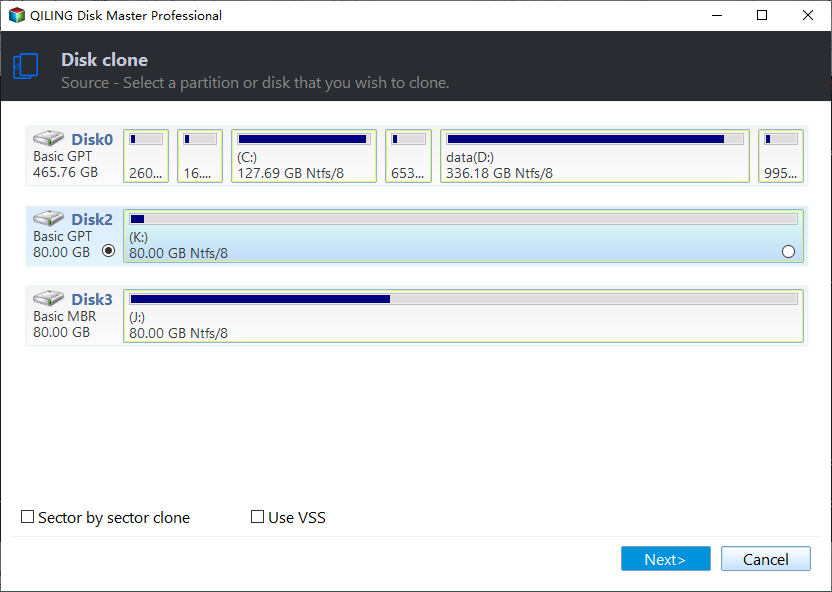
Step 1. To start copying/cloning an entire disk to another, select the source disk under "Disk Mode" and click "Next".
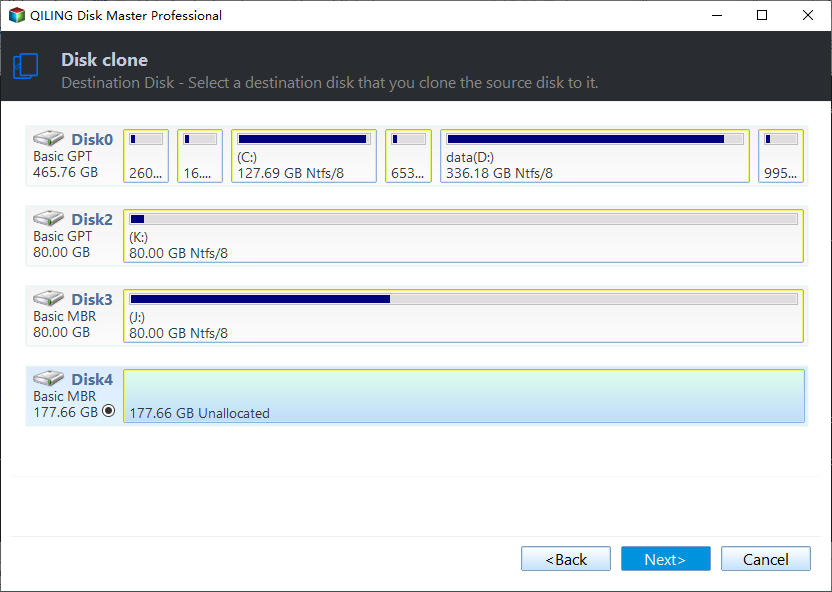
Step 2. Choose the other disk as the destination disk.
Step 3. Check the disk layout of the two disks by dragging the disk, editing the position or size of the disk to manage the layout of the destination disk.
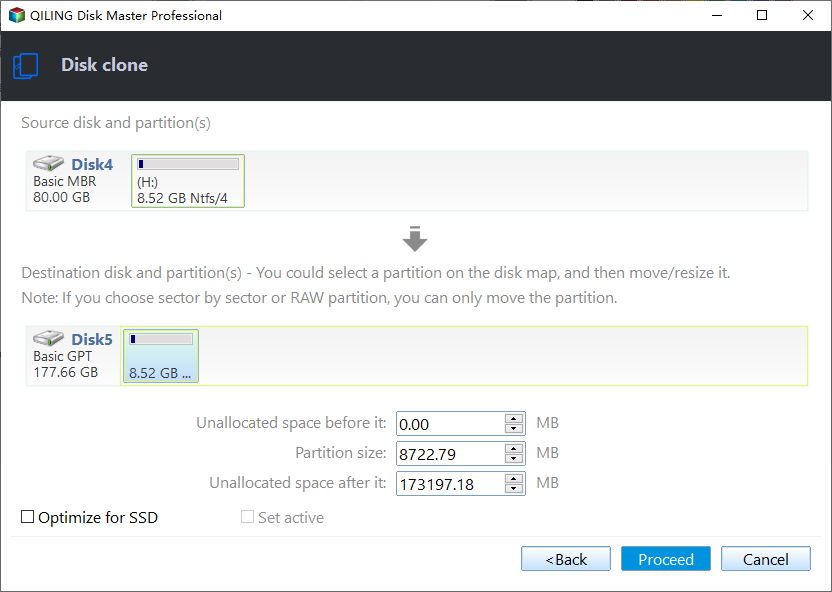
To get the best performance out of your solid-state drive (SSD), check the option that says "Check the option if the target is SSD". This setting optimizes the drive for its type, ensuring it runs at its optimal speed and efficiency.
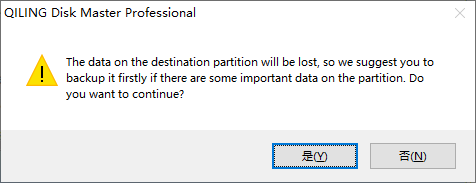
Step 4. Click "Proceed" to officially execute the task.
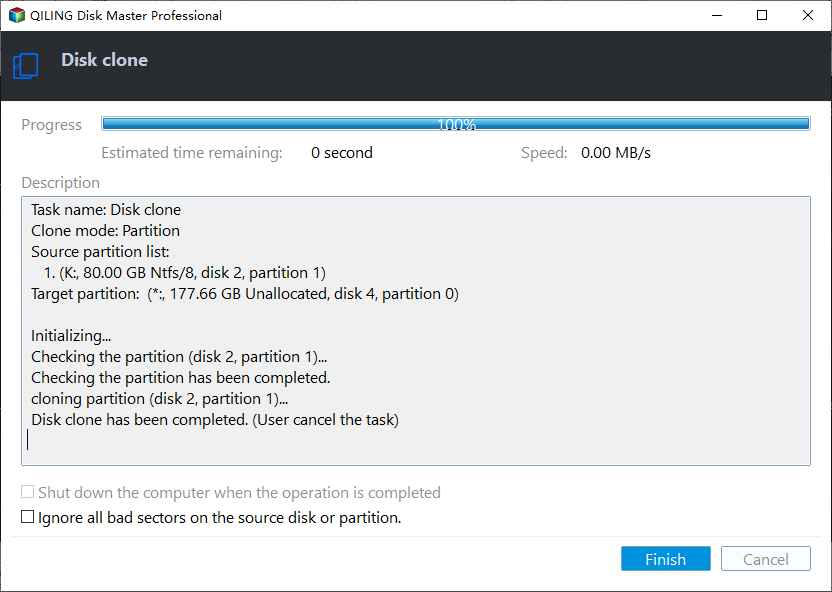
A message now appears, warning you that data will be lost. Please confirm this message by clicking "OK".
You can share this article on your social platforms if you like it.
Way 2. Use Windows Built-in Utility
To migrate your Windows from one SSD to another, you can use Windows Backup and Restore to create a system image and then restore it to the new SSD. This method allows you to transfer Windows to the new drive.
While using the system image to migrate Windows, you may encounter the "system restore is not working" error when restoring the system image, making this method not straightforward or stable. If you're looking for a more efficient and direct way to perform Windows migration, you may want to consider Way 1 instead.
Preparations:
- The new SSD and a screwdriver.
- A device that is large enough to store the system image, which is used as a boot device.
- If you don't have a system repair disc, you can create one yourself. This disc contains the necessary tools to repair your system, and it's a good idea to have one in case you encounter any issues with your computer. To create a repair disc, you can use the built-in tool in your Windows operating system, which is called the "Create a system image" feature.
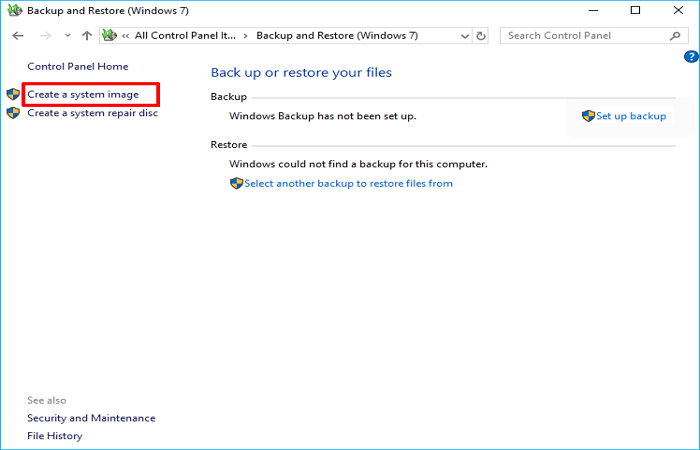
Step 1. To create a system image in Windows 7, go to the Control Panel, click on Backup & Restore (Windows 7), and select the option to Create a System Image.
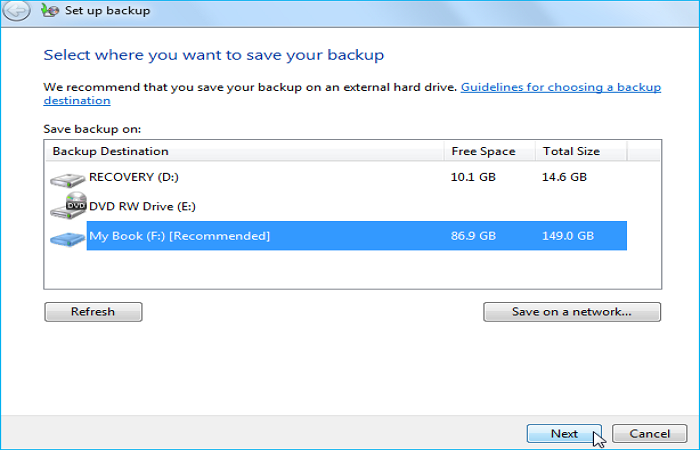
Step 2. A system image of Windows can be created on an external drive or USB drive by following a wizard that guides you through the process, starting with selecting the hard drive where the system image will be saved.
Step 3. To create a system image, select the drive and partitions you want to include in the image, making sure to include the Windows Drive, usually drive C, to ensure a complete system backup.
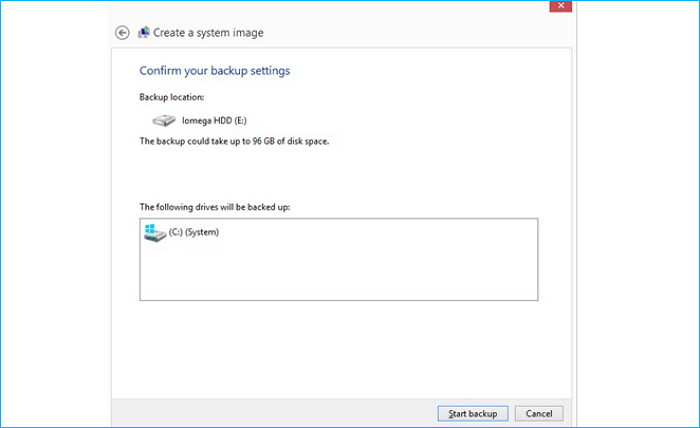
Step 4. Tap Start backup to launch the backup process.
Step 5. Shut down the computer to replace the old drive with the new one.
Step 6. Connect the external drive containing the system image and the system repair disc to your computer.
Step 7. To boot your PC from the system repair disc, start by inserting the disc and restarting your computer. On the first screen, press the specified key (usually ESC, F2, or F12) to access the BIOS settings. In the BIOS menu, ensure that the computer is set to boot from the installation media, such as a CD or DVD drive, by selecting the appropriate option and saving your changes.
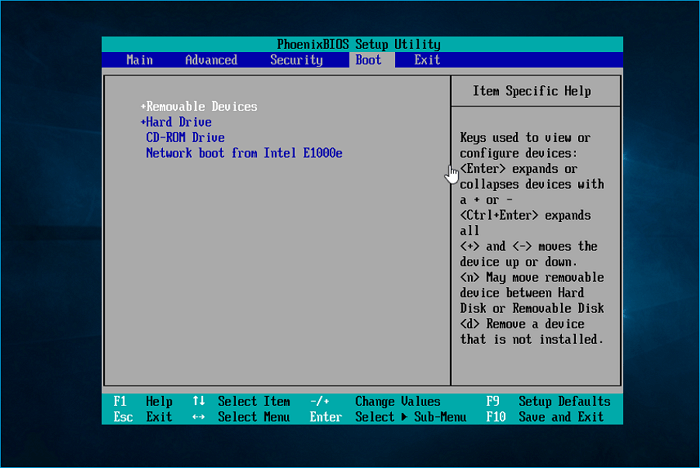
Step 8. After the Windows Setup interface appears, click Next, then select "Repair your computer" from the options. From the next screen, choose "Troubleshoot" and then "Advanced options".
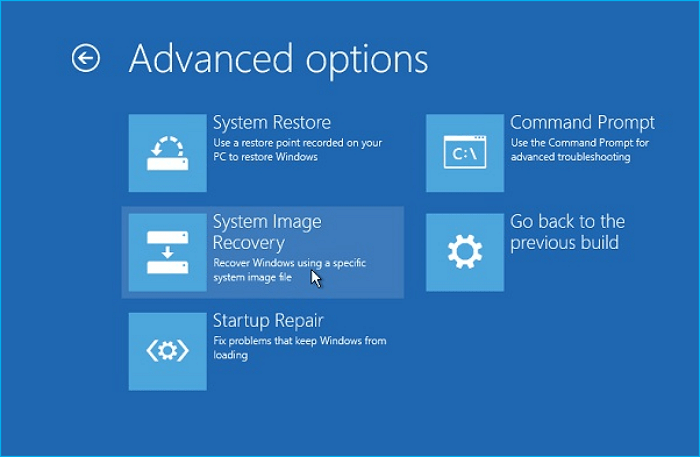
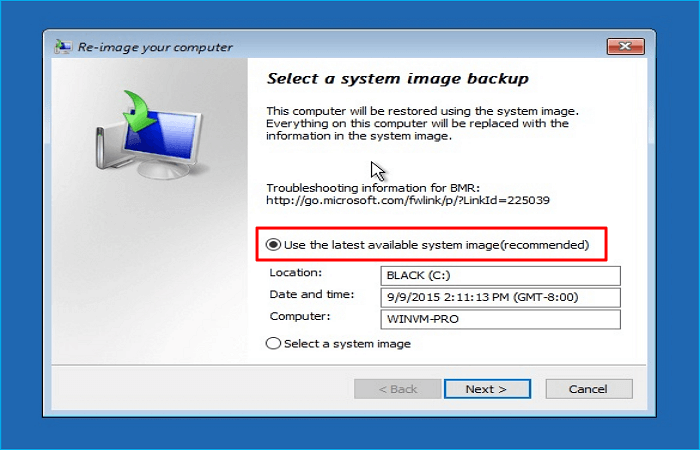
Step 9. Use the latest available system image (recommended), select the restore destination drive, then click Next.
Step 10. To begin the Windows 10 restoration, select the format and repartition disks option, then click Next, followed by Finish and Yes to confirm the action. This will initiate the restoration process.
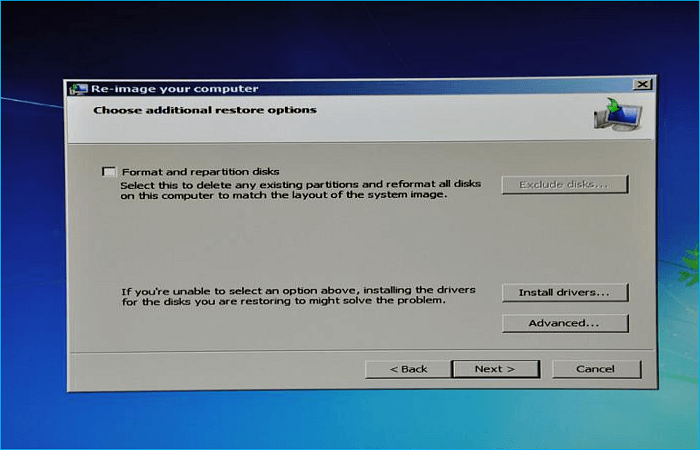
It's recommended not to interrupt the restoration process in the middle as it may take some time, and you'll be prompted to restart your system to complete it in standard mode once it's finished.
You can share this article on your social platforms if you like it.
FAQs on Transfer Operating System from One SSD to Another
To move Windows from one SSD to another, you'll need to clone the operating system, which involves creating an exact copy of the original SSD's contents onto the new one. This process can be done using specialized software like Qiling Backup, or by using built-in Windows features like Windows Backup and Restore or the built-in Disk Management tool.
1. How do I move my OS to SSD without cloning?
To move Windows to another drive, you need to do a clean installation of Windows, which will remove everything from the original hard drive, allowing you to start over with a fresh installation and potentially speeding up your system.
2. How do I clone my hard drive to SSD without losing data?
To clone your old hard drive to a new SSD without losing data, you can use professional cloning software like Qiling Disk Copy. This tool allows you to transfer the C drive to a new SSD and clone your old drive to a new SSD without any data loss, making it a reliable option for a seamless transition.
3. Do I need to format an old SSD before cloning?
When using an old hard drive, you don't need to format it, but if you're cloning to a new SSD, you should format the SSD beforehand.
4. How do I clone my Windows operating system to a new SSD?
Cloning Windows 10 to a new/larger SSD is a straightforward process with only 4 simple steps. First, you'll need to back up any important files or data from the old SSD to an external drive or cloud storage.
- Connect the target SSD to your Windows 10 computer.
- Download best SSD cloning software -Qiling Disk Copy.
- Start cloning Windows 10 to SSD.
- Boot the PC from the cloned SSD drive.
To Wrap Things Up
To transfer the operating system from one SSD to another, you can use cloning software, which is a more straightforward and reliable method. This approach allows you to copy your Windows operating system, including all installed programs and settings, from the original SSD to the new one, ensuring a seamless transition with minimal risk of errors or data loss.
Therefore, it would be better to use cloning software - Qiling Disk Copy to help you transfer OS to a new drive. It can help you transfer Windows from one drive to another without reinstalling Windows, and also fix the cloned hard disk that is showing the wrong size error.
Was this page helpful? Your support is truly important to us!
Qiling Disk Copy
Qiling Disk Copy is a user-friendly tool that allows for easy HDD/SSD cloning and migration, making it ideal for quickly and efficiently migrating an existing system disk to a new disk or SSD drive with minimal configuration required.
For diagnosing a failed Windows migration to another drive, read Unable to Migrate Windows to Another Drive? Diagnose and Retry.
Related Articles
- Easily Migrate Windows 10 from One PC to Another in 2024🔥
- Top 9 Best SSD Cloning Software of 2024
- (Easiest Way) How to Clone 2.5 SSD to M.2 with Best SSD Cloning Software
- How to Make Cloned Drive Bootable in Windows 11/10 [5 Tips]
If you are confused by how to make cloned drive bootable in Windows 10, 8, 7, this article may help you to solve this problem with detailed guidance. - Freeware: SSD to SSD Clone in Windows 11, 10, 8, 7
With the Qiling Disk Master, you can perform SSD to SSD clone for free in Windows 11, 10, 8, 7. Only several clicks can make it done. - SSD vs HDD: Which One is Better for You to Select?
SSD vs HDD, which is better? In this article, we will explain the difference between the two in detail so that you can make a choice when you need to upgrade your hard drive.
Products
Articles & Tutorials
- Data Recovery
- Data Backup
- File Recovery
- File Backup
- System Backup and Restore
- Disk and Partition Clone
- Technical articles
- Mobile articles
- Disk Master Help
- Windows Data Recovery Tutorials
- Windows Secure Delete Tutorials
- Windows Partition Management Tutorials
- Windows File Backup and Restore Tutorials
- Windows System Backup and Restore Tutorials
- Windows Disk Backup and Restore Tutorials
- Windows Clone Tutorials