CrystalDiskInfo: How to Read SMART Data and Spot a Dying Drive
CrystalDiskInfo is a free utility that reads the SMART data built into every modern hard drive and SSD and translates it into a single health status. It does not install drivers, it runs as a portable executable, and it answers the question most users actually have: is this disk about to fail?
The answer is more nuanced than a green label suggests. SMART catches some failure modes early and misses others entirely, so the numbers are one input, not a guarantee.
What CrystalDiskInfo Does
The drive firmware maintains a set of self-monitoring counters: hours powered on, temperature, bad sectors, retries, error rates and more. CrystalDiskInfo reads those counters, compares them with the thresholds the manufacturer defined, and shows a status of Good, Caution or Bad.
It supports SATA and NVMe drives, shows the transfer mode, the firmware version and the temperature, and can stay in the notification area to alert you when a value crosses a threshold. The same data can be read with the vendor's own tool; CrystalDiskInfo is simply more consistent across brands.
Reading the Main Window
- Health Status. The headline rating. Green is normal, yellow means a monitored value has reached its threshold, red means the drive reports an imminent failure.
- Temperature. Useful for spotting a failing fan or a blocked laptop vent. Spinning drives above roughly 50 °C and NVMe drives above 70 °C under load deserve attention.
- Attribute list. The table below the summary. Each row shows the current value, the worst value, the threshold and the raw data.
- Raw values. Switch the display to decimal or hexadecimal to read the actual counts. The normalised value is not a percentage; it is a manufacturer score where higher is usually better.
The Attributes That Matter
Most of the dozens of attributes are informational. These are the ones worth checking on a hard drive:
| ID | Attribute | Why it matters |
|---|---|---|
| 05 | Reallocated Sectors Count | Sectors already remapped to a spare area. A rising count means the surface is degrading. |
| C5 | Current Pending Sector Count | Sectors that could not be read and are waiting for a rewrite. Often the first visible warning. |
| C6 | Uncorrectable Sector Count | Reads that failed even after error correction. Serious when non-zero. |
| 0A | Spin Retry Count | The motor needed more than one attempt to reach speed. Points at mechanical wear. |
| C7 | UDMA CRC Error Count | Data-transfer errors on the cable. Usually a cable or port problem, not the disk. |
On NVMe drives, the important fields are Available Spare, Percentage Used, Media and Data Integrity Errors and the critical warning flags. Percentage Used is the closest thing to a wear gauge, and values above 100% mean the rated endurance has been consumed, not that the drive has stopped working.
What "Caution" Really Means
A yellow status means at least one normalised value has fallen to its threshold. That can happen for a drive with a single pending sector and years of life left, or for one that will fail tomorrow. The trend matters more than the snapshot:
- Stable single event. One reallocated sector that never increases is common on older drives and is not an emergency.
- Rising count. Reallocated or pending sectors that grow week after week indicate a failing surface. Replace the drive.
- Uncorrectable errors. Any increase in C6 is a strong signal to stop trusting the disk with important data.
- Temperature warnings. Persistent heat accelerates wear. Fix airflow before blaming the drive.
Where SMART Stops Helping
SMART is predictive, not diagnostic. Plenty of drives fail suddenly with a clean report, especially SSDs whose controller dies without warning. The counters can also be hidden:
- Many USB enclosures do not pass SMART commands through, so an external drive may show no attributes at all.
- Hardware RAID controllers may hide member disks behind the virtual volume.
- Some NVMe drives expose fewer fields through Windows than through a Linux tool.
A clean SMART report is therefore a reason to keep backups, not a reason to skip them.
What to Do When a Drive Is Failing
- Copy the data first. Do not run repairs on a drive that is still readable. Every write reduces the chance of recovery.
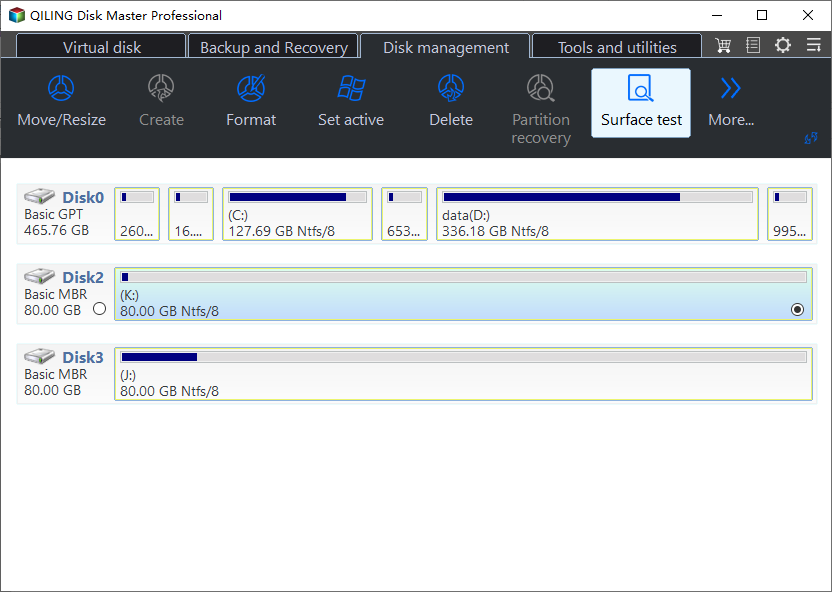
- Run a surface test to see how widespread the damage is. Qiling Disk Master includes a surface test that reads and verifies the disk.
- Replace the drive if the counters keep rising, then restore the data or clone the old disk to the new one.
- Keep the old drive offline until you have confirmed the new one works. Do not format it immediately.
Step 1. Connect the drive, launch Qiling Disk Master, select the disk and click Surface test on the toolbar.
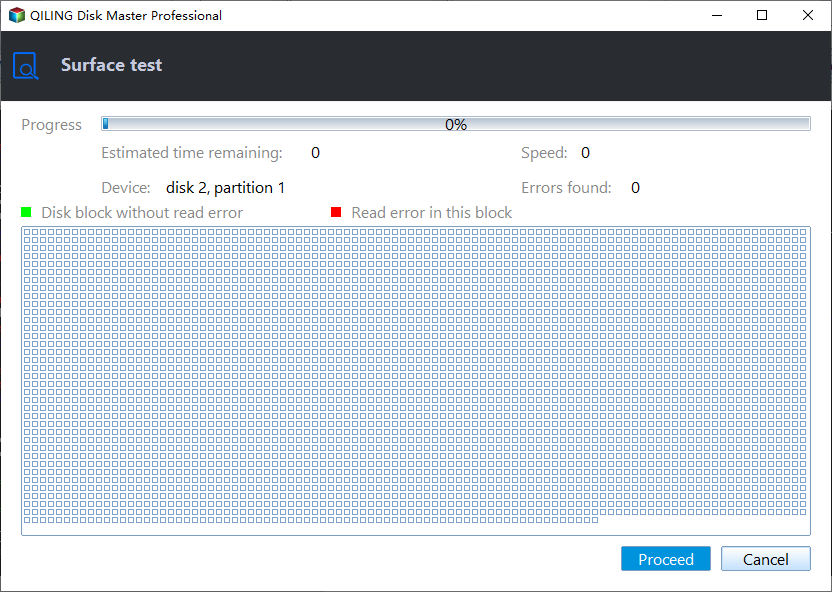
Step 2. Start the test and let it finish. Record the number of read errors, then compare with a second run to see whether the damage is spreading.
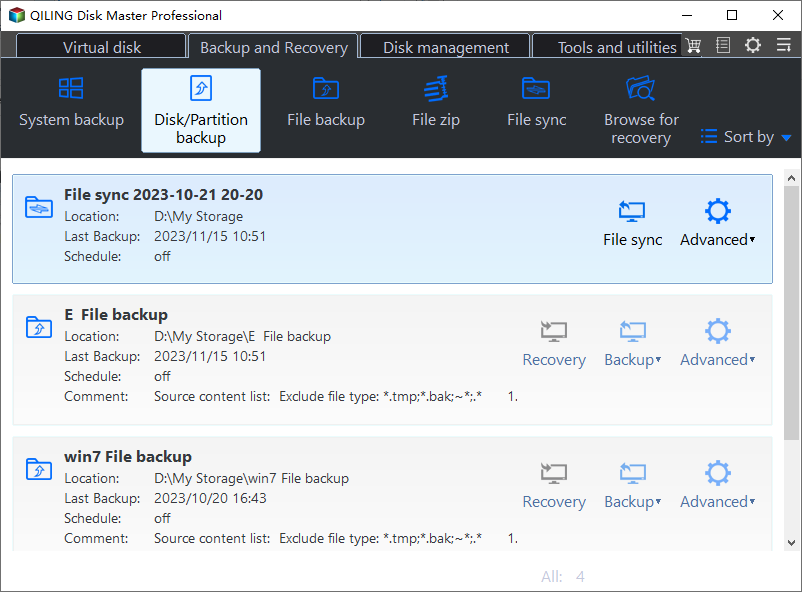
Step 3. Back up the data or clone the disk before you replace the hardware.
Is a single reallocated sector dangerous?
Not by itself. One stable event is common. What matters is whether the count grows over time and whether pending or uncorrectable sectors appear alongside it.
Why does my external drive show no SMART data?
The USB bridge does not forward SMART commands. Connect the drive directly to a SATA port, or use an enclosure whose bridge is known to pass them through.
Can CrystalDiskInfo repair a disk?
No. It reads status and can trigger a few vendor-specific tests. Repairs belong to file-system tools or to a replacement drive.
Related Articles
- Helium-Filled Hard Drives
What the fill gas changes and what it does not, especially when buying used drives. - RAID Rebuild Time
Why a second failing disk during a rebuild is the risk that matters most. - Air Gap Backup
Keeping a copy that does not depend on the health of a single drive.
Products
Articles & Tutorials
- Data Recovery
- Data Backup
- File Recovery
- File Backup
- System Backup and Restore
- Disk and Partition Clone
- Technical articles
- Mobile articles
- Disk Master Help
- Windows Data Recovery Tutorials
- Windows Secure Delete Tutorials
- Windows Partition Management Tutorials
- Windows File Backup and Restore Tutorials
- Windows System Backup and Restore Tutorials
- Windows Disk Backup and Restore Tutorials
- Windows Clone Tutorials