Air Gap Backup: How an Offline Copy Stops Ransomware
An air gap backup is a copy that is physically disconnected from the computer and the network when it is not being written. The gap can be a USB drive in a drawer, a tape on a shelf, or a cloud bucket that no account on your network can delete. Its purpose is simple: if ransomware takes over the machine, it must not be able to reach the copy that will restore it.
Most people already have a backup. The problem is that it is usually a folder on a NAS, an always-connected external drive, or a cloud account that the infected machine is signed in to. All three are reachable, and modern ransomware deliberately searches for them.
What an Air Gap Backup Is
The defining property is not the media, it is the absence of a live connection. A backup drive that stays plugged in is convenient, but it is not air gapped: the same file system, the same credentials and often the same drive letter are available to any process running on the PC.
An air gap can be physical, as with a removable disk that is connected only during the backup window, or logical, as with immutable cloud storage that enforces retention and rejects delete requests for a fixed period. Physical gaps are simpler and free; logical gaps protect against local disasters as well as theft.
Why Connected Backups Fail
Ransomware runs with the permissions of the logged-in user. If that user can open the backup drive, so can the malware. Encryption routines enumerate mapped drives, removable media and network shares, and the backup is often the first target because it removes the victim's way out.
Network-attached storage is especially exposed: a mapped share with stored credentials is just another folder. Cloud sync is no better if the client stays signed in, because deletions and encrypted versions propagate to the cloud within minutes.
The lesson is not to abandon these convenient targets. It is to keep at least one copy that cannot be touched while the computer is running.
How to Build the Gap
- External hard drive rotation. Use two or more drives, label them, and connect only the one being written. Store the others away from the computer.
- Write-once media. Blu-ray discs and tape cannot be modified after writing. They are slow, which suits monthly or quarterly archives rather than daily backups.
- Offline NAS. A NAS that is powered off or unplugged between backup windows is offline. A NAS that is always on is not.
- Immutable cloud storage. Object lock or retention policies stop even an administrator from deleting recent versions. This is a logical air gap, not a physical one.
- Encrypted containers. Store the backup in an encrypted container so a lost or stolen drive does not become a data breach.
The widely used rule is 3-2-1: three copies, on two kinds of media, with one off-site. A stronger version adds a fourth digit for the offline copy and a zero for verified restores: 3-2-1-1-0.
A Workable Rotation Plan
A simple scheme that works for a home office or a small team:
| Copy | Where it lives | How often |
|---|---|---|
| A | Internal or directly attached drive | Daily, automatic |
| B | NAS on the local network | Daily or weekly |
| C | Removable drive, stored off-site | Weekly, rotated between two drives |
| D | Immutable cloud archive | Monthly |
Rotate C and the spare drive so that one is always disconnected. If the connected drive is encrypted during an attack, the disconnected one still holds a clean copy from the previous week.
What to Test and How Often
An untested backup is a guess. Once a quarter, restore a sample of files to a spare location and open them. Twice a year, restore an entire system image to a spare disk and boot from it. Check three things:
- The image can be opened by the recovery environment without errors.
- The restored system starts and the applications work.
- The data is recent enough to be worth restoring, which tells you whether the schedule is right.
Record the date of the last successful test. A backup that has never been restored is not yet a backup.
Mistakes That Break the Gap
- Leaving the drive connected "just in case". This is the most common failure. Convenience defeats the entire design.
- Backing up only to a NAS. It protects against disk failure, not against an attacker who reaches the share.
- Using the same administrator account for daily work and backups. A compromised account can delete the backup repository.
- Keeping a single offline copy. If that drive fails during the restore, there is nothing left.
- Never verifying the image. Silent corruption is discovered at the worst possible moment.
Qiling Disk Master can create a full system or disk image on the removable drive, and you can schedule the job to run only during the window when that drive is connected.
Step 1. Connect the rotation drive, launch Qiling Disk Master, open the Backup and Recovery tab and click System backup.
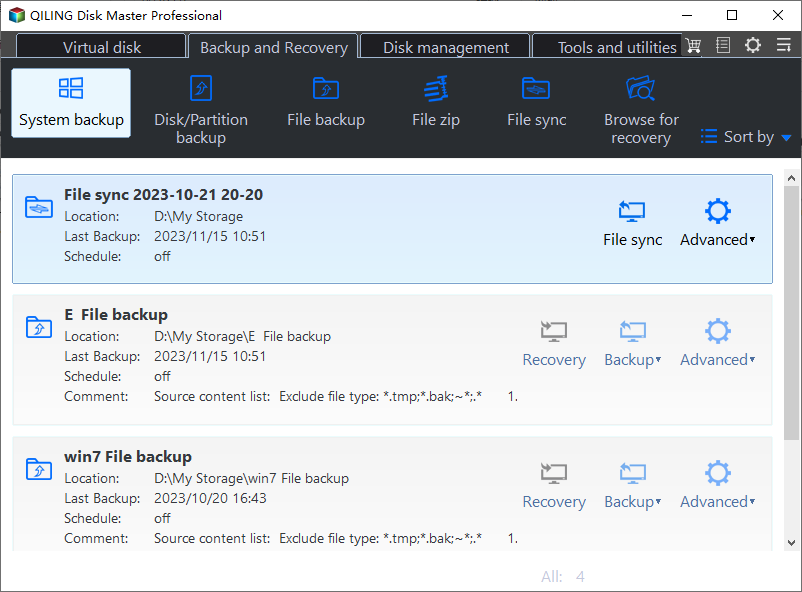
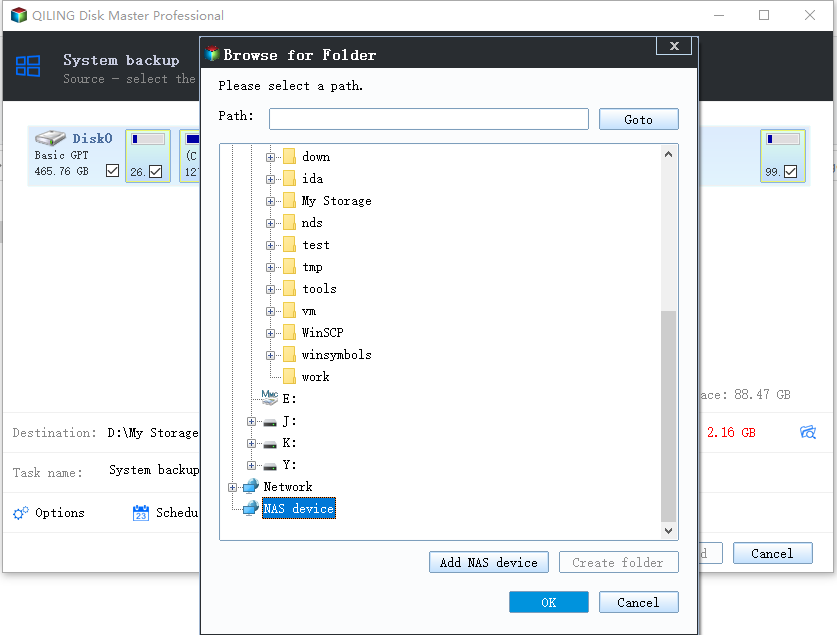
Step 2. Confirm the source disks and click the folder icon to set the destination.

Step 3. Choose a folder on the removable drive, not a network share, and click OK.
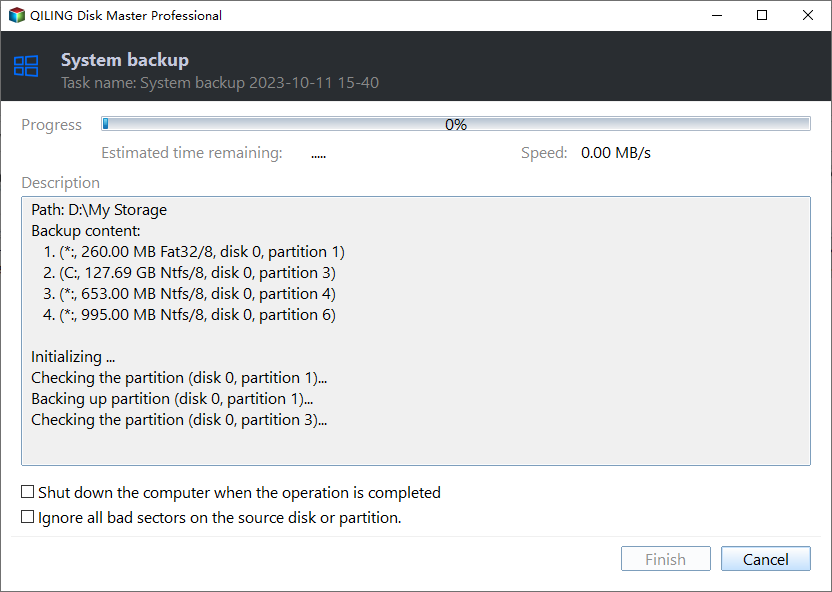
Step 4. Click Proceed to create the image, then shut the computer down or eject the drive and store it away from the machine.
Is a cloud backup an air gap?
Only if the storage enforces immutability and the local machine cannot delete recent versions. A normal synced folder is not a gap, because the client can delete the cloud copy too.
How often should the offline copy be updated?
Match the acceptable data loss. Weekly is common for personal data; daily rotation is better for a business that cannot afford to lose a week of work.
Does an air gap replace antivirus?
No. It limits the damage after an infection. Prevention, patching and least-privilege accounts still matter.
Related Articles
- What Is Immutable Backup
How retention policies make a cloud copy undeletable for a fixed period. - What Is a Snapshot and How Is It Different from a Backup
Why a snapshot on the same disk is not a substitute for an offline copy. - How to Back Up a Raspberry Pi SD Card
Keeping a restorable image of a small always-on system.
Products
Articles & Tutorials
- Data Recovery
- Data Backup
- File Recovery
- File Backup
- System Backup and Restore
- Disk and Partition Clone
- Technical articles
- Mobile articles
- Disk Master Help
- Windows Data Recovery Tutorials
- Windows Secure Delete Tutorials
- Windows Partition Management Tutorials
- Windows File Backup and Restore Tutorials
- Windows System Backup and Restore Tutorials
- Windows Disk Backup and Restore Tutorials
- Windows Clone Tutorials