MacBook Pro Is Not Charging? Find Solutions Here
If your MacBook Pro won't charge, it can be difficult, especially considering its portability is a major advantage. Laptops are popular among professionals for this very reason, allowing users to easily take them wherever they go. However, when the charging issue arises, it can hinder this convenience.
A laptop is essentially useless without a charge, and the anxiety of having an important meeting or deadline looming while it won't turn on due to a lack of power is a stressful experience.
The MacBook Pro may not be charging or displaying the 0xc00000e error code due to various reasons, including a faulty power adapter, a malfunctioning MagSafe connector, or a software issue, which can be caused by a corrupted system file or a problematic firmware update. To resolve this issue, users can try resetting the System Management Controller (SMC), running a diagnostic test, or performing a System Restore to a previous point when the device was functioning properly. Additionally, users can try booting the device in safe mode or using a different power source to rule out any issues with the power adapter. If none of these steps resolve the issue, users may need to visit an Apple Store or authorized service provider for further assistance.
The MacBook Pro may not be charging due to a faulty charging port, a problem with the power adapter, or an issue with the battery itself. To resolve this issue, you can try cleaning the charging port, replacing the power adapter, or resetting the System Management Controller (SMC) and power management unit (PMU). If the problem persists, it may be necessary to replace the battery or seek professional assistance.
Why Is Macbook Pro not Charging
The MacBook Pro may not charge due to various reasons, including a faulty power adapter, a defective battery, or a damaged power cable, among others.
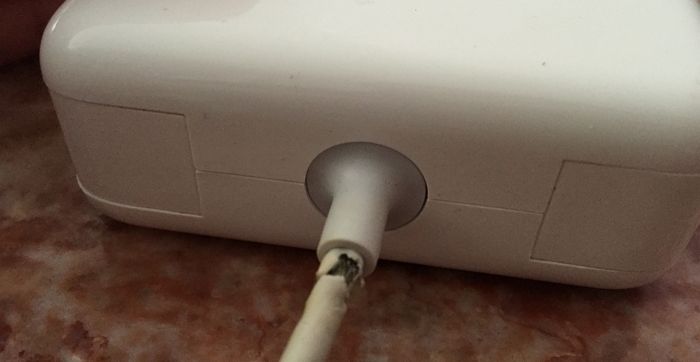
The charging issue can be caused by multiple high-performance apps, overheating, hardware problems, improper settings, or using battery-saving apps, aside from the previously mentioned reasons.
How to Solve Macbook Pro Is not Charging
The MacBook Pro not charging is a relatively rare issue, but there are several solutions to resolve it.
Let's take a look at these solutions –
- Method 1. Check battery health
- Method 2. Cool down Macbook Pro
- Method 3. Check battery connector
- Method 4. Check the AC plug and power outlet
- Method 5. Try another USB-C cable
- Method 6. Reset non-volatile random-access memory (NVRAM)
Method 1. Check battery health
The MacBook Pro battery is a critical component, but regular use can lead to its depletion. Poor MacBook battery health is a common reason why the laptop may not be charging, making it essential to monitor and maintain the battery's overall health to ensure optimal performance.
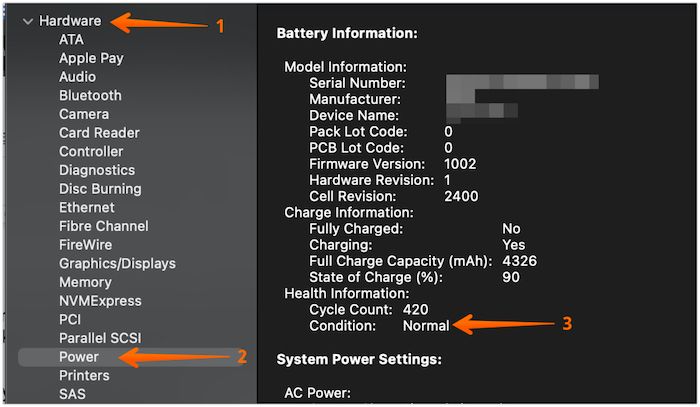
Check out the MacBook battery health by following these steps –
Step 1. Press the Option key and tap on the Apple icon simultaneously.
Step 2. Choose the System Information option.
Step 3. Go to Hardware.
Step 4. To check your battery's condition and determine if it needs to be replaced or repaired, select the Power option. Look for the condition sub-section under Health information, and if it says anything other than "normal", consider opting for replacement or repair services.
Method 2. Cool down Macbook Pro
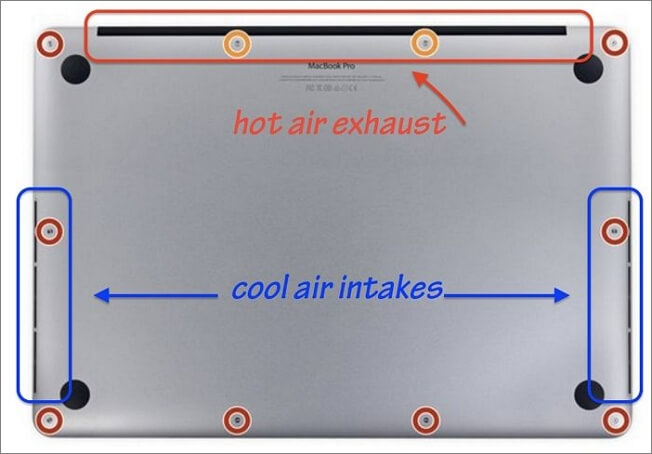
Overheating can cause a MacBook Pro not to charge, as the laptop's thermal sensors can detect a temperature rise and block battery access to protect the system. Cooling down the thermal sensors is essential in this case.
If your MacBook Pro is overheating, try these steps: Check if it's too hot, turn it off, let it cool down, and move it near a fan or turn on the AC.
If working outside, take the system to a shaded area to avoid direct sunlight, which can cause overheating and potentially damage the device.
Using a Mac on your bed can be counterproductive as the bedsheets can block the air vents, preventing the system from cooling down. To avoid this, consider placing the Mac on a table instead, allowing for better airflow and optimal system performance.
Method 3. Check battery connector
The older MacBook models use 9-The battery connector on the logic board can become dirty and cause issues with the battery over time, leading to its malfunction. To resolve this, the battery connector should be cleaned to ensure proper connection and prevent further problems.
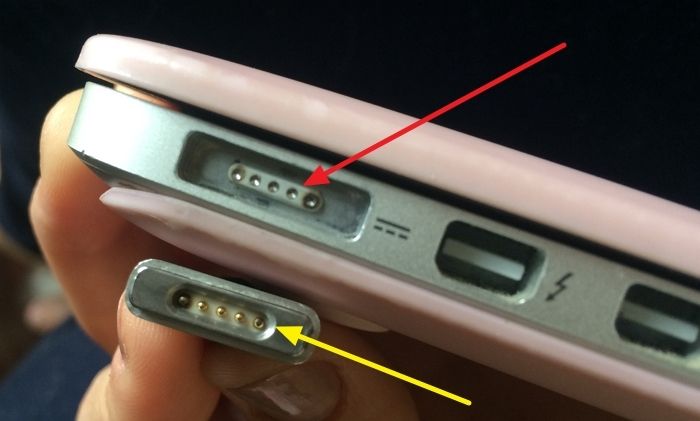
Soak cotton buds or a clean cloth in 95% alcohol, then gently clean the connector without applying too much pressure, taking time to check if the issue persists.
Method 4. Check the AC plug and power outlet
A damaged power outlet or fluctuations in the power supply can cause a MacBook Pro not to charge. Check the outlet for obstructions, such as dirt and dust, and clean it if necessary.
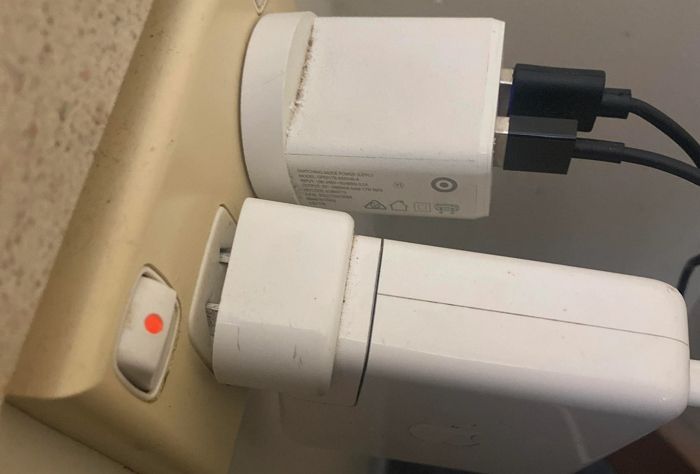
If the AC plug is damaged, replace it immediately. Get a new AC plug and see if the Mac is charging again. If it still doesn't charge, there might be an issue with the logic board or another component.
Method 5. Try another USB-C cable
Sometimes, the simplest solution can solve a huge problem. A new USB-C cable may be the answer to a MacBook Pro not charging, as a short-circuiting or dirty power cable can cause this issue.
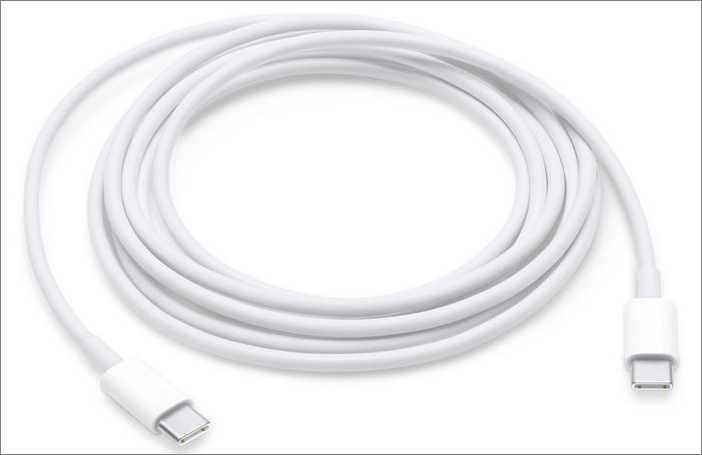
If you're experiencing issues with your USB-C cable, try using a different one to see if the problem persists. This could be a simple solution to get your device up and running again.
Method 6. Reset non-volatile random-access memory (NVRAM)
To resolve the MacBook Pro not charging issue, resetting the NVRAM can be an effective solution. NVRAM, or non-volatile random-access memory, stores system data even when the power is off, including information for fast booting. By resetting NVRAM, you can potentially resolve the charging problem.
Here are the steps you need to follow –
Step 1. Shut down the system. Restart the system.
Step 2. To reset your Mac, press the Command + Option + P + R keys and hold them together as the Mac boots, holding them for at least 20 seconds.
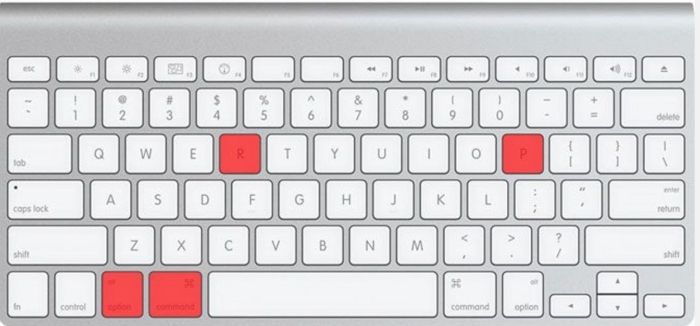
Step 3. When the NVRAM resets, you will hear three start-up chimes.
The MacBook Pro not charging issue is resolved. The user has successfully reset the System Management Controller (SMC) and the Power Management Unit (PMU), and the MacBook Pro is now charging properly.
Concluding Thoughts
If your MacBook Pro won't charge, it's essential to identify the underlying causes, such as a faulty charging port, a dead battery, or a software issue, to resolve the problem effectively.
If your Apple system is not charging, try the solutions mentioned above and see if they resolve the issue. If not, contact the Apple customer team for professional help.
FAQs on Macbook Not Charging
If your MacBook Pro isn't charging, it can be a stressful situation. To resolve this issue, try out these solutions immediately. However, to better understand the problem, let's first address some frequently asked questions and their answers. What are the reasons behind your MacBook Pro not charging? Is it due to a faulty charger, a malfunctioning power adapter, or a software issue?
1. How do I reset my Macbook Pro battery?
To reset the MacBook Pro battery, shut down the system, disconnect the power adapter, remove the battery, press and hold the Power button for 5 seconds, then reinsert the battery and adapter, and finally turn on the system by pressing the Power button.
2. How many years should the Macbook Pro battery last?
The lifespan of a MacBook Pro battery can vary depending on usage, but on average, it can last around 5 years. To extend its life, it's recommended to store the battery at 50% charge for extended periods, such as over 72 hours, when not in use.
3. Is it free to change Macbook Pro battery?
Apple offers a free MacBook Pro battery replacement if there's an internal issue, but charges a service fee for regular usage, and the warranty doesn't cover battery replacement.
Related Articles
- [PS4 USB Format] How to Format USB for PS4
- How to Fix Lenovo Laptop Stuck in Boot Loop in Windows 10/11 [Quick and Easy]
- Is Your SSD Slow to Load Games? Here Are New Fixes!
- How to Stop Windows 10 Update in Progress in 3 Ways
- Transfer Firefox Passwords to New Computer
If you're moving to a new PC or browser, or want to transfer your passwords, this post will guide you on how to do it, even without internet access. You can also use a third-party password exporter to easily manage and transfer all your passwords. - Top Twitch Clip Downloaders | Download Twitch Clips Within Seconds
If you want to download Twitch clips quickly and easily, you can use any of the simple and user-friendly Twitch clip downloaders mentioned in this guide to get the job done.
Products
Articles & Tutorials
- Data Recovery
- Data Backup
- File Recovery
- File Backup
- System Backup and Restore
- Disk and Partition Clone
- Technical articles
- Mobile articles
- Disk Master Help
- Windows Data Recovery Tutorials
- Windows Secure Delete Tutorials
- Windows Partition Management Tutorials
- Windows File Backup and Restore Tutorials
- Windows System Backup and Restore Tutorials
- Windows Disk Backup and Restore Tutorials
- Windows Clone Tutorials