How to Fix MacBook Pro Trackpad Not Working [10 Tested Solutions in 2024]
| Workable Solutions | Step-by-step Troubleshooting |
|---|---|
| Fix 1. Connect an External Mouse to Your MacBook Pro | Turn on your wireless mouse, and install its batteries. Open the "System Preferences" ...Full steps |
| Fix 2. Disable Force Click to Fix MacBook Pro Trackpad Not Working | Go to the Apple menu and select "System Preferences". Select "Trackpad" from the list of options...Full steps |
| Fix 3. Fix MacBook Pro Trackpad Not Clicking in System Preferences | Click on the apple icon on the top left and select "System Preferences". Select "Accessibility" from...Full steps |
| Fix 4. How to Reset MacBook Pro Trackpad Settings | Select "System Preferences" from the dropdown menu by clicking on the apple icon on the left...Full steps |
| Other Solutions | Shut down your MacBook pro. Hold down the "Shift" + "Control" + "Option" keys...Full steps |
MacBook Pro Trackpad Not Working Overview
The MacBook Pro trackpad is not working due to various reasons such as software updates, settings issues, and hardware malfunctions, which can cause frustration and impact work efficiency.
Using a MacBook for personal use can be frustrating if the trackpad isn't clicking, hindering the full enjoyment of its features and functions. Upgrading the operating system or installing new software can also cause trackpad issues or affect the MacBook Pro touch bar. Physical damage from dropping or damaging the MacBook can result in trackpad damage requiring repair or replacement.
Fix 1. Connect an External Mouse to Your MacBook Pro
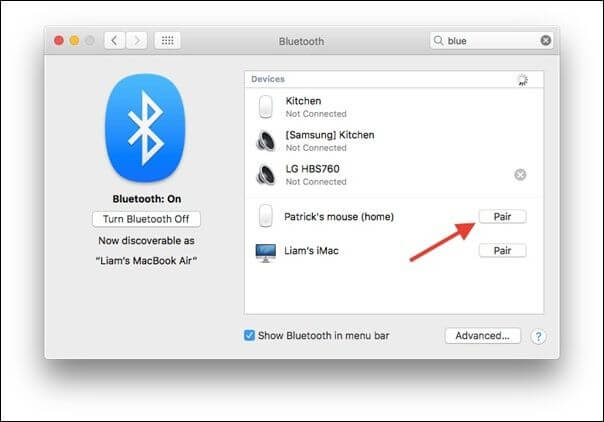
To use an external mouse on a Mac, simply plug it into a USB port, and it should automatically be recognized by the system. If it doesn't work, go to System Preferences > Mouse, and select the external mouse from the list of available devices. You may also need to adjust the mouse settings to match your preferences. Alternatively, you can also use Bluetooth to pair the mouse with your Mac by going to System Preferences > Bluetooth, and selecting the mouse from the list of available devices.
Step 1. Turn on your wireless mouse, and install its batteries.
Step 2. To open the "System Preferences" menu, click on the Apple menu located at the top left corner of the screen, and then select "System Preferences" from the dropdown list.
Step 3. Select "Bluetooth" from the options available.

Step 4. To pair your wireless mouse with your Mac, click the "Pair" button on the mouse to make it discoverable. This will allow your Mac to detect and connect to the mouse automatically.
Fix 2. Disable Force Click to Fix MacBook Pro Trackpad Not Working
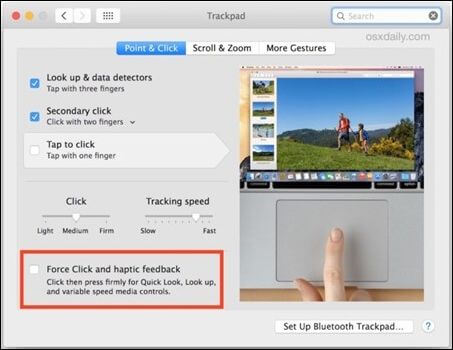
To resolve the issue of the MacBook trackpad not clicking, try disabling the Force click feature. This can be done by going to System Preferences, then Accessibility, and clicking on Trackpad. From there, uncheck the box next to "Point & Click" to disable Force click. This should resolve the issue and allow the trackpad to click normally.
Step 1. Go to the Apple menu and select "System Preferences".
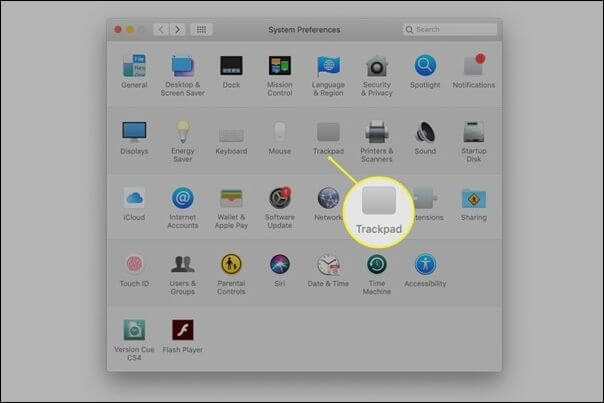
Step 2. Select "Trackpad" from the list of options.
Step 3. Uncheck the box next to "Force Click and haptic feedback".
Fix 3. Fix MacBook Pro Trackpad Not Clicking in System Preferences
If your MacBook's trackpad still isn't clicking after trying the previous solutions, you may need to adjust settings in System Preferences to fix the issue. To do this, go to System Preferences, then Trackpad, and select the "Point & Click" tab. From there, you can adjust the settings for tapping, clicking, and scrolling to see if it resolves the problem. If none of these steps work, it may be time to visit an Apple Store or authorized service provider for further assistance.
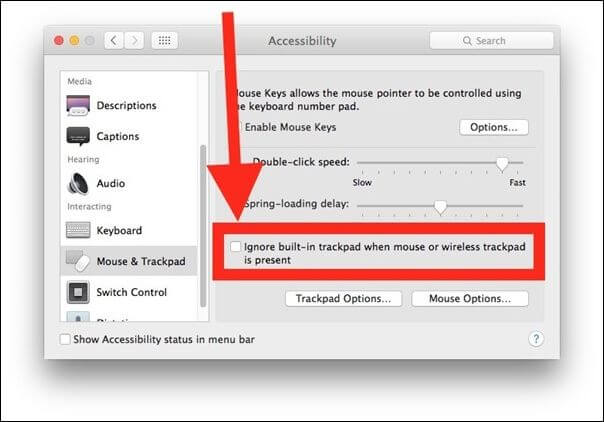
Step 1. Click on the apple icon on the top left and select "System Preferences" from the drop-down menu.
Step 2. Select "Accessibility" from the list of options.
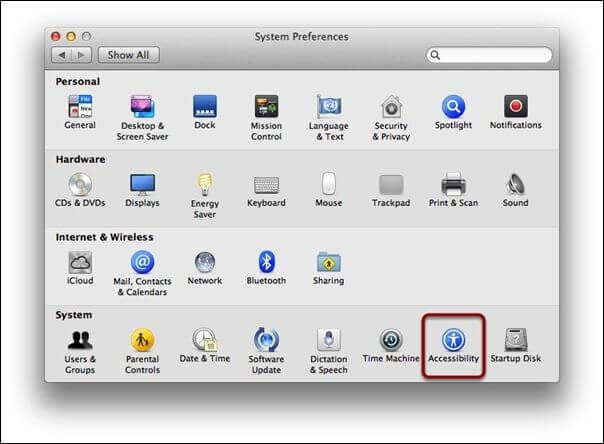
Step 3. Click "Mouse & Trackpad" in the left-hand menu.
Step 4. To ensure the box next to "Ignore built-in trackpad when mouse or wireless trackpad is present" is unchecked, simply navigate to the appropriate settings menu on your device, locate the relevant option, and verify that the box next to it is unchecked. This will ensure that your built-in trackpad is not ignored when a mouse or wireless trackpad is connected.
Fix 4. How to Reset MacBook Pro Trackpad Settings
To reset the trackpad setting on your Macbook, go to System Preferences, then click on Trackpad, and finally, click on the "Reset" button, which is located at the bottom of the window. This will switch the settings back to their original state, and you should be able to use your trackpad as usual.
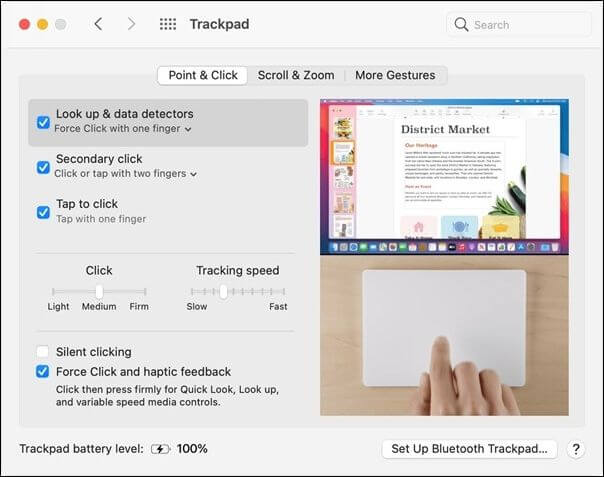
Step 1. Click on the apple icon on the left to open the dropdown menu, then select "System Preferences".
Step 2. Now, scroll down and click on "Trackpad".
Step 3. Select "Point & Click" and un-check the "Tap to Click" and "Scroll down" options.
Fix 5. Reset SMC to Fix MacBook Pro Trackpad Not Working
To fix your MacBook's trackpad not working, try resetting the System Management Controller (SMC), a chip responsible for various hardware functions. This can often resolve issues with hardware-related problems, including a non-clicking trackpad. To reset the SMC, follow these quick and easy steps.
Step 1. Shut down your MacBook pro.
Step 2. To force a Mac to shut down, press and hold the Shift + Control + Option keys on the left side of the keyboard, then press the Power button simultaneously. Hold for 10 seconds.
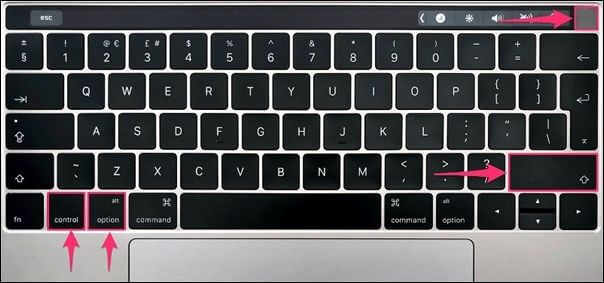
Step 3. Release all the keys and turn on your MacBook Pro.
Step 4. Check your trackpad; the issue might be resolved.
Fix 6. How to Reset NVRAM or PRAM on MacBook Pro
If your MacBook's trackpad is not working, resetting the NVRAM (Non-Volatile Random-Access Memory) or PRAM (Parameter RAM) may be the solution. These types of memory store system settings and hardware preferences, and resetting them can help fix issues like a non-clicking trackpad. To do this, follow these quick steps.
Step 1. To turn off your MacBook Pro, click on the Apple icon located in the top left corner of the screen, then select "Shut Down" from the drop-down menu. This will power down your laptop.
Step 2. Press the power button to turn it on, then immediately press and hold the "Command" + "Option" + "P" + "R" keys on your keyboard.
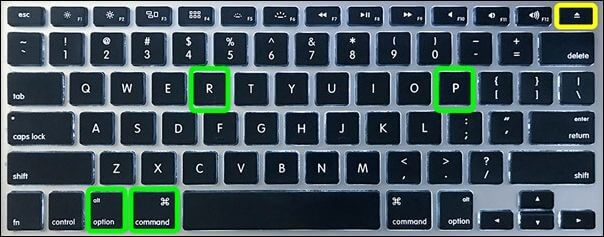
Step 3. Hold the keys until you hear the startup sound twice, which usually takes around 20 seconds.
Step 4. Wait for your MacBook Pro to start, then release the keys. The keys will be released automatically when the MacBook Pro starts.
Fix 7. Run Apple Diagnostics to Troubleshoot MacBook Pro
If your MacBook's trackpad is not working, you can use Apple Diagnostics to test your Mac's hardware components, including the logic board, memory, and storage, to identify any issues. Running this diagnostic will provide you with a description of the problem if found. To do this, follow the quick steps mentioned, which involve using Apple Diagnostics to test your Mac and potentially fix the trackpad issue.
Step 1. Connect your MacBook to the power adapter and shut it down.
Step 2. To turn on your device, press the power button and immediately hold the "D" key on your keyboard.
Step 3. Run the Apple Diagnostics test by following the on-screen instructions on the Apple Diagnostics screen.

Step 4: After completing the test, review the report for any hardware issues related to the trackpad not clicking, indicating any problems that may have occurred during the test.
Fix 8. Delete Some Plist Files to Fix MacBook Pro Trackpad
If you're experiencing issues with your Mac's trackpad, don't worry, this method might finally work for you. The plist files, which store preferences and configuration information for various applications and processes, can sometimes be the culprit. Deleting the plist file associated with the trackpad can resolve the issue, and to do this, follow these quick steps.
Step 1. To access the Terminal app on your MacBook Pro, open the Finder and select "Go to Folder" from the "Go" menu.
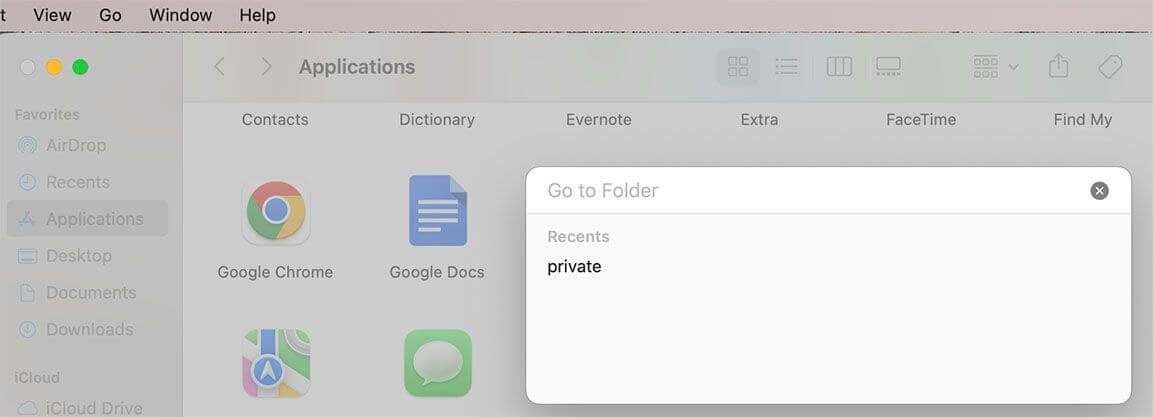
Step 2. To access the Library/Preferences folder, navigate to the "Go" menu in the Finder, select "Go to Folder...
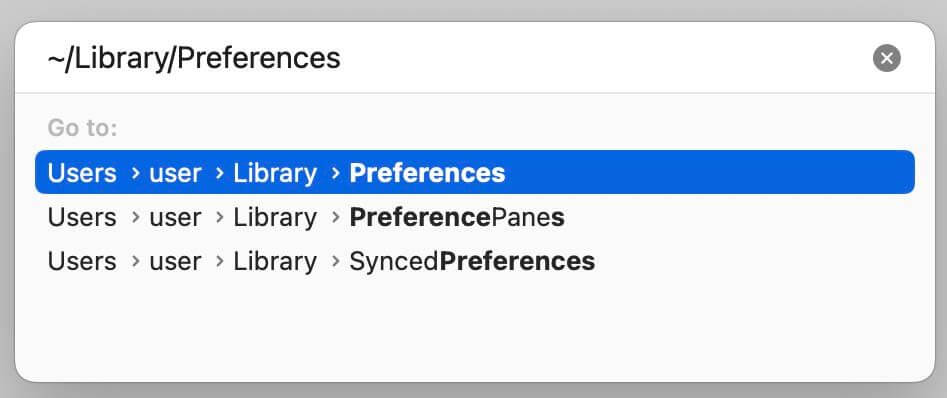
Step 3. Look for plist files that have "trackpad" in their name or description to identify relevant settings.
Step 4. Drag the problematic files to the Trash, then restart your MacBook Pro. Once it's back up, test the trackpad to see if it's clicking normally again.
Fix 9. Update or Reinstall macOS on MacBook Pro
If you're still experiencing issues with your MacBook Pro's trackpad not clicking, there is a permanent fix. You can try updating your macOS, which may resolve the issue. If that doesn't work, you can reinstall macOS from Mac Recovery Mode. Before attempting either of these solutions, it's essential to back up your data by transferring your files to an external hard drive or a cloud storage service like iCloud or Dropbox. This will ensure that your files are safe and can be easily accessed once the update or reinstall is complete.
Step 1. Click on the Apple menu and select "System Preferences."
Step 2. To update the software on your Mac, click on the "Software Update" option and check for available updates. If any are found, click "Update Now" to install them.

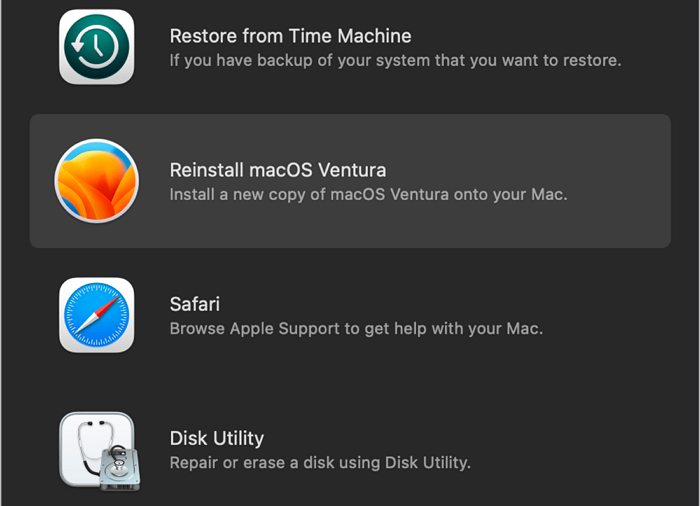
Step 3. Reinstalling macOS by holding the "Command" + "R" keys until you see an apple logo will boot your MacBook into macOS Recovery.
Step 4. Select "Reinstall macOS Ventura" and follow the easy on-screen instructions.
Fix 10. Reset MacBook Pro to Factory Settings
You can fix the trackpad not clicking issue on your MacBook Pro by resetting it to factory settings, but be aware that this process will erase all data and settings, so make sure to back up your data first. To do this, follow the steps to reset your MacBook Pro.
Step 1. To reboot your MacBook Pro into macOS Recovery, click on the Apple menu, select "Restart", and at the same time press the keys "Command" and "R" to boot your MacBook into recovery mode.
Step 2. Select "Disk Utility" in macOS Recovery and click "Continue."
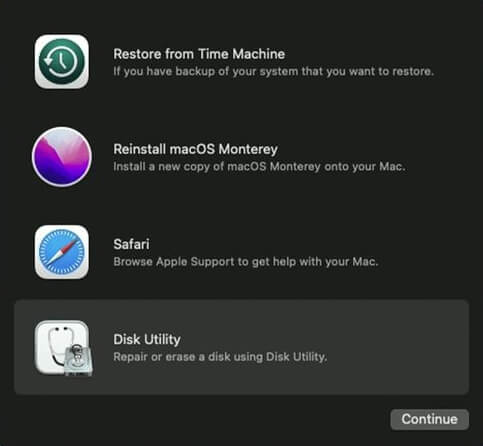
Step 3. To erase your hard drive, select your startup disk and click "Erase".
Step 4. After erasing your hard drive, click "Reinstall macOS" to reinstall the operating system and follow the on-screen instructions.
Recover Lost Data When Fixing MacBook Pro Trackpad Not Working
When trying to fix the MacBook Pro trackpad not working issue, you may lose data, especially if you reset to factory settings, which erases all data. To avoid this, it's essential to back up your data beforehand. If you do lose data, a reliable data recovery tool like Deep Data Recovery for Mac can help you recover it.
- This tool is a powerful and reliable option for data recovery, making it handy for new users. It can even be used if your MacBook Pro trackpad is not functioning, providing an alternative solution for accessing and recovering your data.
- This software is designed to recover deleted files on Mac, including documents, photos, videos, and audio files. Its advanced scanning algorithms can search for lost files in deep storage sectors, providing a high recovery rate.
- This program can assist in recovering data in case of accidental deletion, system crash, or formatting, and even after a complete wipe of all content and settings on a Mac.
To get benefit from this handy tool, you can follow the easy instructions given below:
Step 1. Search for lost files
To search for lost files on macOS, select the disk location you want to search, click the "Search for lost files" button, and the system will scan the selected disk location for lost files.
Note: Before attempting data recovery, it's recommended to create a backup of your Mac using the "Disk Backup" feature, which can be found in the left sidebar. This backup will serve as a safeguard against further data loss. Once the backup is created, the software can then recover data from the Mac backup, allowing your computer to write new data again.

Step 2. Go through the scanning results
Deep Data Recovery for Mac will immediately scan your selected disk volume and display the scanning results.

Step 3. Select the file(s) and recover
Select the file(s) you want to recover from the scan results and click the "Recover" button to have them back.

Bottom Line
The MacBook Pro trackpad not working can be a frustrating issue, but several fixes are available. Users can try disabling Force Click, resetting NVRAM or PRAM, updating or reinstalling macOS, or resetting the MacBook Pro to factory settings. However, these solutions may result in data loss, so it's essential to have a powerful and reliable data recovery tool like Deep Data Recovery for Mac to recover any lost files.
1
MacBook Pro Trackpad Not Working FAQs
Do you still have some doubts in mind? This part will help you!
1. Why is the MacBook Pro trackpad not clicking?
The MacBook Pro trackpad may stop clicking due to outdated software, disabled settings, or corrupted files, or it could be a result of hardware issues or physical damage, but users can troubleshoot the issue and get their trackpad clicking again by following suggested solutions.
2. How do I fix MacBook Pro shift key not working?
To resolve the issue of the shift key not working on a Mac, try resetting the System Management Controller (SMC) or Parameter RAM (PRAM), clean the keyboard, or replace it if necessary, and check for software updates or run diagnostics to rule out any underlying issues.
3. How to make my MacBook Pro Trackpad click?
If your MacBook Pro trackpad isn't clicking, try cleaning it, restarting your Mac, or adjusting trackpad settings. If that doesn't work, reset your NVRAM, PRAM, or SMC, or reinstall macOS.
4. Why does my MacBook Pro trackpad not click sound?
Your MacBook Pro's trackpad may not be making a clicking sound due to a hardware issue like a faulty trackpad or a software issue like incorrect settings or outdated drivers, or possibly from liquid damage.
Related Articles
- How to Fix PS4 Safe Mode Loop Without Losing Data
- Portal/Portal 2 Save File Location - Everything You Need to Know
- Do I Need to Backup OneDrive? [Why & How-to Guide]
- Time Machine Not Working on Mac: Possible Causes and Proven Solutions
- How to View Saved Passwords Chrome by 3 Easy Fixes
Do you have a problem remembering your login details? This article reveals how to view your saved passwords on Chrome with any of your devices using two alternative methods. - [Beginner Guide] What Is VMware? What Is It Used for?
The Portal Save File allows you to resume your progress from where you left off, and in this post, we'll show you how to locate it and use a professional backup tool to safeguard your save files.
Products
Articles & Tutorials
- Data Recovery
- Data Backup
- File Recovery
- File Backup
- System Backup and Restore
- Disk and Partition Clone
- Technical articles
- Mobile articles
- Disk Master Help
- Windows Data Recovery Tutorials
- Windows Secure Delete Tutorials
- Windows Partition Management Tutorials
- Windows File Backup and Restore Tutorials
- Windows System Backup and Restore Tutorials
- Windows Disk Backup and Restore Tutorials
- Windows Clone Tutorials