Bypass "Administrator Blocked You From Running This App" in Windows 10 [Full Information]
If you're experiencing an error message on Windows 10 saying "Administrator blocked you from running this app," it's probably due to a simple mistake, such as installing apps without Administrator rights or forgetting to enter your password when prompted.
In Windows 10, if you encounter an error, there are multiple solutions to bypass it, regardless of the reason behind the issue.
5 Solutions To Fix Error: Bypass "Administrator Blocked You From Running This App" in Windows 10
Quick Navigation:
- Method 1. Temporarily disable your antivirus program
- Method 2. Install the app using the hidden administrator account
- Method 3. Change the Group Policy
- Method 4. Execute the file via Command Prompt
- Method 5. Disable Windows SmartScreen
Method 1. Temporarily disable your antivirus program
If you have any third-If you're running into issues, try uninstalling any party antivirus program installed, disable it temporarily. If this doesn't work, you'll need to uninstall the antivirus program and reinstall it after the registry changes.
Whether you use Windows Defender or a third-party antivirus program, the steps below will assist you in securing your computer.
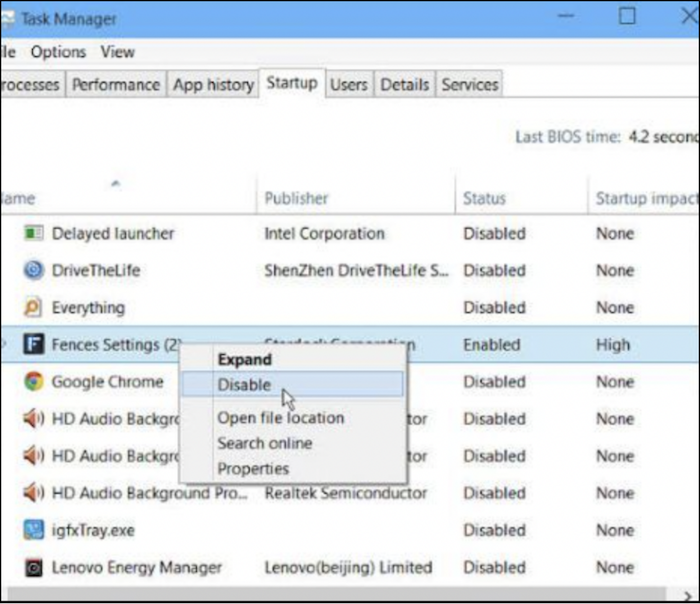
Step 1. To open the Task Manager, press ALT + SHIFT + ESC on your keyboard.
Step 2. Navigate to the Startup section.
Step 3. Disable your antivirus software temporarily to install the program.
Method 2. Install the app using the hidden administrator account
To install an app when your administrator account is blocked on Windows 10, create a new hidden administrator account, then use that account to install the app, and finally, delete the new account. This approach allows you to bypass the blocked administrator account and complete the installation.
Step 1. To open the Start menu, press the Windows logo key and type 'Command Prompt' into the Search box. Then select it from the results.
Step 2. To activate the Administrator account, open Command Prompt as an administrator, type "net user administrator /active: yes", and press Enter. If you receive the message "The command was successfully completed," the method was successful.
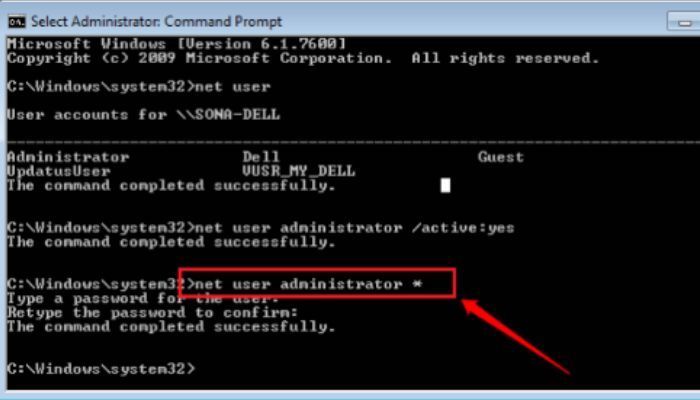
Step 3. To access the software, sign out of the current user account and enter the new administrator account. This should allow you to run the software from this point.
Step 4. To disable the hidden administrator account, log back into your local user and run the command "net user administrator /active: no" in the command prompt. This will disable the account, preventing unauthorized access.
Method 3. Change the Group Policy
Group Policy is primarily a security tool for applying security settings to users and computers, allowing you to make changes to your computer that you won't find elsewhere.
To help apps bypass the administrator check, a change can be made to the User Accounts Control (UAC) settings, allowing certain applications to run with elevated privileges without prompting the user for administrator approval. This can be achieved by adjusting the UAC settings to run specific applications in administrator mode or by creating a UAC bypass for trusted applications, effectively allowing them to operate with elevated privileges without requiring the user to manually grant administrator access.
The following steps will help you eliminate the error:
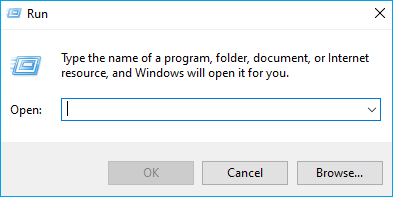
Step 1. To open the Run dialogue on your keyboard, press the Windows key + R. This will open a small window where you can type in commands or file paths to run specific programs or open files.
Step 2. Type "gpedit.msc" in the run dialogue box and press ENTER.
Step 3. The expanded Windows Settings, Security Settings, and Local Policies under Computer Configuration include the following: Windows Settings, Security Settings, and Local Policies, which are all located under Computer Configuration. This includes features such as Windows Update for Business, which allows for centralized management of Windows updates, and Windows Defender Firewall, which provides network protection and monitoring.
Step 4. Click on "Security Options."
Step 5. To enable User Account Control: Run all administrators in Admin Approval Mode, double-click on the option at the bottom of the window. This will allow you to run all administrators in admin approval mode, which requires administrative approval for any action that requires administrative privileges.
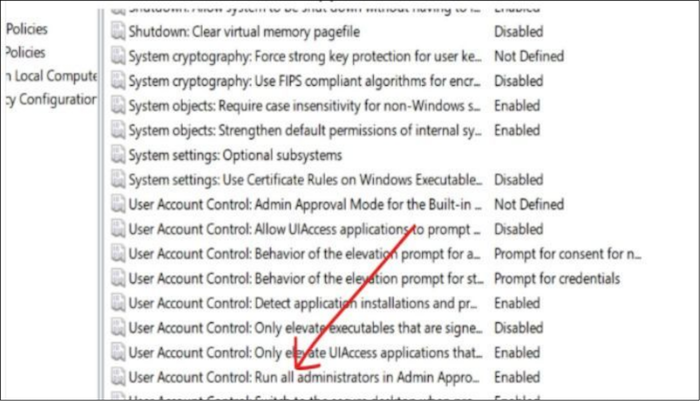
Step 6. Select "Disable," then Apply and OK.
Method 4. Execute the file via Command Prompt
The error often occurs when trying to open a file or folder, and it's usually due to a program requiring administrative permission to run. However, you can quickly fix the issue by using the "Execute the file via Command Prompt" option, which can resolve the problem within 5 minutes.
The Windows operating system has a built-in feature called User Account Control (UAC) that allows running applications from unknown or untrusted sources.
To install a program on your computer, you'll need to enable the User Account Control (UAC) program, which allows you to make changes to your system settings. Follow the steps to enable UAC and you'll be able to successfully install the program.
To that follow, follow the steps mentioned below.
Step 1. To resolve the error, locate the app triggering the issue, right-click on it, and select the option to open its file location. This will allow you to access the app's installation folder and potentially troubleshoot or reinstall the app.
Step 2. Right-click the file and select properties.
Step 3. Copy the texts under location in the General tab. First, close the Properties window.
Step 4. To search for "cmd" in the Start menu, select the Start button, then type "cmd" in the search bar. Once the "Command Prompt" result appears, right-click on it and select "Run as Administrator" from the context menu.
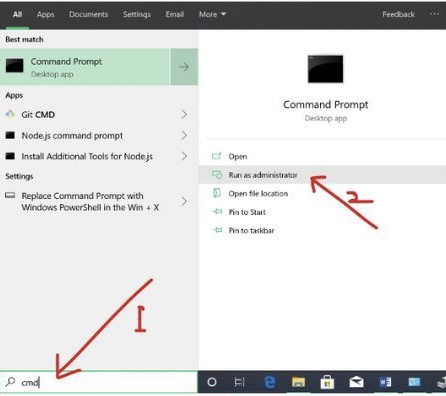
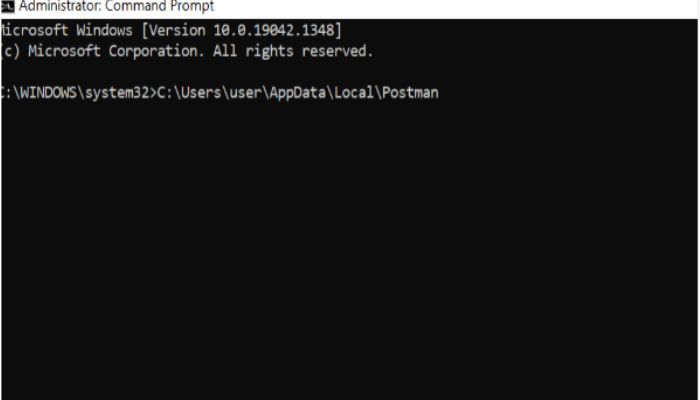
Step 5. Paste the text from step 3 into the command prompt, then minimize the command prompt.
Step 6. Return to the Properties window opened in Step 1 and copied the file name.
Step 7. To increase the size of the Command Prompt, type "cmd /k" in front of the text you pasted in Step 4, and paste it into the file name, as shown in the screenshot below. This will allow you to view the file in a larger window.
Step 8. Finally, press ENTER to start the app.
Method 5. Disable Windows SmartScreen
Windows SmartScreen is a helpful feature that protects your PC from malicious apps and files, but it may sometimes block certain apps or files to keep you safe.
If you want to run the app anyway, follow these steps:
Step 1. To run or install a file, locate it, right-click it, and select Properties from the context menu that appears.
Step 2. Check the box next to "Unblock."
Step 3. I'm glad to hear that the file has been marked as safe. This means that it should be able to pass through Microsoft's SmartScreen filter without any issues.
Step 4. Now, try running the file.
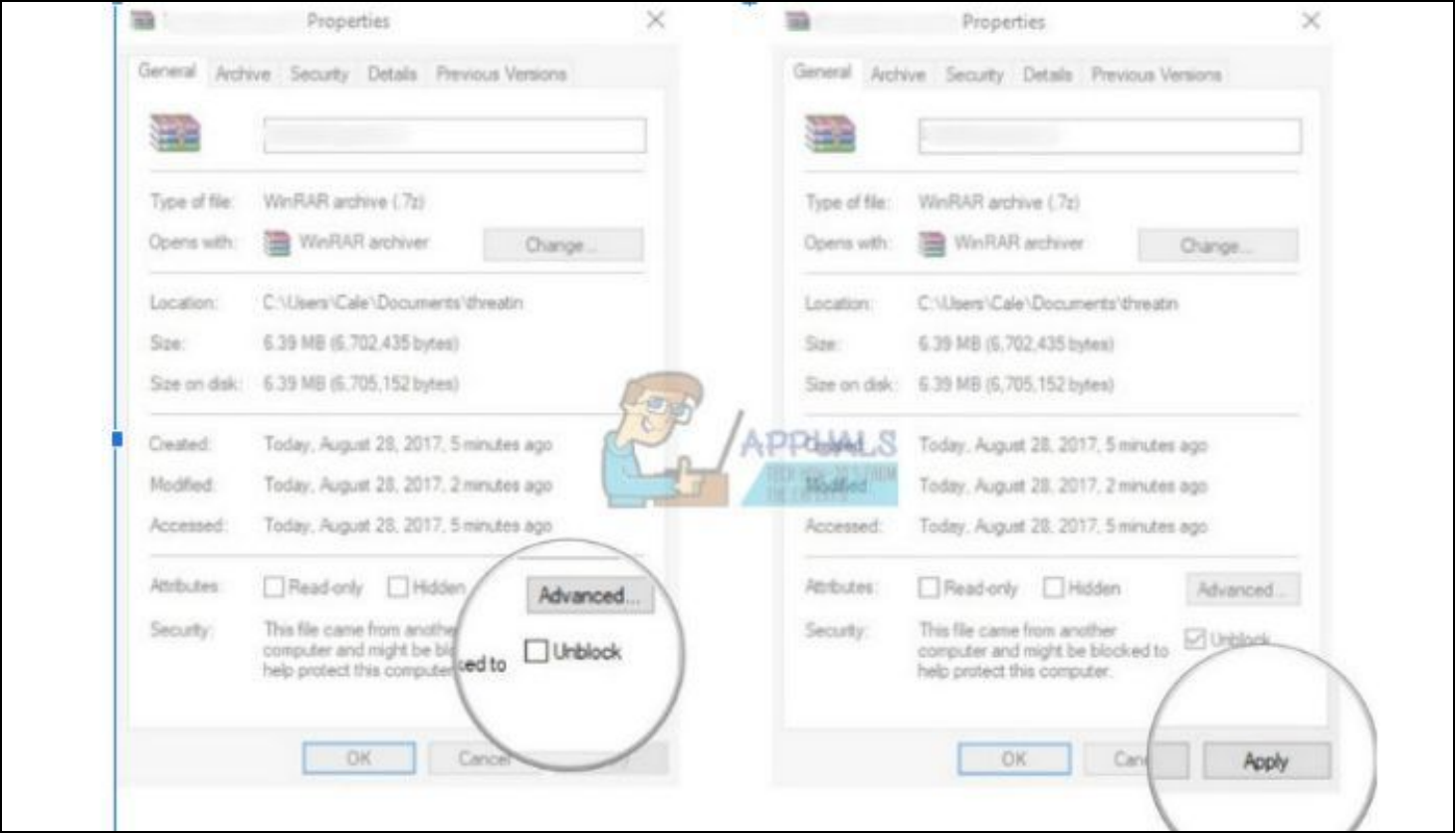
If the problem persists, try temporarily disabling Windows SmartScreen to run the file. Please re-enable it, once you're done, to protect your Windows PC from malware.
Step 1. To access Windows Defender Security Center, search for it in your computer or right-click on the shield icon in the taskbar and select "Open."
Step 2. To expand the right-hand menu, click on it, then select "App and browser control."
Step 3. Locate and disable the "Check apps and files" section.
Step 4. Now try running the file.
To re-enable Windows SmartScreen, go through the same steps as before, but this time, select "Block" in the "Check apps and files" section after clicking on it. This will enable Windows SmartScreen to check apps and files for potential threats.
Conclusion
Running an app for the first time on Windows 10 can be tricky, but creating protection can help, allowing you to run any app even without administrative rights.
Related Articles
- How to Fix "No Root File System Is Defined" [Efficient & Easy Solutions]
- Microsoft Word Files with An ASD Extension Cannot Be Opened from This Location [Fixed]
- [Too Slow!] How to Fix USB 3.0 Transfer Speed Pretty Slow
- [Fixed] Windows Cannot Run Disk Checking on This Volume Because It Is Write Protected
- [SOLVED] The Operation Cannot Be Performed Because the Message Has Been Changed
if you're faced with the error message "the operation cannot be performed because the message has been changed" when trying to open Outlook. This issue can be resolved with practical solutions provided in this post. - How to Turn off System Restore Windows 10 [Three Ways]
If you want to turn off System Restore on Windows 10, this article provides guidance on the reasons why you might want to do so, whether it's safe to disable it, and three common methods to disable System Restore, allowing you to easily disable it.
Products
Articles & Tutorials
- Data Recovery
- Data Backup
- File Recovery
- File Backup
- System Backup and Restore
- Disk and Partition Clone
- Technical articles
- Mobile articles
- Disk Master Help
- Windows Data Recovery Tutorials
- Windows Secure Delete Tutorials
- Windows Partition Management Tutorials
- Windows File Backup and Restore Tutorials
- Windows System Backup and Restore Tutorials
- Windows Disk Backup and Restore Tutorials
- Windows Clone Tutorials