Factory Reset Mac Without Password [for macOS Ventura/Monterey]
If your Mac has a computer virus, you may need to factory reset it to remove the virus and prevent further damage. This can also be a good option when you're planning to upgrade to a newer Mac and want to give your old one to family members. A factory reset can help you start fresh and ensure that your old Mac is clean and free of any malware or viruses.
If you've forgotten your Mac's password and want to factory reset it without entering the password, you can follow the method on this page. Before doing so, consider backing up your Mac or using a data recovery tool to preserve your files, as a factory reset will erase all data on the device.
How to Factory Reset Mac Without Password [2 Plans]
If you don't have a password on your Mac, you can't back it up in advance. If you lose important data after a factory reset, you can use a professional data recovery program like Deep Data Recovery for Mac to recover the lost data.
Deep Data Recovery for Mac
- Mac users can recover deleted files, documents, photos, audio, music, and emails using various methods. The most common approach is to use the Time Machine backup feature, which automatically saves files and data at regular intervals.
- Restore Mac Trash data, or recover data from formatted hard drives, memory cards, flash drives, digital cameras, and camcorders.
- Data recovery services can help restore lost data in various situations, including sudden deletion, formatting, hard drive corruption, virus attacks, and system crashes, providing a solution for users who have lost access to their important files and information.
Here are the steps of data recovery:
Step 1. Select file types and click "Fast Scan" to start
Launch Deep Data Recovery on your Windows computer, select the file types you want to recover, and click "Fast Scan" to start the recovery process.

Note: You can choose different search modes based on where and why the data was lost.
Step 2. Search for lost files
To search for lost files on your mac, select the disk location where you want to search, and click the "Search for lost files" button.

Step 3. Go through the scanning results
Deep Data Recovery for Mac will immediately scan your selected disk volume and display the scanning results.

Step 4. Select the file(s) and recover
Select the desired file(s) from the scan results, then click the "Recover" button to retrieve them.
To factory reset your Mac without passwords, enter Recovery Mode and use the Disk Utility or Reinstall macOS option to erase data.
How to Enter Recovery Mode on Mac
To enter Recovery Mode on your Mac, the process differs between Apple silicon Macs and Intel Macs. You can check your chip by finding your Mac model on Apple's official website or by simply searching it online.
- For Apple Silicon Mac Users: Ensure you are in the login window, click "Shut Down", and hold the power button or use Touch ID until you see the Recovery Mode.
- For Intel Mac Users: In the login window, click "Shut Down" and hold both Command and R keys to enter Recovery Mode.
Tip: If your Mac won't boot into Recovery Mode, check the keyboard connection or create a bootable installer on your Mac.
Factory Reset Mac Without Password [Use Disk Utility]
Entering Recovery Mode on a Mac without a password allows you to use the Disk Utility option to factory reset a locked Mac.
Step 1. Click the Disk Utility option.
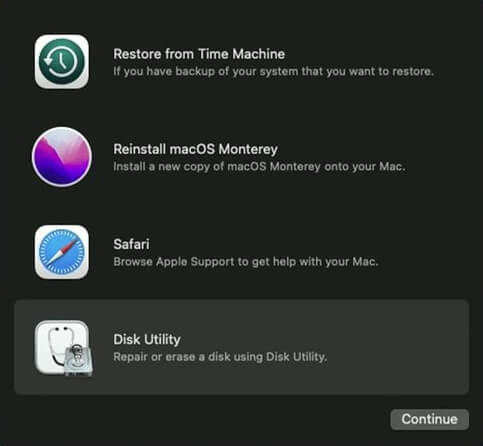
Step 2. Select the disk named "Macintosh HD" which is the disk that you start up with. If you changed the disk name, find the correct disk and choose it.
Step 3. Click the Erase button.
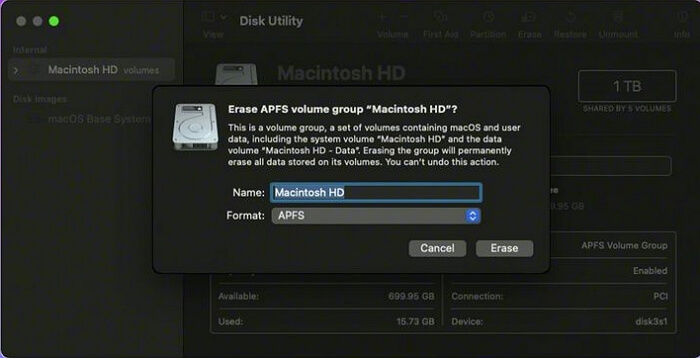
Step 4. Wait until the process is complete, and you can quit the Disk Utility.
Factory Reset Mac Without Password [Use Reinstall macOS]
Step 1. Click the Reinstall macOS option.
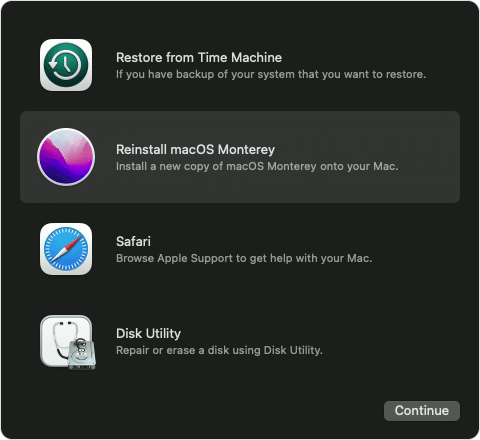
Step 2. To reinstall macOS, select the hard drive you want to reinstall the operating system on. This is typically the startup disk, which is usually the primary hard drive.
Step 3. Wait until the process finish, and create a new account.
How to Reset Password and Factory Reset Mac
If you can't boot into Recovery Mode or your Mac Recovery Mode isn't working, you can try resetting your Mac password and erasing all contents.
How to Reset Password with Apple ID
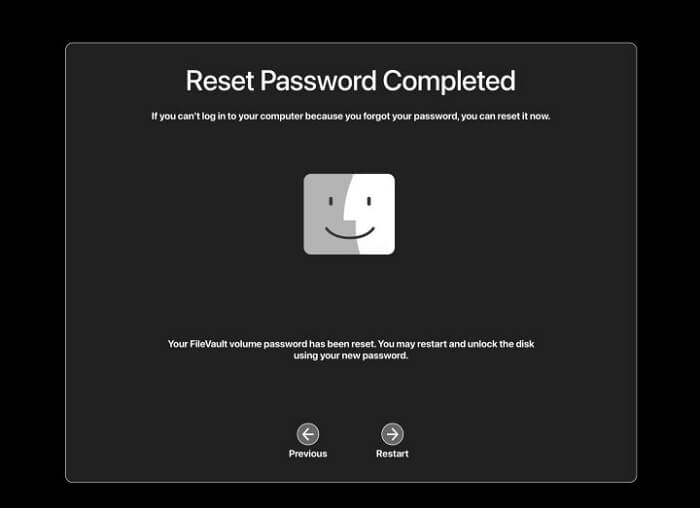
To reset your Mac password with Apple ID, go to the login screen, click the lock icon, and enter your Apple ID and password. Then, click on "Reset Password" and follow the on-screen instructions.
Step 1. Enter the random passwords three times.
Step 2. You can reset your password by clicking the button to reset the password using your Apple ID.

Step 3. Type in the right Apple ID and password.
Step 4. Reset the password and verify it.
How to Factory Reset Unlocked Mac on macOS Ventura/Monterey
If you have a Mac running macOS Ventura or Monterey, you can factory reset it quickly using the "Erase All Content and Settings" feature. This process involves following a tutorial to ensure the correct steps are taken, and verifying that your macOS version is indeed Ventura or Monterey.
Step 1. Click "System Preferences" from the Apple menu.
Step 2. Click the "Erase All Content and Settings" button.
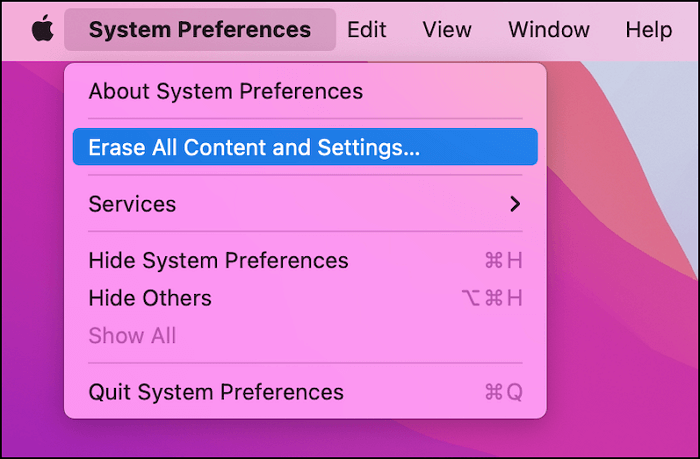
Step 3. Enter the Mac administrator password and click "OK".
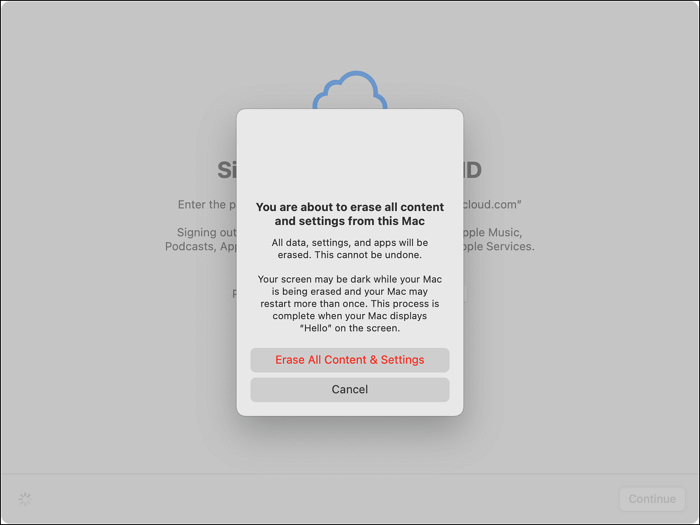
Step 4. The Mac will remind you to back up the whole data with Time Machine. If you already have a backup, click "Continue" to proceed with the process.
Step 5. Choose "Continue" and confirm your request.
Retrieve Lost Data After Factory Reset Mac [High Recovery Rate]
After factory resetting your Mac, you may have deleted some crucial files. To recover these essential files, you'll need to use a tool like Deep Data Recovery for Mac.
- This software can help recover deleted files, including pictures, documents, music, and videos, on a Mac, even after a factory reset.
- This handy tool supports not only iPhone recovery but also Mac USB recovery, allowing you to recover data from various devices, including external hard drives, SD cards, MP3/4 players, cameras, and more.
- Deep Data Recovery for Mac is a tool that can help repair corrupted or deleted videos and photos, making it a video repair tool for Mac.
To recover your lost data after a factory reset on your Mac, follow these three steps. Firstly, you'll need to check if your Mac's Time Machine backup is available, which can be done by going to System Preferences > Time Machine.
Step 1. Select file types and click "Fast Scan" to start
Launch Deep Data Recovery on your Windows computer. Select the desired file types and click "Fast Scan" to begin the recovery process.
Note: You can choose different search modes based on where and why the data was lost.
Step 2. Search for lost files
To search for lost files on your Mac, select the disk location where you want to search, and click the "Search for lost files" button.
Step 3. Go through the scanning results
Deep Data Recovery for Mac will immediately scan your selected disk volume and display the scanning results.
Step 4. Select the file(s) and recover
Select the desired files from the scan results and click the "Recover" button to restore them.
Factory Reset Mac Without Password FAQs
In this part, you will learn more about factory resetting Mac without a password by reading the following questions and answers.
Can you factory reset a Mac without the password?
You can factory reset a Mac without the password by entering the Recovery Mode, then selecting Disk Utility or Reinstall macOS. This process allows you to restore your Mac to its original settings without needing the password.
How do I force a factory reset on my Mac?
You need to force a factory reset on your Mac in the Recovery Mode.
- For Apple Silicon Mac users, go to the login window, click "Shut Down", and hold the power button or use Touch ID until you see the Recovery Mode in the login window.
- For Intel Mac users, go into the login window, click "Shut Down", and hold down both Command and R keys to enter Recovery Mode.
To factory reset your Mac, first, click on the Apple logo in the top left corner and select Restart. As your Mac is restarting, hold down the Command (⌘) and R keys at the same time.
How do I restore my Mac to factory settings without a password?
To factory reset your Mac without a password, you'll need to follow a few steps. First, turn off your Mac and then turn it back on while holding down the 'Command (⌘) + R' keys.
Step 1. Entering the Recovery Mode using the power button or the Command and R keys.
Step 2. Use the Disk Utility to erase all the data on your startup disk.
Step 3. Use the Reinstall macOS to reinstall macOS and reset your Mac.
How do I find my password and factory reset Mac?
To regain administrator access on your Mac, you can use your Apple ID to reset the password. This involves entering three random passwords and following a step-by-step password reset process. Once completed, you can access your Mac and perform a factory reset.
Step 1. Click "System Preferences" from the Apple menu.
Step 2. Click the "Erase All Content and Settings" button.
Step 3. Enter the Mac administrator password and click "OK".
Step 4. The Mac will remind you to back up the whole data with Time Machine. If you already have a backup, click "Continue".
Step 5. Choose "Continue" and confirm your request.
Related Articles
- How to Factory Reset Laptop without Password? [Everything You Should Know]
- Solved: What Is Taking Up Space on My Hard Drive in Windows 10/8/7
- How to Fix Macintosh HD Greyed Out in Disk Utility Without Data Loss [ 4 Solutions ]
- Tutorial on Diskpart Assign Drive Letter in Windows 11/10/8/7 [Detailed Guide]
- Best Windows Key Finder for Windows 11/10: Which Key Finder Is Best - Qiling
Find the best Windows key finder for Windows 11/10. Compare top product key finders including Qiling Key Finder, Belarc Advisor, and more to recover your serial numbers. - Bitlocker Encryption: The Guard of Your Data [All You Need to Know]
If you're concerned about data security threats or want to safeguard your private data, Bitlocker Encryption is a reliable solution. It ensures that your data remains protected, and you can learn more about its benefits by reading on.
Products
Articles & Tutorials
- Data Recovery
- Data Backup
- File Recovery
- File Backup
- System Backup and Restore
- Disk and Partition Clone
- Technical articles
- Mobile articles
- Disk Master Help
- Windows Data Recovery Tutorials
- Windows Secure Delete Tutorials
- Windows Partition Management Tutorials
- Windows File Backup and Restore Tutorials
- Windows System Backup and Restore Tutorials
- Windows Disk Backup and Restore Tutorials
- Windows Clone Tutorials