Dock on Mac Disappeared? How to Keep Dock Visible on Mac
If your Mac's Dock has disappeared, don't panic! It's likely set to hide when you open an application. To fix this, simply move your cursor to the bottom of the screen where the Dock is supposed to be, and it will pop back up. However, if this isn't a permanent solution for you, there might be other issues at play, such as bugs or errors in the Dock's programming. In that case, you can try restarting your Mac or checking for any software updates to resolve the issue.
Why Dock on Mac Disappeared
The dock disappears on Mac when an application is opened, as the system hides it to prevent UI and UX disturbance, allowing for a complete view of the screen.
How to Keep Dock Visible on Mac
To keep the Dock visible on a Mac, you can refer to the following methods:
- Method 1. Deactivate Auto-hide Dock
- Method 2. Update OS
- Method 3. Restart Your Mac
- Method 4. Reset Dock
Method 1. Deactivate Auto-hide Dock
If the Dock on your Mac has disappeared, try deactivating auto-hide first. This might be the cause of the issue, and turning it off should make the Dock visible again.
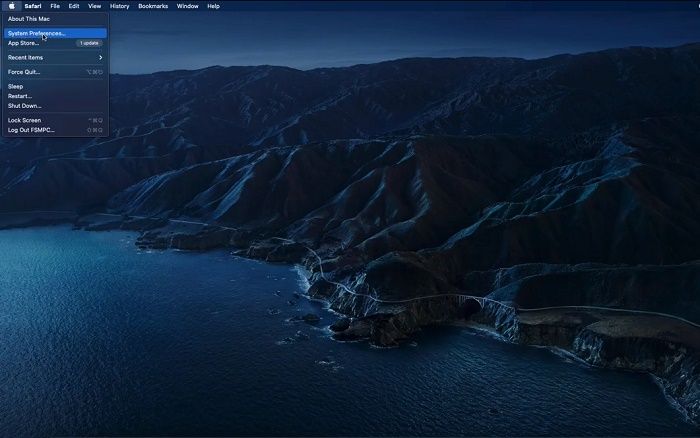
Step 1. Go to System Preference
To access System Preferences, click on the Apple logo located at the top left corner of your screen, and then select System Preferences from the drop-down menu. This will open the System Preferences window, where you can explore various options and settings.
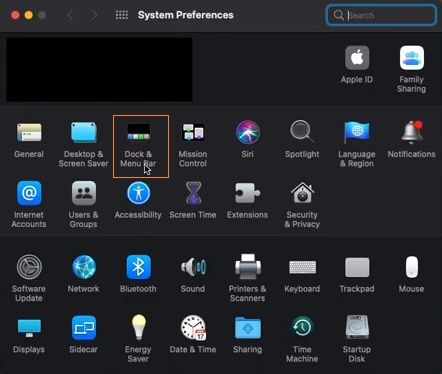
Step 2. Select Dock and Menu Bar
To access the Dock and Menu bar options, click on either the Dock or Menu bar, which will open all available settings for customization.
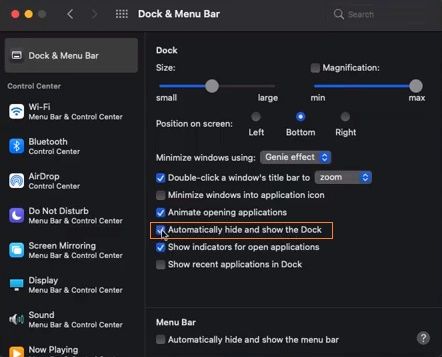
Step 3. Uncheck Auto-hide
To make the dock permanently appear on your Mac, uncheck the "auto-hide" option from the dock settings. This will keep the dock visible at all times, even when you're running apps.
Method 2. Update OS
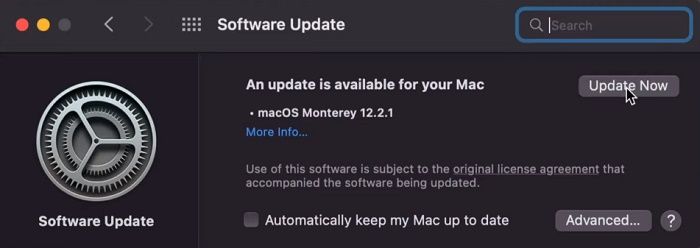
Updating your macOS is essential to avoid bugs and issues that come with an outdated operating system. To do this, users should update their macOS as soon as possible by following the necessary steps.
To update your Mac computer, click on the Apple logo at the top left corner, go to System Preferences, and select "Software Update." Click on "Update Now" and wait for the update to complete, then restart your Mac.
Method 3. Restart Your Mac
If your Mac's dock suddenly disappears, a simple restart might be all you need to resolve the issue. This is often the case when the problem is caused by minor software glitches, which a reboot can easily clear up.
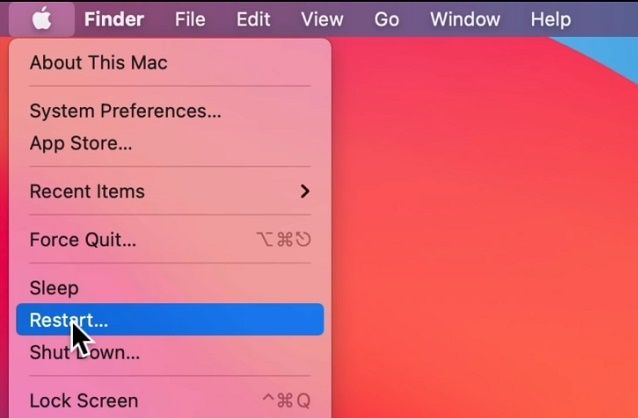
To resolve the issue of the Dock not showing on your Mac, click on the Apple logo at the top left, select "Restart" from the dropdown menu, and then restart your Mac. After it boots up, check if the Dock is visible or not. If it still doesn't appear, there may be an underlying issue that needs to be addressed.
Method 4. Reset Dock
The "killall Dock" method is a way to reset and restart the dock to its factory settings, removing any errors or bugs in the process. To access the Terminal, which is necessary for this method, users need to follow a series of operations. This method can be used to troubleshoot and resolve issues related to the dock.
Step 1. Launch Finder, go to Applications, and locate Utilities.
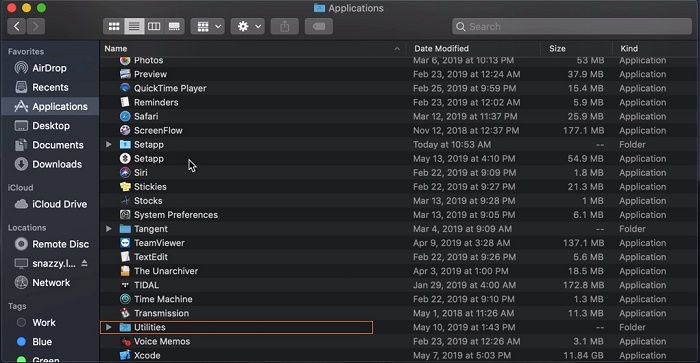
Step 2. To find the Terminal in Utilities, you can use the search bar at the top to locate it easily.
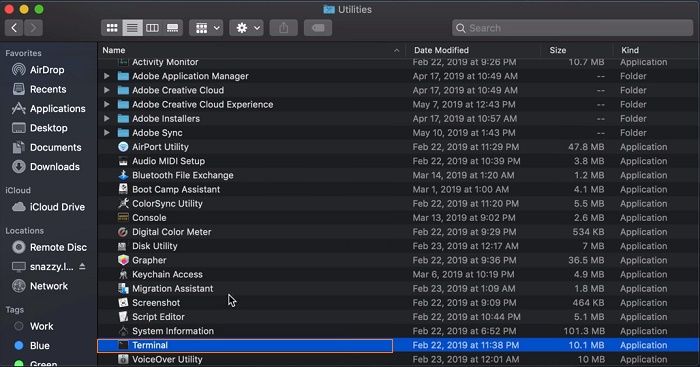
Step 3. To reset the Mac's Dock, type "killall Dock" and press Enter. This will restart the Dock and make it appear again.
Conclusion
The dock on a Mac can sometimes disappear, but most of the time, this issue can be resolved simply by disabling the auto-hide feature. When an application is opened in full screen, the dock automatically hides, but turning this feature off will keep it visible. Additionally, regularly updating your Mac's operating system can also help resolve issues and keep your system running efficiently, as outdated software can cause uncomfortable problems. By taking these simple steps, you can keep your dock visible and enjoy a smooth user experience.
Related Articles
- Fix IE Browser Shuts Down Suddenly in Windows 10/8/7 Error
- How to Update/Reinstall macOS Without Losing Data
- 5 Proven Ways to Fix Zsh Command Not Found Error on macOS [Bash & Zsh]
- (Solved!) How to Backup Gmail Emails with Attachments for Windows 11/10/8/7
- What Is Hyper-V P2V and How to Convert It? [Latest Tips]
Learn how to convert a physical machine to a virtual machine (P2V) using Hyper-V. Step-by-step guide covering Disk2vhd and backup/restore methods for seamless P2V conversion. - What Is Hyper-V Snapshot [Full Explanation]
Hyper-V snapshot is a feature that allows you to capture a virtual machine's state at a specific point in time. Learn how to create, manage, and restore Hyper-V snapshots (checkpoints) for testing and disaster recovery.
Products
Articles & Tutorials
- Data Recovery
- Data Backup
- File Recovery
- File Backup
- System Backup and Restore
- Disk and Partition Clone
- Technical articles
- Mobile articles
- Disk Master Help
- Windows Data Recovery Tutorials
- Windows Secure Delete Tutorials
- Windows Partition Management Tutorials
- Windows File Backup and Restore Tutorials
- Windows System Backup and Restore Tutorials
- Windows Disk Backup and Restore Tutorials
- Windows Clone Tutorials