How to Open Outlook Backup Files in PST Format: Step-by-Step Guide
Outlook has become an essential part of our daily routine, allowing us to check messages, calendars, contacts, and tasks. To backup Outlook emails, the Import/Export Wizard can be used to save data as a PST file on your computer. This is particularly useful if you have set AutoArchive settings, which save data in PST format within Outlook. Having access to these backup PST files can be helpful in various situations, such as when you need to retrieve important information not saved in the primary Outlook file, or for work or personal reasons.
If you're wondering how to open Outlook backup files, don't worry, this post will guide you through the process. We'll show you a step-by-step guide to opening Outlook backup PST files, and also recommend a tool to back up and restore your Outlook faster and easier.
How to Open Outlook Backup File in PST Format
If you want to open the Outlook backup file within Outlook in PST, you must first identify your Microsoft Outlook version because the steps are different.
For New Versions, including Outlook 2013, 2016, and 2019:
Step 1. To start, open desktop Outlook and click the File option located on the top-left corner.
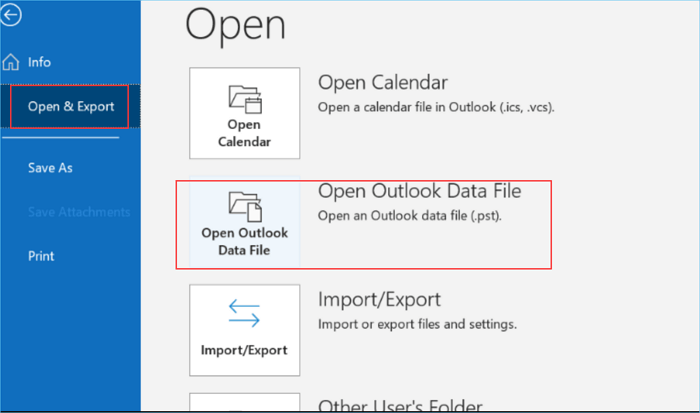
Step 2. Tap Open & Export and choose Open Outlook Data File.
Step 3. To open a (.pst) file, select the desired file and tap the "Open" button located in the bottom-right corner.
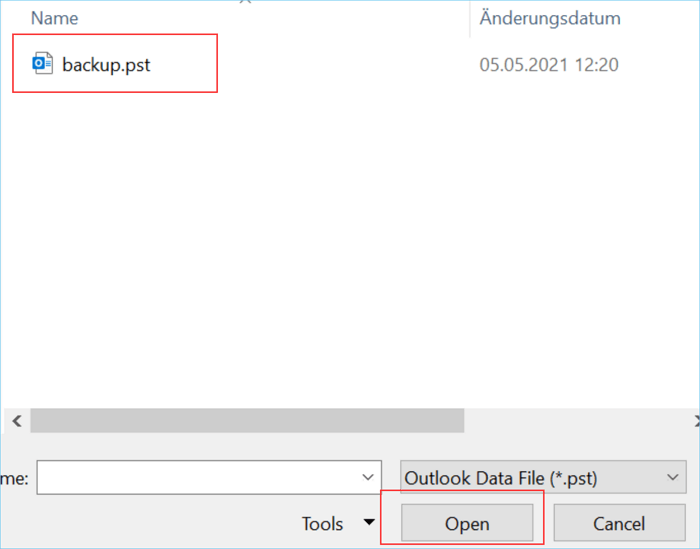
Now, you can see your Outlook backup PST files.
For Outlook 2010 Version:
Step 1. Launch Outlook and click File, then select Account Settings.
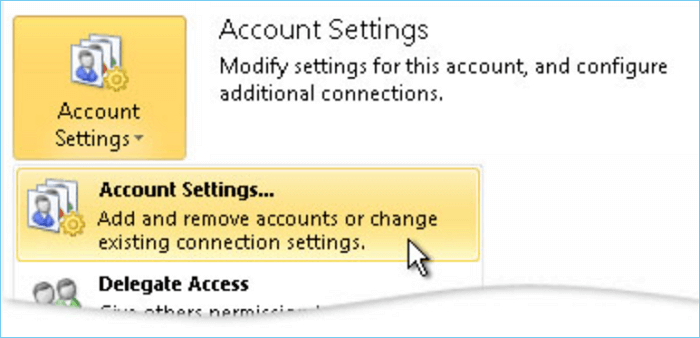
Step 2. Click Add option on the Data Files.
Step 3. Select the PST file you want to view, and then click OK to open it with Outlook.
For Outlook 2007 and Older Version:
2007 versions of Outlook require PST files to be imported and opened, whereas newer versions can directly access them.
Step 1. To open Outlook and import data, click on the "File" tab, then select "Open" and finally choose "Import".
Step 2. In the Import/Export Assistant window, click Next after selecting Import from other programs or files.
Step 3. Choose the Personal folder file(.pst) and click Next.
Step 4. To save an email as a file, go to the File tab, click on Save As, choose the desired location, and select a file type. Then, browse to the desired location, tap OK, and the file will be saved. You can then open the saved file in Outlook.
The article discusses how to back up Outlook emails from the browser-based interface, known as Outlook Web Access (OWA). This process involves using the browser's built-in features or third-party tools to save emails, contacts, and calendar events.
Bonus: Backup and Restore Outlook Quickly with Qiling Backup
Outlook plays a crucial role in daily and office communication, and the longer it's used, the more important information is stored in the mailbox. To avoid wasting time manually backing up the mailbox, a professional backup tool is necessary. Qiling Backup stands out as one of the best backup software options.
Qiling Backup offers automatic backup, scheduling, and incremental/differential backup for Outlook 2010-2019, saving emails, contacts, calendars, and other files to local folders or hard drive.
Besides offering 250 GB of free Cloud storage, this tool allows you to back up your Outlook to the Cloud with just a few simple clicks, making it easy to restore and use your backup when needed.
Here are some features of Qiling Backup to back up Outlook:
- Backup Outlook emails, contacts, calendars, tasks, signatures, etc.
- Allow scheduling backup Outlook information like daily, weekly, and monthly
- You can back up Outlook information to a local folder, external hard drive, NAS, or Cloud storage to ensure your emails, contacts, and calendar events are safely stored and easily recoverable in case of data loss or system crashes.
- Encrypted backup to ensure the safety of your personal privacy
- Support full backup, incremental backup and differential backup
Conclusion
We hope this post has helped you learn how to open Outlook backup files in PST format. For a quick and easy backup and restore process, we recommend using Qiling Backup, a professional software that can save you time and protect important information.
FAQ about How to Open Outlook Backup File
1. How can I open a PST file without Outlook?
You can convert a PST file to a TXT format to view its contents without Outlook, or use a third-party PST viewer to access the file.
2. How do I open a backup file in Outlook 2010?
To open a backup file in Outlook 2010, go to File > Open & Export > Open Outlook Data File > select the .pst file and click Open.
3. How do I open old PST files in Outlook 365?
To open old PST files in Outlook 365, follow the same steps as in Outlook 2010: Open Microsoft Office, go to File, then select Open & Export, choose Open Outlook Data File, select the PST file, and click OK.
4. Can I open PST files in Gmail?
To open PST files in Gmail, first import the PST file to Gmail, then add the PST archive files to Gmail.
Related Articles
- How to Use System Restore in Windows 10
- How to React to Windows 11/10/8/7 Defender Security Warning
- Fixed | Windows 10 Backup Is Disabled? 3 Tricks for Activating Backup
- Upgrade 32 Bit to 64 Bit in Windows 10 Without Losing Data
- Solved: Automated Windows 10 Updates Deleted All My Documents and Files
Find automated Windows 10 updates delete all documents and files? Learn 5 effective solutions to the problem here. You can also avoid data loss by making a backup in advance. - How Do I Backup My Dell Laptop with Windows 10?
In this article, you are going to back up Dell laptop with Windows 10 using Dell Backup and Recovery alternative. Here are 3 alternative backup software, but the last one is the best free.
Products
Articles & Tutorials
- Data Recovery
- Data Backup
- File Recovery
- File Backup
- System Backup and Restore
- Disk and Partition Clone
- Technical articles
- Mobile articles
- Disk Master Help
- Windows Data Recovery Tutorials
- Windows Secure Delete Tutorials
- Windows Partition Management Tutorials
- Windows File Backup and Restore Tutorials
- Windows System Backup and Restore Tutorials
- Windows Disk Backup and Restore Tutorials
- Windows Clone Tutorials