How to Restore When Outlook Favorites Misssing[2022 Guide]
Outlook is a popular email service with various features to streamline users' work. It includes a section called Favorites, situated at the top of the folder pane, which enables users to swiftly access their most frequently used folders, files, websites, and other content.
To add a folder to Favorites, you can either drag and drop it into the Favorites folder or right-click on the folder and select the "Show in Favorites" option.
The Favorites folder in Outlook may be missing due to various reasons such as corrupt user profile, incorrect permissions, or issues with the Outlook installation. To restore the Favorites folder, try creating a new user profile, reset the Outlook settings, or reinstall the software. If the issue persists, consider seeking assistance from the Outlook support team.
This issue can be frustrating, but it's not uncommon. The problem likely occurs due to a combination of factors, and we're here to help you resolve it. Let's explore the reasons behind this issue and find a solution together.
Reasons Why Outlook Favorites Missing
Missing Outlook Favorites can be frustrating, but there are several common reasons for this issue. These include corrupted favorites file, incorrect file path, or missing permissions to access the favorites list.
Outlook favorites may be missing due to an update or upgrade to the Outlook application, which can reset or delete the Favorites folder from View.
If you've recently changed any settings in your email account, your Outlook Favorites may have been affected.
If you have multiple Outlook profiles, your Favorites might be stored in a different profile than the one you're currently using. To check, go to File > Info > Account Settings and ensure you're using the correct profile.
How to Restore Missing Outlook Favorites Back
To recover missing Outlook Favorites, first, check if the Favorites folder is hidden. If it is, unhide it by going to the "Folder" tab, clicking on "View Settings", and selecting "Show all folders". If the Favorites folder is not hidden, try checking the "Favorites" folder in the "Navigation Pane" to see if it's been moved. If it's been moved, move it back to its original location.
Step 1. To access the View tab in Outlook, simply launch the Outlook app and click on the "View" tab located at the top menu.
Step 2. To add a folder to favorites, go to the "View" tab, click on the "Folder Pane" option, and then select "Favorites".
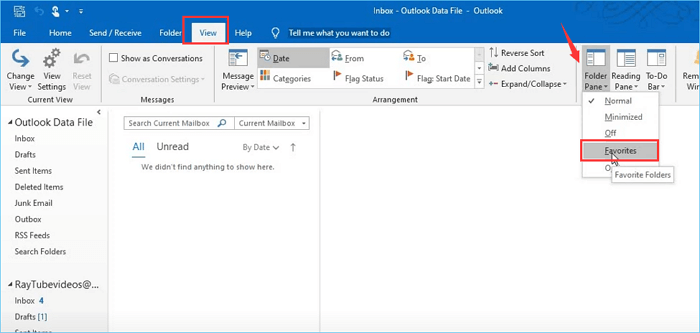
Step 3. Now, you can see the Favorites folder shown in the left column, where all the files you added before are displayed.
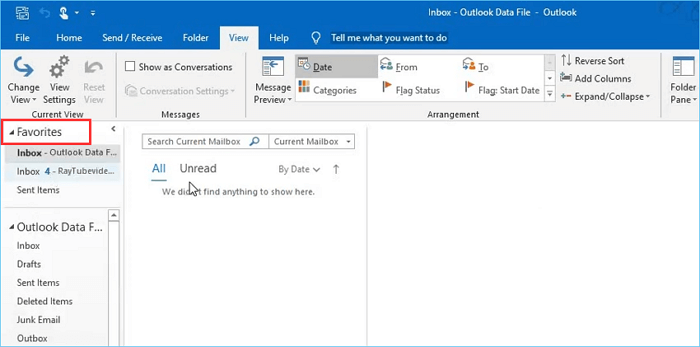
This is a one-Are you having trouble viewing your Favorites bar in Outlook? Don't worry, this solution is here to help! In a minute, you'll learn how to turn on the Favorites folder view in the Outlook application. The issue might arise when you're unable to see your Favorites bar, and this is where this solution comes in. Starting from 0:33, you'll get step-by-step instructions on how to fix this problem and get back to viewing your Favorites bar in Outlook. So, watch and enjoy this short video to get your Favorites bar up and running in no time!
Backup Outlook Favorites Regularly to Avoid Data Missing
To protect the safety of your important Outlook data, it's recommended to make regular backups of the Favorites folder. This way, even if your computer fails or the Outlook application is unavailable, you can still access your backup data.
Using an Outlook backup tool can save time and energy while ensuring data security. Qiling Backup Home is a reliable and professional Outlook backup software that supports scheduling backup and various types of backup, allowing you to back up data to internal hard drives, external hard drives, Cloud service, NAS, and security zone.
Here are the specific features of Qiling Backup:
- Schedule backup: Set automatic backup points at daily, weekly, monthly, or upon-event intervals to save time and ensure data safety.
- Various types of backup: The software supports various backup types, including full, incremental, and differential backups, as well as file, folder, system, disk, and partition backups, allowing users to select the most suitable option based on their needs.
- Outlook Backup: To back up Outlook emails with one click and protect your data from losing, you can use a third-party add-in such as Outlook Backup or Outlook Express Backup. These add-ins allow you to schedule automatic backups of your Outlook emails, contacts, and calendar items with just one click.
- Quick recovery: If the original data is lost or damaged, backups can be used to restore it quickly.
- High security: With Qiling Backup Home, your Outlook backup is secured by a password to safeguard the integrity of your outlook backup images.
- 250 GB of Free Cloud storage: Qiling Backup offers 250 GB of free Cloud storage, allowing users to store outlook backup images and other important data in the Cloud.
Here is the detailed guide to back up Outlook with Qiling Backup.
Step 1. Launch Qiling Backup on your computer, click File Backup on the home screen to start the backup task.

Step 2. To back up your Microsoft Outlook database folder, locate it, select the mailbox addresses you want to make a backup of (mails, contacts, or calendars), and click "OK".

Step 3. To choose a location to save the Outlook backup, click the illustrated area. This will open a file explorer window where you can select a location on your computer to save the backup file.

Step 4. The backup location can be another local drive on your computer, an external hard drive, network, cloud, or NAS. It's generally recommended to use an external physical drive or cloud to preserve the backup files.

Step 5. Settings like automatic backup schedule, differential and incremental backup are available in the options button. Click Proceed, and the Outlook backup process will begin, displaying the completed task on the left side in a card style.

Conclusion
If you're experiencing issues with Outlook Favorites disappearing, don't worry, you're not alone. Many users have reported this problem, and it's usually due to a simple solution. To restore your missing Outlook Favorites, try checking the "Favorites" folder in the Navigation Pane, as it may have been moved or hidden.
Outlook Favorites play a crucial role in our daily work and life, and losing them can cause significant inconvenience. To avoid data loss, it's essential to be more mindful when using Outlook and make regular backups of our favorites. Fortunately, tools like Qiling Backup Home can assist with this process, offering a simple and secure way to back up and restore our Outlook favorites when needed.
FAQ on Outlook Favorites Missing
1. Why do my Outlook favorites disappear?
Outlook Favorites may disappear due to several reasons, with the most common being an update or upgrade to the Outlook application, which can turn off the Favorites feature.
2. How do I restore my favorites in Outlook 365?
To restore Favorites in Outlook 365, open Outlook, go to View, click on Folder Pan, and select Favorites. This will make Favorites visible again.
3. Where is the Favorites folder in Outlook?
To access the Favorites folder in Outlook, open the Folder Pane and find it in the side panel. This feature allows you to add, delete, and rearrange files and folders from the Inbox and Sent Items, and can be used to quickly access frequently used folders. Note that removing a folder from Favorites does not delete it, but rather moves it back to its original location, whereas deleting it would permanently remove the folder.
Related Articles
- Elden Ring Backup Tips: How to Back Up Elden Ring Save Data
- Try the Best Alternative of Norton Ghost Windows 11!
- 3 Fixes to Completely Remove 0x0 0x0 Error for Windows 11/10/7
- 2022 Fix: Windows 11 Cumulative Update Failed to Download and Install
- How Long Does It Take to Back Up a Laptop With About 500GB of Files?
Find out how long it takes to back up a laptop with about 500GB of files and what affects backup speed and storage choice. - How Often Does Windows Back Up the Registry Automatically?
Have you ever wondered how often does Windows back up the Registry automatically? Does it have anything to do with Windows restore points? Read this post from Qiling to learn the answer to this question and more details about the Registry.
Products
Articles & Tutorials
- Data Recovery
- Data Backup
- File Recovery
- File Backup
- System Backup and Restore
- Disk and Partition Clone
- Technical articles
- Mobile articles
- Disk Master Help
- Windows Data Recovery Tutorials
- Windows Secure Delete Tutorials
- Windows Partition Management Tutorials
- Windows File Backup and Restore Tutorials
- Windows System Backup and Restore Tutorials
- Windows Disk Backup and Restore Tutorials
- Windows Clone Tutorials