(2022) SD Card Backup and Restore on Android, PC and Raspberry Pi
SD cards, despite their reliability, can become corrupted due to various factors such as physical damage, software errors, human error, or other unforeseen circumstances. This corruption can result in the loss of access to all the data stored on the card.
Fortunately, there are ways to back up and restore SD cards so that you can recover your data if something goes wrong. On Android, PC, and Raspberry Pi, you can back up and restore an SD card, allowing you to recover your data in case of an issue.
Ⅰ. What Is SD Card? Three Types of SD Cards You Should Know
SD cards are small, portable storage devices used in digital cameras, camcorders, and smartphones. They are a category of memory card for storing data, with three sub-types: SD, SDHC, and SDXC, all commonly referred to as SD cards.
Here's a quick rundown of the different types of memory cards: Memory cards come in three main types: SD, CF, and XQD. SD cards are the most common and are used in cameras, smartphones, and other devices. CF cards are larger and faster, often used in high-end cameras and professional equipment.
- Secure Digital (SD) cards come in three sizes: Standard SD (32mm x 24mm), Mini SD (21.5mm x 20mm), and Micro SD (15mm x 11mm). They are commonly used in digital cameras (Standard SD), smartphones, and other portable devices (Mini SD and Micro SD), with the latter previously known as TF cards.
- SDHC cards are similar to standard SD cards but have a higher capacity (4GB to 32GB), typically used in digital cameras and camcorders.
- SDXC cards are the highest capacity SD cards, ranging from 64GB to 2TB, and are commonly used in high-end digital cameras and camcorders.
The main types of memory cards are SD cards, SDHC cards, and SDXC cards. These cards differ in their storage capacity and speed, with SD cards having a maximum capacity of 2GB, SDHC cards up to 32GB, and SDXC cards up to 2TB.
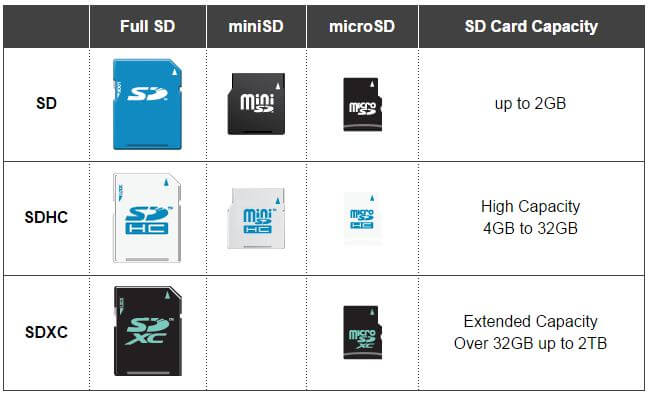
Besides the three types, you may have heard of SDUC cards, which are designed to cover cards ranging from 2TB up to 128TB, but are not yet widely used.
Ⅱ. SD Card Application and Trends in 2022
Although newer devices are increasingly using other types of storage, such as microSDXC, there are still a few devices that rely on SD cards.
- Digital cameras often use SD cards to store photos and videos, although some newer models are starting to adopt microSDXC as an alternative.
- Camcorders often use SD cards to store video footage for filmmaking or vlogs, although some newer models are starting to move away from them.
- Some high-end Android smartphones still use SD cards for expandable storage, but most newer smartphones, like iPhones, do not have this feature, with nearly 70% of digital media consumption happening on mobile devices.
- Gaming consoles like the Nintendo Switch and Steam Deck use SD cards to store large game downloads, patches, and updates, ensuring smooth gaming performance by keeping the console's memory free from clutter.
- Virtual reality headsets, such as the Oculus Rift and HTC Vive, use SD cards to store VR content, which can generate around 1TB of data per hour of interactive use.
- Dash cams use SD cards to store video footage of car journeys as vehicles don't have built-in memory to store the recorded footage.
- Drones rely on advanced SD cards from brands like Samsung, SanDisk, Delkin, or Lexar to ensure robust storage solutions for data collection while flying high in the air.
The demand for SD cards is expected to rise in 2022 due to the ongoing COVID-19 pandemic, as people develop hobbies that heavily rely on memory card storage, such as photography, vlogging, gaming, and VR traveling.
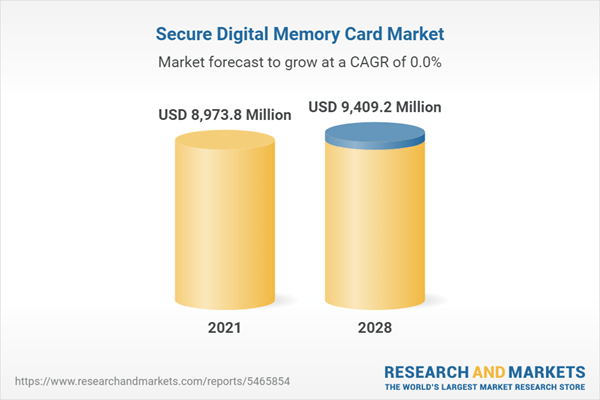
The global Secure Digital (SD) memory card market is expected to grow from $4.7 billion in 2022 to $6.5 billion in 2028, at a compound annual growth rate (CAGR) of 5.2%.
Ⅲ. Now, You Got 100 Reasons to Back Up SD Card
The SD card is a widely used component in digital products, and its market share continues to grow. To ensure its optimal performance and longevity, it's essential to master the basic skills of making backups and maintaining a healthy state of your SD card.
SD card backup is a precautionary measure that deserves attention, and a backup is essential when something goes wrong with your SD card and needs to be repaired. Most of the time, we use formatting to repair a corrupted or damaged SD card, which involves reconfiguring the SD card for initial use and erasing all data on it.
Formatting an SD card can resolve compatibility issues when it's not recognized by Android, a PC, or other devices due to problems with the file system, such as FAT32, exFAT, or NTFS.
LEARN MORE
Formatting an SD card can resolve issues such as corrupted files, but it will completely erase all data on the card, making it crucial to back up the SD card before proceeding.
Ⅳ. How Do You Back up SD Card?
When backing up data from an SD card, it's common to copy the files to another storage location, which can be another SD card, a larger USB flash drive, an external hard drive, a computer, or a cloud app/drive. Any available spare storage can serve as a backup destination.
Here are the ways to make SD card backup happen:
- Manual copy and paste
- Upload to cloud
- Transfer SD card data to computer
- Create a backup image
- Clone SD card
To back up SD card photos and videos, you can use various methods, some of which require a computer while others can be done directly on your Android smartphone. A complete guide on how to do this with or without a computer is available, covering all possible implementations.
Ⅴ. How to Back Up SD Card on a Computer
To make a worry-free SD backup, you can remove the SD card and connect it to a computer, then select from various methods to save a copy to your preferred location.
What you need:
1. Insert an SD card into your PC by plugging it into the proper card slot, which is usually located on the PC's console or via a memory card adapter attached to a USB port.
2. To check the SD card connection, simply insert it into your computer and Windows should automatically recognize and mount it, allowing you to browse its contents through Windows File Explorer.
- Advantages: Copying source files without changing their date, size, or properties is a zero-cost operation.
- Disadvantages: The command line interface is not suitable for copying large files, as it can be time-consuming and may not work for system files. Additionally, it cannot paste copied files to a network drive or cloud.
- Backup Security level: Low
The manual method of copying and pasting SD card files on a computer is suitable for smaller SD cards (2GB-8GB), but becomes too elementary for larger SD cards (over 16GB) with massive data.
Step 1. To select all files on an SD card, you can use the following shortcut keys: Ctrl+A. This will select all files and folders on the SD card. You can also use the mouse to select files by clicking on them, or use the Shift key to select multiple files.
- To back up specific files, hold the Ctrl key and click on the files you want to save. This will select them individually, allowing you to choose which files to include in the backup.
- To select all files on the SD card, press Ctrl + A on your keyboard. This will highlight all files and folders on the card, allowing you to perform actions on them collectively.
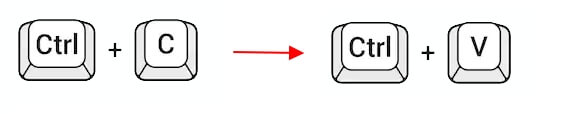
Step 2. If you're saving a copy to a local drive on your PC or another removable storage drive, create a new folder on that drive, such as "backup", and then copy and paste the file into it using Ctrl + C and Ctrl + V.
- Advantages: Backup accessible on multiple devices after login
- Disadvantages: 5GB storage is free
- Backup Security level: Medium to High
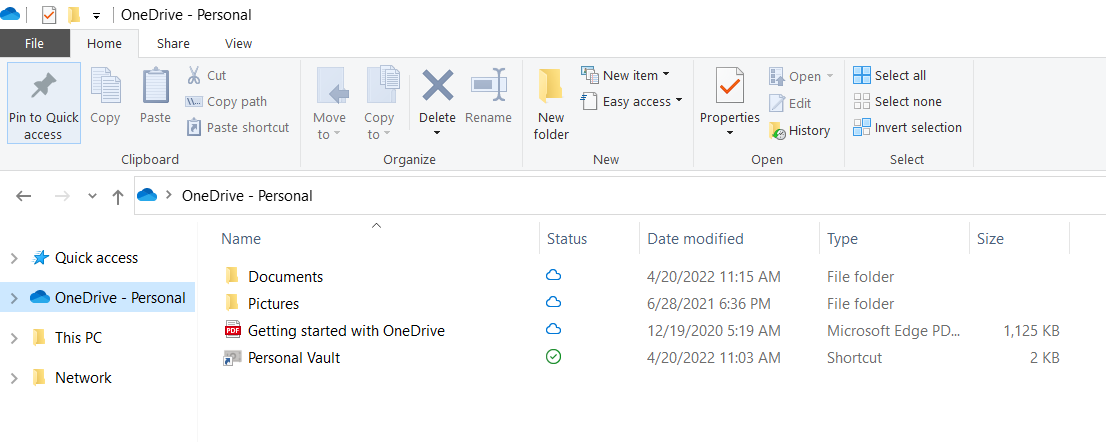
On a Windows computer, a OneDrive folder is created above the "This PC" folder, which is a cloud storage service that connects you to all your files. It allows you to store and protect your files, share them with friends, and access backup files from anywhere on all your devices. This makes it an excellent place to back up large files like photos and videos.
Step 1. To use OneDrive for the first time, you'll need to register, log in, and complete the setup process using the on-screen guide.
Step 2. The backup process involves copying and pasting SD files to the OneDrive folder, which can be done by selecting the files, copying and pasting them (or using drag and drop), and placing them in the designated folder. This completes the backup process.
- Advantages: free; save disk space; backup on a schedule
- Disadvantages: require downloading backup software
- Backup Security level: Very high
To make option 3 effective, you need to download a Windows backup and recovery software. This software allows you to create a backup image of your SD card content, saving it as a single file with a specific format, such as ISO or VHD. Unlike traditional copy and paste methods or cloud synchronization, creating a backup image requires specialized software to both create and restore the backup.
Qiling Backup is the most user-friendly and powerful software for all kinds of backups, and it allows connection to cloud accounts like Google Drive, OneDrive, and Dropbox. Its free cloud storage offer is also more generous than those third-party services, providing 250GB of free space, making it the best Windows backup software for SD cards.
Step 1. To start the process, select the Disk backup button in the "Backup and recovery" page.

Step 2. It is available to back up a whole disk or a certain partition. Choose the one you need and click OK.

Step 3. Select the destination where you want to save the backup.

Step 4. For disk/partition backup, you can save the backup to either a local drive or a network-attached storage (NAS) device.

Step 5. After the backup process is completed, your task will be displayed at the left. You can further manage your backup by clicking on it, which allows you to recover it, create incremental backups, and more.

LEARN MORE
The top 5 best SD card backup software on the market include Qiling Backup, which stands out as the best for its handy, multifunctional, and reliable solution to SD card backup and restore.
- Advantages: To make an identical copy of the original SD card and back up a corrupted SD card, you can use a card reader and a computer. First, insert the original SD card into the card reader.
- Disadvantages: Paid software starts at $19.90 per month
- Backup Security level: Very high
Cloning is widely accepted as the most effective way to replace a hard drive without moving data or reinstalling the operating system. However, it can also be used to make a backup, especially when trying to recover data from a problematic hard drive. This method can be particularly useful when replacing an SD card, such as in a camera or smartphone, by cloning the old card to a new one for an instant backup and recovery purpose. Qiling Disk Copy is highly recommended for cloning a variety of storage drives.
To activate Qiling Disk Copy, simply run the software and follow the on-screen instructions. The activation process is designed to be user-friendly and straightforward, allowing you to easily set up the software for a successful disk copying or cloning process.
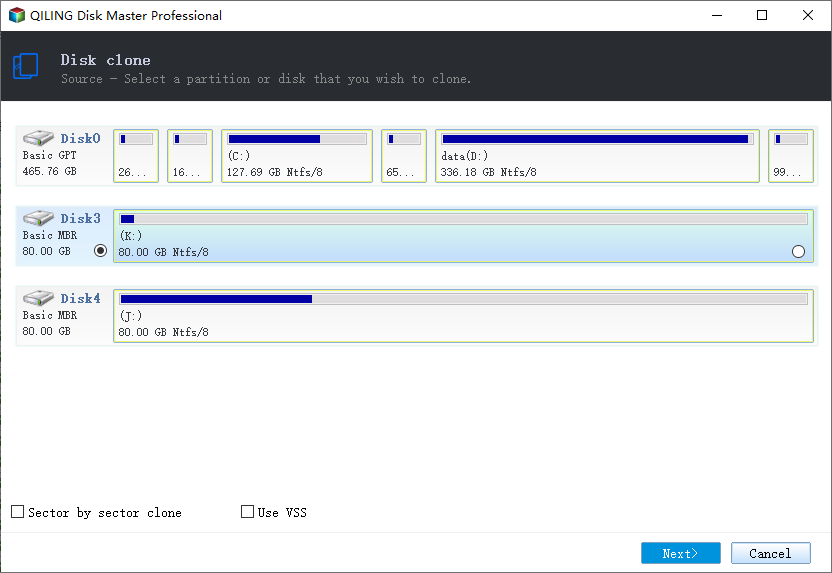
1. Download, install and run Qiling Disk Copy on your PC.
To initiate the disk cloning process, first click on the "Disk Mode" option and then select the source disk that contains the data you want to copy or clone. Once the source disk is selected, click the "Next" button to proceed with the cloning operation.
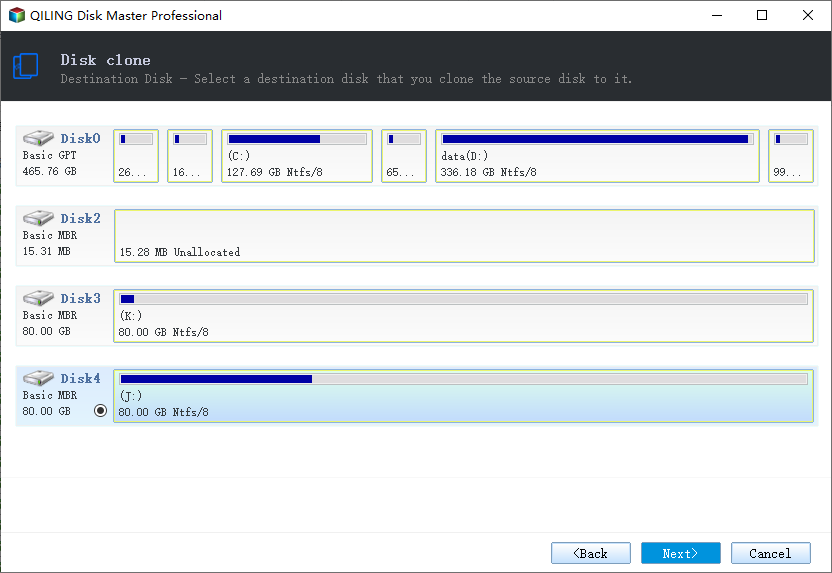
2. Select the destination disk where you want to clone/copy the old disk and click Next to proceed.
Click OK to confirm if the program asks to erase data on the destination disk.
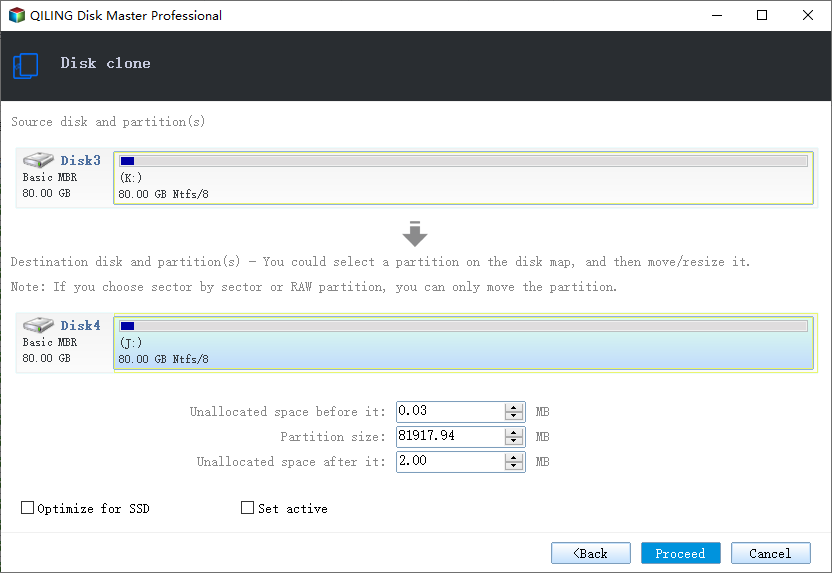
3. To optimize the disk layout, select the "Autofit" option, which will automatically adjust the disk to fit the available space. Alternatively, you can choose to "Copy" the disk layout from a source disk, or manually "Edit" the disk layout to customize it to your needs.
Autofit the disk is recommended.
- Copy as the source option will copy the same layout of partitions on your source disk to the destination disk.
- Edit disk layout allows you to manually resize or move partition layout on the destination disk, giving you more control over the final disk configuration.
- If your destination disk is an SSD drive, be sure to select the "Check the option if the target is SSD" option.
Click Proceed to initiate the disk cloning or copying process immediately.
Ⅵ. How to Back up SD Card on Android Without Computer
With the rise of mobile technology, people are spending more time on their mobile phones and tablets, less on PCs and laptops. This shift has also led to a need for backing up Android SD cards directly on the device, without needing a computer. Fortunately, there are three accessible solutions available for this purpose, allowing users to back up their data without needing a computer.
- Advantages: Make an identical copy of the original SD card and back up a corrupted SD card.
- Disadvantages: Paid software starts at $19.90 per month
- Backup Security level: Very high
To back up SD card photos and videos on Android without a computer, download a cloud app from Google Play, such as Dropbox, pCloud, or Microsoft OneDrive, or use a native cloud service offered by your phone's manufacturer, like Samsung cloud.
Here is how to back up an SD card to Google Photos:
Step 1. Open the Google Photos app on your Android device.
Step 2. To access the menu, tap the three horizontal lines at the top left of the screen.
Step 3. Select "Settings > Back up & sync". If it's not enabled, turn it on.
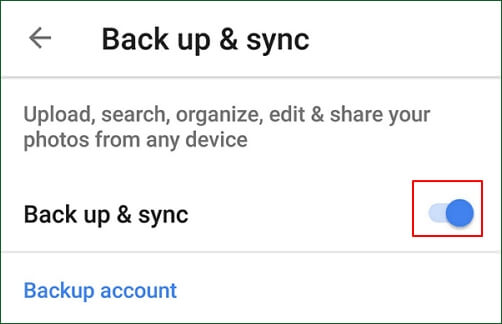
Step 4. Select the SD card photo folder like DICM you want to back up, then wait for the backup process to complete.
LEARN MORE
Google offers two apps to upload and back up SD card photos: Google Photos and Google Drive, which can provide additional free storage space.
- Advantages: No need for a computer or laptop, this device allows direct backup of an SD card on an Android phone, can back up multiple SD cards at the same time, and can wirelessly stream media content from an external drive to an Android phone.
- Disadvantages: A little bit expensive compared with other methods ($39.99)
- Backup Security Level: Medium to High
The FileHub from Ravpower is an external storage device that allows multiple devices to be connected simultaneously, enabling file transfers between them. It is designed for data backup, content sharing, and streaming between SD cards, USB drives, HDDs, and mobile phones.
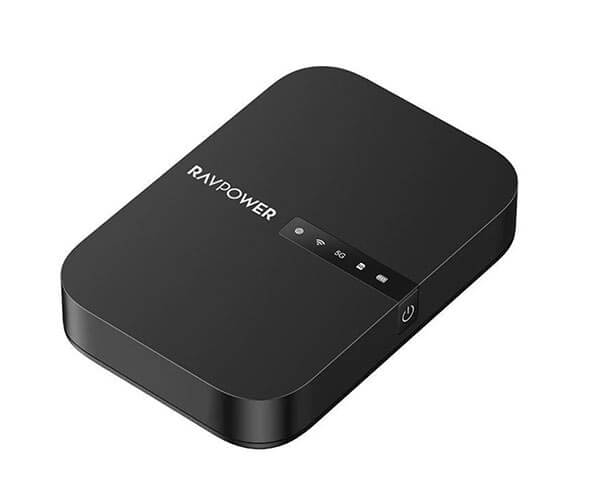
FileHub is a device that allows you to back up your SD card without needing a computer. To use it, simply insert your SD card into the FileHub, and it will automatically detect and read the contents of the card.
Step 1. Connect your SD card to the FileHub via the USB port.
Step 2. Connect your Android phone to FileHub via Wi-Fi.
Step 3. To backup files, find the files you want to save in the FileHub app and copy them to your phone.
LEARN MORE
The purpose of SD card backup devices is to create a backup copy of memory cards, allowing users to create a full copy of the contents on a computer or other storage location. This makes the top five SD card backup devices worth considering, as they provide a reliable and efficient way to safeguard valuable data.
Ⅶ. How to Back up a Raspberry Pi SD Card in Windows
The Raspberry Pi is a small, affordable computer that can be used for programming, electronics projects, and IoT device creation, and requires an SD card to function.
The Raspberry Pi SD card is a small memory card that stores the operating system and software for the Raspberry Pi. Due to its small size, it's easy to lose. To prevent data loss, it's a good idea to regularly back up the SD card after customizing the OS and installing software. This backup serves as a quick restore point in case something goes wrong with your Raspberry Pi, allowing you to restore the system to its previous state.
To backup the Raspberry Pi SD card on Windows 11/10/8.1/7, follow these simple steps. Firstly, you need to download and install the Win32DiskImager software from the official website.
Step 1. To backup the Raspberry Pi SD card on Windows, you need to use the Win32 Disk Imager software, which you can download and install to prepare for the backup process.
Step 2. Remove the SD card from the Raspberry Pi, insert it into a card reader, plug it into your PC, and open Win32 Disk Imager to proceed.
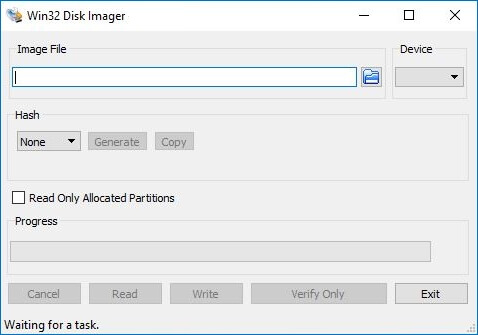
Step 3. To create an image file, navigate to the desired drive and folder, then enter the desired file name in the File name box, such as "Raspberrypi_backup.img", or directly enter the file path in the Image File section, like "x:/Raspberrypi_backup.img", where "x" is the drive letter. Click "Read" to begin the imaging process.
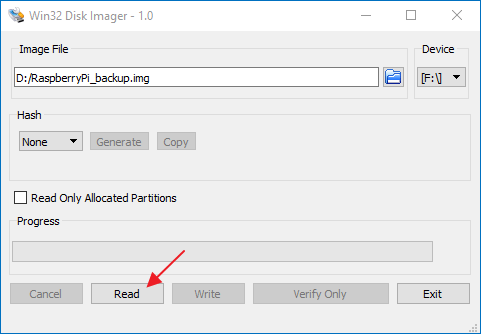
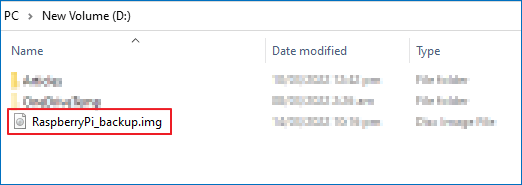
Step 4. Once completed, the Raspberry Pi SD card will be written to an image file named "Raspberrypi_backup.img" in the specified backup location.
LEARN MORE
To backup SD card for Raspberry Pi, you can use tools like Win32DiskImager, Etcher, or Raspberry Pi Imager on Windows, Linux, or Mac. These tools allow you to clone the SD card's contents to another device, creating a backup of your Raspberry Pi's operating system and data. Simply insert the SD card into your computer, launch the chosen tool, and follow the on-screen instructions to create a backup.
Ⅷ. Conclusion of SD Card Backup
To summarize, uploading SD card files to the cloud is the shared solution with or without a computer, and choosing a reliable cloud service is key. You can opt for a free or paid service, but Qiling cloud backup software stands out with 250GB of free cloud storage, making it the best value for free users.
Cloning an SD card is a method of copying the entire contents of an SD card, including files and structures, to another SD card, which is useful for backing up and restoring data in case of corruption or loss.
When you have multiple SD cards to back up, such as those from a digital camera or game console, a physical SD card backup device can be used. The FileHub from RavPower is recommended for this purpose.
Related Articles
- [July 2022] Complete Guide on How to Back Up Computer (Windows & Mac)
- (2022) An Ultimate Guide to Backup Hard Drive and Restore Your Computer
- System & Files | Backup Windows 10 PC with Backup and Restore Tool
- 2022 Ultimate Guide: How to Factory Reset PC
- What Do I Need to Backup Before Upgrading to Windows 10?
What do I need to back up before upgrading to Windows 10? Do you want to know the answer? This article will describe what you need to back up before upgrading to Windows 10. - What Is the Easiest Way to Save Backup Files to Two or More External Hard Drives at the Same Time
To ensure the security of important data, it is a good way to save its backup to multiple hard disks. So what is the easiest way to save backup files to two or more external hard drives at the same time? You can find the answer in this short post.
Products
Articles & Tutorials
- Data Recovery
- Data Backup
- File Recovery
- File Backup
- System Backup and Restore
- Disk and Partition Clone
- Technical articles
- Mobile articles
- Disk Master Help
- Windows Data Recovery Tutorials
- Windows Secure Delete Tutorials
- Windows Partition Management Tutorials
- Windows File Backup and Restore Tutorials
- Windows System Backup and Restore Tutorials
- Windows Disk Backup and Restore Tutorials
- Windows Clone Tutorials