Suggestions for SD Card Backup Devices [Hot in 2022]
SD cards are important storage devices that help save various digital files, making them essential for videographers and photographers who need to extend their camera's storage capacity.
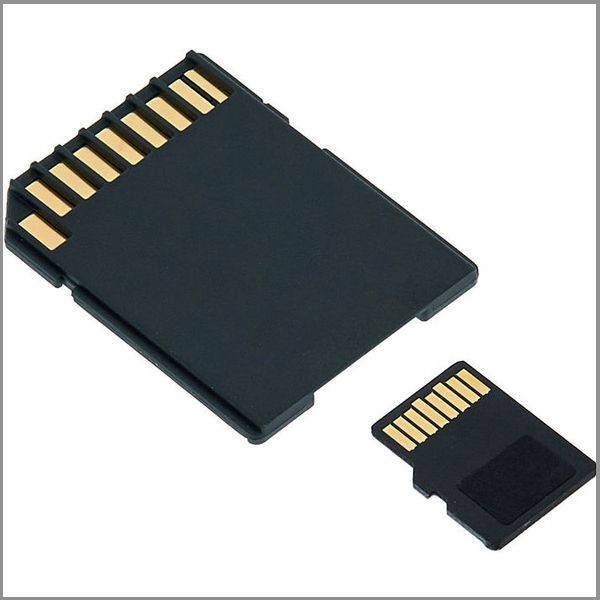
There are various ways to back up SD card data and prevent data loss in case of damage or corruption. Different types of SD cards exist, and choosing the right device depends on several factors. In 2022, the top five backup devices are currently popular, but an alternative software option, Qiling Backup Free, can also be used to back up SD card data.
Why Do You Need an SD Card Backup Device
An SD card backup device is useful for securing your data in case of data loss, ensuring you can still access important files like documents, music, videos, and pictures even if your SD card becomes corrupted or damaged, or if you accidentally delete files.
A backup device is essential in situations where data loss is a concern, freeing you from worrying about lost files. Additionally, an SD card backup device is useful in freeing up space on your SD card if it's almost full, allowing you to store more files by moving data to the backup device. This creates space on your SD card for further file storage.
The Different Types of SD Card Backup Devices Available
SD cards come in various types, including different sizes, compatibility options, and speed levels. These types include various sizes, compatibility options, and speed levels. They are categorized based on size, compatibility, and speed.
1. Secure Digital (SD) Card
The original memory card type, measuring 32mm by 24mm by 2.1 mm, has a maximum storage capacity of 4GB and a transfer speed of 10mbps.
2. Secure Digital High Capacity (SDHC) Card
The SD card has been refined to support high-resolution video recording and image editing, with faster transfer speeds and more storage space (32Gb) than a basic SD card.
3. Secure Digital Extended Capacity (SDXC) Card
SDXC cards offer larger storage capacities than SDHC cards, making them more efficient for photographers and gamers, with storage ranges from 64GB to 2TB.
4. Micro SD Card
A Micro SD card is a compact version of the SD card, offering similar features but in a smaller size, making it highly portable. It can store up to 16GB of data and has a transfer speed of 8mbps.
5. Micro SDHC Card
The memory card is a modified version of Micro SD, designed to address the insufficient space offered by the latter. It can hold up to 32GB of data, making it suitable for primary smartphone users, and also allows for a data transfer speed of 10mbps.
6. Micro SDXC Card
The Micro SD cards offer a large storage capacity of 32GB to 2TB, eliminating the need to delete files or empty the card to make space for extra files.
7. Compact Flash Card
A compact flash card is a type of memory card that is larger than SD cards and has a higher storage capacity, allowing for fast file transfer speeds.
How to Choose the Right SD Card Backup Device for You
When looking for an SD card backup device, consider its performance speed, as data transfer speed is crucial in saving time spent copying files. Compact flash cards have the fastest transfer speed, while SD cards have the slowest.
When choosing an SD card, consider its storage capacity to ensure you have enough space for your files. Additionally, think about the card size, with micro SD cards being the smallest, SD cards average, and compact flash cards being the largest.
The Top Five SD Card Backup Devices Available in 2022
The top five SD card backup devices available on Amazon offer varying levels of performance, functions, and price. While many options exist in the market, not all provide the best experience, making it essential to compare them based on these key factors. A chart can be used to outline the differences between these devices, helping to identify the best option for your needs.
| Device Name | Price | Functions | Performance | Amazon Link |
|---|---|---|---|---|
| Seagate Portable 2TB External Hard Drive Portable HDD | $90.93 |
|
20 Mbps | Link |
| WD 2TB Elements Portable External Hard Drive HDD | $48.95-$119.09 depending on the storage size |
|
Fast data transfer | Link |
| Toshiba Canvio Basics 2TB Portable External Hard Drive | $46.99-$96.69 depending on the storage size |
|
Not mentioned | Link |
| Crucial MX500 1TB NAND SATA 2.5 Inch Internal SSD | $46.99-$343.99 depending on storage size |
|
The USB drive has a read speed of 560 Mbps and a write speed of 510 Mbps. | Link |
| The Seagate Game Drive for PS4 Systems 2TB External Hard Drive is a portable and compact storage solution designed specifically for the PlayStation 4. With a capacity of 2TB, this external hard drive allows users to expand their PS4's storage capacity, making it ideal for gamers who have accumulated a large game library. | $79.39 |
|
Not mentioned | Link |
Recommended SD Card Backup Software- Qiling Backup Free
The devices listed in the chart are all physical SD card backup techniques, which can be inconvenient to carry due to the risk of damage or theft. For a free software solution to back up SD card data and files, Qiling Backup is the best option.
Qiling Backup Free allows you to save backups to NAS, Cloud, and local drives, with a flexible, secure, and cost-effective cloud backup service that includes 250GB of free cloud storage per user.
- Simple backup management
- Bootable backup and recovery
- Backup scheduling
- Password-protected backups
- Multi-path backup storage
See also:
Download the free version of Qiling Backup Free today for easy and convenient SD card data backup.
Step 1. Click "Disk backup" to start the process of backing up the contents of a disk or partition.

Step 2. It is available to back up a whole disk or a certain partition. Choose the one you need.

Step 3. Select the destination where you want to save the backup.

Step 4. For disk/partition backup, you can save the backup to either a local drive or a Network-Attached Storage (NAS) device.

Step 5. After completing the backup process, the task will be displayed on the left side. You can manage the backup by clicking on any task, which allows you to recover it, create an incremental backup, and more.

FAQs About SD Card Backup Devices
How Long Will Data Last on SD Card?
An SD card isn't a long-An SD card can store data for a long period of time, typically up to 10 years, under normal conditions, but it's essential to back up your data regularly to ensure its safety and integrity.
Why Do SD Cards Lose Data?
An SD card may lose data due to user or card errors. User errors occur when mishandling the card, such as ejecting it before the writing process is complete.
How Do I Check My SD Card for Errors?
You can use Windows built-in check your SD card for errors, navigate to Windows File Explorer, right-click on your SD card drive, and select "Properties". Then, click on the "Tools" tab and select "Check Now" to scan for any errors on your SD card. This will help identify and potentially fix any issues with your SD card.
How Does SD Card Store Data?
SD cards store data using NAND chips, which enable reading and writing of data on the card.
Why Did My SD Card Suddenly Stop Working?
If your SD card stops working due to a loose port connection, try reinserting it into your device. Alternatively, turn off your phone, remove the SD card, wait for a bit, and then reinsert it. This should resolve the issue.
Related Articles
- Expert Picks: Best Virus Protection for PC 2022 (Free & Paid)
- How to Sync Desktop to OneDrive Automatically
- How Long Does It Take Google Drive to Process a Video
- How to Migrate Windows 11 to New Computer
- Free Download USB Image Tool on Windows 10/11
Discover the best free USB image tool for Windows 10/11 to create disk images, backup and restore USB drives easily. Compare top 5 USB imaging tools with step-by-step tutorials. - Is Vimm's Lair A Safe Site to Download Games?
Learn whether Vimm's Lair is safe, what risks ROM download sites may have, and how to protect your device before downloading files.
Products
Articles & Tutorials
- Data Recovery
- Data Backup
- File Recovery
- File Backup
- System Backup and Restore
- Disk and Partition Clone
- Technical articles
- Mobile articles
- Disk Master Help
- Windows Data Recovery Tutorials
- Windows Secure Delete Tutorials
- Windows Partition Management Tutorials
- Windows File Backup and Restore Tutorials
- Windows System Backup and Restore Tutorials
- Windows Disk Backup and Restore Tutorials
- Windows Clone Tutorials