How to Transfer Files from Mega to Dropbox
| Workable Solutions | Step-by-step Troubleshooting |
|---|---|
| Option 1. Transfer via Download and Upload | Step 1: Sign in to MEGA via your computer browser. Step 2: Right-click on the MEGA file that you wish to transfer...Full steps |
| Option 2. Transfer via Cloud Transfer Tool | Step 1: Log in to the cloud transfer tool using your credentials. Some offer one-time services, while others require...Full steps |
| Extra Tip: Transfer Files between PCs without Cloud Service | Step 1. Open Qiling Disk Master on both of your computers. Choose "PC to PC" to go to the next step...Full steps |
Data security is crucial, whether personal or professional, and involves saving and preserving data in various forms and spaces, including hard drives, USB drives, and clouds. Cloud storage has become increasingly popular due to its speed and convenience, with platforms like Mega, Dropbox, OneDrive, and Google Drive available. However, the challenge remains of transferring data between different cloud platforms, specifically between Mega and Dropbox.
Why Migrate Files From Mega to Another Cloud?
Improve Communication and Collaboration
To improve communication with your team, consider transferring your MEGA files to Dropbox. Dropbox is more effective at organizing and sharing files, especially for MS Office and Google Documents, which are commonly used for collaborative work. This allows team members to work on either a Google Doc or a Word document, making it easier to collaborate and share information.
Cloud-based File Management
MEGA and Dropbox have their pros and cons, but storage is the key difference. MEGA offers 20 GB of free storage with top-notch privacy, while Dropbox provides 2 GB of free storage with excellent team collaboration features. This makes MEGA a better choice for personal data and MEGA for work and professional data.
How to Transfer Files from MEGA to Dropbox?
Cloud storage is a widely used technology globally, with top providers offering various options for free and paid users. The advancements made by leading cloud storage companies have encouraged customers to switch from one service to another, making it essential to have a smooth transfer process. Two main options are available to complete this transfer.
Option 1. Transfer Files from MEGA to Dropbox via Download and Upload
Transferring data from one cloud service to another can be done through the traditional method of downloading all files from one cloud and re-uploading them to the other, but this process is lengthy and time-consuming, especially for users with large quantities of data. To transfer files from MEGA to Dropbox, for example, you can follow a step-by-step guide that involves downloading all files from MEGA and then uploading them to Dropbox. This method may not be ideal for users with enormous data quantities, but it can be a viable option for those with smaller amounts of data.
Step 1: Sign in to MEGA via your computer browser.
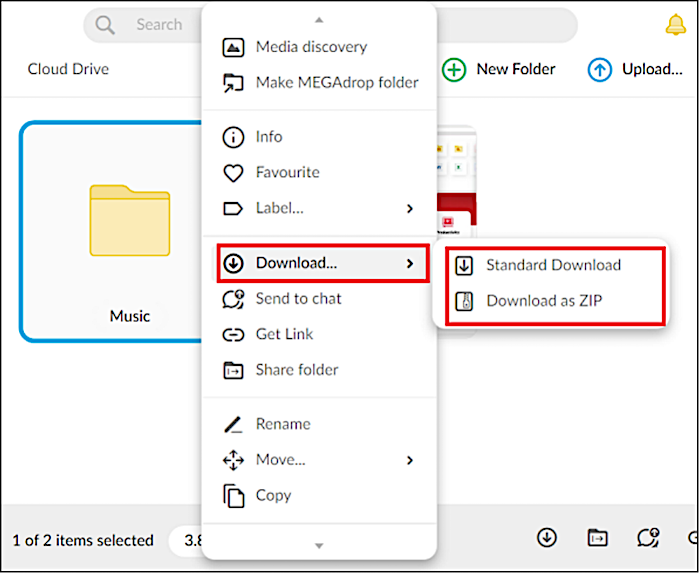
Step 2: Right-click on the MEGA file you want to transfer, and select "Standard Download" or "Download as ZIP" from the drop-down menu.
Step 3: Go to Dropbox and log in using your credentials.
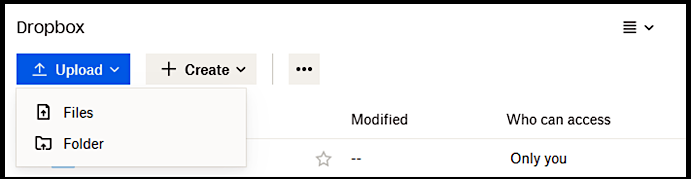
Step 4: Click "Upload" and navigate to the data, folders, and files on your computer, or drag and drop previously downloaded folders or files from the computer to the Dropbox interface.
Option 2. Migrate File from MEGA to Another Drive through Cloud Transfer Tool
With cloud transfer tools, you can directly transfer, sync, or backup files from MEGA to other clouds using a single interface, eliminating the need for downloading and uploading. These tools, such as CloudFuze or MultCloud, provide a file transfer solution that allows you to choose which files and folders to transfer, and select the destination folder in another cloud storage service, making it easier to manage your files and reorganize them in the process. This simplifies the process of sharing your data and keeps your files well-organized.
To transfer files from MEGA to Dropbox, you can use the MultCloud cloud transfer tool, which provides a general step-by-step guide for the process.
Step 1: To access the cloud transfer tool, simply log in using your credentials. Some services may only require one-time access, while others may need ongoing information.
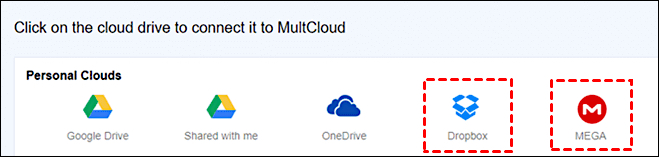
Step 2: Connect your Dropbox account to the cloud transfer tool by adding it from the menu.
Step 3: Open the Cloud transfer window.
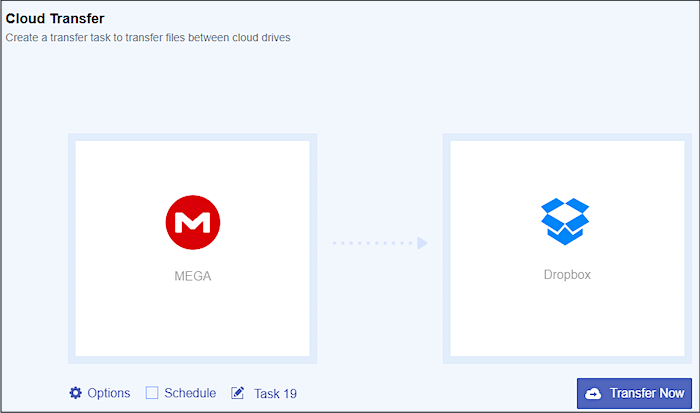
Step 4: Choose your source and destination folders.
Step 5: Select the files you want to transfer from MEGA, choose a destination folder, or select Dropbox as the destination.
Step 6: Click the transfer button on the interface.
This tool provides a seamless and more accessible way to transfer files and folders from Mega to Dropbox, minimizing effort and time.
Conclusion
Cloud storage has become a common practice, and transferring data between different drives is now relatively easy. To transfer files from MEGA to Dropbox, using cloud transfer tools like CloudFuze and MultCloud can simplify the process, either through cloud transfer or "copy to." The method you choose is up to you, and as long as you have an active internet connection, you're good to go.
You May be Concerned about: Transfer Files between PCs without Cloud Service
When cloud services are not an option, transferring files between PCs can be a challenge, especially in situations where classified information is involved or internet connectivity is limited. In such cases, a reliable alternative is needed, and Qiling Disk Master software can be a useful solution for transferring files between PCs without involving cloud services.
Step 1. Open Qiling Disk Master on both of your computers. Choose "File sync" to proceed with the next step.

Step 2. Connect two PCs on the network by entering the password or verification code of the target PC, ensuring the correct transfer direction and clicking "Connect" to proceed.

Step 3. Select the files you want to transfer, and you can also customize the storage path for the transferred data.

Step 4. To transfer files from PC to PC, click "Proceed" and wait patiently, as the transfer time is determined by the size of the file.
This tool makes it easy to transfer files between computers without using any cloud service, making it a helpful option for those who want to keep their data private and secure.
Related Articles
- How to Move Games from HDD to SSD Without Reinstalling
- 3 Ways to Transfer Files from Server to Server
- [Updated Methods] How to Move Eclipse Manager to Another Folder/Computer
- (2022 Update) How to Move Microsoft Office to Another Drive
- Acronis Imaging Software for Windows 11/10/8/7 Free Download
Acronis imaging Software, also known as Acronis True Image, is one of the top disk imaging solutions among users. This article will introduce the popular software to you in detail and help you find the best alternative software to meet your higher requirements. - [Tutorial] How to Back Up Excel File Automatically in 2 Tested Approaches
We provided two tested tutorials on how to automatically back up Excel files. You have the option to use Excel's built-in feature or an external automatic backup tool to secure your files.
Products
Articles & Tutorials
- Data Recovery
- Data Backup
- File Recovery
- File Backup
- System Backup and Restore
- Disk and Partition Clone
- Technical articles
- Mobile articles
- Disk Master Help
- Windows Data Recovery Tutorials
- Windows Secure Delete Tutorials
- Windows Partition Management Tutorials
- Windows File Backup and Restore Tutorials
- Windows System Backup and Restore Tutorials
- Windows Disk Backup and Restore Tutorials
- Windows Clone Tutorials