A Step-by-Step Guide for Transferring Mozilla Firefox from Old PC to New PC
| Workable Solutions | Step-by-step Troubleshooting |
|---|---|
|
Method 1. Qiling Disk Master |
Step 1. Launch Qiling Disk Master on both old and new computers. Click the "PC to PC" ...Full steps |
| Method 2. External/USB Drive | Locate the Firefox Profile Folder; Transfer Mozilla Firefox from the old PC to the new PC...Full steps |
A Step-by-Step Guide for Transferring Mozilla Firefox from Old PC to New PC
If you've recently bought a new computer and want to transfer Mozilla Firefox from your old PC to the new one, there are several ways to do it. Mozilla Firefox stores your preferred settings, site passwords, extensions, and bookmarks in a Profile folder, so you'll need to transfer this folder from your old PC to your new one.
Transferring Mozilla Firefox from an old PC to a new PC may be necessary when changing computers. To do this, you'll need to transfer the Firefox folder, which can be a straightforward process. If you're unsure how to proceed, keep reading, as this page will guide you through the steps to successfully transfer Mozilla Firefox to your new PC.
How to Transfer Your Mozilla Firefox Data to a New PC?
We've all been there - logging into websites with saved passwords that we can't even recall. It's also common to have a local record of passwords, but searching for each one every time is a hassle. So, what happens when you switch to a new PC, leaving behind your old one with all your saved login credentials? This is where password management becomes a challenge, and it's essential to have a system in place to keep track of your passwords across devices.
Transferring Mozilla Firefox from an old PC to a new one can be achieved by copying the Profile folder, which stores essential data, settings, and configurations. However, it's worth noting that this folder does not contain the Mozilla application itself, so you'll need to follow the next section's helpful tips to successfully transfer your Firefox data to the new PC.
Tips and Tricks for Transferring Mozilla Firefox Data to a New PC
Check out the different methods to transfer Mozilla Firefox from an old PC to a new PC.
The Qiling Disk Master is the first method we recommend for effectively transferring Firefox with its data to a new PC. This professional tool offers a straightforward process for achieving this task.
To transfer your profile, locate the Profile folder on your device and transfer it to an external drive or USB drive. This method allows you to move your profile to a new device or location without having to manually set up your account from scratch.
Mozilla Firefox: A Step-by-Step Guide for Moving Mozilla Firefox with Data to a New Computer
Follow the step-To successfully transfer Mozilla Firefox from an old PC to a new PC, follow these steps: First, back up your Firefox data, including bookmarks, passwords, and browsing history, by exporting them as HTML files using the Firefox menu. Next, download the latest version of Firefox on your new PC and install it. Then, import the backed-up data into the new Firefox installation using the Firefox menu.
Method 1. Transfer Firefox to New PC with Qiling Disk Master
The Qiling Disk Master is a reliable and professional software that can transfer Mozilla Firefox and other internet browsers from an old PC to a new PC, as well as transfer files from PC to PC.
Ready to get started? Follow the steps below.
Step 1. Launch Qiling Disk Master on both old and new computers. Click the "File sync" on the main screen to continue.

Step 2. Connect the two PCs on the same LAN by entering the password or verification code of the target PC, then choose the transmission direction and click "Connect" to proceed.
The verification code is located on the right side of the main screen for "File sync" on the target computer, and the "Turn on" button is behind the "Connection Verification" option.

Step 3. In the "Files" section, select the individual files you need to move.

Step 4. To migrate data, click "Proceed" after selecting the files to transfer, and wait for the process to complete, which takes time depending on the file size.
Method 2. Transfer Firefox to New PC Using External/USB Drive
Windows users can migrate their Mozilla Firefox profile data to a new computer using an external/USB drive, which involves locating the Profile folder and then copying and transferring it to the new PC.
Part A. Locate the Firefox Profile folder.
To find the Profile folder, you can either check within the Mozilla Firefox browser or use the Run Dialog box. Alternatively, you can check from within the browser itself, or use the Run Dialog box.
a. Check from within Mozilla Firefox
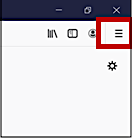
Step 1. Launch Mozilla Firefox application, and click on the menu icon at the top right corner.
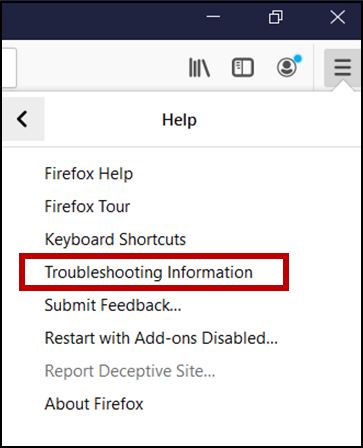
Step 2. From the dropdown list, select Help > Troubleshooting Information.
Step 3. The Troubleshooting Information page opens, and you should check the first column for the Profile Folder tag. Next, select the Open Folder option adjacent to it.
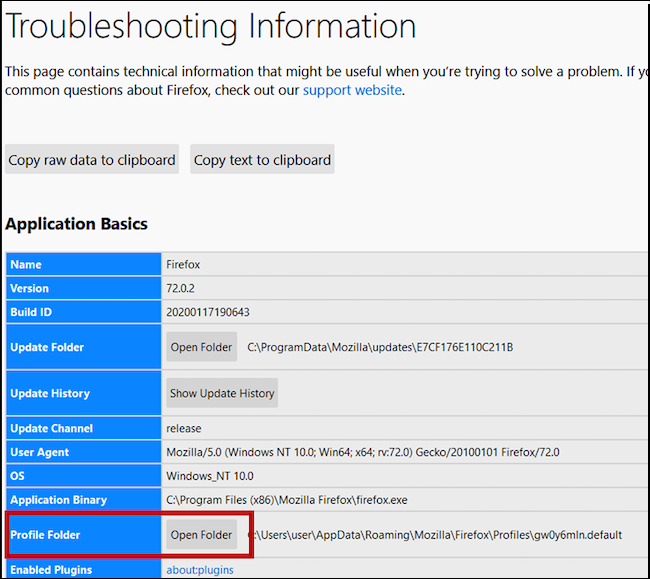
Step 4. The folder opens, and you need to click on "Profiles" from the address bar of the opened folder.
b. Use the Run Dialog box
Step 1. Verify that the Mozilla Firefox application is closed.
Step 2. Press the Windows key + R to open the Run Dialog box.
Step 3. Type %appdata%\mozilla\firefox\profiles\ into the box and click OK.
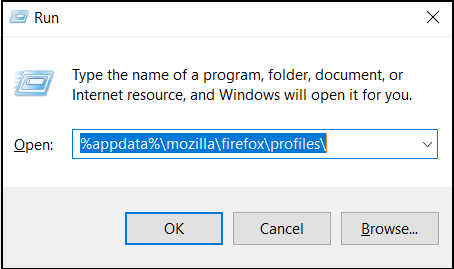
Step 4. That should take you to the Profile folder.
Part B. Transfer Mozilla Firefoxfrom old PC to new PC.
To transfer Mozilla Firefox from the old PC to the new PC, locate the Firefox Profile folder on the old PC, copy it to a USB drive or external hard drive, then transfer it to the new PC and paste it into the Firefox Profile folder. Once the profile is transferred, launch Mozilla Firefox on the new PC, and it should automatically use the transferred profile.
Step 1. Connect the external/USB drive to the old PC.
Step 2. Right-click on the profile folder and choose Copy.
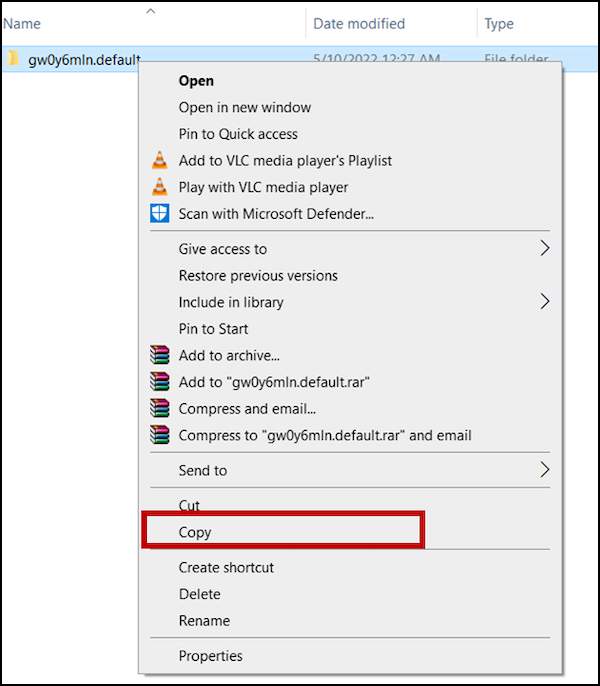
Step 3. Locate the external/USB drive, right-click on it and select Paste.
Step 4. Connect the external/USB drive to the new PC, and ensure it's recognized by the new PC. Also, close the Mozilla Firefox browser.
Step 5. Open the external/USB drive folder and Copy the Profile Folder.
Step 6. To locate the Firefox Profile folder on the new PC, you can follow any of the methods under Part A. This will allow you to access the folder where your Firefox profile is stored, which contains your browsing history, bookmarks, and other personalized settings.
Step 7. Right-click on the folder, select Paste, and choose Replace if prompted to replace a file with the same name.
Step 8. Restart To update your Mozilla Firefox browser profile, you can simply close the browser and open it again. This will automatically update the profile with any changes made since the last time you opened the browser.
Conclusion: Mozilla Firefox Data Transfer Can Be Easy with Correct Method
Transferring Mozilla Firefox from an old PC to a new PC is a straightforward process that can be done using the Qiling Disk Master, which is particularly recommended for Windows users, and also performs other useful functions such as moving the users folder to another drive.
Related Articles
- How to Move Installed Programs to Another Drive in Windows 11
- 3 Ways to Transfer Files from Server to Server
- How to Transfer Files from PC to Xbox One on A New PC?
- Windows Easy Transfer for Windows XP, Windows 7, Windows 8, Windows 10, and Windows 11
- How to Turn on Bluetooth on Windows 11 and Transfer files
Bluetooth is a great wireless technology that allows for easy file transfers between devices. To get started, simply follow these steps: turn on Bluetooth on your Windows 11 device, and then use the technology to transfer files with ease. - How to Update BIOS Windows 10
When users need to update their computer's hardware or resolve BIOS-related issues, they may want to update their BIOS. However, improper BIOS updates can lead to severe problems like computer breakdown and data loss.
Products
Articles & Tutorials
- Data Recovery
- Data Backup
- File Recovery
- File Backup
- System Backup and Restore
- Disk and Partition Clone
- Technical articles
- Mobile articles
- Disk Master Help
- Windows Data Recovery Tutorials
- Windows Secure Delete Tutorials
- Windows Partition Management Tutorials
- Windows File Backup and Restore Tutorials
- Windows System Backup and Restore Tutorials
- Windows Disk Backup and Restore Tutorials
- Windows Clone Tutorials