How to View, Find, and Clear IE History [Full Guide]
| Workable Solutions | Step-by-step Troubleshooting |
|---|---|
| View IE History | Step 1: Launch Internet Explorer and simultaneously press the "Ctrl + H" key. This method applies to all versions...Full steps |
| Clear IE History and Cache | Step 1: Open Internet Explorer, and click the gear icon in the upper-right corner. Step 2: Click "Internet options"...Full steps |
Introduction
Internet Explorer (IE) is a web browser developed by Microsoft, first released in 1995. It was a robust and versatile web browser that had been used for a long time, but Microsoft announced its end of life in May 2021. For more information on Internet Explorer's history, you can click on this link to learn about its background.
Although Microsoft Internet Explorer is no longer the most popular web browser, many people still use it for browsing the internet. The history of Internet Explorer is a log file that records every website you have visited, allowing you to view a list of recently visited websites, find a website you previously visited, or clear your entire browsing history, which can be helpful to understand and use.
How to View IE History
To view your Internet Explorer history, follow these steps:
Step 1: To access the browsing history in Internet Explorer, launch Internet Explorer and simultaneously press the "Ctrl + H" key. This method applies to all versions of Internet Explorer.
Step 2: Click the "History" tab to view your Internet Explorer history.
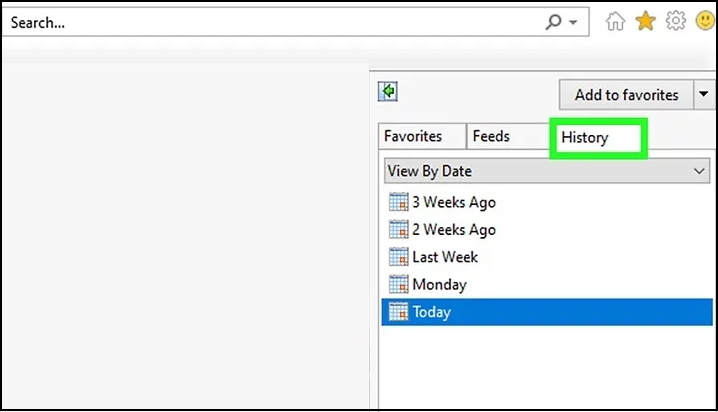
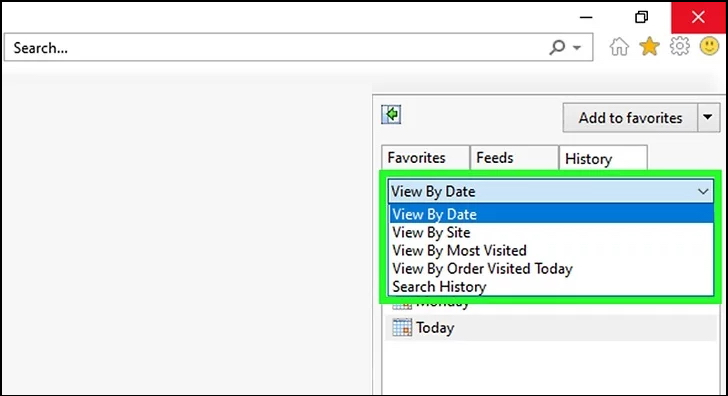
Step 3: Your history is sorted by date by default, but you can also sort it by site, most visited, or order visited today using the drop-down menu at the sidebar.
How to Clear IE History and Cache
To clear your browsing history and cache in Internet Explorer, go to the "Tools" menu, select "Internet Options," click on the "Delete" button under the "Browsing History" section, and choose the types of data you want to delete. You can also clear your cache by clicking on the "Delete" button under the "Temporary Internet Files" section. This will remove any stored data and give you a clean slate.
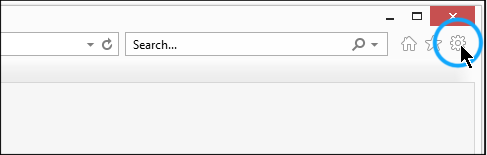
Step 1: To access the Internet Explorer settings, open the browser and click the gear icon located in the upper-right corner.
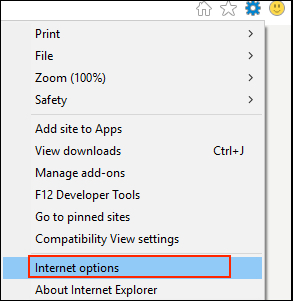
Step 2: Click "Internet options".
Step 3: To delete browsing history, go to the "General" tab and click "Delete" under the "Browsing history" section.
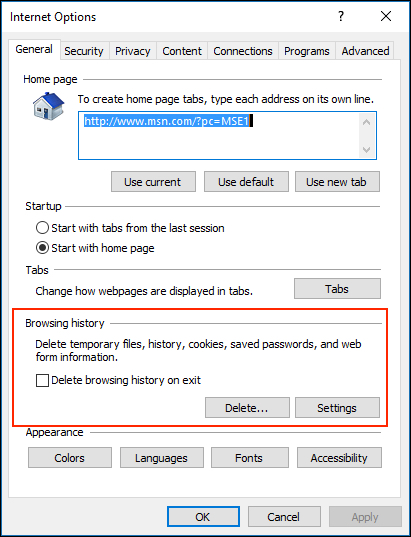
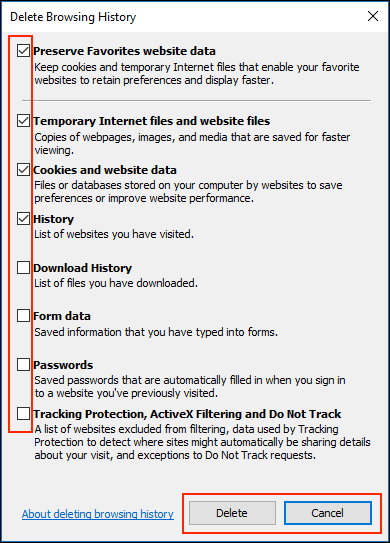
Step 4: Choose what you want to delete, then click "Delete".
Note: Clearing the "Form data", "Passwords", and "Tracking Protection, ActiveX Filtering and Do Not Track" options may result in the deletion of some valuable data.
I cleared your browsing history. You can now browse the web without any previously visited sites showing up in your history.
Where is IE Browser History Stored
The IE browser stores its data, including history, in the computer's hard drive, which can be viewed in File Explorer. The default location of Internet Explorer history is typically in the "C:\Users\[username]\AppData\Local\Microsoft\Windows\Temporary Internet Files" folder.
C:\Users\AppData\Local\Microsoft\Windows\History
Here Username is your user name.
Besides, you can find the current location of the History folder by following these steps.
Step 1: Open Internet Explorer. Go to "Tools > Internet Options".
Step 2: In the "General" tab, click on "Settings" under the "Browsing history" section.
Step 3: To find the current location of your temporary files, click on "view files" which will directly take you to the location of the Temporary Internet Files.
When using a public computer, you can delete the contents of the History folder to protect your personal info from being left behind, as it stores info about the websites you visit.
You can clear your browsing history using the methods described above.
Why is My Internet Explorer History Not Deleting
If Microsoft Internet Explorer retains the history of websites you've visited indefinitely, you can try deleting your browsing history. To do this, go to Tools, then Internet Options, and click on the Delete button in the Browsing History section. This should clear your browsing history. If this doesn't work, you can try clearing your cache and cookies, or resetting your browser to its default settings.
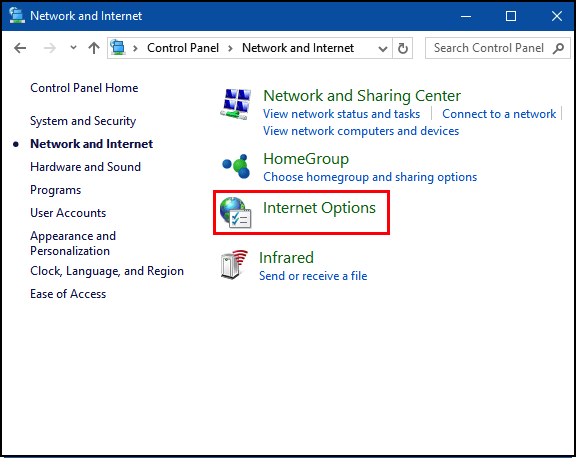
Step 1. To access internet options, click the start button, type "Internet Options" in the search bar, and hit Enter.
Step 2: Then Select the "Content" Tab.
Step 3: Go to "AutoComplete Settings". Uncheck all boxes.
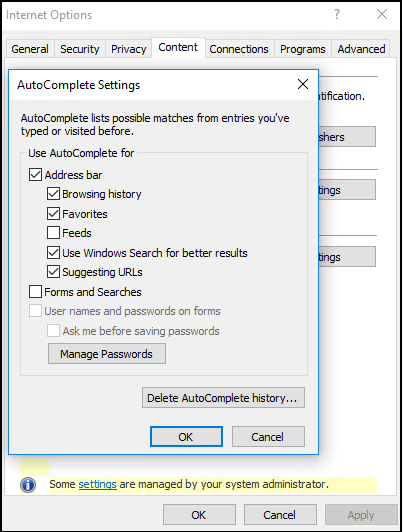
Step 4: Then Select "Delete AutoComplete History" and let it run.
Step 5: Restart Internet Explorer and the browsing history will have gone.
FAQs: How Do I Delete History on phone
How to Delete History on iPhone/iPad
To clear your history and cookies To clear your Safari browsing data, go to Settings > Safari, and tap "Clear History and Website Data". This will remove your browsing history, cookies, and data without affecting your AutoFill information.
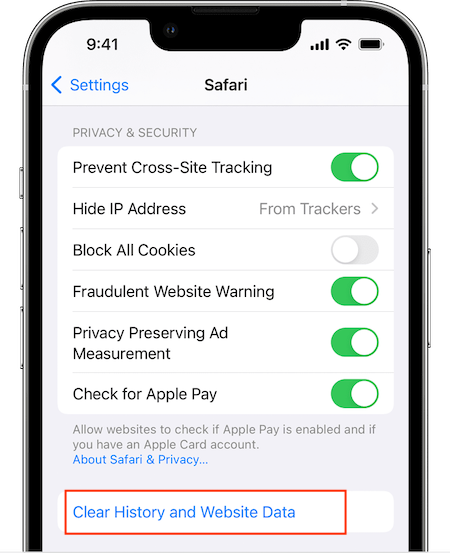
To clear your cookies and keep your history To clear Safari's cache, go to Settings > Safari > Advanced > Website Data and tap "Remove All Website Data".
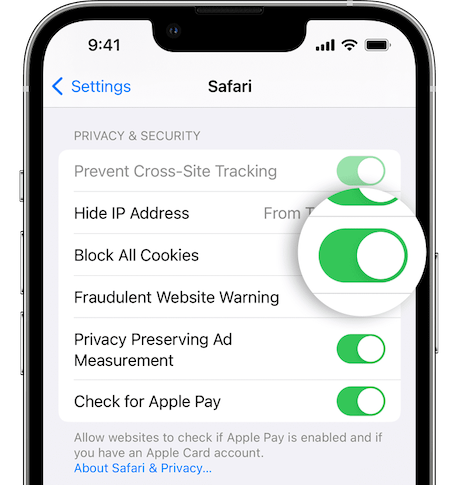
To block cookies To block all cookies in Safari, go to the Settings app, select Safari, and toggle the switch next to "Block All Cookies" to the right. This will prevent websites from storing cookies on your device.
Note: Some web pages might not work if you block cookies.
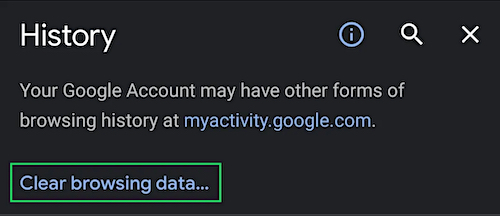
How to Delete Chrome Search History on Android
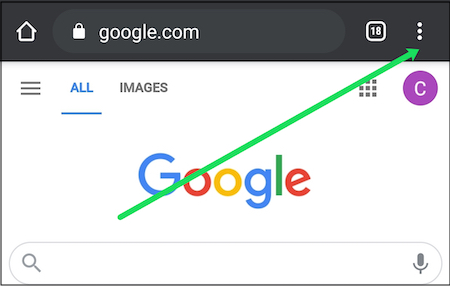
Step 1: The Chrome app on the phone needs to be opened, then the three-dot icon should be tapped.
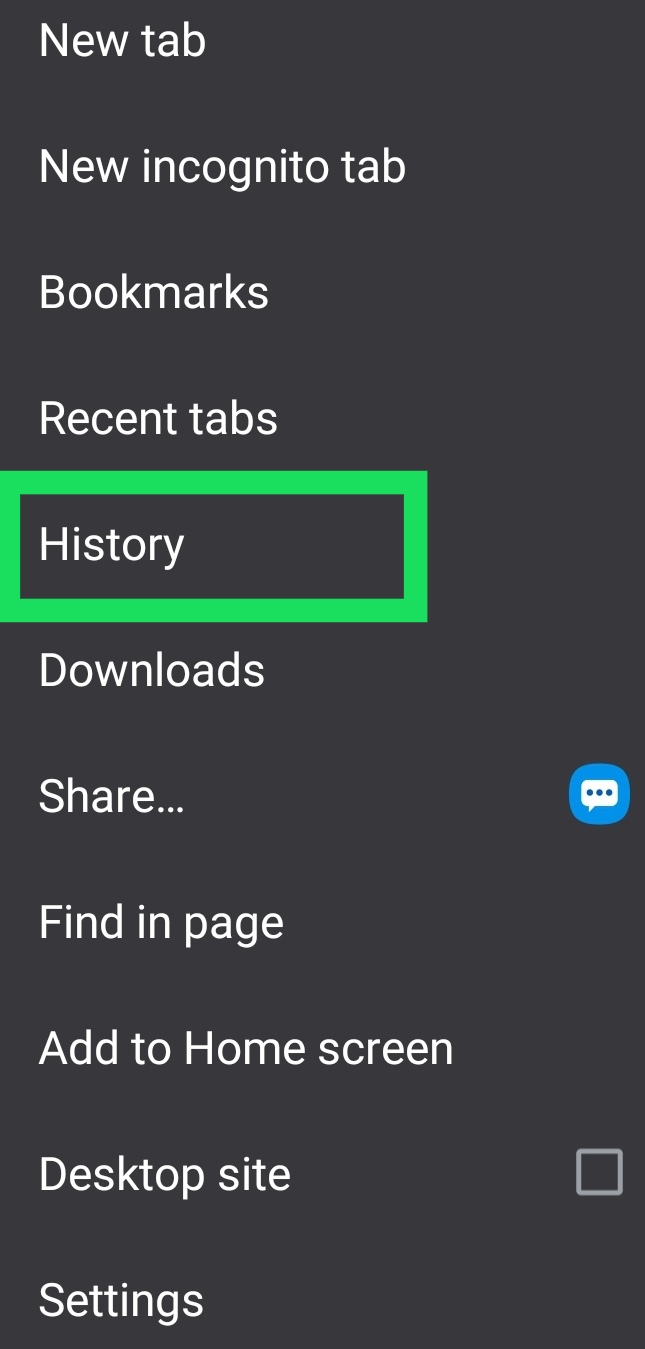
Step 2: Click "History".
Step 3: Select "Clear browsing data..." at the bottom.
Conclusion
To view and clear browsing history in Internet Explorer, follow these steps. Press "Ctrl + H" simultaneously to view the history, which will be ordered by date, site, visiting frequency, or visiting order. To clear the history, go to "internet options" and delete browsing history, along with temporary files, cookies, history, passwords, and more.
Related Articles
- Does Upgrading to Windows 10 Delete Programs | Prevent Data Loss Now
- 4 Reliable Ways to Transfer Data to New Computer on Windows 11
- How to Back Up Installed Programs in Windows 11? 3 Methods
- Transfer Unlimited Files with 2022 Best LAN File Sharing Software
- Migrating from Dropbox to Google Drive: A Step-By-Step Guide 2022
If you're considering switching from Dropbox to Google Drive, you can follow a simple step-by-step guide to migrate your files seamlessly. Alternatively, you can use third-party software to transfer your files, making the process even easier. - Tutorial: Move Apps to USB/Thumb Drive/SD Card in Windows OS
This page enables you to install or move installed Apps from a Windows PC to a USB, thumb drive, or SD card using the Qiling PC Transfer software.
Products
Articles & Tutorials
- Data Recovery
- Data Backup
- File Recovery
- File Backup
- System Backup and Restore
- Disk and Partition Clone
- Technical articles
- Mobile articles
- Disk Master Help
- Windows Data Recovery Tutorials
- Windows Secure Delete Tutorials
- Windows Partition Management Tutorials
- Windows File Backup and Restore Tutorials
- Windows System Backup and Restore Tutorials
- Windows Disk Backup and Restore Tutorials
- Windows Clone Tutorials