Wi-Fi Direct and File Transfer Windows 10/11: How to Send Files From PC to PC/phone to PC
| Workable Solutions | Step-by-step Troubleshooting |
|---|---|
| Send Files via WiFi Direct from PC to PC |
Set Up WiFi Direct on Windows 10/11; Transfer File between Two Computers Using Wi-Fi...Full steps |
| Use Qiling PCTrans - Easier |
Step 1. Open Qiling Disk Master on both of your computers. Choose "PC to PC" to go to the next step...Full steps |
| Transfer Files from phone to PC Wireless Without Internet |
Step 1. Tap Settings on your device and select the WiFi option; Step 2. Access and tap Wi-Fi Direct...Full steps |
What Is Wi-Fi Direct
Wi-Fi Direct is a method that allows devices to connect directly to each other without the need for a router, enabling offline file transfers, printer connections, and other functionalities.
What is the difference between WiFi and WiFi-Direct:
With the Internet, you can use WiFi to share small files from one computer to another.
WiFi Direct allows devices to connect to each other directly, eliminating the need for a router or WiFi network. This enables communication between devices such as a PC and a phone or printer, or between two phones, without the need for a separate WiFi network.
Is WiFi Direct Compatible with My Computer
Although Microsoft has supported WiFi Direct since Windows 8, it's still a good idea to check if your device has the feature. If it's not supported, you can consider using the easier method for file transfer, which is described in a separate part.
Step 1. To open PowerShell, click the search icon from the taskbar and type PowerShell on it.
Step 2. To run Windows PowerShell as an administrator, right-click on the Windows PowerShell icon, then select "Run as Administrator" from the context menu. This will open a new PowerShell window with elevated privileges, allowing you to run commands and scripts that require administrative access.
Step 3. To execute the command, open the Command Prompt, type "ipconfig /all" and press the Enter button. This will display detailed information about your computer's network configuration, including your IP address, subnet mask, default gateway, and DNS server addresses.
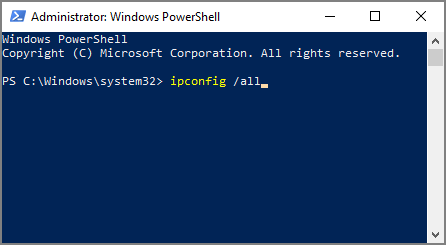
Step 4. If the Microsoft Wi-Fi Direct Virtual Adapter is not listed, it means your PC does not support WiFi Direct connection.
How to Send Files via WiFi Direct from PC to PC
How to Set Up WiFi Direct on Windows 10/11:
Step 1. Click the Windows icon and select Settings.
Step 2. Go to Devices > Click the "Bluetooth and other devices".
Step 3. Click the "Add Bluetooth or other devices".
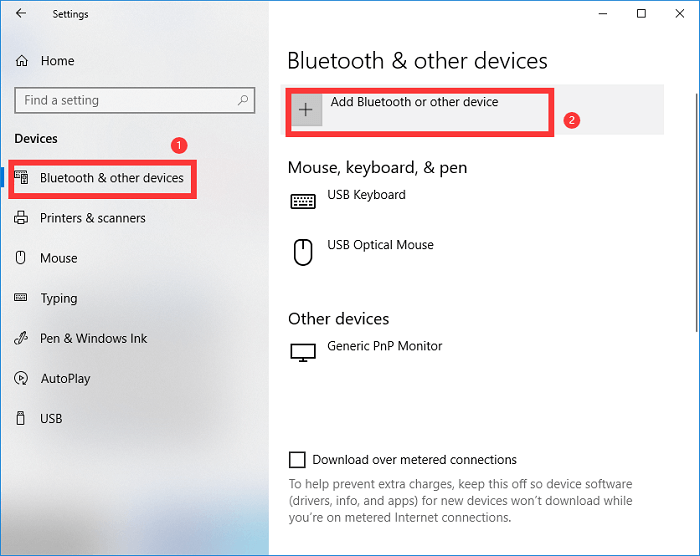
Step 4. If you've enabled WiFi Direct on another device, its name should appear on the list of available connections.
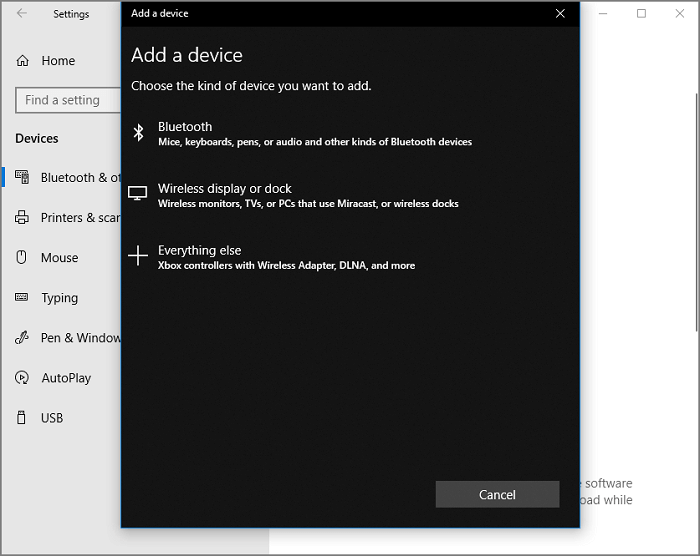
Step 5. Select the targeted device and start to transfer files.
If you want to send some small files to another PC, I will recommend the WiFi option.
How to Transfer File between Two Computers Using Wi-Fi:
1 - Edit IP Address
To edit the IP address, ensure your devices are connected to the same network, then follow these steps to update the IP address.
Step 1. To enable Wi-Fi, go to Settings, then select the "Network & internet" option, and finally toggle the "Wi-Fi" switch to the "On" position.
Step 2. To edit the WiFi properties, click on "Hardware properties" and then select the "WiFi properties" section. From there, click the "Edit" button next to the "IP assignment" field.
Step 3. To access the "Edit IP settings" menu, click the drop-down icon and select the "Manual" option, then turn on the IPv4.
Step 4. Edit the network settings by updating the IP address, Subnet mask, Gateway, Preferred DNS, and Alternate DNS. Click Save to apply the changes.
To set up your router, repeat the four steps on another PC and set up your router with the right IP settings. This ensures that your router is properly configured and functioning as expected.
2 - Using WiFi to Move File
On this PC:
Step 1. To access the Properties of a file, open This PC, locate the file you want to access, right-click on it, and select Properties from the menu.
Step 2. To access the Advanced Sharing section, navigate to the Sharing tab and click the "Advanced Sharing..." button.
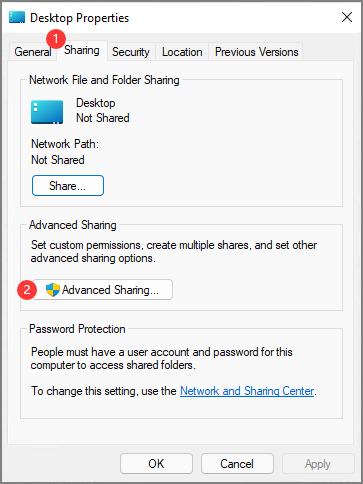
Step 3. To share a folder, select it, check the "Share this folder" box, click Apply, then click OK, and finally close the dialog box.
On another PC:
To connect a device to your computer, open "This PC" or "My Computer" and click on the "Network" option. Then, enter the network credentials to establish a connection with the device.
Easier Method: Using Another Robust File Transfer Tool
If you want to transfer many big files but your PC doesn't support WiFi Direct, you'll need a third-party file transfer tool to smoothly transfer data.
Qiling Disk Master is a straightforward data transfer software that allows users to transfer files, apps, and settings from one computer to another with minimal steps, requiring only the selection of desired files and a click of the transfer button.
Step 1. To sync data between two computers using Open Qiling Disk Master, start by opening the application on both devices. Once opened, select the "File sync" option to proceed. This will initiate the syncing process, allowing you to share files between the two computers.

Step 2. To connect two PCs via a network, enter the password or verification code of the target PC, select the correct transfer direction, and click "Connect" to proceed.
The verification code is located in the top right corner of the main "PC to PC" screen on the target computer.

Step 3. To transfer files, select the "Files" option, choose the specific files you want to transfer, and optionally click the Edit icon to customize the storage path for the transferred data.

Step 4. Now, click "Proceed" to begin transferring files from PC to PC, noting that the transfer time depends on the file size. Wait patiently.
Extra Tip: Transfer Files from phone to PC Wireless Without Internet
Take Android phone as an example:
Step 1. Tap Settings on your device and select the WiFi option.
Step 2. Access and tap Wi-Fi Direct.
Step 3. Locate the targeted PC you want to connect to, make sure it has turned on Wi-Fi settings.
Step 4. Tap Accept if your device receives the Invitation to connect.
Or you can use the Feem app on Android or iOS.
Step 1. Download and install the Feem app on both your PC and phone.
Step 2. On the Android phone, turn on WiFi Direct.
Step 3. On the computer, choose the WiFi marked as "DIRECT...".
Step 4. Select a PC device on the list and click the "Send File" button.
Related Articles
- How to Transfer/Import Favorites from IE to Chrome
- 3 Ways to Transfer Files from Windows 7 to Windows 11
- How to Back Up Installed Programs in Windows 11? 3 Methods
- How to Move Notepad ++ to Another Computer
- How to Move Foxit PhantomPDF to New Computer
This article explains how to move Foxit PhatomPDF to new computer and present you with tools suitable for moving files from Pc to PC with no data loss. - How to Move/Switch from Internet Explorer to Microsoft Edge - Qiling
Internet Explorer is nearing its end of support on June 15, 2022, and users may want to switch to Microsoft Edge or other browsers. Fortunately, it's possible to transfer favorites/bookmarks, accounts and passwords, and Downloads to Edge with ease.
Products
Articles & Tutorials
- Data Recovery
- Data Backup
- File Recovery
- File Backup
- System Backup and Restore
- Disk and Partition Clone
- Technical articles
- Mobile articles
- Disk Master Help
- Windows Data Recovery Tutorials
- Windows Secure Delete Tutorials
- Windows Partition Management Tutorials
- Windows File Backup and Restore Tutorials
- Windows System Backup and Restore Tutorials
- Windows Disk Backup and Restore Tutorials
- Windows Clone Tutorials