How to Move/Switch from Internet Explorer to Microsoft Edge - Qiling
With Microsoft ending support for Internet Explorer on June 15, 2022, users may want to know what to do next. They can consider switching to a new browser and transferring essential data like favorites, accounts, and passwords, downloads, and other saved items. This can be done by importing data from IE to the new browser, which can help minimize the disruption caused by the end of life of IE.
Learn how to seamlessly transfer all your Internet Explorer content to the new Edge browser on your own, and let's get started with the process.
In this article, you'll learn:
- Should I Switch from Internet Explorer to Microsoft Edge?
- Upgrading from Internet Explorer to Microsoft Edge offers several benefits. Edge provides a faster and more secure browsing experience, with improved performance and reduced load times. It also features a more modern and intuitive interface, with a sleek design and enhanced navigation.
- Are you ready to bid farewell to Internet Explorer and hello to Microsoft Edge? Upgrading to Edge is a straightforward process that can be completed in just a few steps.
- To move IE/Edge downloads to another location or to a new PC, you can use the "Downloads" folder's built-in feature. Open the "Downloads" folder, select all files, and then right-click to copy them.
Should I Switch from Internet Explorer to Microsoft Edge?
Microsoft Edge is a web browser developed by Microsoft, first released in 2015 as a successor to Internet Explorer.
The Edge browser is now pre-installed on Windows 10 and Windows 11 operating systems, while older Windows versions still rely on Internet Explorer. As IE reaches its end-of-life without security updates and tech support, savvy users are looking to migrate their essential tasks from IE to Edge or other browsers.
It's recommended that you switch from Internet Explorer to Microsoft Edge or another browser to protect your personal and business data.
You may refer to this page to learn more details about Edge:
Internet Explorer End of Life. Is Microsoft Edge the Future?
Microsoft no longer supports Internet Explorer and recommends using Microsoft Edge instead, which is a more secure and up-to-date browser.
Why Move from Internet Explorer to Edge? What Are the Benefits?
Despite Microsoft's claims that Edge is a successor to Internet Explorer, some Windows users remain uncertain about this transition.
Moving from Internet Explorer to Microsoft Edge is necessary due to several reasons. Firstly, Edge offers better security features, including improved protection against malware and phishing attacks, making it a safer choice for users.
- Microsoft ended support for Internet Explorer on June 15, 2022.
- Internet Explorer's performance is not as impressive as other newer browsers.
- Internet Explorer is not compatible with the latest versions of Windows 10 and Windows 11.
- IE may contain security risks.
Aside from the reasons above, here are more reasons to move your bookmarks from Internet Explorer to Microsoft Edge:
- More new features, better browser performance.
- Continuous tech support.
- Low-security risks.
- Higher compatibility.
Microsoft Edge supports most Windows operating systems, including Windows 11, 10, 8.1, 7, and various Windows Server versions.
To move from Internet Explorer to Edge, you can follow these steps: Simply go to Settings, then to Apps, and finally to Default apps. From there, you can change the default browser to Microsoft Edge. Additionally, you can also right-click on any shortcut to Internet Explorer and select "Open with" and then choose Microsoft Edge. This will change the default browser for that specific shortcut.
How to Move from Internet Explorer to Edge [Full Guide Here]
To successfully move IE content, including favorites or bookmarks, saved accounts and passwords, browsing history, settings, etc., to Edge, we'll cover all possible and efficient solutions in this part. We'll provide you with the necessary steps and tips to ensure a smooth transition of your IE data to Edge.
#1. Import Internet Explorer Data (Everything) to Microsoft Edge On One PC
Microsoft Edge allows users to easily transfer favorites/bookmarks, passwords, and browsing history from Internet Explorer to Edge, making the transition to the new browser seamless.
Here are the details:
Step 1. Launch Microsoft Edge on your PC, click the 3 dots at the top-right menu, then select "Settings" from the dropdown menu.
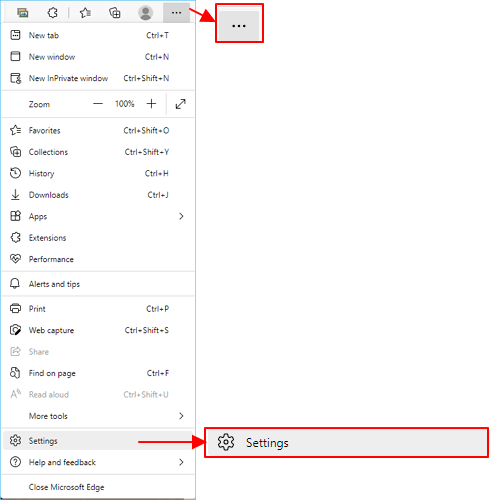
Sign in to Edge and Internet Explorer with your account and password.
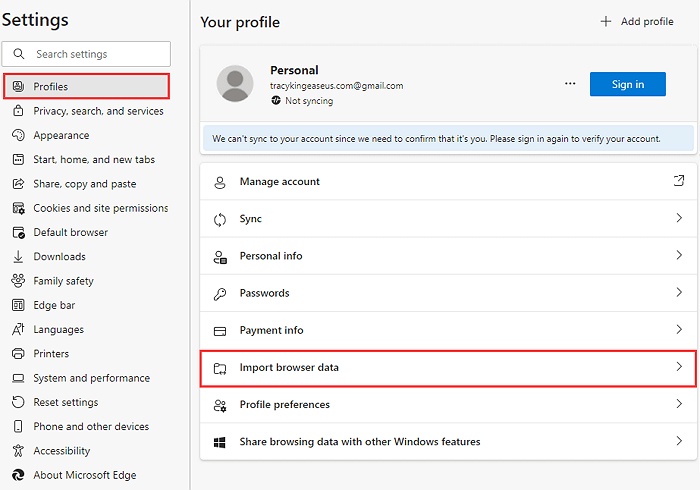
Step 2. Select "Profile" and click "Import browser data".
Step 3. Click on the "Choose what to import" under the "Import from other browsers" section.
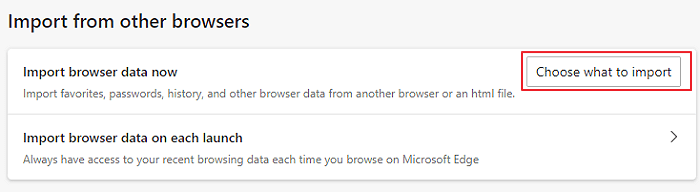
Step 4. To import data from Microsoft Internet Explorer, select the source browser and choose what to import.
- Favorites or bookmarks
- Saved passwords
- Personal info
- Payment info
- Browsing history
- Settings
- Open tabs
- Extensions
Step 5. Click "Import" and wait for the process to complete.
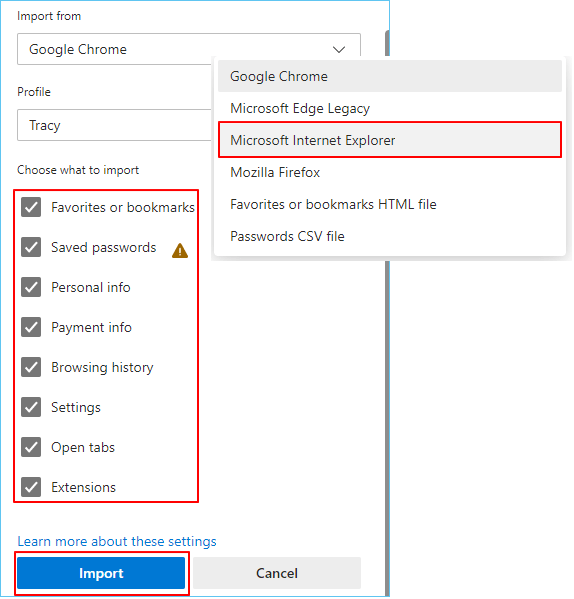
Close all open tabs on your source browser to ensure a complete and successful migration from IE to Edge. This will prevent any incomplete or missed transfers.
#2. Move Internet Explorer Data to Edge from PC to PC
To switch Internet Explorer data, including favorites, passwords, and other settings, from an old PC to Microsoft Edge on a new computer, follow these steps. First, go to the old PC and open Internet Explorer, then click on the "Favorites" button and select "Import and Export" from the dropdown menu. Choose "Export Favorites" and select a location to save the file. Next, on the new PC, open Microsoft Edge, click on the three dots in the top right corner, and select "Settings".
Step 1. Export Internet Explorer data on source PC:
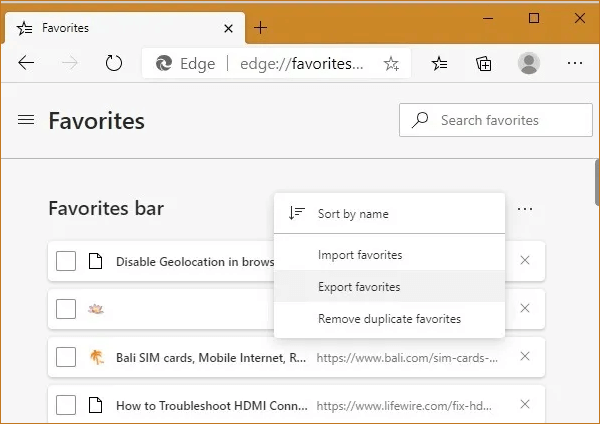
Export Favorites from IE:
- Open IE browser, select "View favorites, feeds, and history".
- Under Add to favorites menu, select "Import and export...".
- Select "Export to a file", click "Next".
- Select the folder to export your Favorites and select "Next".
- Browse a location to save the exported file, click "Export" and then "Finish".
Export Saved Passwords from IE:
- Open PowerShell as administrator.
- Type the commands here in PowerShell and hit Enter:
function ExportPasswords {
# Retrieve passwords from the Windows Credential Manager
[void][Windows.Security.Credentials.PasswordVault, Windows.Security.Credentials, ContentType = WindowsRuntime]
$v = New-Object Windows.Security.Credentials.PasswordVault
$a = $v.RetrieveAll() | % { $_.RetrievePassword(); $_ }
$f = "wincreds.csv"
$a | Export-Csv -NoTypeInformation $env:TEMP\$f }
- Type ExportPassword and hit Enter.
- Type notepad %temp%\wincreds.csv and hit Enter.
Wait for the CSV file to open, and replace the first line content to let Edge recognize IE passwords:
- Change "UserName" to "username"
- Change "Resource" to "url"
- Change "Password" to "password"
Step 2. Transfer IE Data - Favorites and Passwords to New Computer
You can simplify the process by copying and transferring the exported IE favorites HTML file and the password CSV file to a new computer using an external USB drive.
Step 3. Import IE Favorites and Passwords to Edge on New PC
Import IE Favorites to Edge:
- Run Edge browser on the new computer.
- Connect the external storage device to the PC and click the 3 dots on the top right menu. From there, select "Settings" and then "System".
- Click "Settings" > "Profiles" > "Choose what to import".
- Now, select "Favorites or bookmarks HTML file".
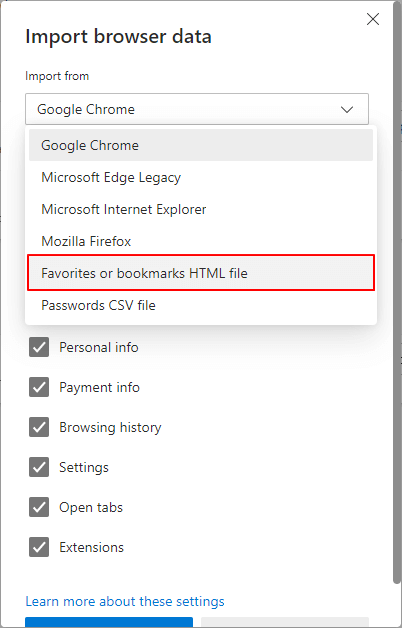
- To proceed, click the "Choose file" button and select the IE favorites HTML file, then click "OK".
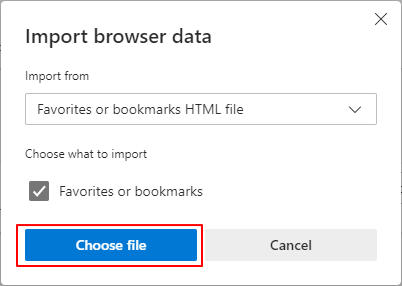
Wait for the process to complete.
Import IE passwords to Edge:
- To import settings and data into Edge browser, open the Edge browser, navigate to Settings, then select Profiles, and choose what to import from the dropdown menu.
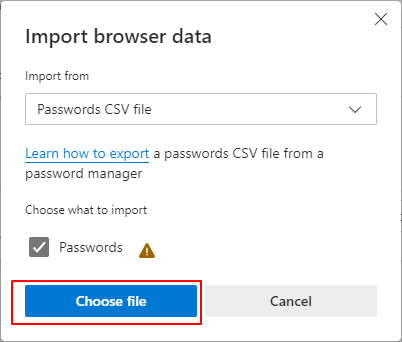
- Select "Password CSV file".
- To import all the passwords from a CSV file into Microsoft Edge, click the "Choose file" button to browse and select the CSV file containing the passwords. Once selected, Edge will automatically import all the passwords from the file.
Bonus Tip: How to Move IE/Edge Downloads to Another Location or to a New PC
After moving IE favorites and passwords to Edge, you may also want to move the IE or Edge Downloads folder to the new location.
Here are the guides that you may try:
#1. Move IE/Edge Downloads to New Location or New PC with Automated Tool
Qiling Disk Master can efficiently transfer data, files, folders, programs, etc., to a new PC using its file transfer features. You can use it to change the IE or Edge Downloads location by moving the data to a new PC.
1. Change IE/Edge Downloads Location
Step 1. To use the Large File Cleanup feature in Open Qiling Disk Master, click on it and then click the "Start" button to initiate the process. This feature allows you to transfer files from one drive to another or move data from one disk to another.
Step 2. To scan a hard drive or disk for files, select the device you want to scan. This can be done through the operating system's file manager or disk management utility.
Step 3. When the scan completes, files larger than 20M will be listed. Select the target files to transfer and set the target location as needed, then click the "Move" button to proceed.
Step 4. Confirm the transfer operation and click the "Move" button to start the process, then free space will be available on the source drive/disk once the file transfer is complete.
2. Transfer IE/Edge Downloads to A New PC
Step 1. Launch Qiling Disk Master on both old and new computers. Click the "File sync" on the main screen to proceed.

Step 2. Connect the two PCs on the same LAN by entering the target PC's password or verification code, choosing the transmission direction, and clicking "Connect" to proceed.
The verification code is located at the top right of the main "PC to PC" screen on the target computer, and the Turn on button is behind the Connection Verification.

Step 3. To move individual files, go to the "Files" section, select the files you need to move, and then proceed with the next steps.

Step 4. To complete the data migration, click the "Proceed" button and wait for the process to finish. The duration of the transfer varies based on the size of the files, so be patient and let the system do its job. Once the transferring is complete, the data migration will be finished.
#2. Change the Download Location of Edge
Step 1. To access the Downloads page in Microsoft Edge, follow these steps: Launch the Edge browser, click the three dots on the top right menu, and select "Downloads" from the dropdown list. This will open the Downloads page, where you can view and manage your downloaded files.

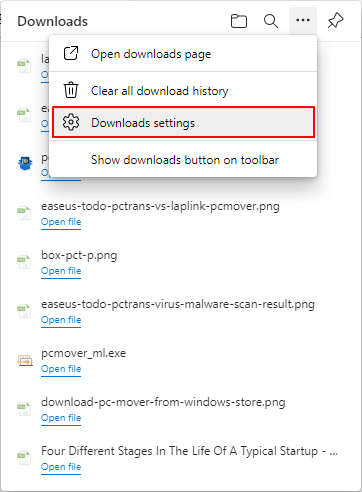
Step 2. To access the Downloads settings, click on the 3 dots located on the top right corner of the Downloads window, and select "Downloads settings" from the dropdown menu.
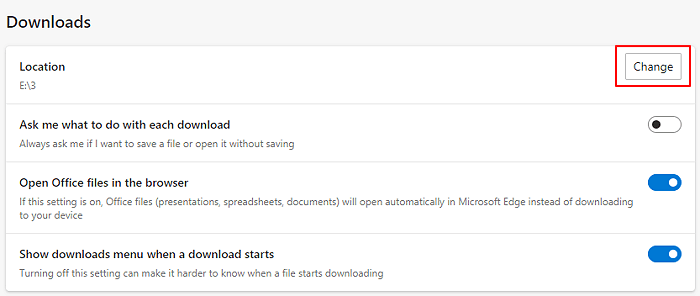
Step 3. Click "Change" below the Downloads section.
To change the download location for Microsoft Edge, go to the browser's settings, scroll down to the "Downloads" section, and click on the "Change" button next to "Save download location". Then, browse to select a new location for Edge to save the downloaded items.
#3. Move The IE Downloads Folder to New the Location
Step 1. Open IE browser, go to Downloads > Settings > Location.
Step 2. View the location of the Downloads of the IE browser.
Step 3. Copy and move the downloaded items to the new location you've changed on your PC.
IE Ends, You Can Move to Edge or Other Browsers to Continue with Your Digital Life
Although Internet Explorer is nearing its end of life, your digital journey has just begun.
This page provides comprehensive guides and resolutions to help you successfully move Internet Explorer favorites, settings, and passwords to Edge on your own. Follow the step-by-step instructions to find the one that works best for you.
Related Articles
- Guide on How to Transfer HP Smart from Windows 10 to Windows 11
- Best Cloud Transfer App: MultCloud, cloudHQ, CloudFuze, Cloudsfer, Odrive
- How to View, Find, and Clear IE History [Full Guide]
- Is There Any SSD Data Migration Software? How to Use It
- Top 5 Best Backup Software for External Hard Drive (2022 Rankings)
This article provides an overview of the five best backup software for external hard drives, enabling readers to gain a comprehensive understanding of external hard drive backup software and select the most suitable option to back up their external hard disk. - Most Reliable Backup Software for Multiple Computers [2022 New List]
To simplify the process of backing up multiple devices, we've curated a list of the best backup software for 2022 that can cater to your needs. This software allows you to manage and secure backups for every device, making it easier to keep your data safe and organized.
Products
Articles & Tutorials
- Data Recovery
- Data Backup
- File Recovery
- File Backup
- System Backup and Restore
- Disk and Partition Clone
- Technical articles
- Mobile articles
- Disk Master Help
- Windows Data Recovery Tutorials
- Windows Secure Delete Tutorials
- Windows Partition Management Tutorials
- Windows File Backup and Restore Tutorials
- Windows System Backup and Restore Tutorials
- Windows Disk Backup and Restore Tutorials
- Windows Clone Tutorials