Downloaded Files on iPhone | Where to Find Downloaded Files iPhone 13/12/11/X
Summary
On an iPhone, downloaded files are typically stored in the "Files" app, which can be found on the home screen. The Files app organizes downloaded files into folders, making it easy to locate and access them. If you're having trouble finding a specific downloaded file, you can also search for it within the Files app. Additionally, some apps may have their own file storage system, so you may need to check within the app's settings or library to find downloaded files.
If you're looking for downloaded files on your iPhone, don't worry, we've got you covered. You can easily find them by checking the Files app, which is usually located on your home screen or in your dock. Alternatively, you can also search for the file you're looking for in the Spotlight search bar, or check your Safari browser's downloads folder.
| Workable Solutions | Step-by-step Troubleshooting |
|---|---|
| How to Download Files onto Your iPhone/iPad | Tap on the image, video, or document file, then tap the Share button. Tap the lower half of the options...Full steps |
| How to Find Downloaded Files on iPhone/iPad |
Find the Files app on your iPhone or iPad. Then, select the Browse tab on the bottom-right...Full steps |
| How to Delete Downloaded Files On iPhone/iPad | Find and run the Files app and then go to "On My iPhone". Next, head to the folder...Full steps |
| How to Restore Lost Data on iPhone/iPad without Backup | Connect your iPhone to the PC and launch Qiling iPhone data recovery software. Scan iPhone...Full steps |
55% of Americans use iPhones, making it the most popular phone model in the US, but this widespread adoption also creates various problems.
Many people struggle to find downloaded files on their iPhones, a problem that can be frustrating for users who are not tech-savvy. Despite being user-friendly in many ways, iPhones can be tricky to navigate when it comes to locating downloaded files.
On an iPhone, downloaded files are stored in the "Downloads" folder, which can be accessed through the "Files" app. The "Files" app is the default file manager on iOS, and it allows users to view and manage their downloaded files, as well as access files stored in iCloud, Google Drive, and other cloud storage services. To access the "Downloads" folder, users can open the "Files" app, tap the "Browse" tab, and then select the "Downloads" folder from the list of available folders.
How to Download Files Onto Your iPhone/iPad
Downloading files on your iPhone is a straightforward process. You can easily download various types of files, such as documents, images, videos, and more, using your Apple device.
- Images
- Videos
- Document files, i.e., Word, PDF, etc.
- Music files
To download and save files to your phone, you can follow these steps: open the Files app, navigate to the "Downloads" folder, and select the file you want to save. You can then tap the "Save to device" option to save the file to your phone's storage. Alternatively, you can use the "Save to" option to save the file to a specific location on your device, such as the "Documents" or "Pictures" folder.
Step 1. Tap on the image, video, or document file.
Step 2. Tape the "Share" button.
Step 3.Tap & press the lower half of the options.
Step 4. Scroll through the page sideways until you find the option to save the image, which may be labeled as "Save Image" or "Save to File".
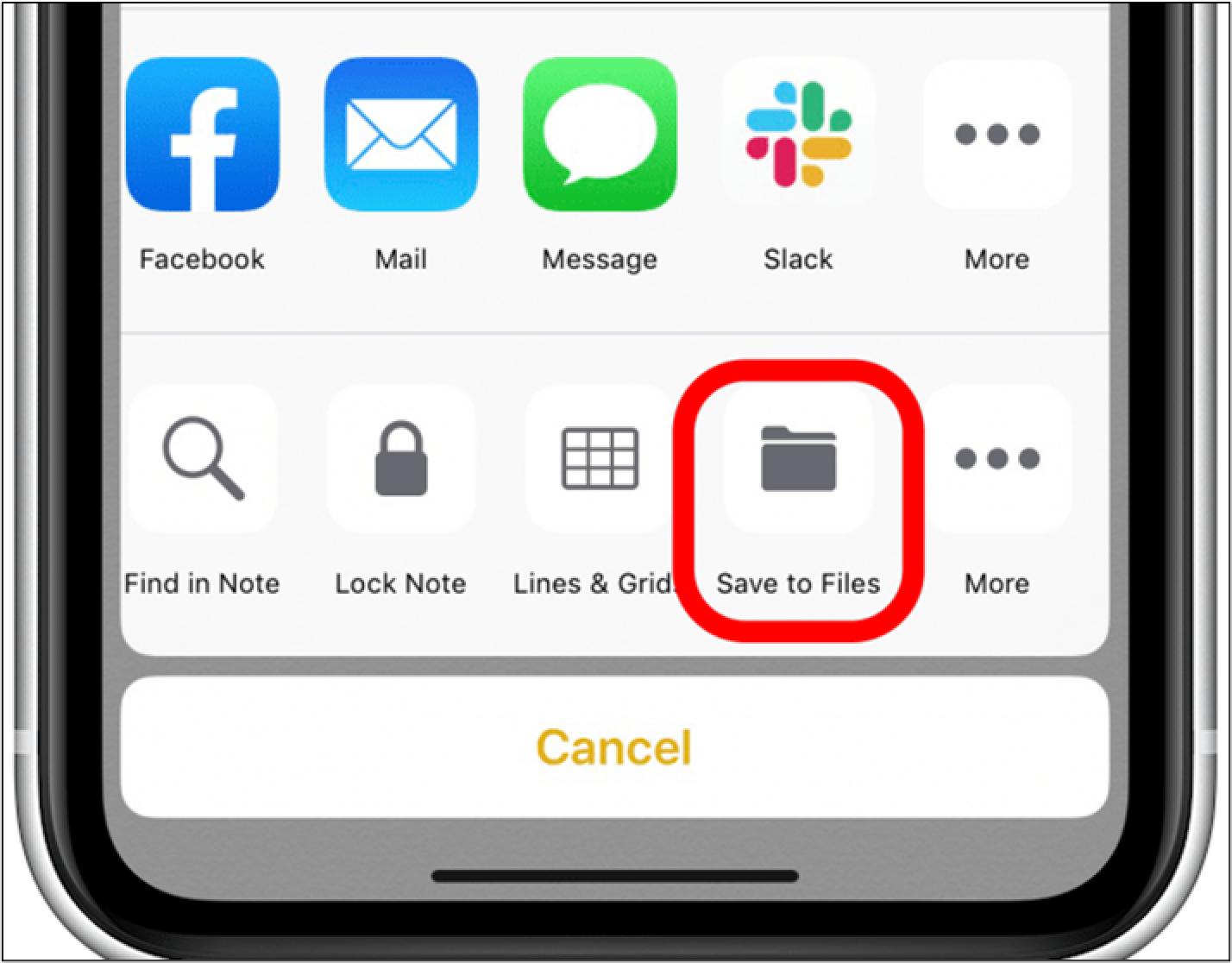
Step 5. Pick one of the two.
Step 6. Done.
If you choose to save the image to a file, you will be prompted to select a location to save the file, but the image will automatically be saved to your gallery.
There are alternative methods to download files from the internet, including taking a screenshot of an image or using third-party software from the App Store to download files like videos. If you take a screenshot, the image will be saved in your photo library, while using third-party software can allow you to download various types of files.
However, some third-Party apps might give you a choice to save your downloaded files to a location of your choosing.
Where to Find Downloaded Files on iPhone/iPad
To find the downloaded files, you can check the following directories:
- Images like pictures, camera photos, and screenshots are stored in the Photo library.
- Videos and other files go into the same storage
- Other files, such as documents, can be stored in a location of your choice, such as a designated folder or cloud storage service.
You can view photos, videos, and documents in their respective apps, but you won't be able to see the exact location of the file within the app. The file's location is only visible when you access the file through the Files app.
So, to help you find the exact location of your files, here are the steps you need to take:
Step 1. Find the Files app on your iPhone or iPad.
Step 2. Select the Browse tab on the bottom-right of your phone screen.
Step 3. Once here, tap on "On My iPhone".
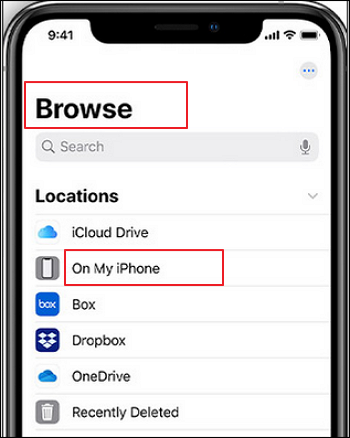
Step 4. Here you will see folders named "Downloads".
Step 5. Tap "Downloads", or other folders named "Documents".
You might find the videos, images, or documents you're looking for in each folder, and if you've been using a third-party browser like Chrome or Firefox, you might find them under their respective names.
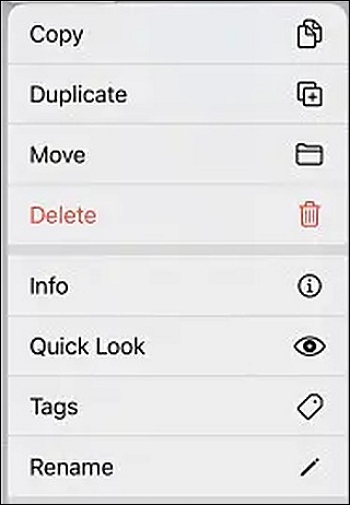
Once you've found the files, you can tap and press to open a menu like this:
You can change the download location by selecting a specific location for all your downloads, such as your desktop or downloads folder, and then clicking on "Apply" to save the changes. This will ensure that all future downloads are saved to the chosen location.
Step 1. Tap "Settings" on your phone's home screen.
Step 2.Tap"Safari" or any other browser that you use primarily.
Step 3.Tap "Downloads".
Step 4.Navigate and find the "Store Downloaded Files On" option.
Step 4.The browser will save files to the location you specify. You can choose from a list of available locations, such as your computer's desktop, documents folder, or a USB drive.
To find your downloaded files, follow these steps: click on the folder icon in the bottom left corner of the screen, then click on "Downloads" in the menu that appears. You can also tweak the location of your downloaded files by right-clicking on the "Downloads" folder and selecting "Properties" from the context menu.
How to Delete Downloaded Files on iPhone/iPad
If you're running out of storage on your iPhone, you might want to consider deleting some of the downloaded files. To find downloaded files on your iPhone, you can follow these steps: go to Settings, then tap on "General," and finally select "iPhone Storage." From there, you can see a list of all the files and apps taking up space on your device.
People often delete files from their iPhones due to various reasons, including freeing up storage space, removing duplicates or unnecessary files, and getting rid of unwanted or sensitive information. Sometimes, users simply want to declutter their device and streamline their digital life, while others might be trying to remove files that were accidentally saved or downloaded.
- Freeing up space
- Files no longer needed
- Files not relevant to their downloads
- Downloading the wrong file
If you're running low on storage space on your iPhone or iPad, you can delete files that are taking up too much space, such as large videos, photos, or apps. To do this, go to Settings > [your name] > iCloud > iCloud Storage > Manage Storage. You can also delete files from the Files app, by going to the Files app, selecting the file you want to delete, and tapping the trash can icon. If you're deleting files to free up space, you can also consider offloading unused apps, deleting large email attachments, and using the Photos app to free up space by deleting or offloading large photos.
Step 1. Find and run the Files app.
Step 2.Go to "On My iPhone".
Step 3.To access your file, navigate to the folder where it is stored, typically found in locations like Documents or Downloads.
Step 4.Navigate and tap the file you wish to delete.
Step 5.Long-press on the filename.
Step 6.Wait for the pop-up menu.
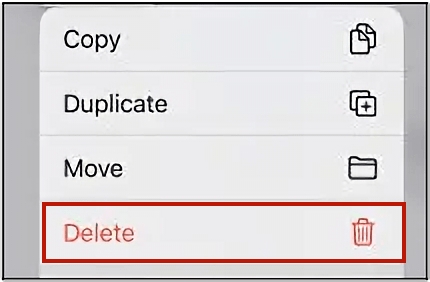
Step 7.Navigate to the fourth option, i.e., Delete.
Step 8.Confirm once prompted.
To delete unwanted files, follow these steps: you can delete individual files by long-pressing one and then selecting the delete option from the pop-up menu, or delete multiple files at once by long-pressing one file, selecting multiple, and then prompting the delete option from the menu.
Before confirming the deletion, you will be asked to select multiple choices to ensure you're making an informed decision.
How to Restore Lost Data on iPhone/iPad Without Backup
When you accidentally delete files, it can be disastrous, especially if you have no backup. However, with Qiling MobiSaver, a reliable iPhone data recovery program, you can restore deleted or lost data from your iPhone or iPad, even without a backup. This means you can retrieve your important files and avoid the stress of losing valuable information. By using Qiling MobiSaver, you can breathe a sigh of relief and get back to your daily life, knowing that your data is safe and recoverable.
QilingiOS data recovery software provides a comprehensive solution for recovering lost data on iPhone or iPad, including restoring deleted files from iOS devices, as well as from iTunes or iCloud backups. It allows you to recover a wide range of data, such as deleted photos and videos, contacts, chat histories, messages, and more, including conversations and attachments from social apps like Wechat, WhatsApp, Line, and others.
Now, download this iOS data recovery program to recover lost files on iPhone or iPad.
Step 1.Choose the Recovery Mode
Connect your iPhone to your PC, launch Qiling MobiSaver, and select the recovery mode as "Recover from iOS Device" to start the process.
Step 2.Scan iPhone and Find Lost Data
Qiling MobiSaver will automatically scan your iPhone and find both present and lost data for you.
Step 3.Preview and Restore iPhone Data
You can recover various types of lost data from your iPhone, including photos, videos, contacts, SMS, notes, voice mails, and other files, regardless of the model, such as iPhone 13, 12, 11, X, XR, XS, 8, 7, 6, 5, or 4. Once you select the desired data, click "Recover" and save it to another location.
Conclusion
You can find downloaded files on your iPhone by checking the Files app or Safari's downloads folder. If you're looking for files you've downloaded in the past, you can also use the Files app to search for them. If you lose files, you can recover them using a third-party app like Qiling MobiSaver.
Related Articles
- [Solved] iPhone Keeps Freezing After Update iOS 12/11.3/11
- 5 Proven Ways to See Old Kik Messages on iPhone/Android
- 10 Best iPhone Data Recovery Services and Software
- How to Retrieve Deleted Call Log on iPhone
- How to Recover 0 Byte Word Document in Windows 10/8/7
If your Microsoft Word document shows zero bytes after saving. This issue can occur on Windows 10, 8, or 7. To recover a 0-byte Word document. you can try using Qiling data recovery software, which can help restore your lost file. - How to Recover Data from Formatted Hard Disk in Windows 10/11
Recovering data from a formatted hard disk in Windows 10 is now a manageable task. With the best data recovery software, you can easily retrieve files from a formatted hard drive in Windows 10, 8, or 7.
Products
Articles & Tutorials
- Data Recovery
- Data Backup
- File Recovery
- File Backup
- System Backup and Restore
- Disk and Partition Clone
- Technical articles
- Mobile articles
- Disk Master Help
- Windows Data Recovery Tutorials
- Windows Secure Delete Tutorials
- Windows Partition Management Tutorials
- Windows File Backup and Restore Tutorials
- Windows System Backup and Restore Tutorials
- Windows Disk Backup and Restore Tutorials
- Windows Clone Tutorials