How to Extract iPhone Contacts from iPhone Backup in Four Ways
Summary
If you're looking for feasible ways to extract contacts from iPhone backup, whether iTunes or iCloud backup, here are four simple and fast ways for you to do it.
Restoring iPhone contacts from backup without losing existing data can be done using a safer method, avoiding the default iTunes or iCloud backup restore approach that erases the device first and then replaces the current data with the backup data, which is not advisable unless the device is brand new. Instead, use a method that preserves existing data, such as the one introduced below.
Before proceeding, make sure to back up your iPhone first. You can then follow the guide to extract contacts from your iPhone backup, either with or without data loss.
Part 1. Extract Contacts from iPhone Backup without Data Loss
If you need to extract contacts from an iPhone backup without losing any data, you can use a safe iPhone data recovery tool called Qiling MobiSaver. This tool allows you to recover deleted contacts, messages, videos, photos, and more from iTunes or iCloud backups, or even directly from your device if there's no backup available.
This tool allows for data restoration without loss, and provides a preview feature to ensure only desired data is restored.
To extract contacts from iPhone backup:
Step 1. Run Qiling MobiSaver
First, download Qiling MobiSaver, then connect your iPhone/iPad to your computer, start Qiling MobiSaver, select "Recover from iTunes Backup", and choose an iTunes backup.
Step 2. Unlock iTunes
If the iTunes backup is encrypted, you'll need to enter the password to unlock it. Once unlocked, Qiling MobiSaver will automatically scan the backup file to find the lost data.
Step 3. Preview and Recover Data from iTunes
After scanning, preview the contents of lost photos/videos, contacts/messages, notes, and SNS data. Select the file and click "Recover" to save it on your computer.
Part 2. Export iPhone Contacts from the iCloud Website
If you don't like using a third-party recovery tool, you can also extract contacts from icloud.com, provided your contacts were synced with iCloud before deleting them.
To enable contacts syncing in iCloud, open the Settings app on your iPhone, tap "iCloud," and then tap "Contacts" to toggle it on. After that, you can access your iPhone contacts on your computer by opening a browser and following the remaining steps.
Step 1. Enter icloud.com on a new web browser.
Step 2. Log in to the iCloud website with your Apple ID.
Step 3. Click "Account Settings" under your name.
Step 4. Under the Advanced Section, click "Restore Contacts."
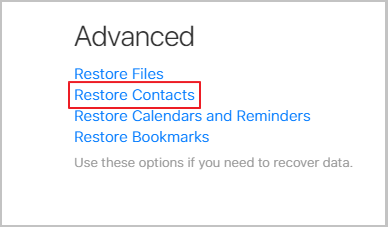
Step 5. If it shows "No archives available," that means your contacts failed to sync with iCloud, and you have to follow other methods to retrieve them.
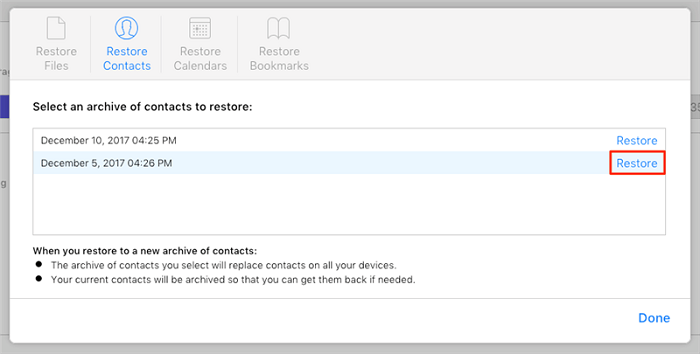
Part 3. Restore iPhone Contacts from an iCloud Account
If you don't mind data loss, you can restore your iPhone from an iCloud backup that contains your deleted contacts. First, check if you had made a copy of your device before losing your contacts. If so, you can proceed. If not, you may want to consider alternative methods. To restore from iCloud, follow these steps.
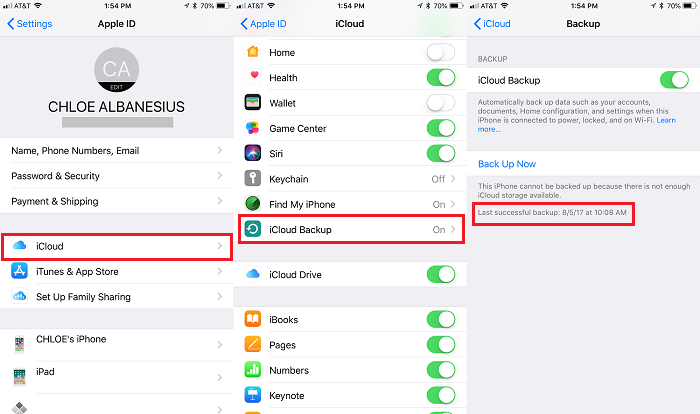
Step 1. Before you lost your contacts, check if you've backed up your iPhone. If you have, you can restore your contacts from the backup.
- On your iPhone, open the Settings app and tap "iCloud."
- To check when your last iCloud backup was, go to the "Settings" app on your device, then scroll down to find "iCloud Backup," from where you can see the date of your last backup.
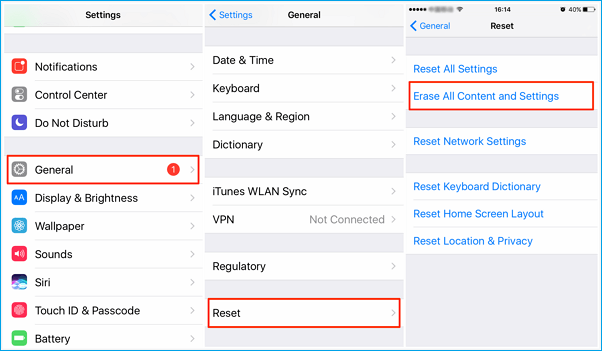
Step 2. If your iPhone is not working properly, you can try resetting it to its original settings. This will erase all of your data, so make sure to back up your device before doing so. To reset your iPhone, go to Settings > General > Reset.
- Go to the Settings on your iPhone.
- Tap "General," then "Reset."
- Tap "Erase All Contents and Settings."
Step 3. To set up your iPhone and restore it from an iCloud backup, start by turning on your device and following the on-screen instructions to select your language, country or region, and Wi-Fi network. Next, tap "Restore from iCloud Backup" and sign in with your Apple ID and password.
- Follow the on-screen instructions to set up your iPhone.
- When you reach the "Set up your iPhone" page, select the option to "Restore from iCloud Backup."
- Go to icloud.com and sign in to your account.
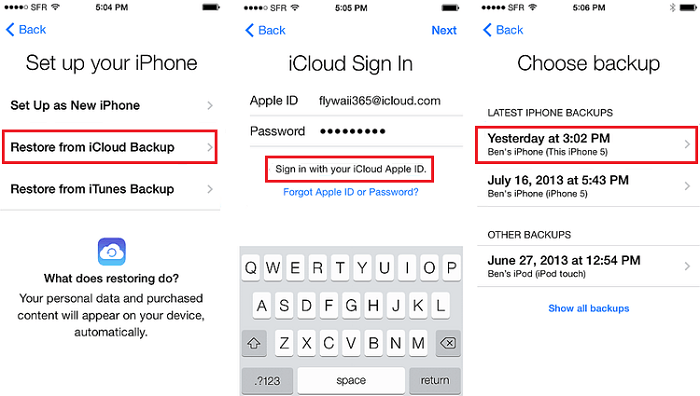
If you want to restore contacts from an iCloud backup, you can use the steps we mentioned earlier, but keep in mind that this will erase all current data on your iPhone. Alternatively, you can use Qiling MobiSaver to extract contacts from the iCloud backup without causing data loss, and even preview them before restoring.
Step 1. Choose "Recover from iCloud"
Connect your iPhone to your PC, then launch Qiling MobiSaver. Select the "Recover from iCloud" option and click "Start" to proceed.
Step 2. Turn Off "Find My iPhone"
Turn off "Find My iPhone" on your iPhone/iPad/iPod to continue.
Step 3. Type Code in the Confirmation Box
To confirm, you need to type "123456" in the confirmation box and then click the "Continue" button.
Note: This step will completely erase all data and reset all settings, so please ensure you have backed up any important information beforehand.
Step 4. Reset iPhone
Move through the iPhone setup process until you see the reset screen, then choose "Restore from iCloud Backup" on Your phone. Enter the Apple ID and password for the account you want to restore the backup from, and then click "Next" on your PC.
Step 5. Select the Files
If you want to recover all files, you can click the "Select All" button below to directly select all files. Otherwise, you can choose the specific type of data you want to recover.
Step 6. Analyze the iPhone
The software will analyze your phone, which may take a few minutes, and please do not disconnect or use your device during this time.
Step 7. Scan Lost Data and Recover
Qiling MobiSaver will automatically scan your iCloud backup file to find the lost data, a process that may take a few minutes. Once complete, select the desired data and click the "Recover" button.
Part 4. Retrieve iPhone Contacts from iTunes Backup
While iTunes is not our top or recommended method for extracting iPhone contacts, it is still an option. However, using iTunes will erase all current data on your iPhone and its performance is poor, making it a less desirable choice. If you still want to use iTunes, we can guide you through the steps to extract your contacts.
Step 1. Connect your iPhone to the computer and launch iTunes.
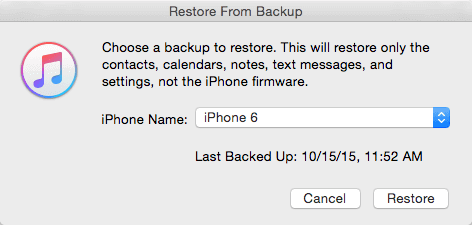
Step 2. Right-click your iPhone under the Devices list and click "Restore Backup."
Step 3. Select the latest backup and click "Restore."
The Bottom Line
You can easily export your contacts from an iPhone backup using four methods, with Qiling MobiSaver being the most recommended due to its ability to preview data before restoring, ensuring you avoid unwanted files and don't lose any data during the process, making it a great recovery tool for recovering deleted files on iOS devices.
Related Articles
- Undelete Instagram: See and Restore Deleted Instagram Photos/Messages
- Fixed: iPhone Stuck in Recovery Mode after Failed Update
- iPhone 8 Data Recovery: Recover Data from iPhone 8/X/8 Plus
- Free Download: iPhone Data Recovery Software Full Version
- 2 Fixes to Resolve Memory SD Card Says Full But No Files On It Error
If your camera's memory SD card shows as full but doesn't display any files. This issue can be resolved by following the instructions on this page. - [Real Fix] There Is No Option to Empty Recycle Bin on Windows 10
When the “Empty Recycle Bin” option is grayed out, preventing you from deleting files, there are several real fixes to resolve the issue.
Products
Articles & Tutorials
- Data Recovery
- Data Backup
- File Recovery
- File Backup
- System Backup and Restore
- Disk and Partition Clone
- Technical articles
- Mobile articles
- Disk Master Help
- Windows Data Recovery Tutorials
- Windows Secure Delete Tutorials
- Windows Partition Management Tutorials
- Windows File Backup and Restore Tutorials
- Windows System Backup and Restore Tutorials
- Windows Disk Backup and Restore Tutorials
- Windows Clone Tutorials