[Solved] 7 Ways to Fix Contacts Missing from iPhone
Summary
When an important contact suddenly disappears, it can be frustrating and regrettable if you didn't back up earlier. However, this article aims to help you understand the possible reasons behind missing contacts and provide top 7 ways to fix the issue. Additionally, we'll share some tips to prevent such problems from occurring in the future.
| Workable Solutions | Step-by-step Troubleshooting |
|---|---|
| Force Restart Your iPhone | Press and release the volume up button quickly. Press and release the volume down button...Full steps |
| Sign Out of iCloud and Sign-in Back | Go to Settings. Then click on the profile picture present at the top. Scroll down and look out for a sign out...Full steps |
| Turn on Contacts off and on in iCloud | Launch the Settings app and go to "Profile". Scroll down and select the "iCloud" option...Full steps |
| Change Groups Settings | Go to the "Phone" app. Click on the Contacts tab. Select the "Groups" option at the top-left corner...Full steps |
| Restore Contacts from iTunes |
Open iTunes on the Windows system. You need to click on the Music app if you have a macOS system...Full steps |
Why Are Some of My Contacts Missing
Accepting that contacts may go missing from your iPhone can be a relief, as different methods to remedy the situation are available. Before proceeding, it's essential to understand why your contact numbers are missing, but with the right approach, you can breathe a sigh of relief and recover your crucial contact information.
Here are the possible reasons why contacts are missing from iPhone:
- Turn the phone off and restart it (known as the cold start).
- A spontaneous restart issue.
- Failure to sync iPhone with iCloud after a software update.
- Jailbreaking the iPhone.
- Hardware problems.
- Malware and virus attacks.
Where Did My Contacts Go on My iPhone
You might encounter the missing contacts situation on your iPhone, possibly due to the reasons mentioned earlier. In such cases, the iPhone might be hiding the contacts from plain view. To resolve this, go to the Contacts app on your iPhone and explore the available options to find the contacts.
Even if resolving the crisis doesn't yield immediate results, there's no need to stress. Different methods can be adopted to resolve the issue, and trying the ones listed below may be worth a shot.
Top 7 Ways to Fix Contacts Missing from iPhone
Are you worried about your contacts missing from your iPhone? Worry not! Here are seven ways to handle the contacts missing from the iPhone crisis. Check these out.
Fix 1. Force Restart Your iPhone
Step 1. Press and release the volume up button quickly.
Step 2. Press and release the volume down button quickly.
Step 3. Press and hold the side button on your Apple Watch.
Step 4. To turn on your iPhone, press and hold the sleep/wake button until you see the Apple logo on the screen. Release the button when you see the logo.
Fix 2. Sign Out of iCloud and Sign-in Back
Step 1. To access the settings, click on the profile picture at the top, which will lead you to a menu where you can make adjustments and changes.
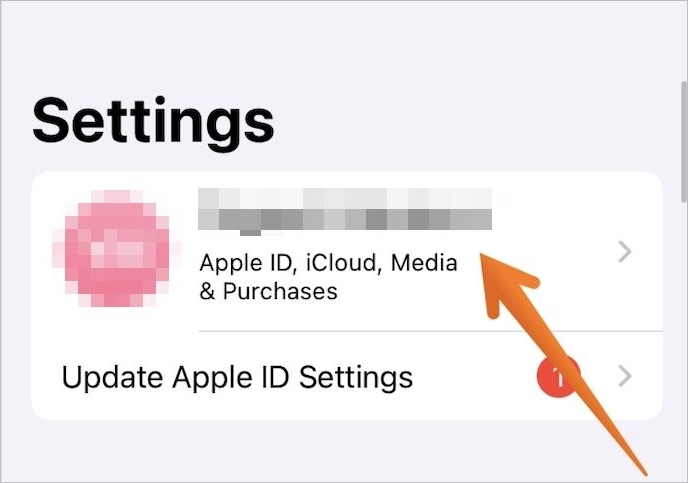
Step 2. To find the sign out, scroll down on your screen. Once you find it, tap on it.
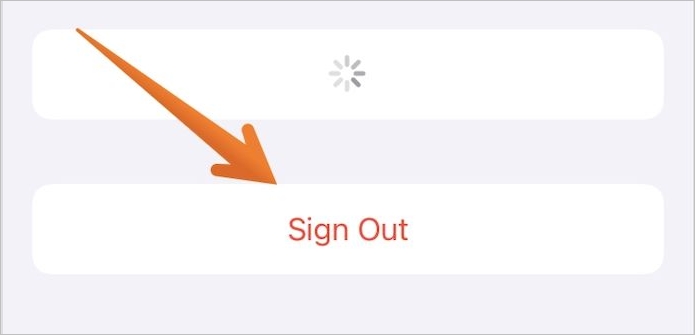
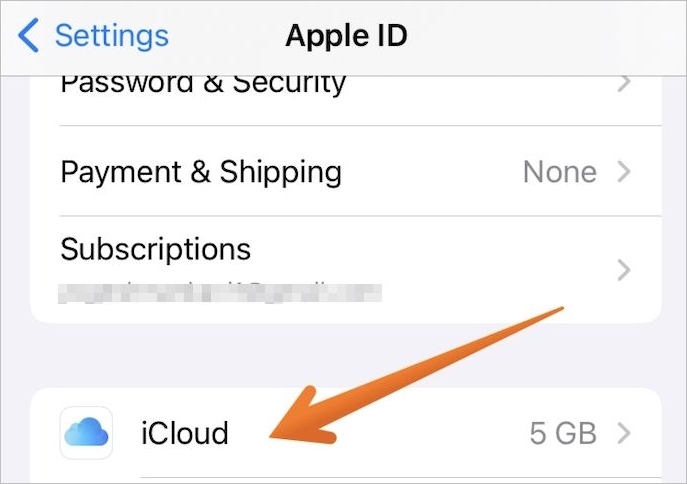
Step 3. To save a copy of your iPhone data, go to the "Keep a copy of your data on this iPhone" section, and then select the iCloud option.
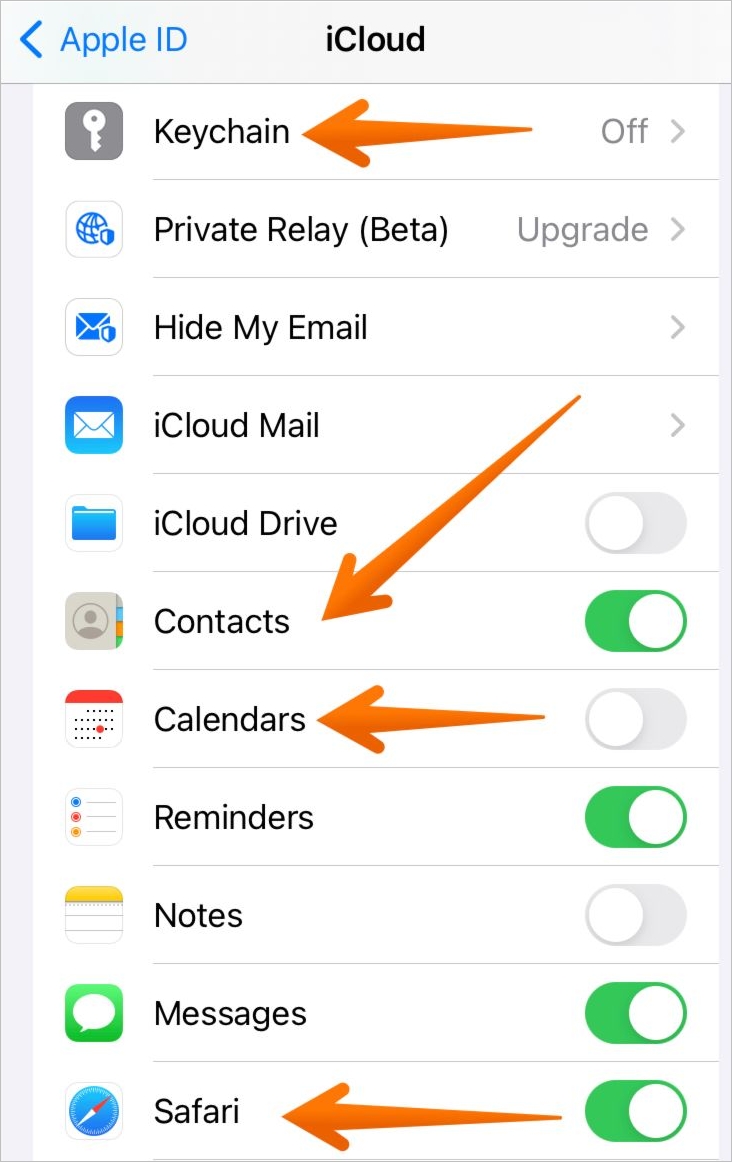
Step 4. Turn on contacts, calendars, keychains, and Safari.
Step 6. To sign out of Google Drive, click on your profile picture in the top right corner of the screen, then select "Sign out" from the dropdown menu.
Step 7. To access your Apple ID, go to Settings, then tap on your name at the top of the screen. From there, select "Sign Out" and then "Sign In" to log in with your Apple ID. After logging in, open the Contacts app to see if the missing contacts have been synced back into your account.
Fix 3. Turn on Contacts off and on in iCloud
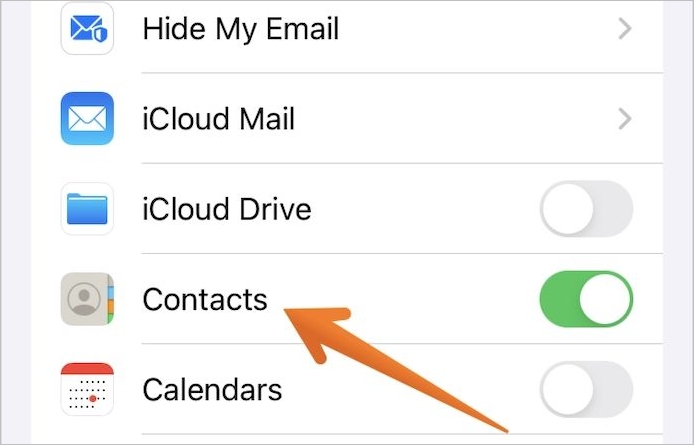
Step 1. To access iCloud settings, go to the Settings app, navigate to "Profile", and then select "iCloud" from the options listed.
Step 2. Tap on "Contacts" to disable it.
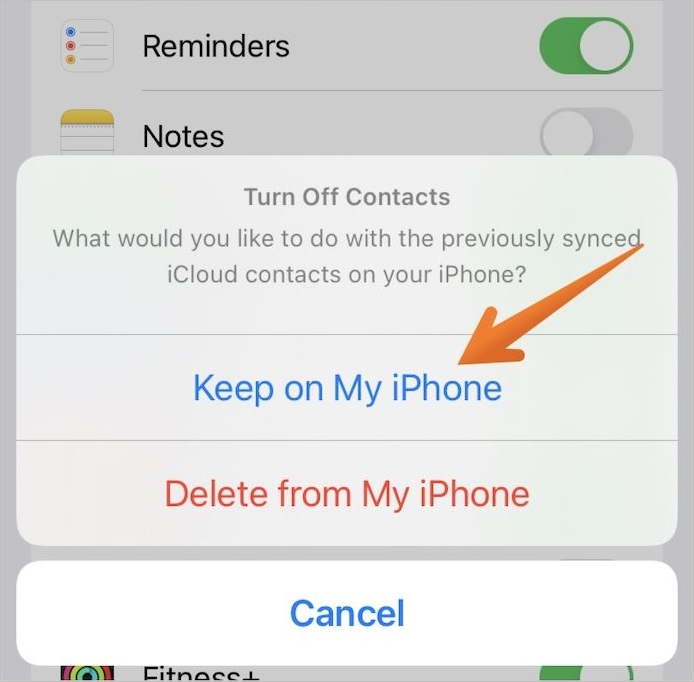
Step 3. Now, you will see a pop-up message – "What would you like to do with the previously synced iCloud contacts on your iPhone?" Press the "Keep on My iPhone" option.
Step 4. After the initial pop-up, another one will appear asking what you'd like to do with existing local contacts on your iPhone. Click on the "Merge" option, then wait for some time to allow the process to complete.
Step 5. If you're experiencing issues with missing contacts on your iPhone, try restarting your device. Subsequently, go to the settings app, then tap on your name, and select "iCloud." From there, toggle off the "Contacts" option. Wait for a few minutes, then toggle it back on.
Step 6. To try and resolve the issue, you can try restarting your iPhone. This will refresh the operating system and might resolve any connectivity issues that were preventing the contacts from syncing. Simply press and hold the Sleep/Wake button until the "Slide to Power Off" option appears, then slide it to the right to turn off your iPhone.
Note: When you click on the "Delete from My iPhone" option, all synced contacts will be deleted. You can click on this option and wait as iCloud restores your contacts. This method requires trusting iCloud to recover your contacts. Alternatively, you can choose the "Keep on My iPhone" option, which keeps your contacts intact. The "Delete from My iPhone" option is a viable choice if you're looking to remove synced contacts.
If you're willing to take the risk, you can choose to keep your data on your iPhone. However, if you're not comfortable with that, the Keep on My iPhone option is a relatively safer choice.
Fix 4. Change Groups Settings
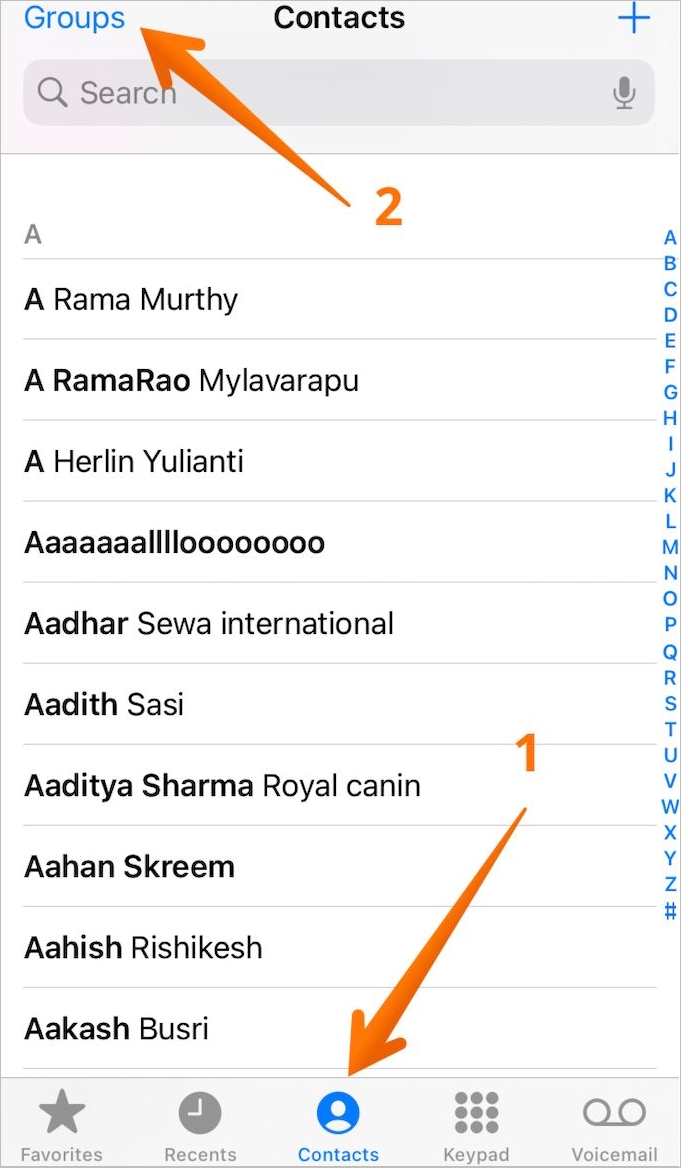
Step 1. Go to the "Phone" app. Click on the Contacts tab.
Step 2. To select the "Groups" option, click on the top-left corner of the screen where it says "Groups" and click on it.
Step 3. Untick the All iCloud option.
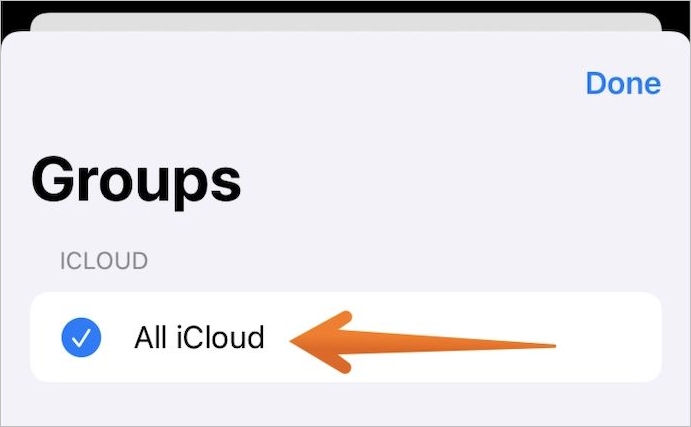
Step 4. To resolve the issue of missing contacts, click "Done" at the top of the screen, then check the Contacts app to see if the missing contacts appear. If they do, add them to the address book.
Step 5. After selecting the "Group" option, go back to it again and tick or select the "All iCloud" option.
Fix 5. Restore Missing iPhone Contacts from iTunes Backup
Step 1. To sync your iPhone with iTunes on a Windows system, start by opening iTunes. If you're using a macOS, you can click on the Music app instead.
Step 2. To connect your iPhone to a computer, start by opening the Settings app on your iPhone. Then, tap on "General" and select "About". Next, look for the "Trust this Computer" option and click on it.
Step 3. To access your iPhone's information on iTunes, click on your iPhone's name from the left-hand sidebar.
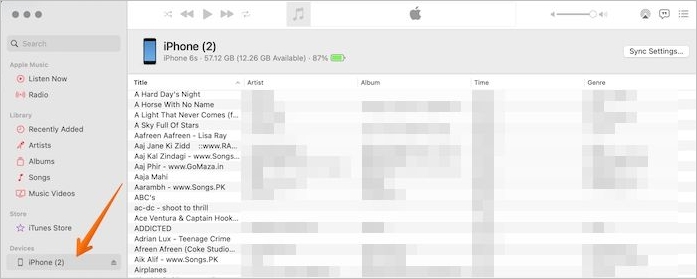
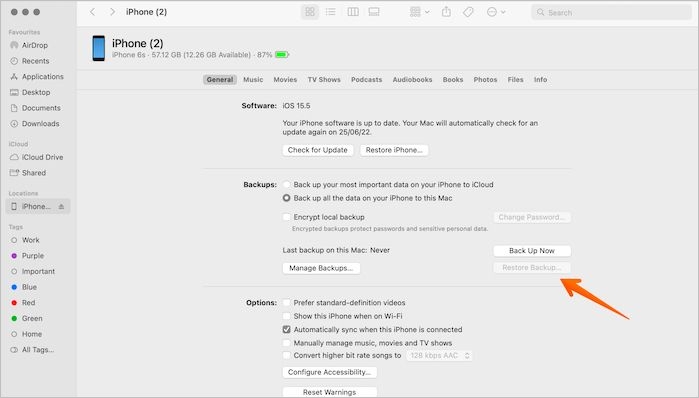
Step 4. To restore a backup, click on the "Summary/Sync Settings" button, then press the "Restore Backup" button in the "General" tab.
Fix 6. Restore Missing iPhone Contacts from iCloud Backup
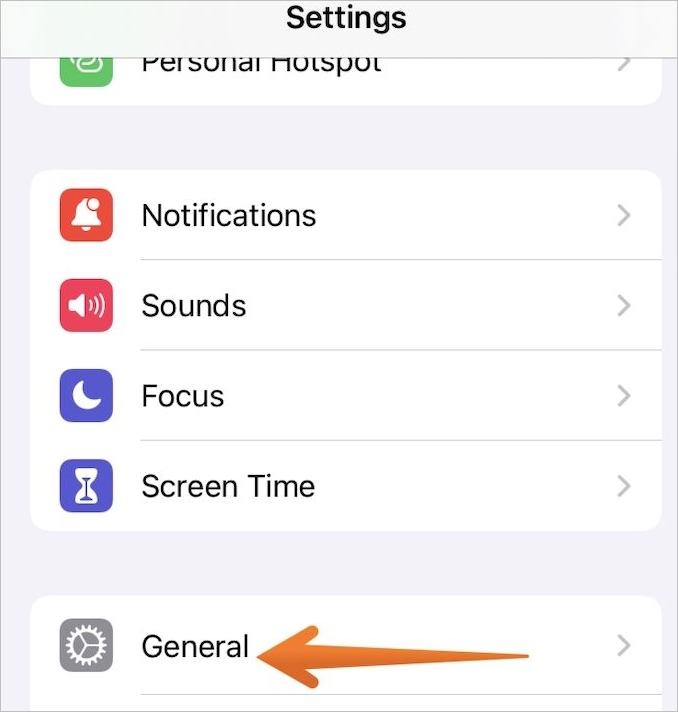
Step 1. Open the Settings app. Then select the General option.
Step 2. Select the latest backup from the list of backups and click on the "Restore Backup" button.
Step 3. To resolve the missing contacts issue on your iPhone, wait for the backup process to complete, then restart your iPhone. After restarting, check if the missing contacts are visible. If they still don't appear, you can try restoring your iPhone from the backup you created earlier. This should recover your contacts. If the issue persists, it's possible that the contacts were deleted or synced incorrectly, and you may need to manually re-sync them.
Step 4. Tap on the "Transfer or Reset" option.
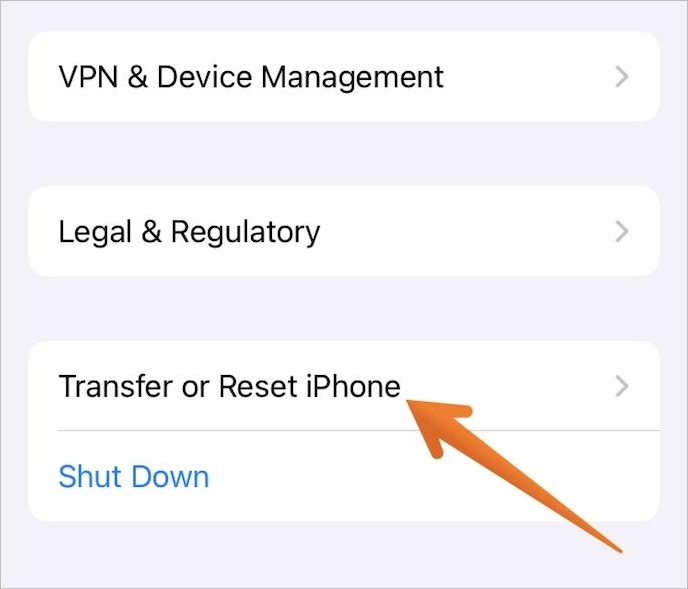
Step 5. Now, select the "Erase all content and settings" option.
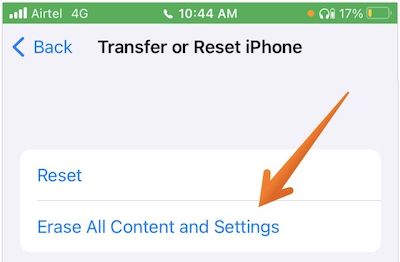
Step 6. To restore your iPhone data, open the "Apps & Data" screen, select "Restore from iCloud Backup", log in to your iCloud account, and choose the backup you want to restore from.
Step 7. Re-conform that you want to do that and wait for the process to be over. Now, you need to check if the missing contacts have come back.
Fix 7. Directly Restore Missing Contacts on iPhone Without Backup
You can also use professional data recovery software, such as Qiling MobiSaver, to resolve missing contacts on your iPhone without a backup. This software offers various recovery modes to help restore data, including missing contacts.
The Qiling MobiSaver software is compatible with both Mac and Windows, and is capable of restoring lost data from iPhones, iPads, and iPods.
You can rely on Qiling MobiSaver to help you recover missing contacts, as well as other data such as photos, videos, audio, WhatsApp attachments, and Safari bookmarks.
The three recovery modes that the software offers are:
- Recover from iOS devices.
- Recover from Backup.
- Recover from iTunes Backup.
You can retrieve unlimited iOS data and get reliable technical assistance with a software that is easy to use and takes only a few minutes to operate.
Steps to Use MobiSaver to Recover Deleted Data on iPhone
To recover deleted data on iPhone using Qiling MobiSaver, follow these steps.
Step 1. Connect iPhone to Your PC
Launch Qiling MobiSaver, click "Recover from iOS device" on the left, and then click "Start".
Step 2. Scan for Lost iPhone Data
Qiling MobiSaver will automatically scan your iPhone/iPad/iPod, finding both present and potentially lost data, and will complete the scan once finished.
Step 3. Click the "Recover" Button
You can select the lost data such as photos, videos, contacts, SMS, notes, voice mails, and other files you want to recover and save them to another location.
Tips to Avoid Contacts Missing
There are various ways to combat the crisis of contacts missing from your iPhone. These are:
- Kill the contacts app
- To ensure that the default account includes the "iCloud" option, we can modify the existing code to include this feature in the default account settings. This can be achieved by adding a new line of code that specifies the "iCloud" option as the default account type.
- Resetting the network connections
Summary
If you're experiencing the issue of missing contacts on your iPhone, there are various methods you can try to resolve the problem. You can attempt any of the listed methods, but if none of them work, you can consider using data recovery software such as Qiling MobiSaver.
Related Articles
- FIX 'Attempting data recovery' on iPhone X/8/7/6 After iOS 12 Update
- How to Recover iPhone Data from Lost or Overwritten iTunes Backup
- Full Guide to Restore LINE Chat from Google Drive (iPhone & Android)
- Top 4 Best iPad for Students That Really Work
- Deep Data Recovery Stuck Or You Recieve Error Messages? Fixes Here!
To resolve Deep Data Recovery issues with Qiling, such as a deep scan getting stuck, taking too long to scan a disk, or getting stuck building a new directory, try restarting the application, checking for disk space and ensuring the disk is not full, or running the scan on a different disk. - Free Download Deep Data Recovery Torrent, Serial Key
Learn how to recover lost photos, documents, videos, and other files with Qiling data recovery software using safer recovery steps.
Products
Articles & Tutorials
- Data Recovery
- Data Backup
- File Recovery
- File Backup
- System Backup and Restore
- Disk and Partition Clone
- Technical articles
- Mobile articles
- Disk Master Help
- Windows Data Recovery Tutorials
- Windows Secure Delete Tutorials
- Windows Partition Management Tutorials
- Windows File Backup and Restore Tutorials
- Windows System Backup and Restore Tutorials
- Windows Disk Backup and Restore Tutorials
- Windows Clone Tutorials